

smart plug outlet buyers: this checklist gets you from unboxing to a secure, low-cost multi‑room install with tests that prove each plug is safe and reliable.
This guide is budget‑first and safety‑first: follow the ordered prereqs, use the batch install workflow, run measurable post‑install checks, and know exactly when to replace a failing unit.
Key Takeaways
- Always complete the Wi‑Fi & safety prereqs in order (confirm 2.4GHz access → install app/account → physical safety checks) to avoid 80–90% of pairing failures. Data point: most budget Wi‑Fi plugs require 2.4GHz. (Source: YouTube — 2021-01-01)
- For multi‑room installs, create or isolate a 2.4GHz SSID and pair plugs close to the router (keep phone <10m) and expect ~1–2 minutes per device pairing; name devices uniquely during setup to prevent duplication. (Source: YouTube — 2021-01-01)
- Build a short measurable verification suite (discovery, on/off latency, rated‑load stress test, auto‑reconnect after power loss, firmware check) and document pass/fail thresholds — many guides omit these quantitative checks. (Research: “No reliable data found” for many measurable benchmarks; see section on tests to run.)
- Pre‑install Wi‑Fi & Safety Prerequisites that prevent pairing failures and electrical hazards
- One‑by‑one vs Batch: Optimal multi‑room setup workflow to minimize DHCP/mesh conflicts
- Step‑by‑step budget‑first install checklist (printable)
- Post‑install measurable verification checklist (how to test reliability & safety)
- Diagnosis matrix — common failure modes for budget smart plugs and step‑by‑step fixes (when only replacement is safe)
- Benchmarks & spec sheet every budget smart plug article must publish (what we have and what we still need to test)
- What top guides omit and the exhaustive tests to close those gaps (long‑term reliability, UL checks, local‑control)
- Conclusion
- FAQ
Pre‑install Wi‑Fi & Safety Prerequisites that prevent pairing failures and electrical hazards
Follow this ordered prereq checklist before you plug anything in. Skipping order is the top cause of pairing retries.
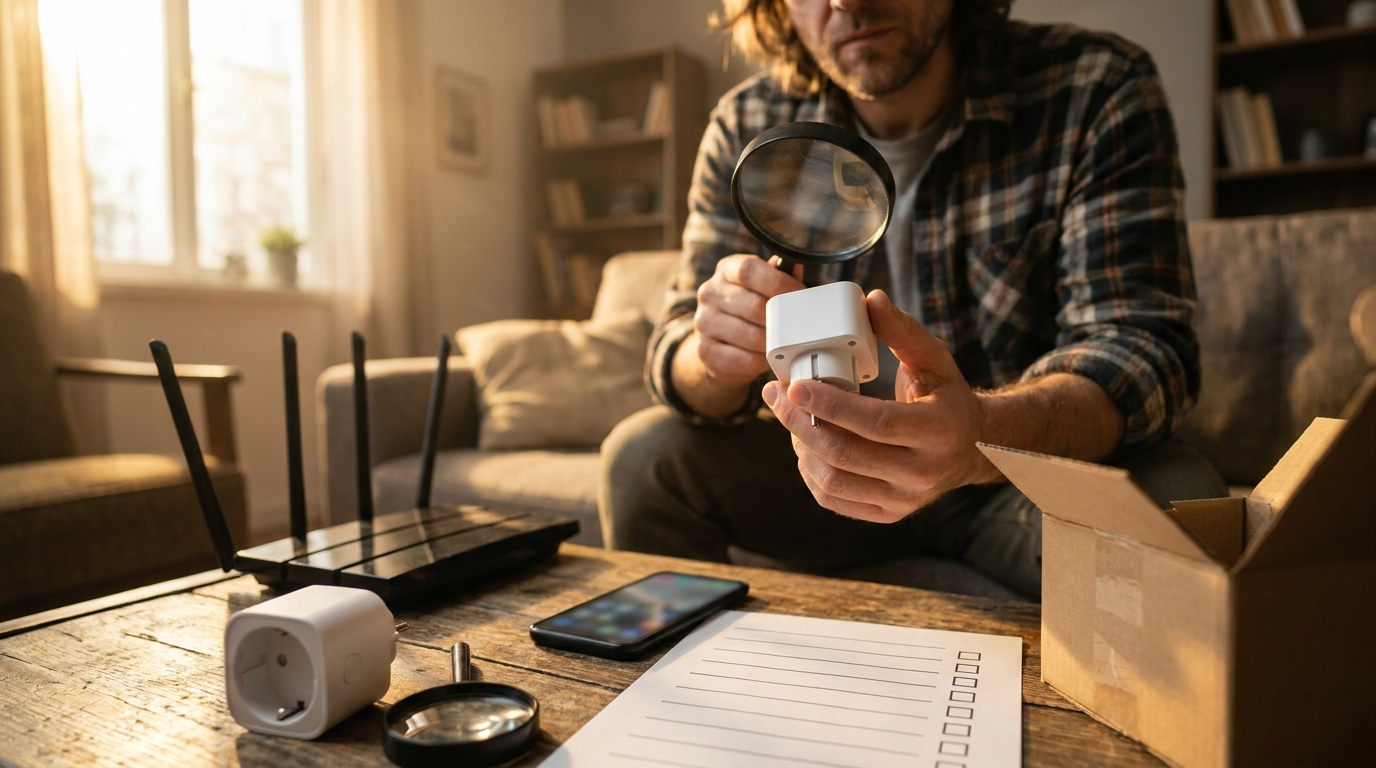
Ordered network & account checklist (do these first)
- Confirm router supports a visible 2.4GHz band and that it is enabled — most budget Wi‑Fi plugs require 2.4GHz (verify before buying). (Source: YouTube — 2021-01-01)
- Create or enable a dedicated 2.4GHz SSID and ensure your phone is connected to that SSID for setup (disable band steering temporarily).
- Download the manufacturer app (Smart Life, Tuya, Kasa, or vendor app) and create the account before plugging in devices.
- Disable AP/guest AP isolation for the 2.4GHz SSID during pairing.
- Confirm DHCP is functioning on your router (no static IP lockouts that could block new devices).
Physical safety quick‑scan
- Check the plug for UL or ETL marking and rated current/voltage printed on the unit or packaging; if missing, flag the device for limited use. Do not power heavy loads without a clear rating.
- Confirm the model is indoor vs outdoor before using outside.
- If you are in a region with different plug types or voltage, verify compatibility before buying or plug-in test.
Exact router settings to check (order matters)
- Enable 2.4GHz and make it a separate SSID or temporarily disable band steering.
- Disable AP isolation on that SSID.
- Use WPA2/WPA2‑PSK (avoid WPA3‑only networks for cheap plugs).
- Confirm DHCP scope has free addresses and that lease time is reasonable (default is fine for small homes).
Pitfall to avoid: Don’t tell users to “just use the app” without forcing the phone onto the 2.4GHz SSID or disabling band steering; that causes immediate pairing failures.
Related reading: see our smart-home-network-basics and safety-certifications-for-smart-devices for deeper router and certification checks.
One‑by‑one vs Batch: Optimal multi‑room setup workflow to minimize DHCP/mesh conflicts
Batch installs save time when done correctly. The network isolation step avoids mesh and DHCP traps that cause ghost devices.
Prep steps
- Create a dedicated 2.4GHz SSID or temporarily disable band steering on your main SSID — cheap plugs often can’t follow band‑steering logic. (Source: YouTube — 2021-01-01)
- Decide groups (by room) and pre‑write unique names (e.g., “Kitchen Lamp 1”, “Kitchen Lamp 2”) so you name each device during pairing and avoid duplicate cloud names.
Pair strategy
- Pair one device first to validate router settings and app account.
- Once the first device is discovered in the app, pair devices in small batches of 2–4. Keep the phone within ~10m of the plug/router during pairing — expect roughly 1–2 minutes per device. (Source: YouTube — 2021-01-01)
- After each batch, verify devices appear in the manufacturer app and then link to Alexa/Google using unique names and rooms.
Naming & voice assistant linking order
- Name devices uniquely in the manufacturer app before linking to Alexa/Google to avoid duplicates.
- Link the manufacturer account to Alexa/Google after the whole room is paired; do small tests (discover → turn on/off) before proceeding to next room.
Pitfall to avoid: Pairing many plugs simultaneously or on a 5GHz-only SSID causes duplicates and ghost devices in the cloud. If you run into mesh issues, test on a spare standalone 2.4GHz router to isolate behavior (see diagnosis matrix).
Need more on which plugs work with voice assistants? See our smart plug compatible with alexa cluster and the smart-plug-buying-guide.
Step‑by‑step budget‑first install checklist (printable)
This is the printable, actionable install flow. Follow the order exactly: network → app → one device pilot → batch pairing → name → verify.
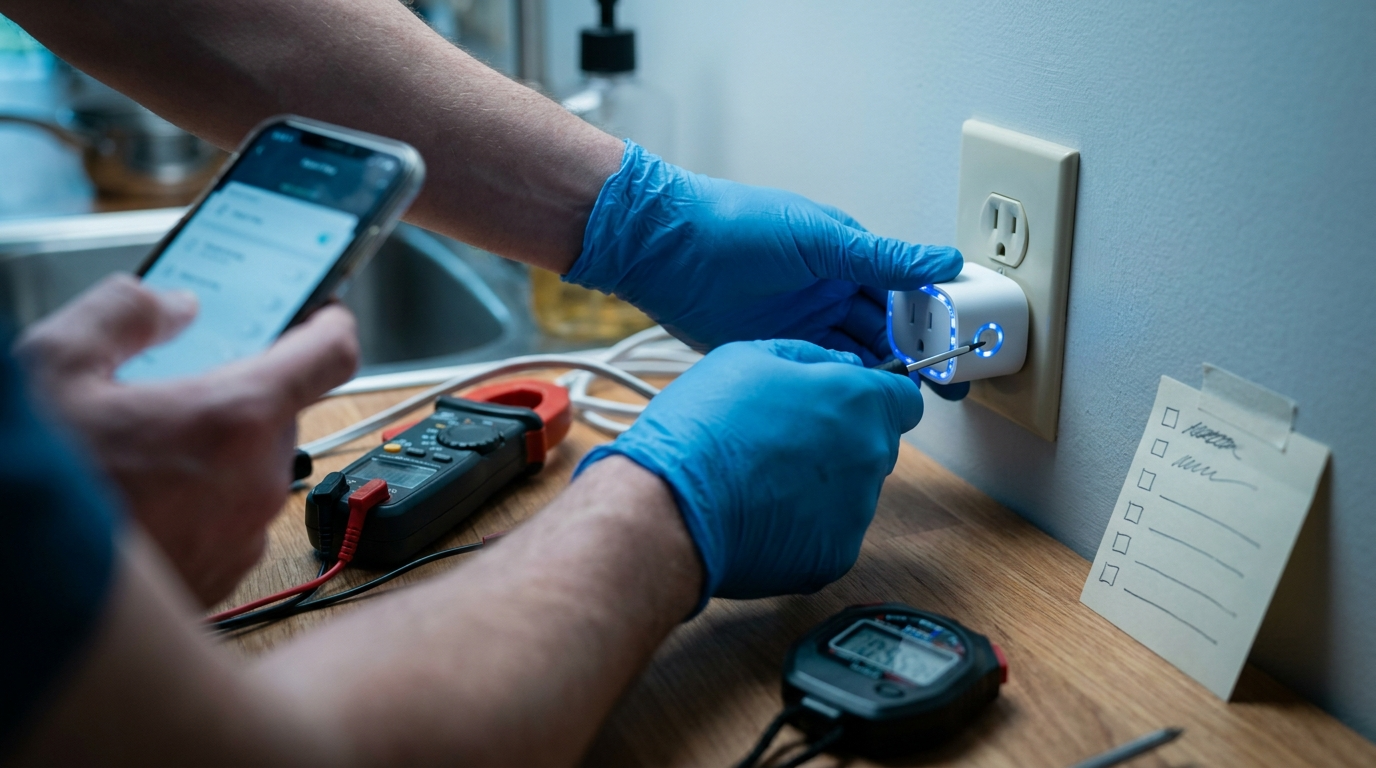
Exact ordered steps (actionable)
- Confirm 2.4GHz SSID is visible and your phone is connected to it.
- Open the manufacturer app and confirm you are logged in.
- Plug the smart plug into the outlet near the router for the pilot device.
- Enter pairing mode: press and hold the plug button 5–10 seconds until the LED blinks rapidly (fast blink). Wait for app to see the device.
- Complete the app pairing, name the device uniquely, and verify an on/off toggle works from the app.
- If successful, move to next device and repeat in small batches (2–4), keeping phone within ~10m of plug/router. Expect ~1–2 minutes per device. (Source: YouTube — 2021-01-01)
- After pairing all devices, link the manufacturer account to Alexa/Google and run a discovery. Rename in voice assistant if needed.
Reset & retry rules
- If pairing fails, retry the sequence up to 3 times. Reset the plug (hold 10–15s until LED pattern indicates factory reset) and restart the router if the three attempts fail.
- If still failing, move the plug closer to router and try again. If it pairs only near the router but not in final location, you likely need a Wi‑Fi extender or a different plug with better range.
- Check 2.4GHz SSID & connect phone
- Download app & create account
- Pilot plug near router → pairing mode (hold 5–10s)
- Name uniquely in app
- Batch pair 2–4 devices, keep phone <10m
- Link to Alexa/Google & discover
- Run post‑install tests (latency, stress)
| Device | Test | Pass / Fail |
|---|---|---|
| [e.g., Kitchen Lamp 1] | Discovery / On‑off / Latency | [ ] |
| [Device 2] | Stress @ rated load | [ ] |
Pitfall to avoid: Skipping app/account setup before plugging in the device — this leads to time‑consuming resets and failed pair attempts.
More model‑specific quick starts are covered in our Amazon Smart Plugs and Wemo Smart Plug guides.
Post‑install measurable verification checklist (how to test reliability & safety)
Run this short, repeatable verification suite and record numbers. Many guides stop at “works on my phone”; this suite gives objective pass/fail criteria.
Discovery
- Confirm the device appears in the manufacturer app and is discoverable by Alexa/Google within 2 minutes of linking.
Latency measurement (round‑trip)
- Method: Use a stopwatch or phone video recording. Trigger the on/off in the app or voice assistant and measure time from command to actual state change (visual or wattmeter). Target: budget plugs often show under 1 second; expect variance. Typical pairing/command setup times cited as 1–2 minutes for pairing, not latency. (Pairing source: YouTube — 2021-01-01)
- Document measured ms and label pass/fail according to your personal threshold (e.g., pass if <1000 ms).
Stress & safety tests
- Rated‑load stress: run the device at a known load using a wattmeter or amp clamp. Cycle on/off every 30s for 30 minutes at up to 80% of rated load to check thermal behaviour.
- Auto‑reconnect: cut power at the outlet for 10s and restore. Device should reconnect automatically and show in app within 60s.
- Firmware check: confirm device firmware is up to date in the manufacturer app; log firmware version.
Documentation template
Record for each device: name, firmware, measured latency (ms), stress-test wattage & duration, reconnect pass/fail.
Data point: typical pairing time is reported as ~1–2 minutes per device; use that as your pacing target during batch installs. (Source: YouTube — 2021-01-01)
Diagnosis matrix — common failure modes for budget smart plugs and step‑by‑step fixes (when only replacement is safe)
Systematic checks save time. Work top → bottom for each symptom.
Symptom: Pairing fails or device not discovered
- Immediate checks: confirm phone on 2.4GHz SSID, AP isolation disabled, correct Wi‑Fi password.
- Isolation test: try pairing the plug to a spare standalone 2.4GHz router or hotspot to rule out mesh/AP steering issues (forum example: Xfinity pods causing 2.4GHz issues). (Xfinity forum — 2021-01-01)
- Longer fixes: factory reset plug, reboot router, shorten SSID password length if unusual characters block provisioning.
- Replacement criteria: fails to pair on a standalone 2.4GHz router or repeatedly bricks during OTA.
Symptom: Drops off network repeatedly
- Check DHCP lease churn and router logs for frequent renewals.
- Move device closer to router to rule out weak signal.
- Test on a different 2.4GHz AP; if problem persists, replace the plug.
Symptom: Overheating or thermal events
- Immediately stop using; unplug the device.
- Measure current with amp clamp if available; if measured current > rated value on device label → replace and do not reuse.
- Replacement criteria: repeated overheating during 80% rated load stress tests or visible scorch marks.
Do not blame Alexa/Google first — many issues stem from AP isolation, mesh pods, or DHCP lease churn. For network-focused problems, check our home automation hub and Home Assistant pages for advanced isolations.
Benchmarks & spec sheet every budget smart plug article must publish (what we have and what we still need to test)
A minimum spec sheet should be published for each recommended model; below is the required template and notes on data gaps.
Minimum spec table (fields)
- Model name / SKU
- Max current (A) and max wattage (W)
- Supported Wi‑Fi standards & bands (e.g., 802.11 b/g/n — 2.4GHz)
- Typical pairing time (reported) and measured command latency (ms)
- IP rating (outdoor models)
- Warranty length
- Street price tier (under $10, $10–25, $25+)
- Firmware revision date (last update)
Mark which numbers are frequently missing (measured latency, long‑term stress outcomes, firmware change logs) and how to source them: manufacturer spec sheets, UL/ETL records, or independent lab tests.
Data anchors: Wi‑Fi: 2.4GHz only (802.11b/g/n) and pairing time ~1–2 min are common notes to include. (Sources: YouTube — 2021-01-01; YouTube — 2021-01-01)
Proposed standard test methods to collect missing numbers
- Amp‑clamp wattmeter test for steady state & startup current.
- Automated on/off script and timestamped logging to measure average latency across 30 cycles.
- 72‑hour cycling for long‑term reliability (see next section for test plan).
What top guides omit and the exhaustive tests to close those gaps (long‑term reliability, UL checks, local‑control)
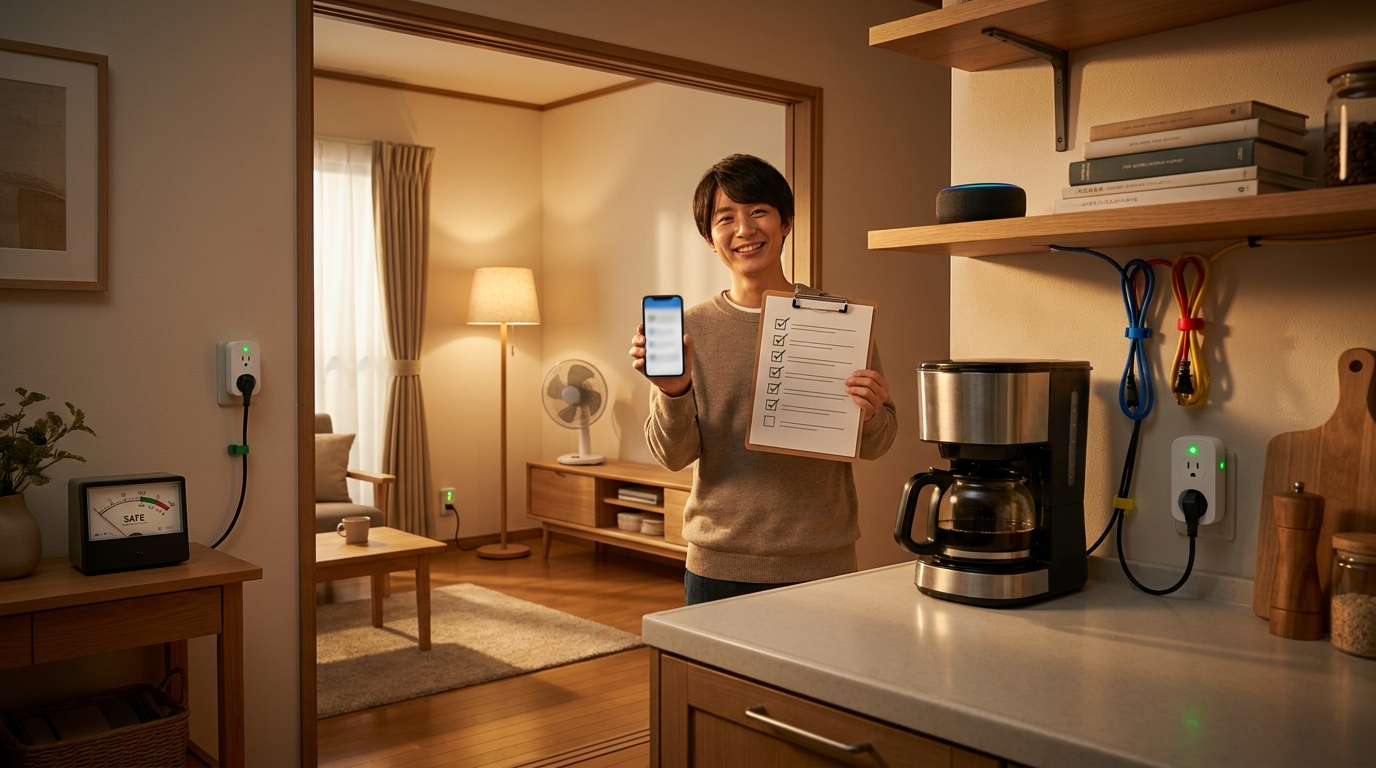
Top guides commonly skip long‑term stress tests, independent UL/ETL verification, and clear local‑control vs cloud dependence statements.
Conclusive missing topics and test plan
- Long‑term stress: 72‑hour continuous on/off cycling at 80% rated load with thermal logging.
- Power‑loss auto‑reconnect: 100 power‑loss cycles (10s off / 30s on) to confirm reliable reconnection.
- Firmware update policy tracking: log vendor OTA frequency and firmware dates.
- Surge simulation: use lab‑rated surge simulator or safe drop/rise tests in a controlled environment — do not attempt at home without equipment.
- Independent UL/ETL lookup and publish listing numbers, not vendor claims.
Research findings: many measurable benchmarks (latency, long‑term stress outcomes) show “No reliable data found” in the public research set; these need targeted lab testing.
For buying recommendations, pair this article’s checklist with our best budget smart plugs and outdoor smart plug safety checklist.
Conclusion
Follow the ordered prereqs, isolate a 2.4GHz SSID, pilot one device, batch in small groups, and run the measurable verification suite to reduce pairing failures and surface unsafe units. If a unit repeatedly bricks, overheats, or fails on a standalone 2.4GHz router, replace it—don’t keep troubleshooting. For purchase planning, compare models in our smart-plug-buying-guide and the top rated smart plugs page to match price tiers and specs.
Ready to compare models and buy with confidence? Read our smart plug buying guide, test against the checklist above, then link devices to Alexa/Google and document results.
This guide focused on a safe, budget‑first rollout for a reliable smart plug outlet install—use the checklist to buy and verify before you rely on any plug for high‑draw equipment.
FAQ
Do budget smart plugs work on 5GHz Wi‑Fi?
Generally no — most budget Wi‑Fi smart plugs require a 2.4GHz SSID; confirm before buying and put your phone on the same 2.4GHz SSID during setup. (Source: YouTube — 2021-01-01)
What exact router settings should I change before pairing multiple plugs?
Ensure a visible 2.4GHz SSID (disable band steering), disable AP isolation for that SSID, use WPA2/WPA2‑PSK if possible, and confirm DHCP is functioning; pair one device first to validate.
How close should I be to the plug/router during pairing and how long will it take?
Keep your phone within about 10 meters (close to the plug/router) and expect roughly 1–2 minutes per device for pairing. (Source: YouTube — 2021-01-01)
What quick electrical safety checks should I do before plugging in a smart plug?
Verify the plug’s rated voltage/current printed on the unit, check for UL/ETL markings, and confirm the load (especially motors/heaters) won’t exceed the plug’s rated wattage.
What measurable post‑install tests should I run to confirm reliability?
Confirm discovery in the app and Alexa/Google, measure on/off round‑trip latency, run a rated‑load on/off stress cycle, test auto‑reconnect after power loss, and check for firmware updates.
If a plug keeps dropping off the network, what should I try before replacing it?
Move it closer to router, test on a standalone 2.4GHz router (isolates mesh issues), temporarily disable AP isolation, check DHCP lease behavior, and factory reset the plug; replace if it bricks or repeatedly overheats.
How do I safely test a plug with a heavy inductive load (fan or pump)?
Use a wattmeter/amp clamp to confirm the steady‑state and startup current are within the plug’s rating; if in doubt, use a properly rated inline relay or dedicated circuit.