

home assistant raspberry pi — a power-user checklist to buy the right parts, install Home Assistant OS on a Raspberry Pi, and validate a resilient SSD-backed deployment end-to-end.
Key Takeaways
- Prepare exact hardware: Pi 4 or 5 (4GB+ recommended), official-rated PSU (Pi 4: 5V/3A; Pi 5: 27W USB‑C PD), and prefer USB‑SSD boot for long-term reliability (stage and reserve DHCP before first boot). (Source: openelab.io — 2026-03-03)
- Follow a strict install & validation order: flash → onboarding → DHCP/static IP → SSH → install add‑ons (Zigbee2MQTT / Z‑Wave JS) → move recorder to SSD → enable automated snapshots and validate each step with targeted tests and snapshots.
- Test restores and monitor continuously: take immediate snapshot, perform scripted restores to a test device/VM, and add health alerts for undervoltage, DB bloat, and radio conflicts; document migration and recovery playbooks.
- Gather exact hardware so your Home Assistant Pi is reliable from day one
- Power, cabling and networking checklist that prevents undervoltage and flaky connectivity
- Power‑user, ordered installation checklist for Home Assistant on Raspberry Pi 4 (step‑by‑step)
- Zigbee & Z‑Wave USB stick compatibility and placement checklist to avoid radio conflicts
- Move recorder to SSD, tune retention, and prevent DB bloat (long‑term reliability)
- Post-install verification and health checklist — services, integrations, snapshots and remote access
- Common failure modes, diagnosis steps, and recovery playbook for Pi-based Home Assistant
- Performance numbers, scale guidance, and advanced optimizations for power users
- Conclusion
- FAQ
Gather exact hardware so your Home Assistant Pi is reliable from day one
Start with parts that match your reliability goals. Buy the right Pi, storage, and power before flashing any images.
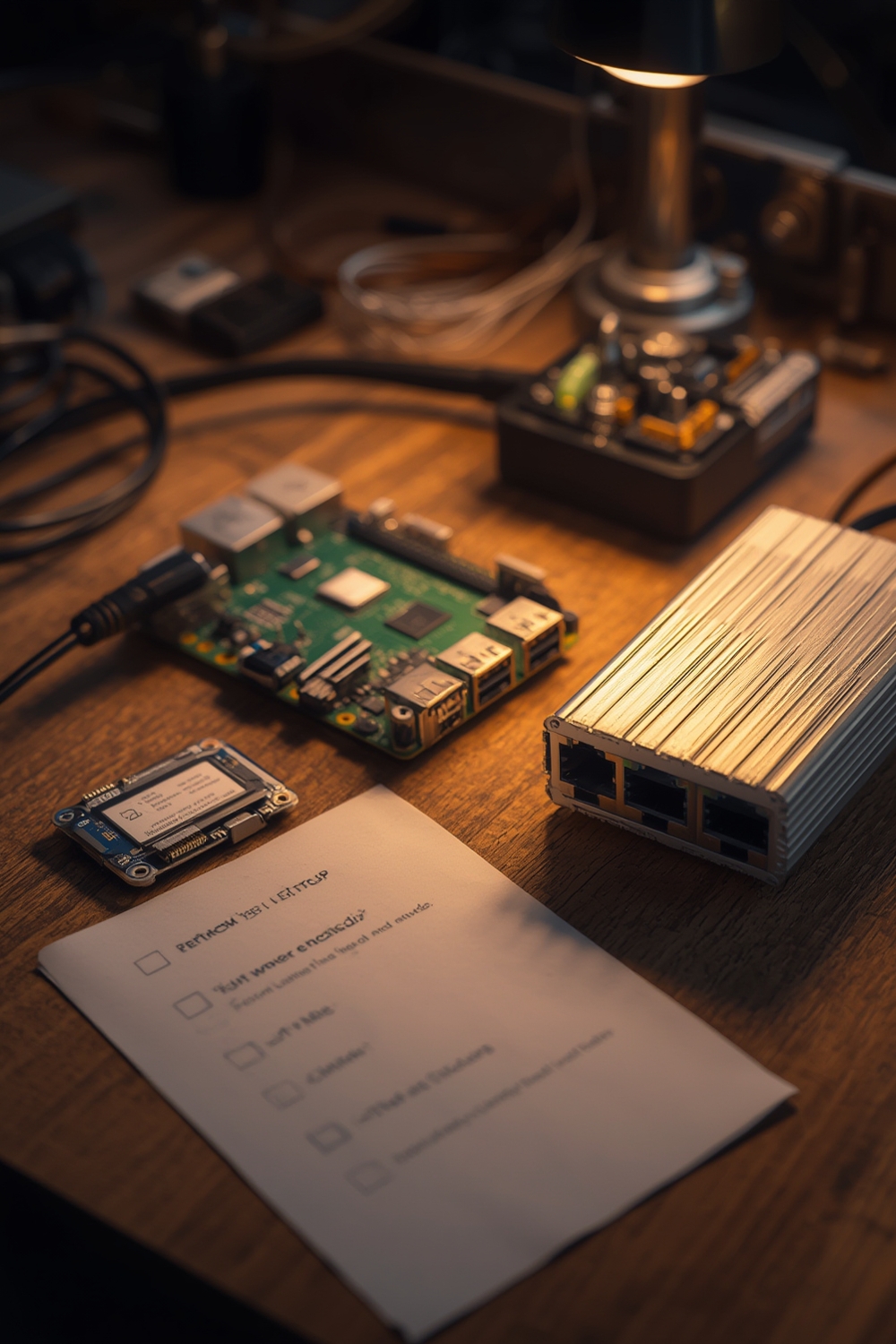
Minimum and recommended Pi models and RAM:
- Raspberry Pi 4 or 5 with minimum 2GB RAM; 4GB+ recommended for typical add‑on use, 8GB recommended for heavy local DB or many integrations. (Source: openelab.io — 2026-03-03)
- Pitfall to avoid: Don’t buy a 1GB/2GB Pi if you plan many add‑ons or local history — you’ll run out of memory and swap, leading to instability.
Storage choices and microSD specs:
- MicroSD for initial flash/testing: A2 class or better, 32GB minimum. For long-term reliability plan USB‑SSD boot or PCIe HAT SSD on Pi 5. (Source: openelab.io — 2026-03-03)
- Tradeoff: microSD makes installs cheap and portable but is prone to wear under recorder/DB pressure. SSD reduces wear and improves I/O.
Power, case and cooling:
- Official power supplies (see next section) are required; avoid phone chargers. Choose a case with active cooling if you run heavy automations or Zigbee radios.
- Pi5 PCIe/SSD HAT options: if you need a native NVMe path on Pi 5, budget for a verified PCIe HAT and compatible NVMe SSD.
- Vendor recommendations and compatibility details need further consolidation — see “Next Research Tasks” at the end for chipset and HAT research.
Power, cabling and networking checklist that prevents undervoltage and flaky connectivity
Proper power and an ethernet-first network plan remove common instability causes.
Power requirements and UPS guidance:
- Official power supplies: Pi 4 requires 5V/3A USB‑C; Pi 5 requires 27W USB‑C PD (vendor guidance). Use short, thick USB‑C cables to reduce voltage drop. (Source: openelab.io — 2026-03-03)
- UPS: choose a UPS with USB power output or a monitored UPS that can trigger clean shutdowns. Monitor power with Home Assistant sensors if the UPS integrates.
Networking checklist:
- Use wired Ethernet as primary. Reserve a DHCP address for the Pi in your router or set a static IP in the router UI before first boot to avoid IP drift.
- VLANs: place IoT radios on a dedicated VLAN if you want isolation; ensure mDNS/zeroconf routes if you rely on them for discovery.
- Switch port tips: use a managed Gigabit port and enable PoE only with a compatible PoE HAT.
Undervoltage detection and cable tests:
- Verify undervoltage by monitoring Home Assistant system-health and dmesg; watch for undervoltage warnings and throttling flags. Test cables by swapping with a known-good short, thick USB‑C cable.
- Pitfall: thin/long phone cables create voltage drop and intermittent throttling — don’t blame Home Assistant before checking cabling.
Power‑user, ordered installation checklist for Home Assistant on Raspberry Pi 4 (step‑by‑step)
Follow this strict order. Validate each step before moving to the next.
Flash options and first boot:
- Use Raspberry Pi Imager to write the Home Assistant OS image for Raspberry Pi 4 (choose OS under “Other specific-purpose OS”), then verify the write/checksum if available. (Source: openelab.io — 2026-03-03)
- Insert microSD, power on with official 5V/3A supply, open http://homeassistant.local:8123 or the reserved IP and complete web UI onboarding.
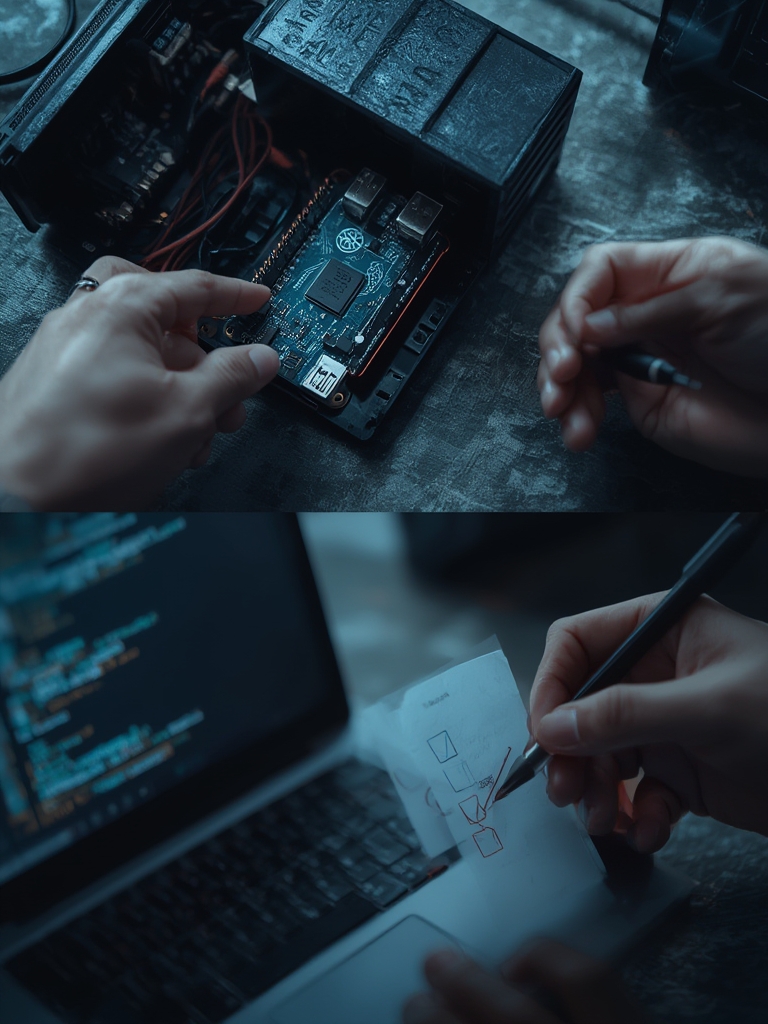
Ordered step list (critical)
- Flash Home Assistant OS → verify image.
- Boot with official PSU → complete web onboarding at reserved/static IP.
- Enable SSH and create vendor-locked SSH keys for automation access.
- Install Supervisor add‑ons in this order: Terminal & SSH, Samba (optional), File editor, then Zigbee2MQTT or Z‑Wave JS.
- Attach and mount SSD (confirm mount point with dmesg/lsblk) → move recorder to SSD or migrate to MariaDB.
- Configure automated snapshots and remote off‑site upload (S3/rsync) and take an immediate full snapshot.
Per-step validation tests
- PING/reserved IP success. Verify hostname resolves via mDNS or router ARP.
- SSH login test using keys, not password. Confirm port and key fingerprint.
- Check add‑on logs for “Started” or no errors; validate paired Zigbee devices send heartbeats.
- Confirm recorder files exist on SSD and run a sample query or check DB file size growth after 24h.
- Take a snapshot and confirm upload to off‑site storage succeeds.
Pitfall to avoid: Don’t postpone DHCP reservation or static IP configuration until after onboarding — do it first to prevent IP drift.
Zigbee & Z‑Wave USB stick compatibility and placement checklist to avoid radio conflicts
Physical placement and chipset choice prevent pairing failures and RF interference.
Placement and physical rules:
- Use a short USB extension cable to move radio sticks away from the Pi USB ports and Wi‑Fi antennas. Avoid stacking sticks directly on the Pi USB connectors.
- Prefer direct attach when possible. If using a powered USB hub, validate stick power draws and test for serial passthrough stability.
Chipsets and compatibility (research gap):
- There is no single authoritative compatibility table in our research set. We recommend waiting for a consolidated chipset matrix; proposed next task: compile Silicon Labs EmberZNet vs TI vs Z‑Wave chipset IDs and community-verified stick models. (Research required — see Next Research Tasks.)
Validation steps:
- Confirm persistent device path by checking /dev/serial/by-id after plug/replug.
- Pair one test device, verify heartbeat and state changes over 24–72 hours, and check add‑on logs for signal errors.
- If interference suspected, run Wi‑Fi channel surveys and relocate sticks or change Wi‑Fi channel to reduce overlap (2.4GHz Zigbee overlap).
Pitfall to avoid: Buying cheap generic sticks without verifying the chipset may leave you unable to use Z‑Wave or Zigbee firmware updates.
Move recorder to SSD, tune retention, and prevent DB bloat (long‑term reliability)
Recorder and history are the largest source of IO on Home Assistant; move them off microSD for durability.
Mount and migrate
- Attach USB‑SSD or use Pi5 PCIe HAT. Confirm mount point via lsblk and /etc/fstab or Home Assistant storage mount.
- Change recorder path in configuration.yaml or migrate to MariaDB on the SSD. Back up current DB before any migration.
Retention tuning and pruning
- Start with shorter retention (7–30 days) and increase only after verifying DB growth and query performance.
- Automate snapshots before changing retention or schema: implement an automation that creates a full snapshot and copies it off‑site.
Validation
- Monitor DB size growth daily for the first 7–14 days, and run SELECT COUNT(*) queries against events/state tables to measure rate.
- Schedule an integrity check and an automated snapshot prior to any large pruning operation.
Pitfall to avoid: Leaving recorder on microSD with default infinite retention will wear the card quickly and cause slow queries.
Post-install verification and health checklist — services, integrations, snapshots and remote access
Run these checks immediately after setup and after any major change.
- Supervisor → System → System Health: confirm services show healthy and no unresolved errors.
- Take a full snapshot and copy it to off‑site storage (S3/rsync/USB backup).
- Test remote access: WireGuard or TLS reverse proxy from an external network; validate entity counts and automations load correctly.
- Scripted restore test: perform a restore to a spare Pi or VM to verify snapshot completeness and restore steps work end-to-end.
Research note: We did not locate a canonical external post-install verification checklist in our research data — this is a next-step to audit Home Assistant docs and community guides for canonical tests. (See Next Research Tasks.)
Common failure modes, diagnosis steps, and recovery playbook for Pi-based Home Assistant
Catalog likely failures and how to diagnose them fast.
Common failure modes
- SD‑card corruption: sudden inability to boot or read writes.
- DB bloat: sluggish UI and high IO.
- Undervoltage/throttling: performance drops, erratic reboots.
- USB/Zigbee radio conflicts: pairing failures, dropped devices.
- Add‑on crashes and integration timeouts.
Diagnosis checklist
- Check home-assistant.log and supervisor logs for stack traces and errors.
- Use dmesg and journalctl to spot kernel-level errors, under-voltage flags or USB disconnect events.
- Inspect /dev/serial/by-id for persistent device paths to diagnose stick path changes.
Recovery & escalation
- Put instance into safe mode if Supervisor allows. Take a snapshot if possible.
- Restore snapshot to spare Pi or VM, verify services and automations, then plan live cutover.
- Migrate recorder/DB to SSD or move to an x86/NUC if I/O/CPU is limiting.
- If hardware suspected, replace PSU/cable first, then storage, then Pi board.
Research note: We did not find complete statistics on failure-mode frequency in our data — further community thread collection and vendor diagnostics are needed (see Next Research Tasks).
Performance numbers, scale guidance, and advanced optimizations for power users
Hard numbers we can cite and optimization guidance.
- MSRP examples: Raspberry Pi 4B 8GB RAM MSRP: $92; Raspberry Pi 5 8GB RAM street price: $100. (Source: community.home-assistant.io — 2026-03-03)
- Power specs: Pi 4 power: 5V/3A; Pi 5 power: 5V/3A (5A max) — verify with vendor docs. (Source: community.home-assistant.io — 2026-03-03)
Advanced optimizations (how to test/verify):
- Enable 64‑bit Home Assistant OS on Pi 4/5 if you need >4GB address space — test memory usage under a typical automation workload and compare swap activity.
- Choose Home Assistant OS vs supervised vs Docker: run a short benchmark of startup times, add‑on stability and ease of snapshot restore; document differences in your environment.
- Automated off‑site snapshots: measure upload times for your snapshot size and verify restore time to a spare device.
- WireGuard for remote access: validate connection from an external mobile network and test latency-sensitive automations.
Pitfall to avoid: Don’t recommend migrations without measured benchmarks. We list the necessary measurements in Next Research Tasks to collect I/O and scale numbers (entities/automations/events).
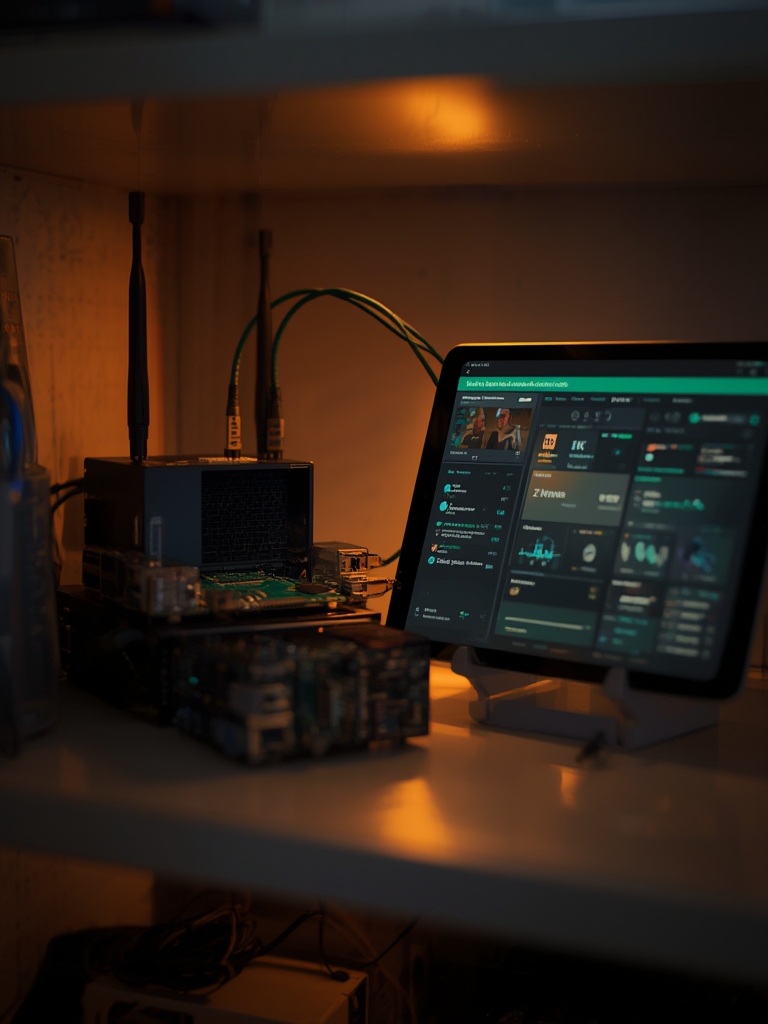
Printable single-sheet checklist
Download/print this block for build-day.
- [ ] Buy: Pi 4/5 (4GB+), official PSU (Pi4:5V/3A; Pi5:27W PD), A2 32GB microSD + USB‑SSD (or NVMe HAT), short thick USB‑C cable, Zigbee/Z‑Wave stick (verified chipset)
- [ ] Prepare: Reserve DHCP & note MAC; write HA OS image; verify PSU & cable
- [ ] Flash & Boot: Flash → power on → onboard at reserved IP
- [ ] Secure & Access: Enable SSH (keys), change default user, enable automatic snapshots
- [ ] Add‑ons: Install Terminal/SSH → Zigbee2MQTT or Z‑Wave JS → confirm logs
- [ ] Storage: Mount SSD → move recorder or migrate to MariaDB → test DB integrity
- [ ] Backup: Take full snapshot → copy off‑site → test restore to VM/Pi
- [ ] Monitor: Add alerts for undervoltage, DB growth, add‑on failures
- [ ] Recover: Document snapshot restore steps & hardware replacement checklist
- [ ] Verify: Run restore drill quarterly and update documentation
Conclusion
This checklist turns a basic Home Assistant Pi into a resilient, SSD-backed server with tested backups and recovery flows. Use the hardware guidance (Pi 4/5, official PSU, A2 microSD → USB‑SSD) and the ordered install → verify → snapshot → restore loop as your standard operating procedure to reduce downtime and SD wear. For deeper setup and security details, read our Home Assistant basics — getting started and Backups, snapshots and restore best practices, and follow Automations & best practices. If you need remote access alternatives, see Securing Home Assistant & remote access. Ready to buy hardware or compare kits? Check the product guides and then subscribe for lab-tested benchmarks and a Zigbee/Z‑Wave compatibility matrix we will publish after completing the Next Research Tasks.
FAQ
Which Raspberry Pi model and RAM should I buy for Home Assistant?
Buy at least Raspberry Pi 4 or 5 with 4GB RAM recommended for add‑ons and 8GB if you plan many integrations or local DB workloads (minimum 2GB supported). (Source: openelab.io — 2026-03-03)
Do I need an SSD or is a microSD card okay?
Use a high-quality A2 microSD for short-term testing but plan to migrate recorder/DB to a USB‑SSD (preferred for reliability; Pi5 PCIe HAT recommended). (Source: openelab.io — 2026-03-03)
What power supply and cable should I use to avoid undervoltage?
Use the official power supply (Pi 4: 5V/3A USB‑C; Pi 5: 27W USB‑C PD per vendor guidance) and a thick, short USB‑C cable to avoid voltage drop. (Source: openelab.io — 2026-03-03)
What immediate checks should I run after first boot?
Set/verify static IP or DHCP reservation, enable SSH, take a full snapshot, confirm system-health services are green, and validate that key integrations and add‑ons start without errors.
How do I test that my backups actually restore?
Perform a scripted restore to a test device or VM, verify entity counts and automations, and document restore time and any manual steps required.
When should I upgrade from Pi to an x86/NUC server?
Upgrade when sustained CPU, memory, or I/O indicates poor performance during typical loads (benchmarks needed); publish upgrade thresholds after gathering load-based metrics.
How can I secure remote access without using Home Assistant Cloud?
Use WireGuard or a reverse proxy with TLS and certificate pinning to provide cloudless secure access, and test connectivity from an external network.
Related deep dives: Home Assistant Raspberry Pi: 7 Easy Guide To Avoid Mistakes, Best Smart Home Devices: 7 Easy Guide to Improve Security, Home Assistant Not Connecting: Top 7 Best Picks Guide, Backups, snapshots and restore best practices, and Home Automation Hub: Top 7 Proven Best Picks.
Next Research Tasks (to publish final authoritative guide)
- G1: Compile a Zigbee/Z‑Wave chipset compatibility matrix with community-tested stick models and vendor chipset IDs (Silicon Labs, TI, Z‑Wave chipset families).
- G2: Produce tested USB‑SSD boot and firmware steps for Raspberry Pi 4 and Pi 5 PCIe HAT, listing vendor SSD compatibility and common failure notes.
- G3: Run lab benchmarks for CPU/memory/I/O under loads (50/200/500 entities), measure power draw idle/peak, and record boot/restore times.
- G4: Audit top community and Home Assistant docs for canonical post-install verification checks and extract exact system-health indicators to watch.
—