

wyze smart plug owners: start here if your plug drops offline, blinks, or works in the Wyze app but fails in Alexa/Google routines. This guide gives a budget-first, ordered troubleshooting flow — quick fixes, network isolation, exact logs to collect, and RMA-ready evidence so you can resolve most failures without a needless return.
- 30-second what-to-try now:
- Unplug the plug, wait 10s, plug back in (power-cycle) — capture a time-stamped photo of the LED if behavior persists. (Evidence: photo)
- Confirm your phone is connected to the 2.4 GHz SSID before any pairing or re-pair attempt. (Evidence: Wi‑Fi settings screenshot)
- Move to router the plug within 3–6 ft of the router and test; if it stabilizes, note signal strength and AP used. (Evidence: photo + router client list screenshot)
Decision flowchart (expand to view)
Symptom → Quick checks (power-cycle, 2.4GHz, move to router)
  ↳ Fixed → Monitor 24–48h
  ↳ Not fixed → Root-cause tests (DHCP pool, AP isolation, move to other AP)
    ↳ Network fix → Monitor
    ↳ Still failing → Advanced logs (Wyze event history, DHCP logs, pcap)
      ↳ Evidence supports RMA → Contact Wyze/seller with ticket
      ↳ Evidence inconclusive → Try factory reset & test one more time before escalating
Key Takeaways
- Start with the 2.4 GHz Wi‑Fi check and simple power-cycle steps — they resolve most Wyze plug offline cases; Wyze plugs are 2.4 GHz‑only (see external verification below).
- Follow a strict escalation: symptoms checklist → local-network isolation (SSID/band/DHCP/VLAN) → firmware/reset → logs to collect → support/RMA. Collect packet captures and router/DHCP logs before RMA when possible.
- If the plug works in Wyze app but fails in Alexa/Google routines, run an account/linking → skill → cloud → local-network isolation flow and collect Alexa/Google invocation timestamps and Wyze cloud timestamps before contacting vendors.
- Symptoms checklist — confirm exactly how your Wyze Smart Plug is failing so you don’t chase the wrong fix
- First-line fixes you can do in under 10 minutes (power-cycle, SSID/band check, move-to-router)
- Root-cause checklist — how to isolate Wi‑Fi band/SSID, DHCP/router settings, interference, and firmware bugs (ordered tests)
- Advanced fixes & logs to collect before contacting Wyze or returning the device (firmware rollback, packet captures, Wyze logs)
- When factory reset, router changes, and firmware rollback fail — exact escalation, RMA criteria, and seller actions
- Exact diagnostic flow when the plug works in Wyze app but shows “device not responding” in Alexa/Google routines
- Budget buyer playbook — buying, ownership costs, and safe-use rules for loads
- Conclusion
- FAQ
Symptoms checklist — confirm exactly how your Wyze Smart Plug is failing so you don’t chase the wrong fix
Before changing router settings or buying a replacement, document the exact symptom and how to reproduce it. Don’t assume the same symptom means the same root cause.
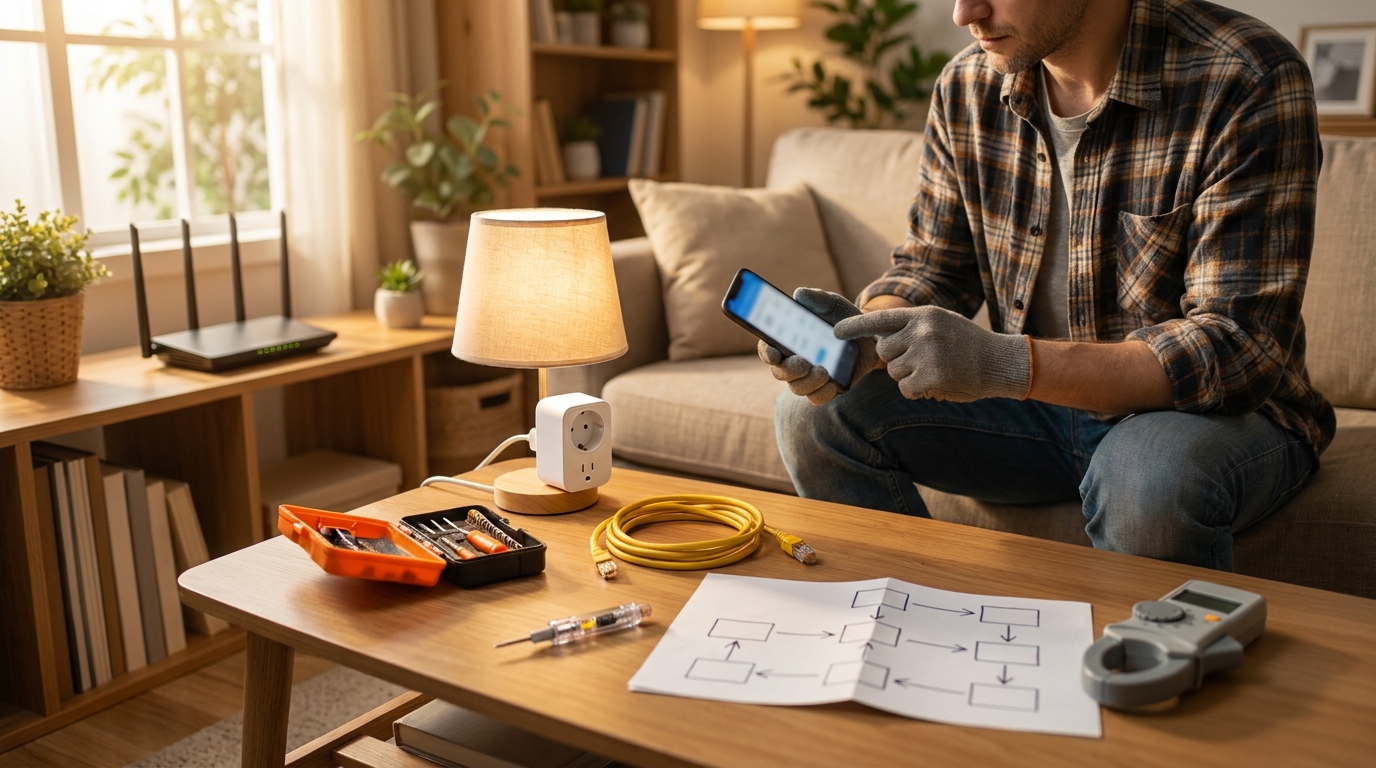
Short checklist (label each with time + required evidence)
- Offline in Wyze app — Time: 1 min. Evidence: timestamped screenshot of device status and device event history in the Wyze app.
- LED blinking pattern (steady, slow blink, fast blink) — Time: 30s. Evidence: short video or photo showing LED.
- Intermittent switching (turns off/on unexpectedly) — Time: reproduce for 5–15 minutes. Evidence: Wyze app event history screenshot with timestamps + photo of physical outlet and device.
- Works in Wyze app but fails in Alexa/Google routines — Time: 5 min. Evidence: timestamped routine run attempt in Alexa/Google and Wyze event history for the same timestamp.
How to reproduce and log: reproduce the failure, take a timestamped screenshot of the Wyze app events page, capture a short video of LED behavior, and take a photo of the outlet and plug orientation. Multiple forum reports show repeat user reports of plugs going offline and needing replugging (forum thread dated 2021-12-16: forums.wyze.com — 2021-12-16).
Pitfall to avoid: Assuming blinking LED always means a hardware fault — often it’s a Wi‑Fi band/SSID mismatch or DHCP/router issue.
First-line fixes you can do in under 10 minutes (power-cycle, SSID/band check, move-to-router)
These low-cost steps fix most offline and pairing failures quickly. Do them in order and document each attempt.
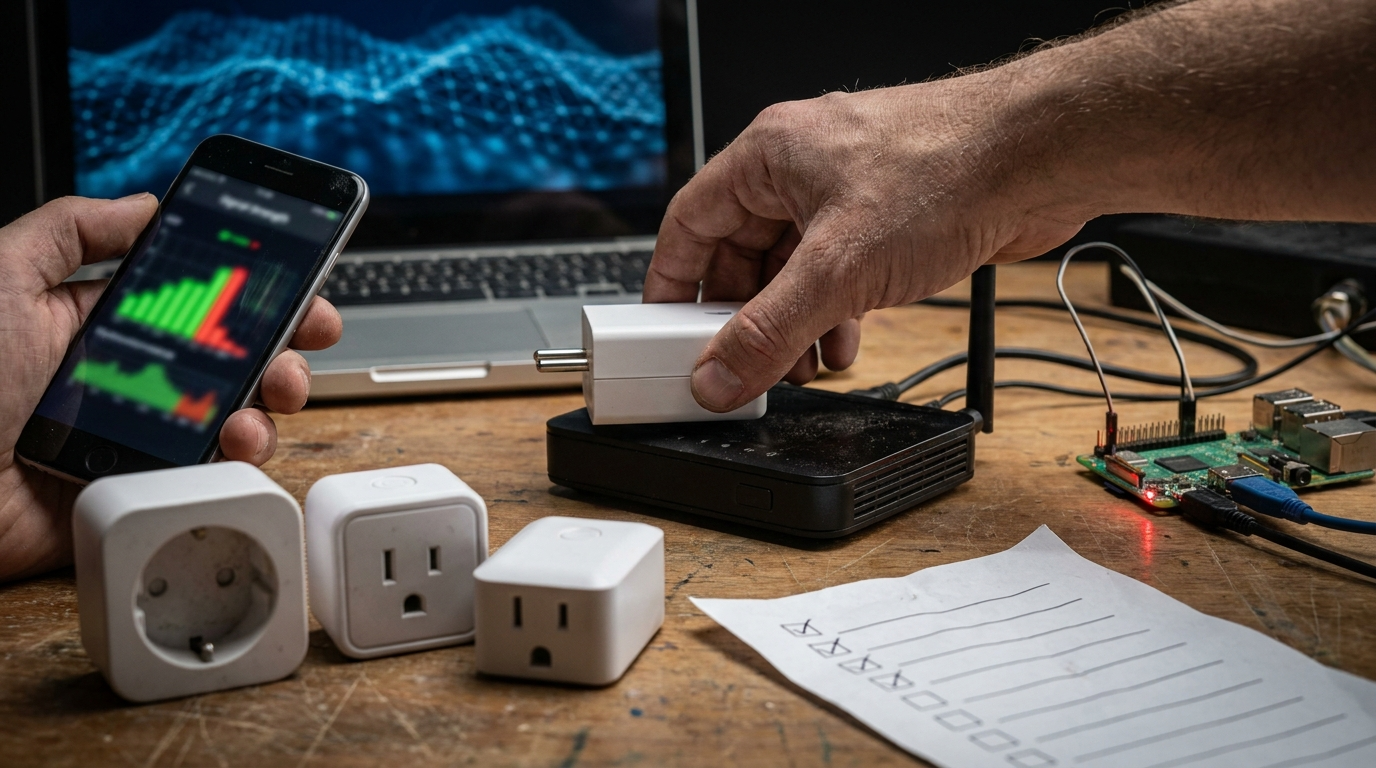
Exact quick sequence (labelled steps)
- Power-cycle the plug: Unplug → wait 10s → plug back in. Time: 1 min. Evidence: photo of plug in outlet after cycle.
- Brief reset attempt (soft): Press the plug’s on/off button briefly (do NOT hold). Time: 30s. Evidence: short video showing LED after press.
- Confirm 2.4 GHz SSID: On your phone, open Wi‑Fi settings and ensure you’re on your 2.4 GHz SSID during any setup. Time: 1 min. Evidence: Wi‑Fi settings screenshot. Source confirming 2.4 GHz requirement: YouTube — 2023 (2.4 GHz).
- Move to router: Move plug within 3–6 ft of the router and test. Time: 2–5 min. Evidence: photo of plug near router + Wi‑Fi RSSI if available.
- Delete & re-add only if above fails: In Wyze app delete device, clear app cache, exit app, re-add with phone on 2.4 GHz. Time: 5–10 min. Evidence: screenshots of deletion and re-pair steps.
When to factory-reset: use factory reset only after the above and root-cause checks (next section) have been attempted and logged. Pitfall to avoid: Trying to pair when phone is on 5 GHz or auto-joining another SSID — this causes failed pairing.
Related reading if you plan a replacement or buying research: smart-plug-buying-guide and the budget picks page smart-plug/best-smart-plugs-under-50.
Root-cause checklist — how to isolate Wi‑Fi band/SSID, DHCP/router settings, interference, and firmware bugs (ordered tests)
Work down this ordered list to eliminate network and environmental causes before assuming hardware failure.
Ordered tests (each step: expected time + required evidence)
- Confirm AP broadcasts 2.4 GHz SSID and your phone is connected to it. Time: 2 min. Evidence: router wireless settings screenshot showing SSID and 2.4 GHz enabled.
- Disable guest/isolated networks temporarily and retest. Time: 3–5 min. Evidence: router guest-mode screenshot.
- Check DHCP pool and lease exhaustion: open router DHCP client list and confirm the plug’s MAC address has a lease. Time: 3 min. Evidence: DHCP client list screenshot with MAC, IP, and timestamp.
- Reserve IP for the plug (optional): add DHCP reservation for the plug’s MAC. Time: 5 min. Evidence: DHCP reservation screenshot.
- Test VLAN/local network segmentation: ensure Alexa/Google bridge and Wyze devices are on the same LAN segment. Time: 5 min. Evidence: network topology note + router interface screenshot.
- Move to a different AP or hotspot: if the plug stays online on an alternate AP, suspect RF/interference or router config. Time: 5–10 min. Evidence: alternate AP client list screenshot.
- Check Wi‑Fi channel congestion: use a phone Wi‑Fi analyzer to confirm heavy 2.4 GHz channel congestion and change router channel if necessary. Time: 10 min. Evidence: channel scan screenshot.
Router settings to inspect/toggle: DHCP lease time, DHCP reservation, disable AP/client isolation, force 2.4 GHz b/g/n compatibility, and verify transmit power isn’t reduced. Interpreting results: if the plug stays online when moved close to the router → RF issue; if it only works on one AP → VLAN/DHCP segmentation issue. Multiple community threads point to SSID/band and environment as frequent causes (forums.wyze.com — 2023).
Pitfall to avoid: Changing router SSIDs mid-troubleshoot and losing the ability to reproduce the failure — document original SSID and settings first.
If you manage multiple plugs or a seller handling returns, link this to your internal troubleshooting hub for batch checks: smart-plug/troubleshooting.
Advanced fixes & logs to collect before contacting Wyze or returning the device (firmware rollback, packet captures, Wyze logs)
Collect structured evidence. Vendors will ask for timestamps and network logs — provide them in your initial ticket to avoid back-and-forth.
Exact evidence to collect (label each with time-to-complete and required artifact)
- Wyze app device event history screenshots showing offline/online timestamps — Time: 2 min. Evidence: app screenshots.
- Router DHCP logs showing MAC → IP lease events with timestamps (redact unrelated devices) — Time: 5–10 min. Evidence: DHCP log excerpt (redacted).
- Router client list & RSSI at failure time — Time: 2 min. Evidence: client list screenshot.
- Optional packet capture (pcap) showing DHCP and TCP keepalive behavior — Time: 15–30 min if experienced. Evidence: pcap file + brief notes of capture start/end time. Capture using Wireshark or tcpdump on a capture device on the same LAN.
- Alexa/Google invocation timestamps if the issue appears in routines — Time: 5 min. Evidence: Alexa app routine execution log screenshot or Google Home activity entry.
- Short LED/video clip of plug behavior during failure — Time: 1–2 min. Evidence: video file or timestamped photo.
Firmware rollback: research shows Wyze documents factory reset and re-pair procedures (Wyze Support — 2024), but public rollback procedures or downloadable older firmware images are not reliably documented. Research gap: “No reliable data found” on firmware rollback procedures — collect logs first before requesting a rollback from support.
Sample support ticket template (paste-ready)
Subject: Wyze Plug repeatedly offline — logs attached (MAC, DHCP, Wyze timestamps, pcap)

Model: Wyze Smart Plug
MAC: AA:BB:CC:DD:EE:FF
Wyze account email: you@example.com
Symptom start: 2026-05-01 08:12 UTC (first offline)
Steps tried: power-cycle (2026-05-01 08:15 UTC) [photo], move to router (2026-05-01 08:20 UTC) [photo], deleted & re-paired (2026-05-01 08:30 UTC) [app screenshots]
Attached files: Wyze_event_history.png, router_dhcp_log_redacted.txt, pcap_capture.pcap (start 2026-05-01 08:10 UTC), alexa_invocation_log.png
Request: Please review Wyze server timestamps for device MAC and advise next steps or RMA criteria.
Pitfall to avoid: Opening an RMA without DHCP/router logs and Wyze app timestamps — vendors will request them and it delays resolution.
Advanced-skill callouts: packet capture and interpreting DHCP logs are advanced tasks — mark them and offer to collect them for the seller if you are a support rep. If you need simpler guidance, contact your seller support and attach the app screenshots first.
When factory reset, router changes, and firmware rollback fail — exact escalation, RMA criteria, and seller actions
Use this decision checklist to determine when to replace vs. refund vs. provide advanced troubleshooting.
Escalation decision checklist (timeframe & evidence)
- Reproducible failure after: power-cycle → move-to-router → factory reset → network isolation on >1 AP and after 24–48 hours of monitoring. Time: variable; typical escalation after 2–3 reproductions across separate times/days. Evidence required: Wyze app event timestamps, DHCP logs, pcap (if available), photos/videos.
- When contacting Wyze or the seller, include the sample ticket above and attach all evidence files. Time: 10–20 min to compile. Evidence: zipped artifacts with clear filenames and timestamps.
- If the device intermittently fails only in one VLAN/AP and works elsewhere, do not issue RMA — provide network remediation steps first and document client side changes. Evidence: AP comparison logs showing successful/failed contexts.
Seller support script and replacement policy recommendations
Offer this ordered path: 1) remote first-line triage (walk customer through steps in H2 #2), 2) request app and DHCP logs if unresolved, 3) replacement if failure reproduces after documented steps. Avoid approving RMA on a single unverified failure.
Research gap: There is no authoritative public RMA criteria available — Research Findings state “No reliable data found on logs, escalation, RMA criteria.” Prepare to ask Wyze for their RMA checklist and provide the evidence items listed above (pcap, DHCP logs, Wyze timestamps).
Pitfall to avoid: Escalating after a single failure or without time-stamped evidence — this leads to denied RMAs.
Exact diagnostic flow when the plug works in Wyze app but shows “device not responding” in Alexa/Google routines
Isolate account linking, skill timeouts, cloud issues, and local network segmentation with this deterministic flow. Collect invocation logs before deleting or re-adding anything.
Alexa/Google ordered isolation steps (each with time + required evidence)
- Verify account linking: open Alexa or Google Home, confirm Wyze skill/integration shows as linked. Time: 2 min. Evidence: screenshot of linked services.
- Test direct voice control: ask Alexa/Google to turn the plug on/off by name; note whether direct control works outside routines. Time: 1 min. Evidence: voice command timestamp + screenshot of device state in Wyze app.
- Run the routine manually: trigger the exact routine and capture the routine log or execution entry. Time: 2–5 min. Evidence: Alexa routine execution screenshot or Google Home activity entry.
- Capture Invocation timestamps: if routine fails, capture the Alexa skill invocation time and any error code shown. Time: 2 min. Evidence: Alexa app log screenshot (do not delete before capturing).
- Check Wyze cloud status around invocation time: collect Wyze event history entry for the same timestamp. Time: 2 min. Evidence: Wyze event history screenshot.
- Confirm network segmentation: ensure Alexa device, Wyze plug, and phone are on same LAN segment (not guest/VLAN). Time: 3–5 min. Evidence: router client list showing all devices on same subnet.
- If direct control works but routine fails, avoid deleting devices before collecting logs — re-link the Wyze skill only after you have those timestamps. Time: 5 min. Evidence: pre-relink logs.
Research gaps: There is limited public documentation on required Alexa skill logs or Wyze cloud callback traces — Research Findings: “No reliable data found on Alexa/Google Home unresponsiveness diagnostics.” Capture what you can and send timestamps to both vendors.
What to send to Alexa/Amazon support and Wyze support:
- Exact routine name and invocation timestamp (UTC).
- Wyze event history for the same timestamp.
- Router client list showing device IPs at time of failure.
Step-by-step Alexa/Google diagnostic checklist (downloadable): include these items in your support ticket and mark each as done. If you are a seller, include a pre-filled checklist to speed returns.
Tip for sellers & reviewers: link readers to voice-assistant deep-dive guidance: smart-plug/voice-assistant-integration.
Budget buyer playbook — buying, ownership costs, and safe-use rules for loads (what to expect on replacements and service life)
Buyers on a budget need clear expectations on compatibility, likely maintenance, and safe use. Wyze plugs are 2.4 GHz only — plan your network and buy accordingly.
Buying strategies (time + evidence)
- Buy multi-pack deals or refurbished units to reduce replacement cost risk. Time: N/A. Evidence: keep order receipts to simplify bulk RMA handling.
- Prefer sellers offering simple replacement policies and documented RMA instructions. Time: N/A. Evidence: screenshot of seller policy page.
- For heavy-use loads, consider spending more on higher-rated or hardwired relays — do not assume Wyze plug is rated for inductive motors without checking UL/product specs. Pitfall to avoid: assuming safe for motors/pumps without verification — Research Findings: “No reliable data found” on amperage/wattage/standby draw.
Safe-use & quick load tests
- Do not connect high-startup-current devices (large motors, pumps) until you confirm plug’s UL rating. Time: N/A. Evidence: retain product spec sheet or UL listing (if provided).
- For a simple load test: use an inline killable load (e.g., lamp) and run a 24–48 hour soak test while logging on/off times. Time: 1–2 days. Evidence: Wyze app event history and power-on photos.
Confirmed limitation to plan around: Wyze Plugs support 2.4 GHz Wi‑Fi only — see verification (YouTube — 2023).
Research gaps & next steps: exact specs (max amps/watts, standby draw, warranty length, UL file) are not publicly verified here — proposed sources: Wyze product page, FCC filings, UL/ETL certificates, and independent lab tests.
Conclusion
Follow the ordered, budget-first troubleshooting flow — symptoms → quick fixes → network isolation → advanced logs — to resolve most Wyze Smart Plug issues without RMA. If you collected Wyze event timestamps, DHCP logs, and (if possible) a pcap, you’ll be able to escalate faster and with higher success. Decide to keep, replace, or buy based on the reproducibility of failures and the evidence collected. For deeper buying and compatibility guidance, compare options in our smart-plug-buying-guide. Want step-by-step voice-assistant troubleshooting? See smart-plug/voice-assistant-integration.
FAQ
Why is my Wyze Smart Plug “offline” in the Wyze app but the LED is blinking?
Most commonly it’s a Wi‑Fi/band or DHCP issue — confirm the plug is on your 2.4 GHz SSID and check router DHCP lease availability.
The plug works in the Wyze app but Alexa says “device not responding” in routines — what’s the quickest isolation?
Re-link the Wyze skill, test direct voice control vs. routine, and capture Alexa invocation timestamps before re-adding devices.
Will switching my router to use one SSID for 2.4 GHz and 5 GHz fix intermittent disconnects?
Yes often — ensure your phone and plug use the same 2.4 GHz SSID during pairing and disable client isolation/guest mode.
How many times should I try factory reset and router tweaks before requesting an RMA?
Follow the checklist (power-cycle → move-to-router → factory reset → DHCP/router checks → collect logs); if issue reproduces after all steps and you have time-stamped evidence, escalate to RMA.
What logs should I attach to a Wyze support ticket to speed up resolution?
Wyze app event history screenshots, router DHCP logs with MAC+IP timestamps, and Alexa/Google invocation timestamps or pcap if available.
Does the Wyze Smart Plug support 5 GHz or HomeKit/Matter natively?
No — research confirms Wyze plugs are 2.4 GHz‑only (no 5 GHz support); research found no reliable public data on native HomeKit/Matter support at release.
Are Wyze plugs safe to use on motors, pumps, or high-startup-current devices?
Treat inductive loads with caution — Research Findings show “No reliable data found” for exact watt/amp limits, so avoid high inductive loads until you verify the plug’s UL ratings in the product spec.