

govee smart plug troubleshooting that saves money: this guide gives step-by-step checks, cheap tests, and clear escalation rules so you can fix or validate a Govee smart plug fast and decide whether to replace it.
Key Takeaways
- Follow a prioritized, low-cost troubleshooting flow: quick symptom checklist → local network checks (2.4 GHz band, DHCP/IP reservation) → in-place tests (plug swap, direct router distance test) → factory reset only after elimination; this avoids unnecessary replacements.
- For voice failures, methodically verify account linking, region, duplicate names, and token expiry; re-linking and renaming are the cheapest, most reliable fixes before deleting scenes or re-installing the OS.
- Mesh and extender setups are a major source of intermittent offline behavior—use targeted fixes (separate 2.4 GHz SSID, DHCP reservation, fixed channel, disable client steering on problem APs) and low-cost diagnostics (phone AP association logs and ping tests) before blaming the plug.
- Rapid symptoms checklist to isolate “offline” vs power vs voice problems
- Step‑by‑step offline troubleshooting flow for budget buyers
- Voice control failures: diagnose account/linking, region, duplicate names, and token issues
- Real‑world causes of misreported power usage and nuisance breaker trips
- Mesh, extenders and crowded 2.4 GHz networks — cheap fixes that actually work
- Hard numbers budget buyers need — how to compare Govee vs cheap competitors on value
- When to factory‑reset, when to replace, and when to contact Govee support
- FAQ
- Conclusion
Rapid symptoms checklist to isolate “offline” vs power vs voice problems (get back online in 5–10 mins)
Read this section first. These quick checks separate network issues, power faults, and voice problems so you avoid unnecessary resets or replacements.
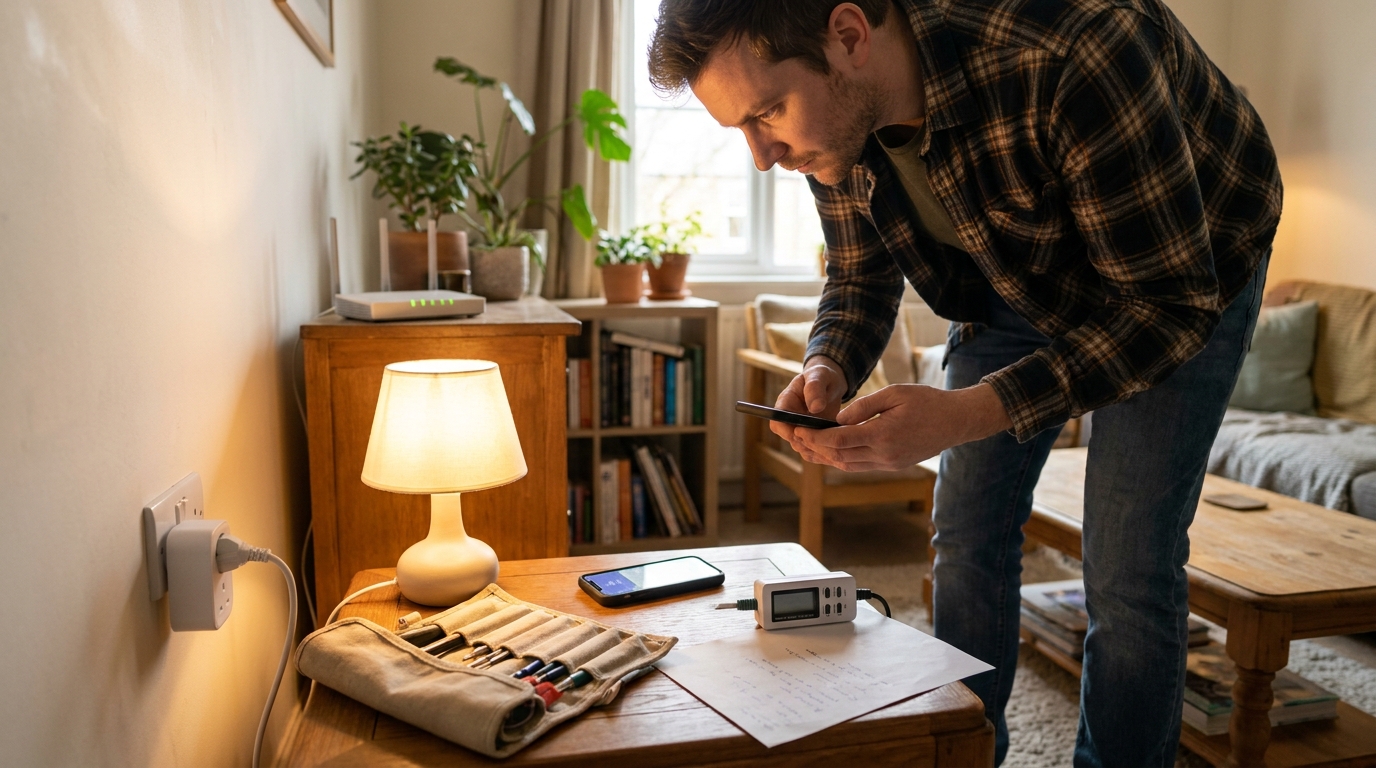
Symptoms checklist
- LED state: steady on (powered/paired), blinking slowly (pairing), off (no power or deep offline). Note exact LED color/pattern in your app docs.
- App status: shows Online / Offline / Limited. If app shows online but device won’t switch, suspect local relay or power issue.
- Power behavior: does the attached device actually receive power? Check by plugging a small lamp directly into the plug and toggling from the app.
- Time-of-day pattern: offline only at peak hours suggests Wi‑Fi congestion; offline always suggests config or hardware fault.
- Which functions fail: app on/off, voice control, power meter. Document which are failing before changes.
Quick phone tests (2–3 minutes)
- From your phone (on the same Wi‑Fi) open the router client list and find the plug IP/MAC. Expect a private IP (192.168.x.x or 10.x.x.x). If not listed, the plug is not associated to your network.
- Ping test: on Android use a ping app; on iPhone use a terminal app or ping from router admin. Ping the plug IP. Expect consistent replies (0–50 ms). Packet loss or long spikes points to network/mesh issues.
- Local toggle: use the Govee app to toggle on/off. Expect near-instant change in the lamp. If the app toggles but lamp doesn’t change, suspect power wiring or internal relay failure.
Simple swap test (1–5 mins)
- Move the plug to a different outlet close to the router. If it stays online there, the original outlet or circuit may be faulty.
- Move a known-working device (lamp) onto the suspect plug and test. If the device works on another plug, the plug is likely the problem.
- Fail-fast rule: do these three tests before factory reset. Don’t assume “offline” means hardware failure — many official pages recommend re-pairing too early (No reliable data found — next research: Govee smart plug official troubleshooting offline (2023–2026)).
Step‑by‑step offline troubleshooting flow for budget buyers (fix most cases without buying a replacement)
Follow this prioritized checklist. Do items in order and mark pass/fail. Most fixes are router/config changes or cheap tests.
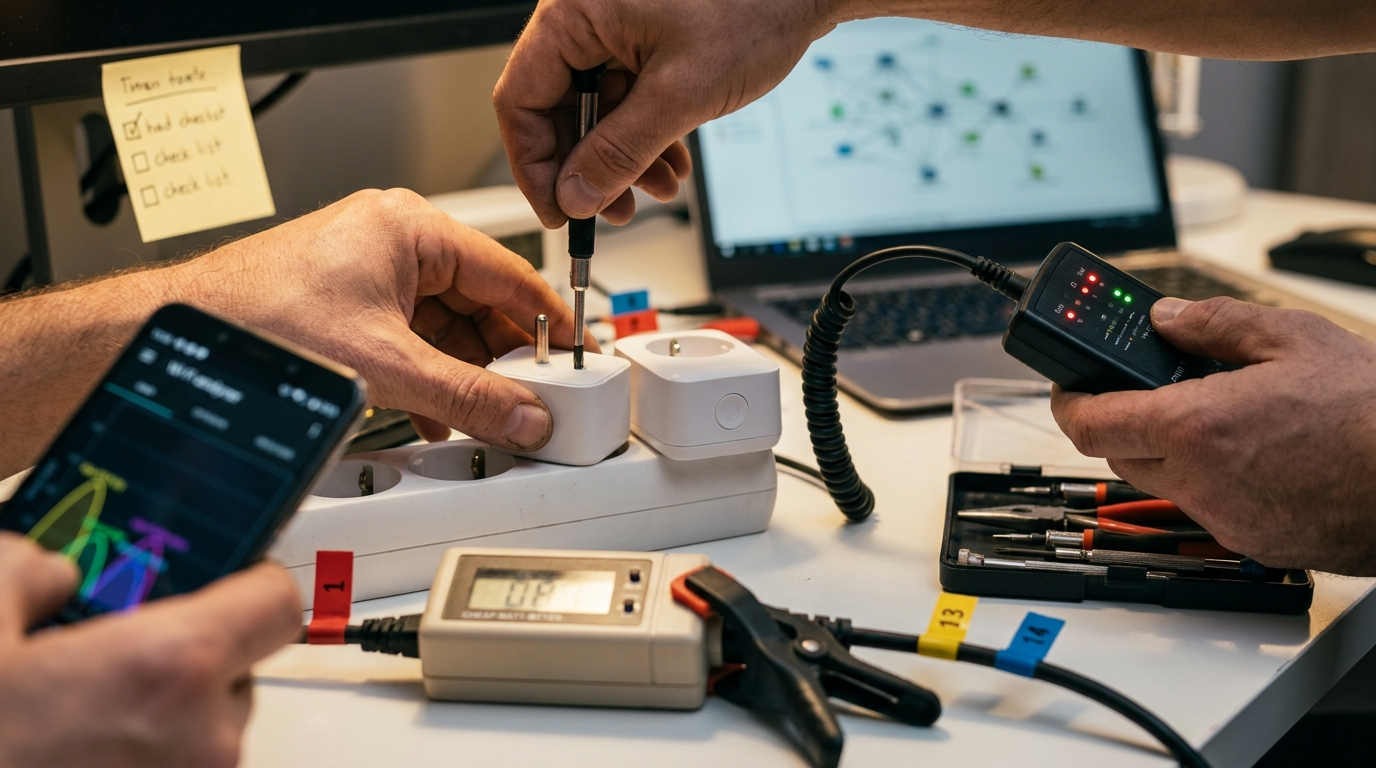
Fix steps — prioritized numbered checklist
- Symptom check completed (see H2 above). Expect to see device IP in router clients—if not, stop and re-check Wi‑Fi password and SSID.
- Distance/retry: relocate plug within ~5–10m of router and test for 24–48 hours. If stable, plan network fixes.
- Force 2.4 GHz association: ensure the plug uses 2.4 GHz SSID only (split SSIDs if your router merges bands). If you cannot split SSIDs in the UI, create a dedicated 2.4 GHz network name for IoT devices and re-pair the plug there.
- DHCP reservation / IP conflict check: reserve the plug’s MAC to a static DHCP IP in router admin to avoid future IP churn. If you see duplicate IP warnings, remove the conflict or widen DHCP pool.
- Fix channel/width: set 2.4 GHz channel to 1, 6, or 11 and width to 20/40 MHz. This reduces interference.
- Firmware check: open Govee app → device → firmware. Update if available. If the plug can’t see firmware, it’s likely a network issue, not the device.
- Factory reset only after the previous steps fail and after a swap test to another outlet. Preserve automations by recording names and scene associations before resetting.
- Replacement decision: if the plug fails after 2 outlets and 48 hours of stable environment, treat as candidate for replacement.
Router vendor notes & where to find UI steps
Exact UI paths vary by vendor. No reliable, aggregated data was found for a universal step-by-step for all vendors — next research: Govee smart plug official troubleshooting offline (2023–2026). For vendor help searches use:
- TP‑Link DHCP reservation search: TP‑Link DHCP reservation
- Netgear reserve IP: Netgear DHCP reservation
- Asus/Linksys/Google Nest/Eero DHCP or SSID split searches: search vendor name + “DHCP reservation” or “separate 2.4 GHz SSID”
Pitfall: avoid telling readers to simply “toggle the router.” That often hides IP conflicts. Reserve DHCP by MAC and confirm the plug’s MAC in the Govee app or on the device label.
Root causes
- Router band: plug associated to 5 GHz or roaming between bands.
- DHCP/IP conflicts or short leases causing reboots.
- Mesh steering moving the plug between APs.
- Out-of-date firmware preventing reauth to cloud.
- Power or outlet wiring faults masking as offline.
Related reading: see our detailed mesh tips at Fix smart-plug dropouts on mesh Wi‑Fi networks and compare buying criteria at smart-plug-buying-guide.
Voice control failures: diagnose account/linking, region, duplicate names, and token issues (get Alexa/Google responding again)
Voice failures often look like network faults but are separate: the plug is online yet voice platforms can’t reach or authorize it. Methodically check each cause before full account changes.
What to cover — diagnostic checklist
- Confirm plug is Online in Govee app and pingable from your router.
- Check device list in Alexa/Google Home apps. If the device is missing, check Govee account link status.
- Duplicate/ambiguous names: rename the plug in the Govee app to a short unique name (no punctuation) and re-discover in Alexa/Google.
- Token/permission expiry: in Alexa/Google, check the linked services → Govee skill or account → refresh or reauthorize. Re-linking is safe if you record routines first.
Step-by-step remediation (non-destructive)
- Verify the plug is online locally. If offline, fix Wi‑Fi first (see H2-2).
- Open Alexa app → More → Skills & Games → your Skills → Govee. Check status. If it says linked, open “Manage” and check permissions. Only re-link if tokens look expired or commands fail after forced discovery.
- Open Google Home → Settings → Works with Google → Govee. Confirm linked account and region settings.
- Rename the device in the Govee app to a unique short name and use Discover or Sync in Alexa/Google. Avoid deleting the Govee skill unless re-linking first would not break critical automations.
Note: No reliable aggregated data on voice‑failure modes was found — next research: Govee smart plug Alexa Google Assistant troubleshooting (2024–2026).
Don’t immediately remove the Govee skill—this can break routines. Instead reauthorize and test; log the routines you touched so you can restore them if needed.
Real‑world causes of misreported power usage and nuisance breaker trips (tests that cost <$10)
Power meter oddities and nuisance breaker trips are often caused by load type. Cheap tests can separate meter accuracy issues from real safety problems.
Edge cases to suspect
- Surge appliances: microwave, hair dryer, toaster — high inrush current.
- Inductive loads: pumps, compressors, motors with startup surge.
- Long power strips and daisy-chaining increasing resistance and heat.
- Overloading a single circuit — multiple heavy devices on same breaker.
Low-cost tests (tools: $15 kill‑a‑watt style meter, phone)
- Resistive test: plug a known resistive load (incandescent lamp or kettle) and compare Govee meter vs a $15–$40 inline watt meter. Expect resistive loads to match within ~5–15% on budget plugs.
- Inductive test: test a motor or compressor. Watch startup spikes—if the plug trips or reads erratic peaks, move that load to a dedicated circuit or rated plug.
- Breaker test: move the heavy device to another circuit and run alternating loads to confirm whether the breaker trips are device vs circuit related.
Tip: Don’t rely solely on the plug’s meter for safety decisions. If a heater approaches the plug’s rated limit (see packaging), upgrade to a higher-rated unit or use a hard cutoff device.
Research note: No reliable aggregated data on misreporting/breaker incidents was found — next research: Govee smart plug power monitoring accuracy issues (2024–2026).
For safety reading and load limits, see our load limits guide: Avoid tripping breakers: load limits and wiring basics.
Mesh, extenders and crowded 2.4 GHz networks — cheap fixes that actually work (stop intermittent dropouts)
Mesh systems and extenders cause many intermittent IoT dropouts. Use diagnostics and low-cost tweaks before replacing plugs or the mesh.
Diagnostics non-experts can run
- Wi‑Fi analyzer app (Android: “WiFi Analyzer”, iOS: “Network Analyzer”) to see SSIDs, BSSIDs, and signal strength near the plug.
- Check which BSSID/AP the plug uses — if it moves between BSSIDs frequently you have client steering/fast-roaming enabled.
- Continuous ping from a phone or router to the plug for 5–15 minutes. Patterned drops every X seconds often mean AP steering timeouts.
Low-cost network tweaks that reduce dropouts
- separate 2.4 GHz SSID for IoT devices and pair the plug there.
- Disable client steering/fast roaming or 802.11k/v/r for the AP that the plug uses if configurable.
- Set the 2.4 GHz channel to 1, 6, or 11 and lock it; avoid auto channel selection when troubleshooting.
- Reserve DHCP IPs and shorten DHCP lease churn for IoT devices.
Note: No reliable aggregated data on Govee-specific mesh issues was found — next research: Govee smart plug mesh WiFi Eero Google Nest issues (2024–2026).
If you want step-by-step mesh vendor UI directions, search for “disable client steering” + your router name (examples: Eero, Google Nest, Orbi). See our mesh troubleshooting primer: Fix smart-plug dropouts on mesh Wi‑Fi networks.
Hard numbers budget buyers need — how to compare Govee vs cheap competitors on value (buy with confidence)
Collect these specs before buying or replacing. Use a cheap watt meter to validate claims.
Exact spec matrix to capture
- Retail price range.
- Rated max current (A) and wattage/voltage limits (W/V).
- Wi‑Fi band support (2.4 GHz only or dual‑band).
- Last firmware update date and warranty length.
- Measured power-draw accuracy percent error using an inline watt meter.
How to measure at home ($15–$40 tool)
- Use a kill‑a‑watt style meter between plug and device. Run a resistive load at several set points (e.g., 50W, 200W, 1000W if safe) and record plug vs meter readings.
- Acceptable error for budget plugs: expect ~5–15% on resistive loads. Larger errors on inductive loads are normal.
- For heaters, require plugs rated for >12A (~1440W at 120V); prefer >15A (1800W) for margin on startup surges.
No reliable comparative hard numbers were found in public Research Findings — next research: Govee smart plug specs vs TP‑Link Kasa Meross (2025–2026).
Before buying, compare specs using our buying hub: smart-plug-buying-guide and measure power as described in How to measure smart plug power usage on a budget.
When to factory‑reset, when to replace, and when to contact Govee support (avoid wasted time and money)
Follow the decision tree below. Collect evidence before you reset or open a support case.
Decision checklist: factory reset vs replace vs contact
- Factory reset when: you completed swap tests, plug is visible on router (with IP/MAC), DHCP reserved, firmware updated, and it still cannot complete pairing or commands.
- Replace when: the plug fails in two different outlets, after 48 hours of stable network and tests, or when it shows physical damage or persistent relay failure.
- Contact Govee when: replacement likely but you want warranty support OR you can collect logs/screenshots showing network visibility but device non-responsive.
What to collect before contacting support
- Device model and serial/MAC (found in app or on device label).
- Firmware and app version screenshots.
- Router client list screenshot showing IP/MAC and timestamps.
- Step-by-step list of fixes already tried and results (swap test, distance test, DHCP reservation, firmware update).
- Short video or photos of LED behavior and device attempts to pair.
Support ticket template (copy/paste)
“Model: [model]. MAC: [xx:xx:xx:xx:xx]. Firmware: [vX.X]. App: [vX.X]. Steps tried: swap outlet, DHCP reservation to [IP], 24‑hour distance test, firmware update. Observed behavior: plug shows [LED state], router sees IP [IP], but app shows Offline / fails to toggle. Attached: router client screenshot, firmware screenshot, photos. Requested: replacement or advanced diagnostics.”
Research note: No reliable support-escalation thresholds were found — next research: Govee smart plug official troubleshooting offline (2023–2026). For community examples see community.govee.com reports.
Before factory-reset or re-linking, record automation names and scene links to avoid losing critical configurations. If you must re-link a voice skill, recheck routines after reauthorization.
FAQ
Why does my Govee smart plug show “offline” in the app but has power at the outlet?
Most often it’s a Wi‑Fi or IP issue—check that the plug is connected to your 2.4 GHz SSID, ping its IP from your router, and confirm no DHCP/IP conflict before assuming hardware failure.
When should I factory-reset a Govee smart plug?
Only after you’ve tried a swap‑out test, confirmed it’s on the correct SSID, reserved its DHCP IP, and updated firmware—if it still fails in two different outlets after 48 hours, reset and re-pair.
How do I stop my Govee plug from dropping out on a mesh Wi‑Fi system?
Create a separate 2.4 GHz SSID for IoT devices or disable client steering/AP roaming for the plug’s AP, reserve the plug’s IP via DHCP, and lock the channel to 1/6/11.
My Alexa can’t control the plug—should I re-link the Govee skill?
First check device name conflicts and the plug’s online state; re-link the skill only if tokens appear expired or permissions are missing—re-linking is safe if you record affected routines first.
Can I use a Govee smart plug for a space heater or washing machine?
Not unless the plug’s spec exceeds the appliance’s startup and running current—verify A/W/V ratings and avoid inductive loads unless the plug is explicitly rated for them.
What info should I collect before contacting Govee support?
Device model/serial/MAC, firmware and app versions, router logs or IP allocation screenshots, step-by-step actions already taken, and photos/screenshots of the plug’s LED/status.
Conclusion
Follow the prioritized, low-cost checks in this guide and you will either restore a reliable Govee smart plug or have clear evidence to replace it. If the device still fails after DHCP reservation, swap tests, and 48 hours of stable connectivity, replace or file a support ticket with the collected evidence. For comparisons and buying guidance before you replace, compare specs at our smart-plug-buying-guide and measure accuracy with How to measure smart plug power usage on a budget. Ready to decide? Use this plan to validate your govee smart plug first, then compare models and buy with confidence.