

how to install ring video doorbell — this guide gives a right‑first‑time, model‑specific install checklist and buyer comparison so you can verify compatibility, estimate real costs, and finish the install safely or know what to hire out.
Read the model checklists (Battery, Wired, Pro/Pro 2), the post‑install diagnostics, and a dollarized items list so there are no surprises at checkout or when you flip the breaker.
Key Takeaways
- Verify compatibility first: confirm your transformer, chime type, and whether you need a Pro Power Kit or plug‑in adapter before buying the Ring model.
- Follow model‑specific, right‑first‑time checklists (tools, exact screws, battery charge time, breaker off steps, app pairing, firmware update) to avoid common pitfalls like miswiring or skipping the chime connector.
- Run a short post‑install diagnostics checklist (Live View, chime test, press test, RSSI check) and have fallback fixes for edge cases (weak Wi‑Fi, old transformers, thick masonry) so the doorbell works reliably.
- Quick Pre‑Install Compatibility Checklist — avoid incompatible installs
- Battery Model — full right‑first‑time install checklist (tools → app → verification)
- Wired Model — step‑by‑step wiring, chime connector and safety checklist
- Pro & Pro 2 — Pro Power Kit, chime compatibility and installation precision
- Post‑Install Verification & Diagnostics — prove the install works (printable checks)
- Real‑World Edge‑Case Fixes — split chime wiring, old transformers, masonry/metal siding and multi‑unit installs
- Itemized Installation Costs & Buyer Comparison — dollars for parts, pro help, and subscription (quick budgets)
- Conclusion
- FAQ
Quick Pre‑Install Compatibility Checklist — avoid incompatible installs
Before you buy or begin: confirm the physical and electrical facts that determine whether a Battery, Wired, or Pro model is correct for your door.

Required verifications (take photos and notes)
- Transformer label: photograph the transformer box (in the breaker/chime closet). Look for stamped voltage/VA (e.g., 16VAC / 20VA). If no label, plan to measure with a multimeter or call an electrician.
- Chime type and terminals: open the indoor chime and photograph the model plate and the two (or three) terminals where the doorbell wires attach. Note if the chime is mechanical (hammer) or digital/electronic.
- Wiring gauge & length: note wire color, visible gauge (18–22 AWG common). Long runs or thin/frayed wire can need replacement.
- Junction box depth and mounting surface: measure box depth and photo the area. Ring permits wood/flat siding; masonry requires pilot holes/anchors. Ring lists ” 1/4″ (6 mm) pilot holes and included anchors” for masonry installs (Ring Support, 2023-10-01: https://ring.com/support/articles/ctz2i/Installing-your-Video-Doorbell-Wired).
- Wi‑Fi proximity: note router location and do a quick phone Wi‑Fi check at the door. If the signal looks weak, budget an extender or mesh node.
What to photograph for support or an electrician
- Transformer label close‑up and wider shot showing location.
- Chime internals showing terminals and model plate.
- Doorbell wiring at the door (with old button if present) and mounting surface.
Decision flow: battery vs wired vs Pro/Pro 2
- Choose Battery if no compatible transformer, you’re a renter, or you want minimal wiring work.
- Choose Wired if you have a labeled transformer and a simple chime (but confirm chime compatibility first).
- Choose Pro/Pro 2 if you want higher bitrate/resolution/features and your chime/transformer supports the Pro Power Kit — otherwise estimate added parts and work.
Ring Video Doorbell Installation: 7-Step Easy Setup Checklist covers the next verification steps if you want a short printable preinstall sheet.
Battery Model — full right‑first‑time install checklist (tools → app → verification)
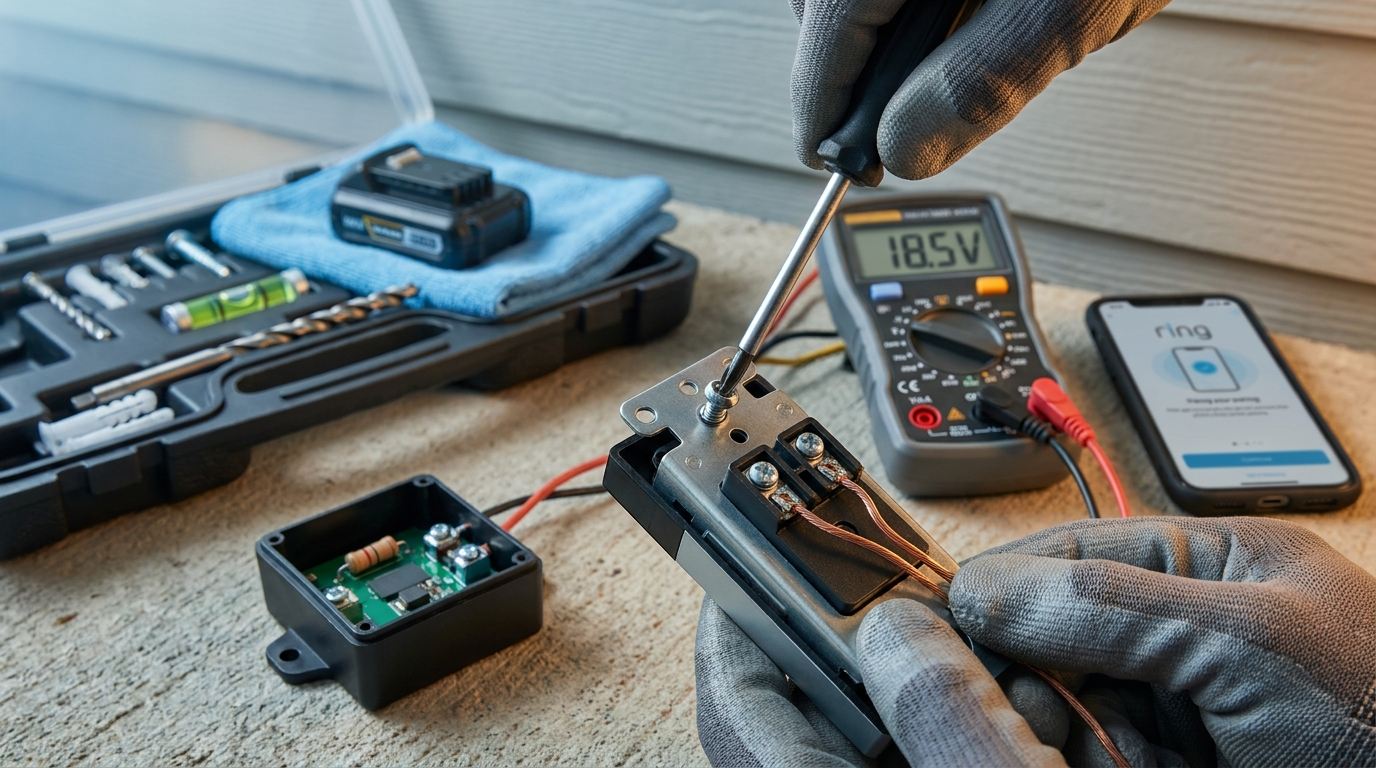
Battery models are the simplest physical install, but the key to avoiding rework is a full battery charge, correct mounting, and a clean app pairing session.
Tools & parts
- Phillips screwdriver and small flathead.
- Drill and 1/4″ (6 mm) masonry bit for brick or concrete (Ring recommends 1/4″ pilot holes and anchors for masonry — Ring Support, 2023-10-01: https://ring.com/support/articles/ctz2i/Installing-your-Video-Doorbell-Wired).
- Level, pencil, measuring tape, and the supplied mounting template and anchors/screws from the box.
- Fully charged battery (see next).
Pre‑install (right‑first‑time)
- Charge the battery fully — charge via USB for about 8 hours before install to avoid short install windows or delayed firmware updates (source recommending 8 hours: Young House Love, 2023-05-15: https://www.younghouselove.com/how-to-install-a-ring-video-doorbell/).
- Open the Ring app, tap Set Up a Device → Doorbells, and follow prompts so the device is ready to pair at the door.
- Use the template at about 4 ft (mount height guidance) for optimal field of view (mount height guidance resource: Lowes PDF, 2023-01-01: https://pdf.lowes.com/productdocuments/49600279-2517-4d96-859c-1b516aeb7825/44045628.pdf).
- For masonry, drill 1/4" pilot holes, insert included anchors, mount the bracket, then attach the doorbell plate.
- Install security screw/faceplate per the included instructions to prevent theft.
App pairing & verification
- With the battery installed and mounted, open the Ring app and complete the on‑screen pairing steps.
- Allow a firmware update to finish. Do not remove the device or interrupt power during updates.
- Test Live View and two‑way audio immediately (Ring recommends using Live View to verify video/audio after install — Ring Support, 2023-10-01: https://ring.com/support/articles/w16wi/Installing-battery-powered-doorbells).
Common pitfall: pairing with a partially charged battery which can interrupt firmware install and force a re‑try.
Related reading: Video Doorbell Without Subscription: 7 Best Guide to Save Money and Chimes for Ring Video Doorbell: 7-Step Easy Setup Checklist.
Wired Model — step‑by‑step wiring, chime connector and safety checklist
Wired Ring models need safe breaker isolation, transformer verification, and correct chime connections. Follow each step in order.
Safety first
- Turn off the breaker for the doorbell circuit. Verify power is off with a non‑contact voltage tester at the chime and transformer location.
- Photograph the transformer label and chime wiring before disconnecting anything.
Step‑by‑step wiring
- Remove the old doorbell button. Pull existing wires out slightly and photograph the wire ends and insulation.
- Confirm transformer specs from the label (photograph is critical). If unknown, measure with a multimeter or call an electrician.
- Connect the doorbell wires to the Ring terminal screws. For installs requiring a chime connector or adapter follow the model’s included kit instructions.
- Mount the bracket using the included screws. Use the 1/4" pilot bit for masonry and anchors where needed (Ring Support, 2023-10-01: https://ring.com/support/articles/ctz2i/Installing-your-Video-Doorbell-Wired).
- Secure the faceplate with the 3/16" security screw included with the wired doorbell (Ring Support, 2023-10-01: https://ring.com/support/articles/ctz2i/Installing-your-Video-Doorbell-Wired).
- Turn power back on and finish pairing in the Ring app. Allow firmware update to complete before testing chime or Live View.
Pitfall to avoid: miswiring the transformer or skipping the breaker shutoff — both can damage the doorbell and chime.
Need a short wiring checklist? See Ring Video Doorbell Installation: 7-Step Easy Setup Checklist for a printable pre‑wiring sheet.
Pro & Pro 2 — Pro Power Kit, chime compatibility and installation precision
Pro models often require the Pro Power Kit (chime connector) for reliable chime operation and full feature power. Install precisely.
When you need the Pro Power Kit
- If the Pro/Pro 2 documentation or app prompts for the Pro Power Kit, you need to install it inline with the chime to stabilize voltage and allow features. Do not skip the kit if instructed.
Install steps
- Turn off breaker and photograph transformer and chime wiring.
- Mount the Pro Power Kit at the chime per Ring’s wiring diagram and install cable connections to the chime terminals.
- Mount the doorbell bracket and connect wires at the door according to the kit’s instructions.
- For masonry, Ring recommends a drill with a 1/4" (6 mm) bit for pilot holes when mounting on brick/concrete (Ring Support, 2023-10-01: https://ring.com/support/articles/qo7oc/Installing-Wired-Doorbell-Pro).
- Secure everything, restore power, complete app pairing, and allow firmware to finish installing before tests.
Pitfall to avoid: installing a Pro model without the Pro Power Kit when Ring or the app indicates it’s required — this causes chime failures and degraded performance.
If you want a deeper model comparison before choosing a Pro model, read our Best Video Doorbell Without Subscription guide for tradeoffs on features vs. cost.
Post‑Install Verification & Diagnostics — prove the install works (printable checks)
Use this short diagnostics runbook immediately after install to prove the doorbell, chime, and app are working.
Immediate diagnostics (run these now)
- Live View: open Live View and confirm clear video, two‑way audio, and that the camera updates quickly (Ring Live View guidance, 2023-10-01: https://ring.com/support/articles/w16wi/Installing-battery-powered-doorbells).
- Chime test: press the doorbell button and confirm indoor chime rings. If the chime doesn’t ring, power off and recheck Pro Power Kit or wiring.
- Press test: press the physical button and review the timestamped event in the Ring app.
- Firmware: verify device firmware shows as up to date in the Ring app after initial pairing.
- RSSI/Wi‑Fi: open device info in the Ring app and note signal strength; if weak, test with a temporary Wi‑Fi extender or phone hotspot to isolate causes.
How to document problems for support
- Take screenshots of Live View, device status, and the chime wiring photos you took earlier.
- Record the exact time of a failed press test and provide app event logs/screenshots when contacting support.
Printable one‑page checklist
- [ ] Battery fully charged (if applicable)
- [ ] Breaker turned off during wiring
- [ ] Transformer photo taken
- [ ] Chime plate and terminals photographed
- [ ] Mounting anchors used where required (masonry)
- [ ] App pairing completed and firmware updated
- [ ] Live View checked (video + audio)
- [ ] Press/Chime test completed and timestamped
- [ ] RSSI checked and logged
- [ ] Photos/screenshots saved for support
For extra verification workflows and chime options, see our Chimes for Ring Video Doorbell checklist.
Real‑World Edge‑Case Fixes — split chime wiring, old transformers, masonry/metal siding and multi‑unit installs
These common complications have reliable, testable workarounds. Use photos and the preinstall checklist to decide if a DIY fix is safe.
Split/shared chime wiring
- Symptom: doorbell triggers multiple units or the chime is shared between doors. Fix: add an isolation module or use a plug‑in adapter to avoid altering shared low‑voltage wiring. When in doubt, call an electrician to reconfigure chime wiring.
Old transformers
- Symptom: doorbell won’t power or chime work is unreliable. Fix: if transformer label is missing or VA is low, budget a transformer replacement or use a plug‑in adapter where allowed.
Masonry & metal siding
- Use 1/4" (6 mm) pilot holes and supplied anchors for masonry (Ring Support, 2023-10-01: https://ring.com/support/articles/ctz2i/Installing-your-Video-Doorbell-Wired).
- For metal siding or thick mortar, consider a wedge/corner kit to mount on a flat surface and avoid blind spots; test Wi‑Fi before drilling because metal can block signal.
- Renters: test adhesive or temporary mounts and confirm view first — some wedge kits are removable.
Multi‑unit buildings
- If you have complex shared wiring or locked mechanical rooms, photograph wiring and contract a licensed electrician to avoid violating building rules or causing outages to neighbors.
If you hit an edge case you can’t resolve by swap or adapter, see our professional installation guide for when to hire a pro: Professional Installation (typical pro advice and costs).
Itemized Installation Costs & Buyer Comparison — dollars for parts, pro help, and subscription (quick budgets)
Budget the doorbell MSRP plus the real add‑ons below. Compare scenarios to choose Battery, Wired or Pro by total first‑trip cost.
Typical line items to budget
- Doorbell unit (MSRP) — pick model based on desired features.
- Pro Power Kit / chime connector (if required for Pro models).
- Replacement transformer or chime kit (if existing hardware incompatible).
- Anchors/wedge/corner kit for mounting on masonry or siding.
- Wi‑Fi extender or mesh node if signal is weak.
- Professional electrician (hourly + travel) for transformer swaps or complex wiring.
- Ring Protect subscription for cloud video storage (decide if you need it).
Decision math—examples (rule of thumb)
- Renters or simple installs: Battery model + $0–$30 adhesive/wedge = lowest total cost.
- Homeowner with working transformer: Wired model + potential chime connector = moderate cost and continuous power.
- Pro features desired: Pro model + Pro Power Kit + possible electrician = highest initial cost but better performance.
Warning: many buyers forget transformer swaps, chime kit purchases, and pro labor. Ring documents plug‑in and adapter options for wired installs — confirm specifics for your model before ordering parts (Ring Support, 2023-10-01: https://ring.com/support/articles/ctz2i/Installing-your-Video-Doorbell-Wired).
For deeper buying tradeoffs by budget and use case see our buying cluster: Best Video Doorbell Without Subscription, and accessory picks at Install Accessories.
Conclusion
Follow the pre‑install checklist, pick Battery vs Wired vs Pro based on your transformer and chime photos, and run the post‑install diagnostics to confirm success. If wiring, transformer, or multi‑unit complexity looks risky, budget an electrician.
Use this guide to make a confident purchase and to complete the install or know exactly what to hand to a pro. If you want to compare models and accessories in more depth, read our Ring Video Doorbell Installation: 7-Step Easy Setup Checklist and the buying guide cluster for recommended picks.
Want to learn more or compare models by exact install cost? Read our video‑doorbell buying guide or subscribe for step‑by‑step install checklists.
FAQ
What transformer voltage/VA do I need for a wired Ring doorbell?
No reliable data found in our sources — photograph the transformer label (look for 16VAC/20VA or similar), measure with a multimeter, and research the exact model compatibility or contact Ring support before buying.
How long should I charge the Ring battery before installing?
Charge the battery fully — Ring/builder guides recommend about 8 hours via USB before installation (Young House Love, 2023-05-15: https://www.younghouselove.com/how-to-install-a-ring-video-doorbell/).
Do I always need a chime kit or Pro Power Kit for wired models?
Not always — Pro/Pro 2 often require the Pro Power Kit for proper chime operation and some wired installs can use a plug‑in adapter; follow model install docs and verify your chime type first (Ring Support, 2023-10-01: https://ring.com/support/articles/qo7oc/Installing-Wired-Doorbell-Pro).
What Wi‑Fi signal (dBm) do I need at the door?
No reliable dBm threshold found in our sources — include an RSSI check in the diagnostics and, if weak, test with a Wi‑Fi extender/mesh or reposition your router before troubleshooting the doorbell.
What mounting hardware is required for masonry or metal siding?
Use 1/4" (6 mm) pilot holes with the included anchors for masonry and consider wedge/corner kits for siding or angled views (Ring Support, 2023-10-01: https://ring.com/support/articles/ctz2i/Installing-your-Video-Doorbell-Wired).
How do I verify the doorbell and chime are both working after install?
Run the printable post‑install checklist: Live View test, press‑button chime test, verify firmware update completion, and capture screenshots/time stamps for support (Ring Live View guidance, 2023-10-01: https://ring.com/support/articles/w16wi/Installing-battery-powered-doorbells).
How much extra should I budget for possible transformer or chime upgrades?
Costs vary by region and hardware; see the itemized costs section above and budget for a transformer/chime kit or professional labor — Ring documents plug‑in/adapter options for wired installs (Ring Support, 2023-10-01: https://ring.com/support/articles/ctz2i/Installing-your-Video-Doorbell-Wired).