

### Blog Post:
home assistant port changes are common, but they can leave beginners locked out or break integrations. This guide gives a single, atomic checklist to verify LAN-only operation, safely change or expose the port, and pick a safe remote-access path.
Key Takeaways
- Always verify install-type and reserved IPs first: HA OS and Container both use 8123 for the UI; Supervisor in HA OS/Supervised uses 4357 — treat Supervisor-related advice as not applicable if you are on pure Container (8123 and 4357: see Data/Stat below).
- Follow the exact LAN-first order: set a static IP/mDNS → confirm local access on 8123 → take a backup snapshot → implement chosen access method (local port change, reverse proxy, or tunnel) → test and update mobile apps/integrations.
- If you want remote access without opening router ports, prefer managed tunnels (Nabu Casa) or VPN/Tailscale/Cloudflare Tunnel; treat RTSP/camera/MQTT/webhooks as special-cases that may need additional configuration or ports.
- Quick safety checklist to verify prerequisites before changing or exposing your Home Assistant port (so you don’t lock yourself out)
- Install-type-specific port facts and the ports you must NOT randomly change (reduce integration breakage)
- Atomic step-by-step checklist to change or expose your Home Assistant port (LAN-only first, then plan remote access)
- Local-only beginner-safe configuration (stay offline, avoid cloud)
- Remote access without opening your router ports — simplest tunnels & what breaks
- Top real-world failure modes when configuring the Home Assistant port — exact logs, CLI commands, and fixes
- Exact numbers and specs beginners must record — default ports, recommended secure ports, and hardware guidance
- Printable one-page emergency checklist and recovery steps
- FAQ
- Conclusion
Quick safety checklist to verify prerequisites before changing or exposing your Home Assistant port (so you don’t lock yourself out)
Before touching ports or router rules, confirm installation details, networking, and backups. These checks stop most lockouts.

Must-check items
- Confirm your install type:
- Home Assistant OS (HA OS), Supervised, or Container (Docker). Each behaves differently for ports and add-ons — do not assume they’re identical.
- Data point: All install types use default web UI port 8123; Supervisor in HA OS / Supervised uses 4357 for the Supervisor API (see source: privacysmarthome — 2026-01-01).
- Community context on install differences: Home Assistant community — 2023-01-01.
- Reserve a local static IP or DHCP reservation on your router (note mDNS addresses like homeassistant.local may fail on some networks).
- Check router capabilities: port forwarding UI, UPnP setting, NAT loopback. Note whether your ISP uses CGNAT (call ISP) — if yes, port-forwarding will not work reliably.
- Firewall rules: ensure host firewall (ufw/iptables) allows the local port before changing external exposure.
- Backup: take a full snapshot or export the database before any IP/port change. See internal guide: Home Assistant Raspberry Pi and Home Assistant Not Connecting for backup reminders.
Pitfall to avoid
Do not change IP/port before making a snapshot or confirming a DHCP reservation — that frequently creates an inaccessible instance.
Install-type-specific port facts and the ports you must NOT randomly change (reduce integration breakage)
Different install types expose ports differently. Change only what you understand for your install type.
Key port facts
- Default web UI / API / websocket port: 8123. Supervisor API port (HA OS / Supervised only): 4357. (Source: privacysmarthome — 2026-01-01).
- HA OS: appliance-style install. HA manages Supervisor and add-ons; 8123 is handled internally.
- Container (Docker): you must map 8123 when creating the container, e.g.
docker run -d --name=homeassistant -p 8123:8123 ghcr.io/home-assistant/home-assistant:stable - Supervised: deprecated as of 2025; it behaves like HA OS but runs on generic Linux and is unsupported for new installs (see community note: community — 2023-01-01).
What NOT to change without understanding
- Don’t remap Supervisor ports (4357) unless you know add-ons rely on them.
- Don’t change recorder or camera URLs that include explicit ports without updating automations.
Pitfall: Treating Supervised advice as current for new installers — Supervised has been deprecated and may behave differently (see privacysmarthome — 2026-01-01).
Atomic step-by-step checklist to change or expose your Home Assistant port (LAN-only first, then plan remote access)
Follow these ordered, atomic steps. Stop and validate at each check.
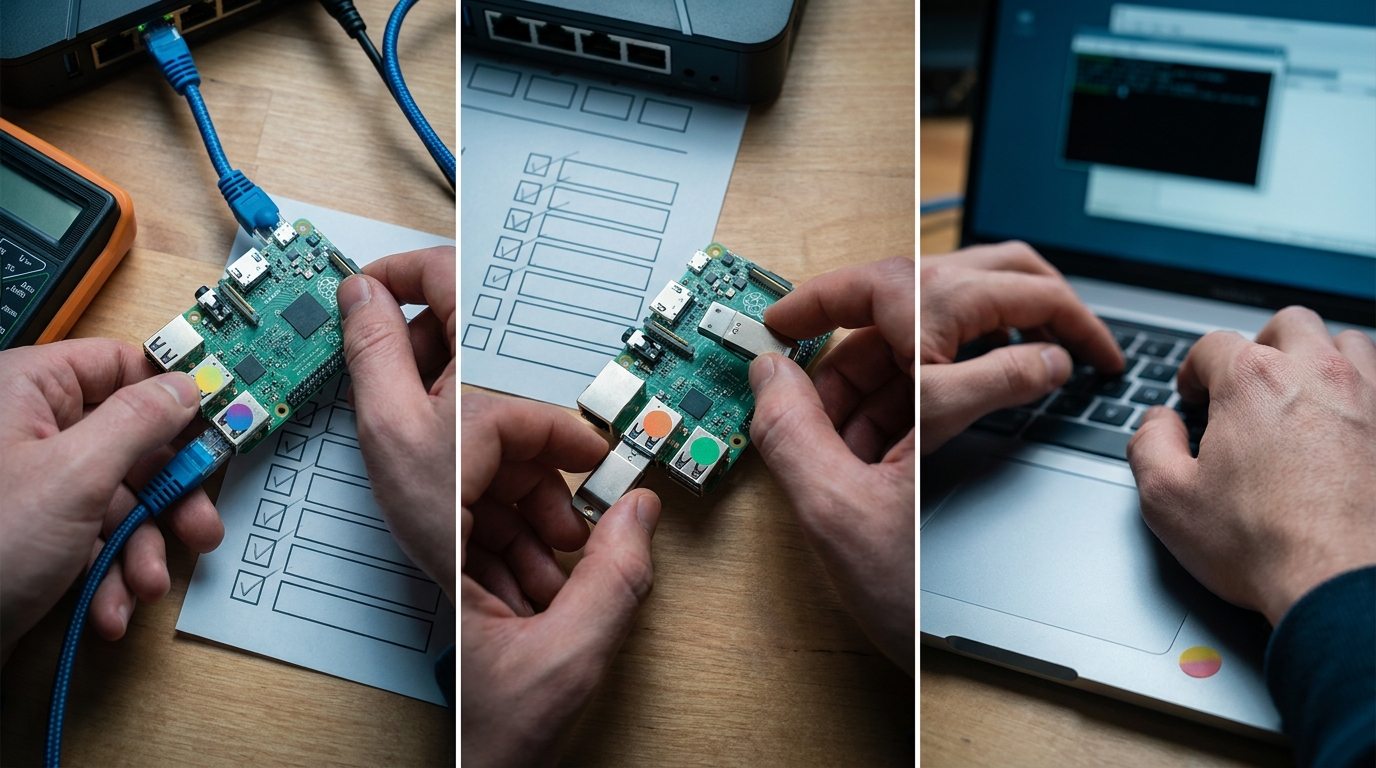
- Network identity
- Set a DHCP static lease on your router for the HA host (Router UI → DHCP → Add reservation). Note IP and hostname.
- Verify mDNS as fallback: ping homeassistant.local (some routers require mDNS passthrough).
ping -c 3 homeassistant.local
Verification: Open the UI at
http://<IP>:8123orhttp://homeassistant.local:8123.Common mistake: editing config.yaml port entries before confirming static IP — leads to unreachable services.
- Confirm local access and automations
- Open UI:
curl --insecure -v http://192.168.1.50:8123 - Check a critical integration: open Camera, MQTT diagnostics, or an automation trace in UI.
Verification tests: trigger a simple automation and confirm execution via UI logs.
Common mistake: expecting mobile app to reach hostname-based URLs when only IP is reachable — update mobile app after changes.
- Open UI:
- Snapshot (STOP and snapshot)
STOP: take a snapshot now — use Supervisor > Backups or run container export. See internal guide: Create and restore Home Assistant snapshots.
- Decide local port change vs proxy vs tunnel
- Local-only: keep 8123 — no router changes needed.
- Change local port (advanced): update system/service binding then test locally; avoid if Supervisor-managed.
- reverse proxy (recommended when exposing externally): keep internal 8123, terminate TLS in proxy (Nginx/Caddy) on 443 externally.
- Tunnel (recommended if you cannot open ports): Nabu Casa, Tailscale, Cloudflare Tunnel (see Home Assistant remote docs).
Verification: after any change, re-open the UI and test mobile pairing (see internal link: How to pair the Home Assistant mobile app).
- Obtain TLS certs if exposing externally
- Use Let’s Encrypt via reverse-proxy or ACME add-on (if HA OS add-on supported).
- Test certificate from an external network (cellular) and check for websocket upgrade errors.
Common mistake: TLS on proxy but HTTP to HA backend with HSTS causing mixed-content errors (use HTTPS backend or proper proxy headers).
- Update mobile apps & integrations
- Open mobile app → App Configuration → Connection → update URL/port or enable remote service (Nabu Casa).
- Update any automations that use absolute URLs / webhooks.
Verification test: on a cellular network, open external URL and confirm UI, then run an automation that triggers a webhook.
Note: No reliable published step-by-step checklist was found in research — further confirm edge cases at the official remote docs: Home Assistant remote docs and the networking basics guide: Home Assistant networking basics. (Annotation: No reliable data found — further research needed.)
Local-only beginner-safe configuration (stay offline, avoid cloud): the simplest settings that keep automations and integrations stable
If you want local-first operation and zero external port exposure, follow this minimal safe setup.
Recommended minimal settings
- Keep Home Assistant on port 8123 internally.
- Use DHCP reservation + mDNS (homeassistant.local) as fallback — but verify DHCP reservation first.
- Do not forward ports 80/443 on your router to the HA host.
- Pair mobile app locally to the LAN IP and avoid external URLs in automations.
When to choose alternate internal ports
Use alternate ports only if conflicts exist on the host (example: another service already bound to 8123). For Docker, map host ports accordingly. Example Docker mapping to test an alternate port:
docker run -d --name=homeassistant -p 8124:8123 ghcr.io/home-assistant/home-assistant:stableVerification: open UI at http://<IP>:8124. Pitfall: relying only on mDNS without DHCP reservation — mDNS is flaky on some routers/OS combos.
For local-only guidance see Home Assistant local access docs: official local-access docs. (Annotation: No reliable data found — further research needed.)
Remote access without opening your router ports — simplest tunnels & what breaks (Nabu Casa, Cloudflare Tunnel, Tailscale, SSH reverse)
Use a tunnel or managed remote UI if you don’t want to punch holes in your router.
One-line setup examples (quick)
- Nabu Casa (managed): enable Remote UI in Home Assistant UI → works with mobile app; no router changes. See official remote docs: Home Assistant remote docs.
- Tailscale (VPN): install Tailscale on HA host, enable subnet or exit routing if needed. Quick install example (Linux):
curl -fsSL https://tailscale.com/install.sh | sh && sudo tailscale up - Cloudflare Tunnel (Argo / tunnel): run cloudflared on host and create a tunnel that points to internal 8123. Quick command:
cloudflared tunnel --url http://localhost:8123 - SSH reverse tunnel (manual): from HA host to remote server
ssh -R 8443:localhost:8123 user@remoteserver— exposes remote server port 8443 mapped to local 8123.
What works vs what breaks
| Works typically | UI, mobile app via HTTPS (tunnel terminates HTTPS) |
| Needs extra work | Incoming webhooks, RTSP camera streams, MQTT bridging — may require additional tunnels or TCP forwarding |
Note: No reliable public table of protocol/port mappings per tunnel was found — consult the provider docs: Nabu Casa in HA remote docs, Cloudflare Tunnel docs, and Tailscale guides. (Annotation: No reliable data found — further research needed.)
Pitfall: assuming a tunnel proxies all local protocols — many tunnels handle HTTP(S) well but require extra config for RTSP/MQTT/raw TCP.
Top real-world failure modes when configuring the Home Assistant port — exact logs, CLI commands, and step-by-step fixes for beginners
When something fails, check logs and binding errors before guessing.
Common failures and checks
- Docker / add-on port conflicts
Check mapped ports and running containers:
docker ps --format '{{.Names}}\t{{.Ports}}'Look for “bind: address already in use” in add-on or container logs:
docker logs <container_name> --tail 200Fix: free the host port or remap container port.
- Certificate renewal failures
Check reverse-proxy logs for ACME errors and HA Supervisor logs if using add-on renewal:
journalctl -u home-assistant@homeassistant.service -n 200Fix: ensure port 80/443 temporarily reachable for Let’s Encrypt, or use DNS validation.
- Double NAT / ISP CGNAT blocking 80/443
Symptom: port forwarding doesn’t work; external testers show closed ports. Fix: use tunnel service or ask ISP for public IP / bridge mode.
- Mobile app disconnect after hostname/port change
Symptom: app can’t reach server. Fix: open mobile app → App Configuration → Connection → update URL; re-pair if necessary.
Where to find logs
- home-assistant.log: in /config (HA OS / Container / Supervisor setups)
- Supervisor logs: Supervisor UI → System / Logs (HA OS / Supervised)
- System journal (Linux container host):
journalctl -u home-assistant@homeassistant.service -n 200 - Docker logs:
docker logs <container_name> --tail 200
Do not repeatedly restart services without reading bind/address errors — check logs first. For more troubleshooting see: Home Assistant troubleshooting docs. (Annotation: No reliable consolidated list of logs/commands was found — further research needed.)
Exact numbers and specs beginners must record — default ports, recommended secure ports, and hardware guidance that affects port/reverse-proxy choices
Record these values before you change anything. They matter for proxies, certs, and hardware planning.
- Default ports to document:
- 8123 — Web UI / API / websocket (all install types)
- 4357 — Supervisor API (HA OS / Supervised only) — source: privacysmarthome — 2026-01-01
- Supervised deprecation: “Supervised deprecated as of 2025; prefer HA OS or Container for new installs” — privacysmarthome — 2026-01-01 and community discussion: community — 2023-01-01.
- Recommended proxy pattern: keep internal HA on 8123, terminate TLS on proxy (443), optionally expose 8443 externally for non-standard setups.
Hardware guidance: No reliable benchmarked device/automation numbers were found in the provided research (No reliable data found — further research needed). Consult HA hardware docs: Home Assistant hardware.
Pitfall: publishing hardware capacity numbers without lab verification — mark as “no reliable data” if not measured.
Printable one-page emergency checklist and recovery steps (so beginners can act fast when something breaks)
One-page checklist
- Confirm install type & IP: note HA OS / Container / Supervised and the reserved IP.
- Try UI at
http://<IP>:8123. - If unreachable: get logs and a snapshot.
docker ps --format '{{.Names}}\t{{.Ports}}' docker logs <container> --tail 200 journalctl -u home-assistant@homeassistant.service -n 200 - Restore snapshot if you suspect config corruption (Supervisor → Backups or restore container export).
- If network settings were changed, revert router DHCP reservation or port-forward rules and reboot HA host.
Copy-ready quick fixes
- Docker port conflict: stop offending container
docker stop <container> - Re-pair mobile app: open app → App Configuration → Connection → Remove server → Add server (LAN IP).
- If CGNAT suspected: test external port with an external port checker from a cellular device; if blocked, use a tunnel.
Decision tree: If logs show bind errors → fix port mapping. If cert errors → check 80/443 reachability or use DNS challenge. If mobile app fails → re-pair.
Note: No single consolidated printable checklist was found in the research materials — this checklist compiles standard CLI lines and UI locations. (Annotation: No reliable data found — further research needed.)

FAQ
Do I always need to change the port to access Home Assistant remotely?
No — you can keep the default internal port (8123) and use a reverse proxy or tunnel for external access instead of changing the core port.
What’s the first thing I should do before changing the Home Assistant port?
Take a full snapshot/backup and reserve a DHCP static IP or DHCP reservation for your HA host before making any port or IP changes.
Will changing the port break my mobile app and automations immediately?
It can — you must update the mobile app connection URL and verify automations that reference absolute URLs (webhooks, camera URLs) after changing ports or hostname.
If my ISP blocks 80/443 or I’m behind CGNAT, what’s the easiest remote option?
Use a tunnel service (Nabu Casa, Tailscale, or Cloudflare Tunnel) to avoid opening router ports or dealing with ISP blocking.
How can I tell whether a port conflict is caused by Docker or an add-on?
Check docker ps / docker-compose port mappings and view add-on logs for “bind” or “address already in use” errors; the article includes exact commands to run.
Conclusion
Follow the LAN-first checklist above: confirm your install type and reserved IP, verify the UI on 8123, take a snapshot, then choose a safe remote-access method. If you prefer no router exposure, use a managed tunnel (Nabu Casa) or VPN; if you must expose externally, use a reverse proxy with TLS. Keep a recorded list of the default ports and one-page recovery steps ready.
Next step: compare remote access options in our Home Assistant networking basics, read the snapshot guide at Create and restore Home Assistant snapshots, and see How to pair the Home Assistant mobile app. For Docker users, read Running Home Assistant in Docker vs HA OS.
Want more? Subscribe for step-by-step walkthroughs and vendor-specific router quick references to finish a safe remote setup for your home assistant port.