

home assistant.local.8123 — this guide gets you from zero to the Home Assistant onboarding screen at http://homeassistant.local:8123 with a single-page, copy/paste checklist for beginners. Follow the network-first steps, reserve an IP, flash the right image, verify discovery, and use the printable troubleshooting block at the end if .local or :8123 fails.
Key Takeaways
- Network-first: Ensure mDNS/Bonjour and same-subnet multicast are allowed on your router and lock a DHCP reservation before installing — this prevents most .local resolution failures (verify with nslookup/ping).
- Hardware minimums & reliability: For stable local use, target a Raspberry Pi 4 with 4–8GB RAM plus a USB3 SSD (or a small Intel NUC) — the SSD avoids SD corruption; verify boot device with lsblk.
- Reproducible troubleshooting: If homeassistant.local:8123 fails, try IP:8123, check port 8123 listeners, confirm mDNS, collect ha core/supervisor logs, and test USB devices with lsusb before escalating.
- Guarantee discovery: Network & hardware prerequisites to reach homeassistant.local:8123
- Flash, first boot, and reach onboarding at http://homeassistant.local:8123 — a timed, single-line command checklist
- Lock it down: How to set and verify DHCP reservations so homeassistant.local:8123 stays stable
- Fixing homeassistant.local:8123 resolution problems — mDNS vs hosts-file overrides (quick fixes you can do in 60 seconds)
- When homeassistant.local:8123 resolves but the UI fails — stepwise troubleshooting, logs to collect, and single commands to run
- Pick the right hardware for your needs: minimum vs recommended specs, storage, and realistic buy recommendations
- Local-only add-ons & verification steps to keep homeassistant.local:8123 private and functional
- Printable 1-page ‘homeassistant.local:8123’ quick-reference and troubleshooting checklist
- Conclusion
- FAQ
Guarantee discovery: Network & hardware prerequisites to reach homeassistant.local:8123
Short checklist of the exact router, network and hardware checks to run before you flash. Follow these to avoid the common .local resolution traps.
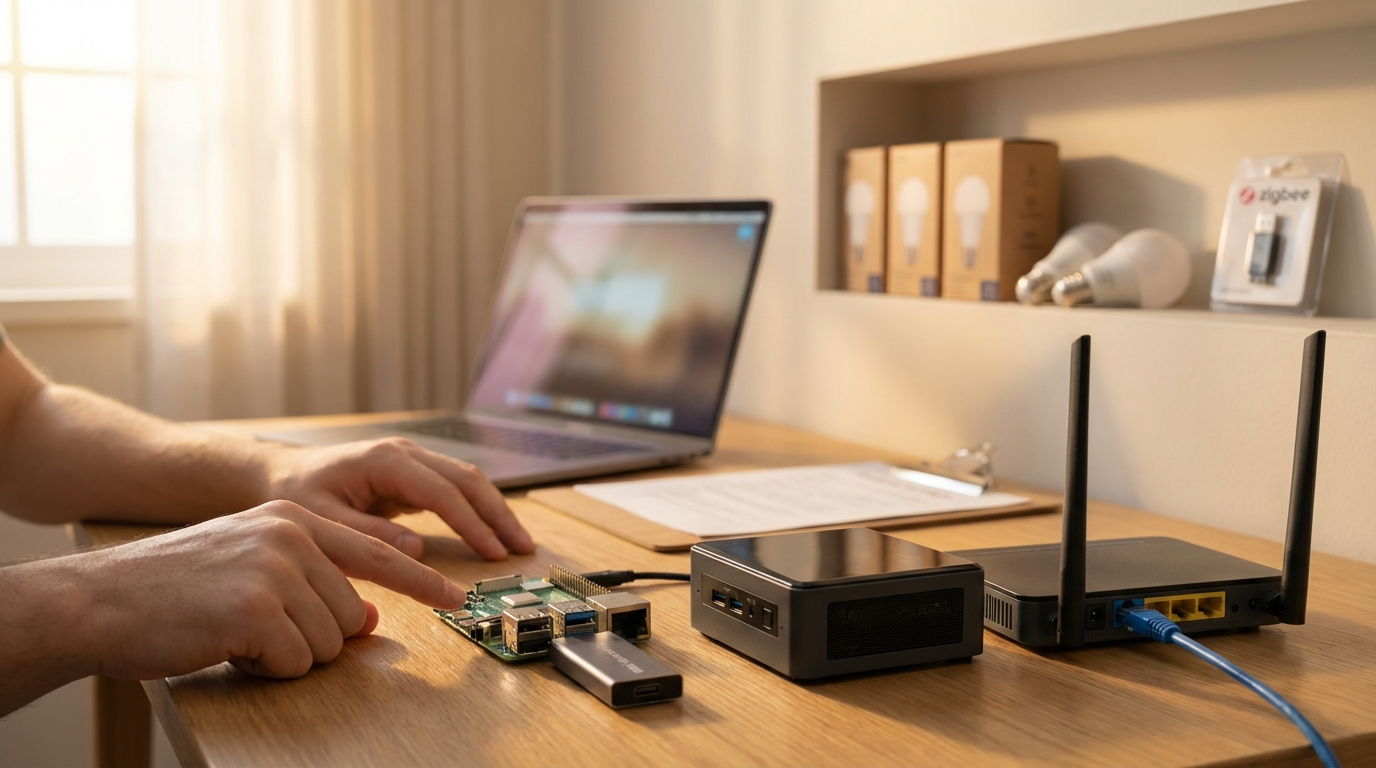
Prerequisites (exact settings to verify)
- Router: mDNS/Bonjour enabled and multicast allowed on the same VLAN/subnet. Verify: open router UI → Advanced → Services or Multicast → Enable mDNS/Bonjour (or “multicast forwarding”).
- DHCP: Plan a DHCP reservation (MAC → fixed IP) for your HA device before first boot.
- Hardware: Raspberry Pi 4 (4–8GB recommended) with USB3 SSD (32GB+) OR small Intel NUC (4GB+). Use official HAOS image for your board.
- Image SHA: Download HAOS from the official site and verify SHA checksum before flashing.
Verification commands (what to run and expected output)
- nslookup (verify mDNS):
nslookup homeassistant.local— Expected: resolves to an IP (e.g., “Name: homeassistant.local Address: 192.168.1.42”). If “can’t find”, mDNS is blocked. (Seeed Studio notes that .local resolution depends on router mDNS/Bonjour support — Seeed Studio, 2025-01-23.) - ping (quick reachability):
ping -c 3 homeassistant.local— Expected: 3 packets with replies. If no replies but IP ping works, use IP until mDNS fixed. - lsblk (verify boot/drive after flashing):
lsblk— Expected: a device like /dev/sda with partitions (boot/root) on SSD; on SD expect /dev/mmcblk0. If SSD not present, reflash or check cable.
Cited fact: .local resolution depends on router mDNS/Bonjour support (see Seeed Studio — 2025-01-23).
Pitfall to avoid: assuming .local will work across VLANs or mesh nodes — multicast is frequently blocked across segments; test on a client on the same subnet.
Flash, first boot, and reach onboarding at http://homeassistant.local:8123 — a timed, single-line command checklist
Single-line commands or exact UI clicks for each timed step. Follow in order and check the verification command after each step.
Download & verify HAOS image
- Download: open the official Home Assistant installation page → select your hardware image (Raspberry Pi / Intel NUC). (See official installation page for images: home-assistant.io.)
- Verify SHA (single-line):
sha256sum haos_rpi4-*.img.gz— Expected: checksum matches the value on the download page. TODO: Confirm exact SHA reference on the official download page before publishing.
Flash (Raspberry Pi Imager UI or balenaEtcher command)
- Raspberry Pi Imager (UI): Open Imager → Choose OS → Use custom → select HAOS image → Choose Storage → Write. Estimated time: 5–10 minutes depending on SSD/SD speed.
- balenaEtcher (CLI alternative):
balena-cli flash /path/to/haos.img /dev/sdX— Expected: “Flash complete”.
Boot & first-boot timing (single-line checks)
- Insert SSD into Pi USB3, power on with a 3A+ USB-C PSU. Wait: 5–10 minutes for service startup on first boot (LEDs stable). Pitfall: underpowered PSUs cause corrupt boots.
- From client: try (order):
http://homeassistant.local:8123→ if fails tryhttp://homeassistant:8123→ if still fails use reserved IP:http://192.168.x.y:8123. - Quick verify (single-line):
curl -I http://homeassistant.local:8123— Expected: HTTP/1.1 200 or 302 during onboarding redirect.
nslookup homeassistant.local then curl -v http://:8123 — this isolates mDNS vs HTTP issues quickly.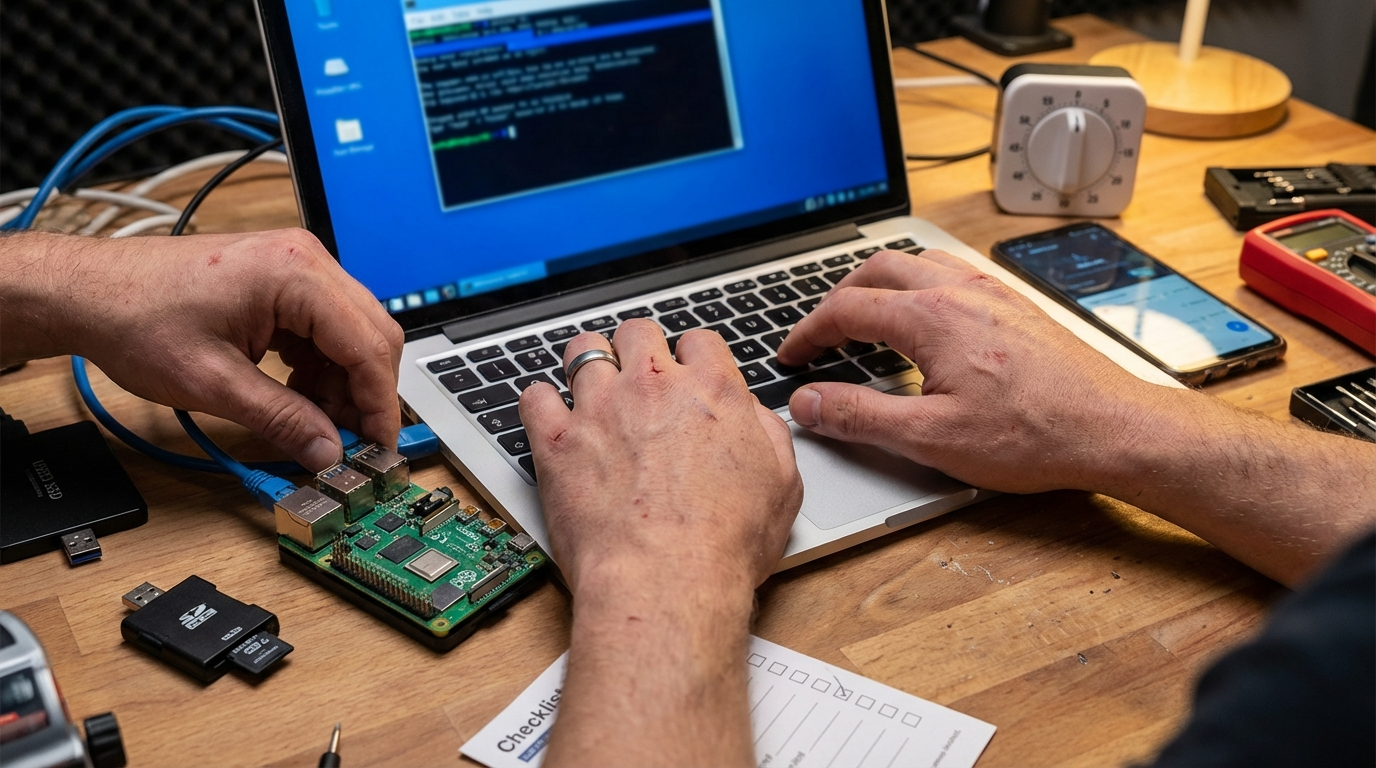
Note: common quick-setup time estimates vary; some resources suggest 10–20 minutes end-to-end for experienced users—mark as TODO to confirm with timed tests on Pi4/NUC before final publish.
Lock it down: How to set and verify DHCP reservations so homeassistant.local:8123 stays stable
Reserve the HA device’s IP in the DHCP server so name and IP persist. This prevents most future .local confusion.
Router UI steps (typical flow)
- Find MAC: after first boot, in router → Attached Devices, note device named “homeassistant” or check device list for the new MAC.
- Reserve IP: Router UI → LAN → DHCP Reservations (or Static Leases) → Add entry: MAC → desired IP (e.g., 192.168.1.42) → Save → Reboot HA device.
- Verify (single-line):
ping -c 3 192.168.1.42— Expected: replies. Also verifynslookup homeassistant.localresolves to the same IP.
Fallback: Hosts file override (temporary)
- Windows (admin): append line to C:\Windows\System32\drivers\etc\hosts:
192.168.1.42 homeassistant.local→ save. Verify:ping homeassistant.local. - macOS/Linux:
sudo sh -c 'echo "192.168.1.42 homeassistant.local" >> /etc/hosts'→ Expected: ping resolves to 192.168.1.42.
Cited note: DHCP reservation is recommended in troubleshooting docs (see Home Assistant companion networking notes: companion.home-assistant.io). TODO: capture router-specific screenshots for TP-Link / Asus / Ubiquiti before publish.
Pitfall to avoid: reserving on the wrong router in a mesh — make the reservation on the DHCP master.
Fixing homeassistant.local:8123 resolution problems — mDNS vs hosts-file overrides (quick fixes you can do in 60 seconds)
Fast checks that take under a minute — try these in order to diagnose .local failures.
60-second checks (commands)
- nslookup:
nslookup homeassistant.local— Expected: an IP. If “Unknown host”, mDNS is blocked. - ping:
ping -c 2 homeassistant.local— Expected: replies. If ping by IP works but .local fails, fix mDNS on router or use hosts file temporarily. - curl (HTTP check):
curl -v http://homeassistant.local:8123— Expected: HTTP headers with 200/302; if no TCP connection, try IP.
Enable Avahi/Bonjour on clients
- Windows: Install Bonjour Print Services (if missing) and restart network stack. Verify:
ping homeassistant.local. - Linux:
sudo systemctl status avahi-daemon— Expected: active. If inactive:sudo apt install avahi-daemonthensudo systemctl start avahi-daemon.
Cited fact: Seeed Studio documents that .local depends on mDNS/Bonjour support on the router and devices (Seeed Studio — 2025-01-23).
Pitfall to avoid: permanently editing many clients’ hosts files without documenting changes — use DHCP reservation or fix mDNS instead.
When homeassistant.local:8123 resolves but the UI fails — stepwise troubleshooting, logs to collect, and single commands to run
If the browser reaches HA but the UI is blank, slow, or shows errors, collect these artifacts in order before rebooting.
Immediate checks (run in this order)
- Check port listener:
ss -tuln | grep 8123— Expected: a line showing LISTEN on :8123. - HTTP check:
curl -v http://homeassistant.local:8123— Expected: HTTP headers and HTML. Copy stdout for bug reports. - Host logs (HAOS): SSH then run:
ha core logsandha supervisor logs— Expected: no fatal errors; copy lines with “ERROR” and timestamps. - Docker (supervised):
docker ps— Expected: homeassistant container running. If not, note container name and status. - USB device test (if ZHA/Z-Wave):
lsusb— Expected: USB stick listed (vendor:product and bus). If missing, replug and retry.
What to collect before asking for help
- Save output:
ha core logs > core.log && ha supervisor logs > supervisor.log && ss -tuln | grep 8123 > port.txt - Note exact browser URL and timestamp, and whether other clients can reach the same page.
Data note: Port 8123 is the default HTTP port for Home Assistant UI — verify listener before restarting services (see port notes in community and installation docs).
Pitfall to avoid: restarting the host repeatedly before collecting logs — transient failures vanish from logs after reboot.
Pick the right hardware for your needs: minimum vs recommended specs, storage, and realistic buy recommendations
Practical guidance for beginners choosing Raspberry Pi vs Intel NUC and storage recommendations.
Minimum vs recommended (short)
- Minimum (test/basic): Raspberry Pi 4, 2GB RAM — OK for a single-room test but prone to limitations and SD wear.
- Recommended (stable local use): Raspberry Pi 4, 4–8GB RAM + USB3 SSD (32GB+) OR small Intel NUC with 4GB+ RAM and SSD — better I/O, fewer corruptions.
- Why SSD: reduces SD corruption risk and speeds database/recorder operations. Verify boot disk:
lsblk— Expected: rootfs on /dev/sda or /dev/nvme0n1 for SSD.
Cited note: Home Assistant installation pages recommend HAOS images per device class (see Raspberry Pi install page: home-assistant.io). TODO: collect benchmark numbers (entity counts per hardware class) before final publish.
Pitfall to avoid: recommending SD-only setups for production — higher risk of filesystem corruption and downtime.
Local-only add-ons & verification steps to keep homeassistant.local:8123 private and functional
Install these local add-ons first and verify each with a one-line test so your HA instance is useful offline.
Essential add-ons and one-line verification
- MQTT broker (Mosquitto): Install Mosquitto add-on → Test:
mosquitto_sub -h 192.168.1.42 -t 'test/topic' -C 1and from other clientmosquitto_pub -h 192.168.1.42 -t 'test/topic' -m 'ok'— Expected: subscriber prints “ok”. - Samba share (backups): Install Samba → Test mount from Windows Explorer: \\192.168.1.42\snapshots or Linux:
mkdir /tmp/ha && sudo mount -t cifs //192.168.1.42/snapshots /tmp/ha -o username=youruser— Expected: snapshot files visible. - SSH & snapshots: Install SSH add-on → Test:
ssh root@192.168.1.42 ha backups list— Expected: snapshot list printed. - Zigbee (ZHA or Zigbee2MQTT): plug USB dongle → Test device present:
lsusb— Expected: vendor/product of dongle listed. Pair a bulb and check Integration shows device messages. - NTP/local time: Ensure host time correct — Test:
dateon SSH → Expected: correct local timezone/time.
Pitfall to avoid: installing cloud-only integrations before securing local infrastructure — start local-first.
Printable 1-page ‘homeassistant.local:8123’ quick-reference and troubleshooting checklist
Copy/paste block below for printing or phone use.
PRE-INSTALL
- Router checks:
  - Ensure mDNS/Bonjour enabled and multicast allowed on same subnet (Router UI → Advanced → Services).
  - Identify DHCP master if using mesh.
- Hardware:
  - Pi4 (4–8GB) + USB3 SSD 32GB+ OR small NUC 4GB+.
- Image:
  - Download HAOS for your device from official site and verify SHA: sha256sum haos_*.img.gz

FLASH & FIRST BOOT (timed)
1) Flash image:
   - Raspberry Pi Imager: Choose OS → Use custom → select HAOS image → Choose Storage → Write (5-10m)
   - Verify: sha256sum matches site.
2) Boot:
   - Insert SSD/SD, power Pi with 3A+ PSU. Wait 5-10m for first-boot services.
3) Open UI:
   - Try in browser, in order:
     - http://homeassistant.local:8123
     - http://homeassistant:8123
     - http://:8123
   - Verify: curl -I http://homeassistant.local:8123 → HTTP/1.1 200/302

LOCK DHCP (immediately)
- Reserve MAC → IP in router DHCP reservations.
- Verify: ping -c 3 192.168.x.y and nslookup homeassistant.local -> same IP

QUICK TROUBLESHOOT (.local fails)
- nslookup homeassistant.local
- ping -c 2 homeassistant.local
- curl -v http://homeassistant.local:8123
- If mDNS blocked: add hosts entry temporarily:
  - Windows (admin): edit C:\Windows\System32\drivers\etc\hosts
  - Linux/macOS: sudo sh -c 'echo "192.168.x.y homeassistant.local" >> /etc/hosts'

IF UI LOADS BUT ERRORS
- SSH: ssh root@homeassistant.local
- Collect: ha core logs > core.log ; ha supervisor logs > supervisor.log
- Check port: ss -tuln | grep 8123
- Check USB: lsusb

BACKUPS & LOCAL ADD-ONS
- Install Mosquitto; test: mosquitto_sub -h 192.168.x.y -t 'test' -C 1 ; mosquitto_pub -h 192.168.x.y -t 'test' -m 'ok'
- Install Samba; test mount from client.

WHEN TO ESCALATE
- If nslookup and IP:8123 both fail, collect core/supervisor logs and router device list before posting help.
Note: The “Total estimated time: 10–20 minutes” is commonly cited for a simple setup but should be verified on your hardware; mark as TODO to confirm measured times for Pi4/NUC.
Conclusion
Follow the network-first checklist above, reserve a DHCP IP, flash the correct HAOS image, and verify discovery with home assistant.local.8123. If you prefer step-by-step device pages, compare hardware picks and read more on our Raspberry Pi setup and networking guides; consider subscribing for timed test results and specific router screenshots to eliminate guesswork before buying.
CTA: Compare Pi vs NUC recommendations and read the linked getting started guides to pick hardware and finish the installation.
FAQ
Why can’t I reach http://homeassistant.local:8123 right after first boot?
Most often mDNS/Bonjour is blocked or the device received a different IP — check nslookup, try IP:8123, and verify DHCP reservation.
How do I verify my router supports mDNS / Bonjour?
Look for multicast/mDNS/Bonjour settings in the router UI or test with nslookup/ping on homeassistant.local from a client on the same subnet.
What’s the single fastest way to get to the onboarding screen?
Flash the official HAOS image with Raspberry Pi Imager, boot the Pi with SSD, wait 5–10 minutes, then open http://homeassistant.local:8123 or http://<reserved-IP>:8123.
If homeassistant.local resolves but the page is blank, what should I collect before seeking help?
Collect ha core logs, ha supervisor logs, output of docker ps/ss -tuln | grep 8123, and a curl -v to the URL.
Do I need an SSD instead of an SD card?
For long-term reliability and fewer corruptions, use a USB3 SSD for Raspberry Pi installations; SD is acceptable for quick tests but not recommended for production.
Internal resources: Home Assistant basics: getting started, networking and mDNS, Raspberry Pi setup, backup and restore, zigbee and z-wave guide.