

does home assistant do z-wave encryption — short answer: Home Assistant does not itself perform Z‑Wave encryption; the Z‑Wave controller/firmware handles S0/S2 key exchange while Home Assistant (via Z‑Wave JS) manages pairing, keys, and UI. This guide gives a beginner-friendly, checklist-first flow to perform S2 inclusion, verify encryption in the HA dashboard/logs, and back up/migrate keys safely.
Key Takeaways
- Use Home Assistant OS + Z‑Wave JS add‑on (or a correctly configured Z‑Wave JS container) with an S2-capable controller — HA itself does not perform Z‑Wave encryption; the controller/firmware handles S0/S2 key exchange. (Home Assistant blog, 2021-10-06; Z‑Wave JS integration, 2023-10-01)
- Always exclude before including, generate/confirm S2 keys in the Z‑Wave JS add‑on (leave S2 fields empty on first setup to auto‑generate), provide the device DSK/QR or PIN during pairing, and confirm the node shows “S2” in Devices UI and logs. (Z‑Wave JS docs, 2023-10-01)
- Back up keys and controller data before migrating controllers — failing to export/import keys or re-pairing without keys can force unencrypted S0 or full re‑inclusion. (Z‑Wave JS docs, 2023-10-01)
- Get your Home Assistant setup ready so S2 pairing works first time
- Choose a compatible Z‑Wave controller and firmware so devices can actually do S2
- Exact prerequisites checklist (hardware + software + Z‑Wave JS add‑on settings) you must tick off before pairing
- Step-by-step secure S2 inclusion checklist (exclude → include → verify) you can follow now
- Where Z‑Wave encryption keys live, how to back them up securely, and how to migrate controllers without losing encryption
- Diagnose and fix common real‑world failure modes so you don’t get stuck
- Lowest-cost, tested beginner path + printable verification checklist so you can prove S2 is active now
- Conclusion
- FAQ
Get your Home Assistant setup ready so S2 pairing works first time
What to cover: recommended install types, how to install the Z‑Wave JS add‑on or container, and a quick USB checklist so the controller is stable and visible in HA.
Use Home Assistant OS (recommended) for add‑on ease. If you run a Container install you must run a Z‑Wave JS container with mapped serial ports and persistent config. Note: “Z‑Wave JS integration requires a supported Z‑Wave USB adapter; Home Assistant OS is recommended for add‑on setup” (home-assistant.io/integrations/zwave_js/, 2023-10-01).
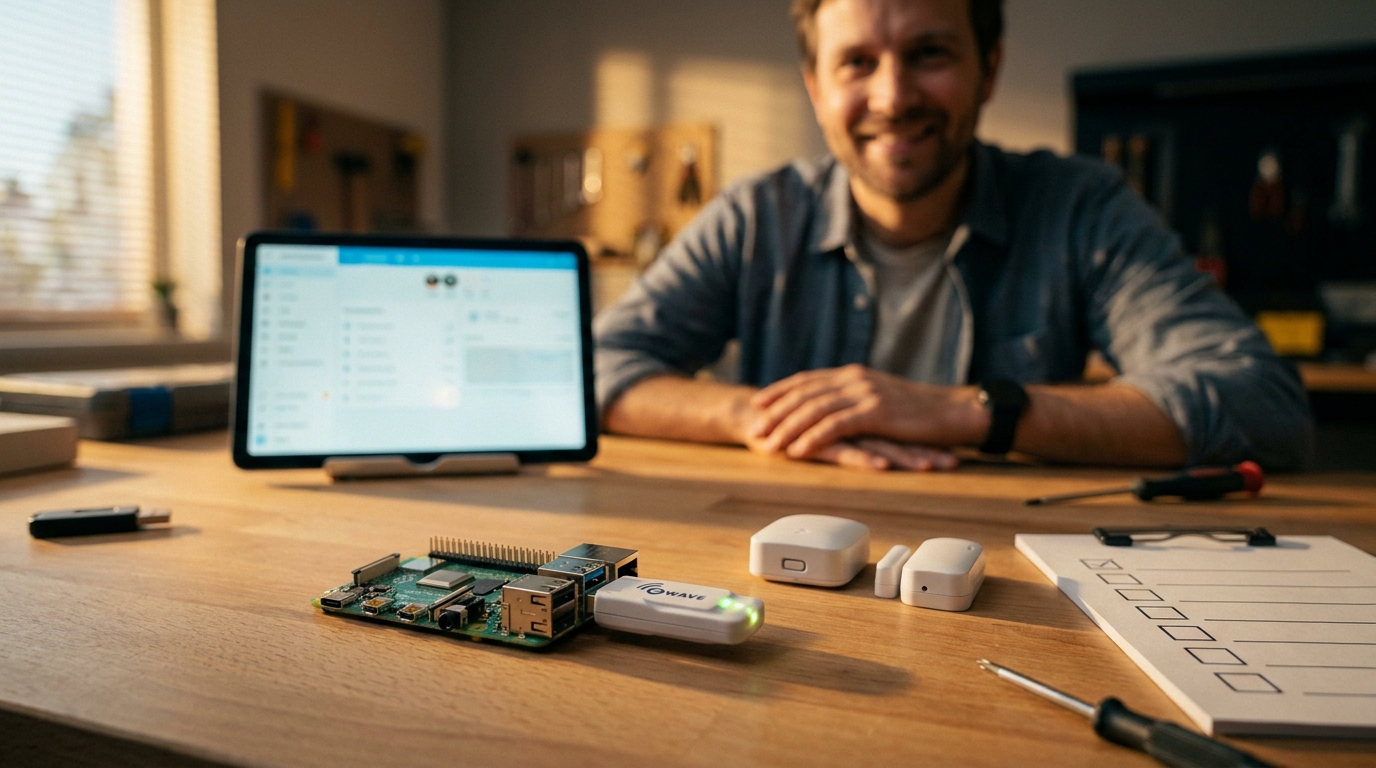
Quick setup steps (Home Assistant OS)
- Install Home Assistant OS on your Pi/NUC and access UI at
http://homeassistant.local:8123. - Open Supervisor → Add‑on Store → Install “Z‑Wave JS” add‑on or run official Z‑Wave JS container on Container installs and map serial device.
- Set add‑on options: map
/dev/ttyUSB0or your adapter path, enable “Start on boot”, and make config persistent. - Restart Home Assistant after add‑on install and verify Supervisor → System → Logs show Z‑Wave JS started and your controller path.
Pitfall: Installing Z‑Wave JS as a container without mapping the serial device or persistent config causes the controller to appear/disappear and breaks secure inclusion.
Internal resources: see home-assistant-basics/installing-home-assistant for OS vs Container pros/cons, and home-assistant-basics/backups for snapshot basics.
Choose a compatible Z‑Wave controller and firmware so devices can actually do S2
What to cover: recommended controllers, how to verify S2 support, and how to test if firmware details are unclear.
Pick an explicitly S2-capable stick. Home Assistant Connect ZWA‑2 is listed as officially supported for optimized Z‑Wave and S2 handling (Home Assistant blog, 2025-08-13). The Z‑Wave JS docs list supported adapters; check there before buying (zwave_js integration, 2023-10-01).
Controller checklist
- Buy a stick explicitly advertised as “S2-capable” (example: Home Assistant Connect ZWA‑2).
- Verify vendor firmware notes for S2 support or contact vendor support if unclear.
- Test a known S2 device: attempt S2 inclusion (see H2 below). If the controller prompts for DSK/QR during pairing, S2 is supported.
Pitfall: Assuming any cheap stick will support S2 — many sticks are S0‑only or have outdated firmware; verify before purchasing.
Internal link: pairing tips and controller choices in home-assistant-basics/integrations.
Exact prerequisites checklist (hardware + software + Z‑Wave JS add‑on settings) you must tick off before pairing
What to cover: minimal hardware + HA install options, add‑on fields, verifying serial port and Z‑Wave JS status.
- Hardware (minimum)
- [ ] Home Assistant OS on Raspberry Pi or supported system
- [ ] S2-capable USB stick (e.g., Home Assistant Connect ZWA‑2) — confirm vendor notes
- [ ] Reliable power supply and short USB extension (avoid long cables)
- [ ] Device you plan to pair with DSK/QR or PIN available
- Software & add‑on
- [ ] Z‑Wave JS add‑on installed or container running and mapped to serial (e.g.,
/dev/ttyUSB0). - [ ] Leave S2 fields blank on first setup to auto‑generate S2 keys; paste existing S0 key only when migrating. (“Leave Z‑Wave JS add‑on fields empty on first setup to auto‑generate keys; enter existing S0 key if migrating” — zwave_js, 2023-10-01.)
- [ ] Ensure add‑on has access to /config and persistent storage enabled.
- [ ] Z‑Wave JS add‑on installed or container running and mapped to serial (e.g.,
- Verify
- Open Supervisor → Z‑Wave JS → Log: confirm service started and adapter path displayed.
- Home Assistant → Settings → Devices & Services → Z‑Wave JS shows controller node and version.
Pitfall: Omitting the S0 key during migration or pre-populating S2 fields incorrectly — leads to device re‑pairing or loss of secure communication.
Internal link: backup best practices in home-assistant-basics/backups.
Step-by-step secure S2 inclusion checklist (exclude → include → verify) you can follow now
What to cover: exact exclude-first flow, DSK/QR/PIN entry, typical device button presses, exact dashboard checks and log lines.

- Exclude first
- HA UI path: Settings → Devices & Services → Z‑Wave JS → Open Z‑Wave JS Control Panel → Select “Remove Node” (controller mode: Exclude).
- Press the device’s exclusion button per manual (typical: 3× quick press or press/hold 2–5s). Wait for “Node removed” message in Z‑Wave JS logs.
- If logs show “node not found” → retry exclusion near controller.
- Generate/confirm S2 keys
- In Z‑Wave JS add‑on options: if S2 fields are empty, leave them and let the add‑on auto‑generate keys on first start. (zwave_js, 2023-10-01)
- Start inclusion
- HA UI path: Settings → Devices & Services → Z‑Wave JS → Add device → Start inclusion.
- Put device into inclusion mode (typical examples):
- Switch: 3× quick press on the program button.
- Battery sensor: hold program button 5s until LED flashes.
- Smart lock: follow vendor instructions for secure include (often keypad PIN or DSK required).
- When Z‑Wave JS prompts for DSK/PIN: scan QR with mobile app or paste the DSK. If device has no PIN, select S2 Unauthenticated in advanced pairing.
- Verify inclusion and S2
- HA UI path: Settings → Devices & Services → Devices → select node → check “Security” or “Security Class” shows S2.
- Log search phrases to copy/paste: search Z‑Wave JS logs for
S2 bootstrapping,successfully bootstrapped, orNode added. - Success example log line:
info, Node 12: S2 bootstrapping complete: S2_AUTHENTICATED— if you see this → device is securely included. - If node security shows “None” or “S0” → exclude and re‑include with correct DSK/PIN; check controller firmware.
Data point: S2 support was added to HA’s Z‑Wave JS flow in late 2021 — see 2021-10-06 for the release notes. Community step-flow examples: community guide (2021-01-01).
Internal links: pairing flows and UI tips in home-assistant-basics/installing-home-assistant and device verification in home-assistant-basics/dashboard.
Where Z‑Wave encryption keys live, how to back them up securely, and how to migrate controllers without losing encryption
What to cover: Z‑Wave JS key handling, how to export/import controller data, safe storage recommendations, and migration recovery if keys are missing.
Z‑Wave JS add‑on auto‑generates S2 keys on first run; enter existing S0 key only when migrating. “Leave Z‑Wave JS add‑on fields blank on first setup to auto‑generate S2 keys; enter existing S0 key if migrating” (zwave_js, 2023-10-01).
Backup & export steps (recommended)
- Open Z‑Wave JS Control Panel in HA → look for “Export Network / Controller Backup” (if your add‑on version supports it).
- Export files to a local machine and store encrypted (e.g., use 7‑Zip AES or a password manager attachment). Keep at least two offline copies.
- If UI export not available: back up the add‑on config directory (Supervisor → Snapshots → include Z‑Wave JS files) — store snapshot encrypted offline.
Data gap note: No reliable data found on the exact file path where keys are stored on disk for all HA installs — research: inspect Z‑Wave JS add‑on config dir on Home Assistant OS and record exact JSON/YAML filenames before publishing.
Migration recovery
- If migrating controllers and you have exported S0/S2 keys: import them into the new controller via Z‑Wave JS UI before enabling inclusion. If you cannot import keys, you must exclude & re‑include devices (may lose secure pairing).
- Always test one device after migration first: include it and confirm “S2” in Devices UI and logs.
Pitfall: Migrating without exporting keys or assuming HA holds keys centrally — can force re‑pairing or loss of encryption.
Diagnose and fix common real‑world failure modes so you don’t get stuck
What to cover: failure modes, how to spot them in logs/UI, and exact recovery steps.
Common failure modes and recovery
- Failed S2 inclusion — Symptom: pairing stalls or logs show
S2 bootstrap failed. Recovery: Exclude → ensure DSK/PIN is exact → include near controller → select S2 Authenticated/Unauthenticated as relevant. - Device falls back to S0 or None — Symptom: Device details show “Security Class: S0” or “None”. Recovery: Exclude, regenerate S2 keys in add‑on if needed, re‑include with DSK. Community notes warn to avoid S0 for sensors due to performance impact. (community, 2020-01-01)
- Migration failure — Symptom: devices require re‑pair after controller swap. Recovery: import S0 key from backup; if missing, plan mass re‑inclusion and update automations accordingly. (zwave_js, 2023-10-01)
- Firmware mismatch — Symptom: controller reports firmware older than vendor recommended. Recovery: Update controller firmware per vendor docs then retry secure inclusion.
If you see in logs: error: S2 bootstrap failed → do this: 1) exclude device; 2) verify DSK; 3) include again near controller; 4) if still failing, update controller firmware or test with different S2 device.
Internal link for troubleshooting: see home-assistant-basics/integrations for connection diagnostics and home-assistant-basics/automations for updating automations after re‑pair.
Lowest-cost, tested beginner path + printable verification checklist so you can prove S2 is active now
What to cover: minimal hardware path, install+pair one S2 device, and a one‑page printable checklist to prove S2 is active.
Recommended minimal path: Home Assistant OS on Raspberry Pi + Z‑Wave JS add‑on + a supported S2 stick (Home Assistant Connect ZWA‑2 recommended). (“Recommended: Home Assistant OS + Z‑Wave JS add‑on + supported stick like Home Assistant Connect ZWA‑2.” — Home Assistant blog, 2025-08-13)
One-device quick test (15–30 minutes)
- Install HA OS and Z‑Wave JS add‑on; confirm controller listed (Settings → Devices & Services → Z‑Wave JS).
- Exclude the test device (see H2 checklist). Put it in inclusion mode and start Add Device in Z‑Wave JS UI.
- Enter DSK/scan QR when prompted. Wait for log line:
S2 bootstrapping complete. - Verify in Devices → Node → Security Class shows S2. Send a command (toggle switch) and observe immediate state update in HA UI.
Printable verification checklist (one page)
- [ ] HA OS installed and accessible at
homeassistant.local:8123 - [ ] Z‑Wave JS add‑on installed and controller path present
- [ ] S2 fields left blank on first add‑on start
- [ ] Device excluded before inclusion
- [ ] DSK/PIN entered during inclusion
- [ ] Devices UI shows “Security Class: S2”
- [ ] Z‑Wave JS logs contain
S2 bootstrapping complete - [ ] Controller backup exported and stored encrypted
Data gap note: No reliable current pricing data found for lowest‑cost S2 sticks — test current market prices for 3 popular sticks before purchase.
Internal links: setup checklist and Pi guide in home-assistant-basics/installing-home-assistant and a ZWA‑2 setup checklist at home-assistant-zwa-2.

Conclusion
Summary: Home Assistant does not itself encrypt Z‑Wave traffic — the controller/firmware performs S0/S2 exchanges while Z‑Wave JS manages keys and pairing. Follow the exclude→include checklist, confirm S2 in Devices UI and the Z‑Wave JS logs, and export controller backups before migrating. If you want a reliable beginner path, use Home Assistant OS + Z‑Wave JS add‑on + an S2-capable stick like the Home Assistant Connect ZWA‑2 and follow the printable checklist above to prove S2 is active.
Next step: compare controllers and download the Z‑Wave JS docs to plan your migration or buy decision — and verify S2 with a single S2 device before full deployment. If you want more setup help, read more internal guides or subscribe for step-by-step walkthroughs.
FAQ
Does Home Assistant itself encrypt Z‑Wave traffic?
No — encryption (S0/S2) is handled by the Z‑Wave controller/firmware while the Z‑Wave JS integration manages keys and pairing workflows. (See Home Assistant blog 2021-10-06; Z‑Wave JS docs 2023-10-01.)
Do I have to re-pair devices to get S2 security?
Usually yes — many existing S0/unsecured nodes must be excluded and re‑included to receive S2, unless you can import an existing S0 key during migration. (See Z‑Wave JS docs 2023-10-01.)
How do I verify a node is using S2 in Home Assistant?
Check Settings → Devices & Services → Devices → select the Z‑Wave node and confirm “Security Class” shows “S2” and search Z‑Wave JS logs for “S2 bootstrapping” success lines. (See HA blog 2021-10-06.)
Where are the S2 keys stored and how do I back them up?
Keys are managed by Z‑Wave JS (add‑on) — the add‑on can auto‑generate S2 keys and you should export controller data from the Z‑Wave JS UI or back up the add‑on configuration securely. Exact file path on disk: No reliable data found — inspect your Z‑Wave JS add‑on config dir before migration. (See Z‑Wave JS docs 2023-10-01.)
What if secure inclusion keeps failing?
Check logs for S2 bootstrap errors, ensure correct DSK/PIN entry, perform exclusion then inclusion near the controller, and update controller firmware if available. (Community recovery threads and Z‑Wave JS docs cover these steps.)