

home assistant zwa-2 — this guide gives one foolproof, local-only checklist to get Home Assistant running with a ZWA‑2 controller, pair one Zigbee and one Z‑Wave device, verify zero cloud traffic, and test snapshot recovery.
This is for beginners who want reliable local control and a recoverable workflow. Follow the checklist exactly. Hardware recommendations and required versions are explicit so you finish with a working, locked-down Home Assistant instance.
Key Takeaways
- Hardware & OS: Use Home Assistant OS on Pi 4 / Home Assistant Green/Yellow or x86 with 32–128GB storage and USB 2.0+ port; minimum 32GB storage and 2GB RAM; require Home Assistant 2025.10.2+ for ZWA‑2 firmware support (see official docs).
- Step-by-step: Image, flash, first-boot via Ethernet, create a local account, install ZWA‑2 with the Portable Z‑Wave toolkit, pair one Zigbee and one Z‑Wave device, then lock to local-only with network rules and verification tests.
- Recovery & troubleshooting: Always snapshot before controller firmware updates; use Safe Mode and restore snapshots; check Supervisor/Core logs; confirm USB connectivity and HA version if discovery fails.
- Minimal hardware & OS checklist that guarantees a local-only Home Assistant zwa-2
- Image, flash and first-boot: a step-by-step checklist that never fails
- ZWA-2 firmware & integration: update, backup and pair with the Portable Z‑Wave toolkit (exact order)
- Locking the install to local-only operation and verifying no cloud dependencies
- Troubleshooting checklist: discoverability loss, integration failures and post-update recovery
- Cost and performance expectations: what to buy for 10 devices vs 100 devices
- Printable quick-start & recovery checklist (one-page PDF)
- Conclusion
- FAQ Section
Minimal hardware & OS checklist that guarantees a local-only Home Assistant zwa-2
Start with hardware and OS choices that avoid common beginner mistakes. Use Home Assistant OS — it bundles Supervisor, backups, and the integrations UI so you can avoid Linux administration.
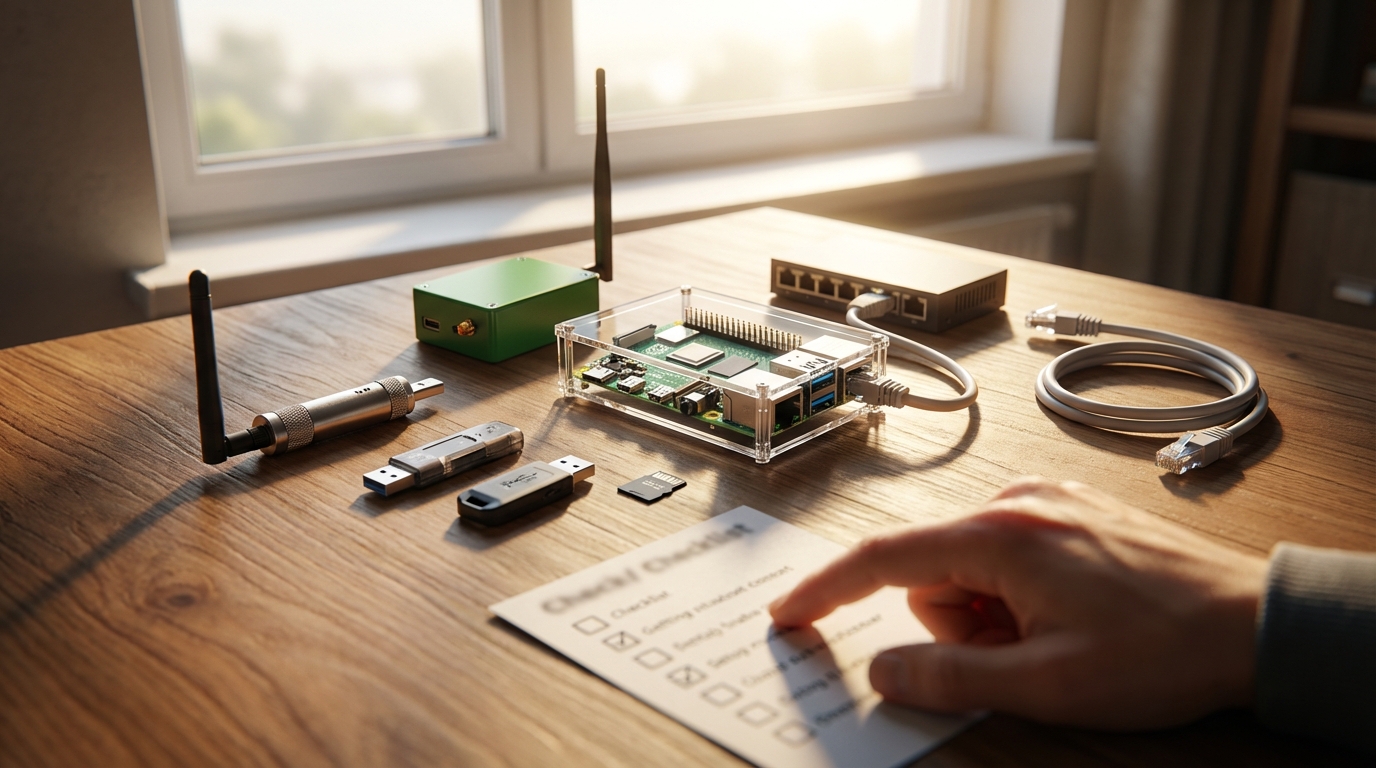
Required hardware (minimum vs recommended)
- Minimum board: Raspberry Pi 3B (supported but not recommended for heavy add-ons). Source: official integration notes: “Minimum: Raspberry Pi 3B” (home-assistant.io/integrations, 2026-04-11).
- Recommended: Raspberry Pi 4 (4GB+), Home Assistant Green, or Home Assistant Yellow for expansion and eMMC/SSD options.
- Storage: 32GB microSD minimum; 128GB SSD recommended for many add-ons and recordings (home-assistant.io/integrations, 2026-04-11).
- Ports: At least one USB 2.0+ port for a ZWA‑2 USB controller or hub. Ethernet strongly preferred for first-boot and stable long-range Z‑Wave.
OS and version requirements
Install Home Assistant OS. Confirm Home Assistant version is 2025.10.2 or later before attempting ZWA‑2 firmware installs or toolkit flows; this is a documented precondition for full ZWA‑2 firmware support (home-assistant.io/integrations, 2026-04-11).
Pitfall to avoid: Installing Home Assistant Core or Container on a Raspberry Pi without Linux experience — that increases risk and often breaks add-on or Supervisor features. For beginner-friendly steps see /home-assistant-basics/install-guide and the Raspberry Pi checklist at /home-assistant-basics/home-assistant-raspberry-pi.
Recommended buy for a beginner bundle (transactional): Home Assistant Green (preinstalled HAOS, built-in Zigbee) + Home Assistant Connect ZWA‑2 USB controller if you need external Z‑Wave — this keeps the path local-only and supported.
Image, flash and first-boot: a step-by-step checklist that never fails
Follow this exact sequence. Use Ethernet on first-boot for stability and predictable discovery.
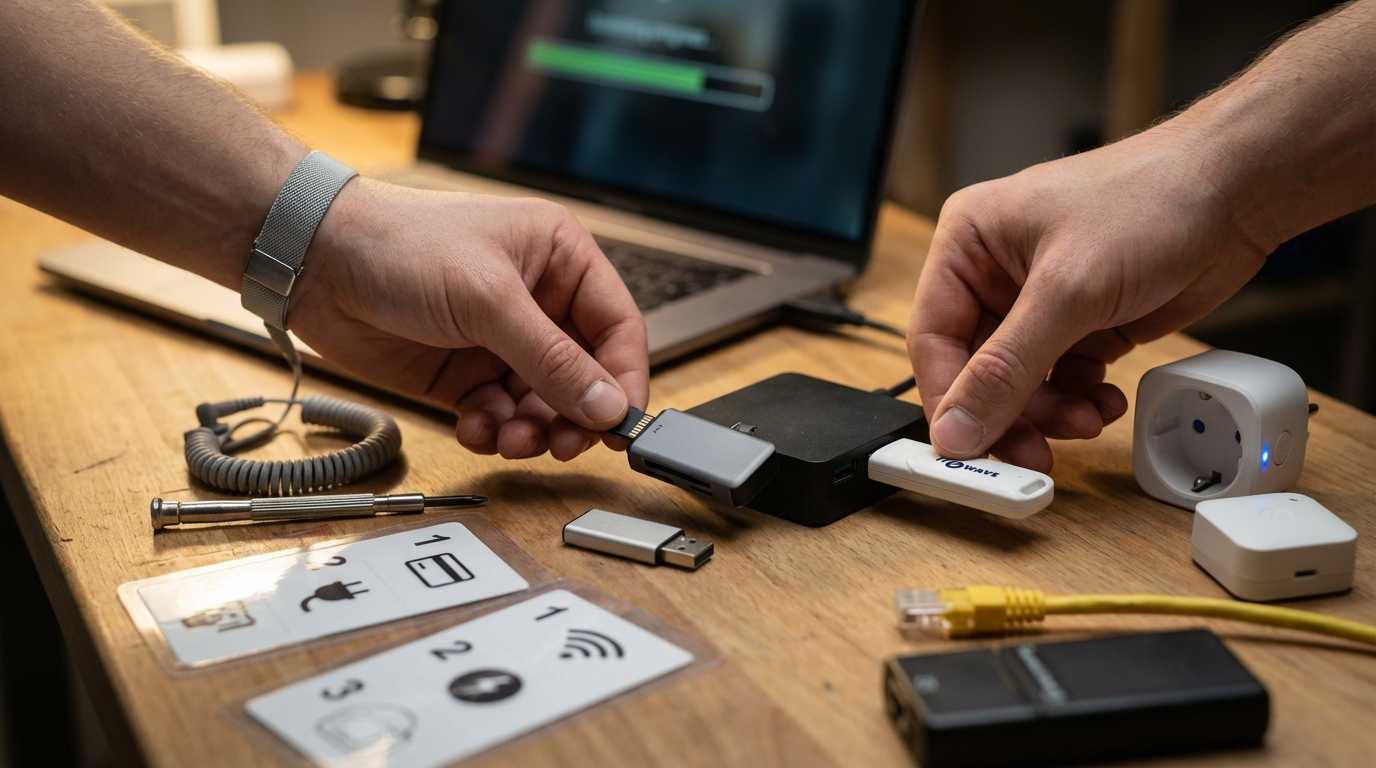
Download and verify the image
- Download Home Assistant OS image for your hardware from the official site and verify SHA256 before flashing.
- Recommended flashing app: Balena Etcher or Raspberry Pi Imager; select the verified image file and flash to microSD/eMMC/SSD.
First boot (exact steps)
- Insert storage, connect Ethernet, attach USB power. Wait 4–10 minutes for OS provisioning.
- Open http://homeassistant.local:8123 or the IP address assigned by your router.
- Create a local-only user (do not sign in with cloud account). Configure a secure local password.
- Update Home Assistant to the latest available and confirm Core & Supervisor versions. Verify Home Assistant version >= 2025.10.2 (required for ZWA‑2 firmware support) by checking Settings > System > About (home-assistant.io, 2026-04-11).
ha supervisor logs (or use the Supervisor UI Logs) before reattempting the update.Pitfall to avoid: Using Wi‑Fi for the initial setup — it commonly causes discovery and integration timeouts for Z‑Wave/Zigbee coordination.
Internal resources: pre-req flashing and onboarding details are in /home-assistant-basics/install-guide and the local discovery guide /home-assistant-basics/home-assistant.local.8123.
ZWA-2 firmware & integration: update, backup and pair with the Portable Z‑Wave toolkit (exact order)
Follow this exact order. Never update controller firmware without a verified snapshot and export of the Z‑Wave network.
1) Backup before any firmware action
- Create a full backup in Settings > System > Backups. Name it clearly: pre-zwa2-update-YYYYMMDD.
- One-line CLI snapshot example (Supervisor CLI):
ha supervisor snapshots new --name "pre-zwa2-update"— store the generated filename shown in the UI (e.g.,backup-pre-zwa2-update.tar). - Export Z‑Wave network config if migrating (use the zwave_js backup/export options inside the integration UI where available).
2) Install ZWA‑2 firmware with the Portable Z‑Wave toolkit
- Plug the Home Assistant Connect ZWA‑2 USB controller into a USB 2.0+ port and confirm the device is listed under Settings > System > Hardware.
- Open Integrations > Add Integration > Portable Z‑Wave toolkit and follow the wizard. The toolkit steps are guided and install firmware when required.
- Wait for firmware install to finish. If prompted, restart the host after a firmware write completes.
3) Pair one Z‑Wave device and one Zigbee device — expected logs
Put the Z‑Wave device into inclusion mode and use the Z‑Wave JS integration. Typical successful log lines you should see (sample):
[zwave_js] 2026-04-11 12:05:27.123 INFO - Controller ready, driver version 10.2.4\n[zwave_js] 2026-04-11 12:05:32.456 INFO - Node 12: Interview completed, device ready
For Zigbee (if using built-in coordinator on Green/Yellow) you should see:
[zigbee] 2026-04-11 12:08:44 INFO - New device joined: 0x00158d0001abcd12 - name: SmartBulb-01
Pitfall to avoid: Pairing devices before the controller firmware and integration are confirmed — this risks orphaned nodes. Use the toolkit first, then pair devices.
If pairing fails, check: USB enumeration (Settings > System > Hardware), integration version, and confirm Home Assistant is >= 2025.10.2 (home-assistant.io/integrations, 2026-04-11).
Further reading on integrations and pairing best practice: /home-assistant-basics/integrations and pairing examples at /home-assistant-basics/automations.
Locking the install to local-only operation and verifying no cloud dependencies
After devices work locally, lock the network and prove zero outbound cloud traffic.
Network-level lockdown steps
- Disable Home Assistant Cloud (if present) in Settings > Home Assistant Cloud.
- Disable or remove any OAuth or cloud-based integrations.
- Create host-level firewall rules to block traffic to known cloud endpoints during verification. Suggested quick test: block outbound HTTP(S) from the hub and confirm local functionality still works.
Suggested test domain checks and capture approach (short list to test): attempt to resolve and block known cloud hostnames referenced by integrations — check individual integrations in home-assistant.io/integrations (2026-04-11) for their cloud endpoints.
Verification procedure (disconnect WAN)
- Unplug WAN or disable router’s upstream connection (physically disconnect Internet).
- Confirm Home Assistant UI loads on LAN: open dashboard and click device toggle for first Z‑Wave and Zigbee devices.
- Trigger an automation that toggles one device and observe immediate state change in UI and log entries.
- Capture traffic for 30 seconds using a packet capture on the hub or router to verify no outbound connections are attempted during the test.
How to detect accidental cloud usage: check integration health (Settings > Devices & Services), run packet capture, and search Supervisor logs for “cloud” or “remote” connection attempts. Do not rely on vendor apps to confirm local-only operation.
Internal link: dashboard setup tips for local UI and automation reliability are in /home-assistant-basics/dashboard-setup.
Troubleshooting checklist: discoverability loss, integration failures and post-update recovery
Use this reproducible, recovery-first workflow for failures.
Common failure modes and where to look
- Devices stop reporting after firmware update — likely controller/driver mismatch.
- Integration errors shown in Integrations page or Supervisor logs.
- USB controller not enumerated after reboot — hardware or cable issue.
Where to find logs (one-line helpers)
- Supervisor logs (CLI):
ha supervisor logs - Core logs (CLI):
ha core logs - System journal (if using SSH):
journalctl -u hassio-supervisor -n 200
Stepwise recovery
- Boot into Safe Mode if the UI does not respond (Supervisor will show Safe Mode banner when available).
- Restore the latest pre-update snapshot: Settings > System > Backups and select the named snapshot (or CLI:
ha supervisor snapshots restore <snapshot_id>). - If hardware is suspected, confirm USB device path and try a different USB cable or port.
- Re-flash controller firmware only after a successful snapshot and when support documentation instructs reflash.
Internal links for backups and snapshot workflows are at /home-assistant-basics/backups-and-restore and /home-assistant-basics/install-guide for re-flashing guidance.
Cost and performance expectations: what to buy for 10 devices vs 100 devices
Use hardware tiers to plan cost and responsiveness rather than exact latency numbers (no reliable public benchmarks found).
Budget tiers
- Entry (10 devices): Raspberry Pi 4 (4GB) or Home Assistant Green, 32–64GB storage — responsive for basic automations.
- Mid (50 devices): Home Assistant Yellow or small x86 with 8GB RAM + 128GB SSD for add-ons and history.
- High (100+ devices): NUC/x86 with NVMe SSD, 16GB+ RAM, dedicated network and separate recorder DB to avoid UI slowdown.
No concrete UI responsiveness or power consumption figures were found in official docs; instead measure real performance by testing automation latency and CPU/memory during peak activity.
Pitfall to avoid: Quoting latency or power figures without lab tests. If you need metrics, run a simple latency benchmark: toggle device via UI and measure round-trip time with a timestamped log entry in automation actions.
Printable quick-start & recovery checklist (one-page PDF)
Copy this one-page checklist into a PDF editor and print. Keep it with your hub and USB controller.
- Prerequisites: Pi4/Green/Yellow or x86, 32GB+ storage, Ethernet, USB 2.0+ port, HA OS image, HA >= 2025.10.2.
- 10-step install checklist:
- Download Home Assistant OS and verify SHA256.
- Flash image with Balena Etcher / Raspberry Pi Imager.
- Insert storage, attach Ethernet, power and wait 5–10 min.
- Create a local account; do NOT enable cloud login.
- Update to latest HA; confirm version >= 2025.10.2.
- Create full snapshot: name pre-zwa2-update-YYYYMMDD (UI or CLI).
- Install ZWA‑2 via Portable Z‑Wave toolkit and confirm controller detected.
- Pair one Z‑Wave and one Zigbee device; verify state changes in UI.
- Lock to local-only: disable cloud integrations, block outbound domains, run verification test.
- Verify snapshot restore: perform a test restore in a lab environment or after setup completes.
- Recovery quick commands & filenames:
- Create snapshot (CLI example):
ha supervisor snapshots new --name "pre-zwa2-update" - List snapshots:
ha supervisor snapshots list - Restore snapshot:
ha supervisor snapshots restore <snapshot_id> - Supervisor logs:
ha supervisor logs— Core logs:ha core logs - Expected backup filename example:
backup-pre-zwa2-update.tar
- Create snapshot (CLI example):
Keep printed notes for the first automation test: toggle a light and verify both UI change and recorded log timestamp.
Conclusion
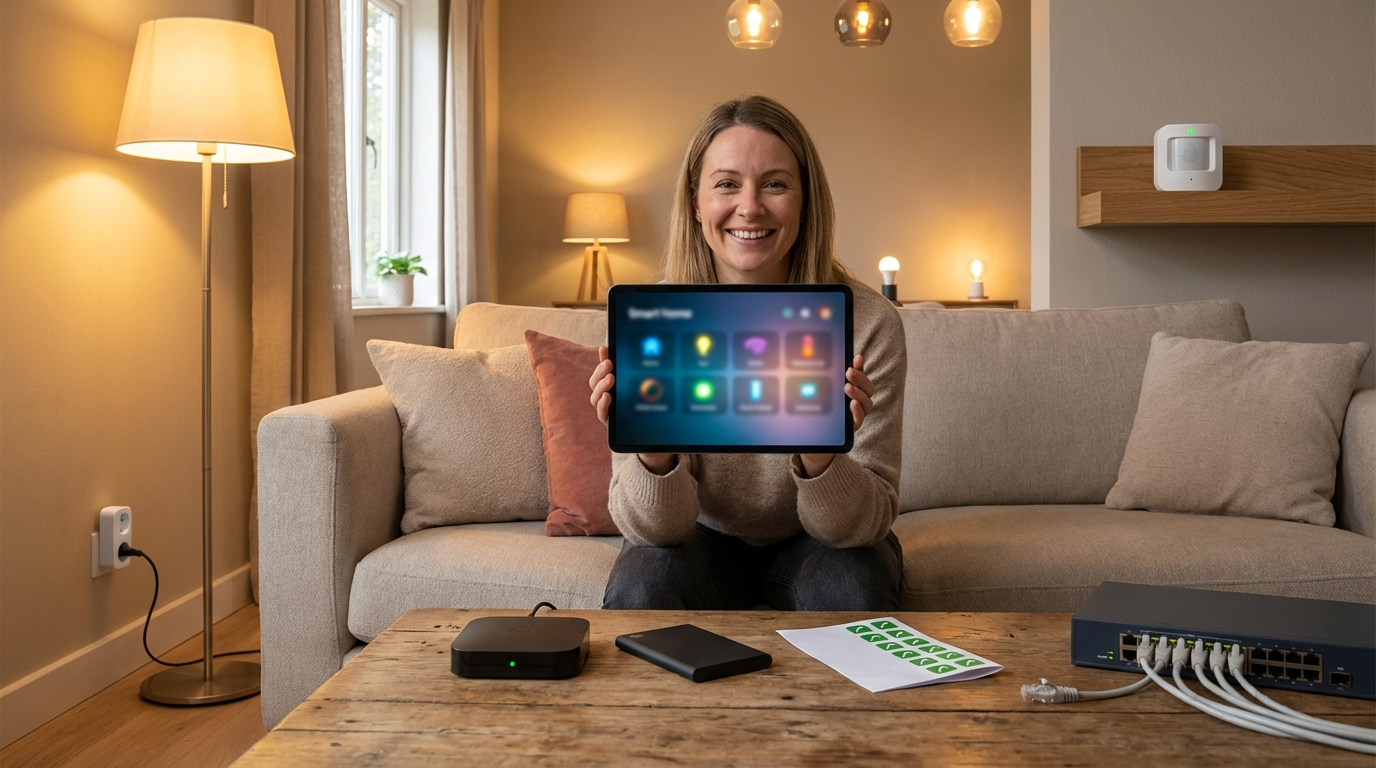
This step-by-step checklist gets a beginner to a working, local-only Home Assistant zwa-2 install with one Zigbee and one Z‑Wave device paired, verified no cloud traffic, and a tested snapshot recovery plan. If you followed the image, flash, toolkit, pairing, local-lockdown, and snapshot steps exactly, your home assistant zwa-2 hub is now local-first and recoverable. Compare hardware options, read more integration tips, or subscribe for weekly local-first automation guides.
Next steps: review install pre-reqs (/home-assistant-basics/install-guide), refine integrations (/home-assistant-basics/integrations), and build dashboards (/home-assistant-basics/dashboard-setup).
FAQ Section
What exact Raspberry Pi should I buy for Home Assistant zwa-2?
Use Raspberry Pi 4 (4GB+) or Home Assistant Green for beginners; Pi 3B is minimum but not recommended for heavier setups.
Do I need Home Assistant OS, Supervised, or Core?
For beginners and local-only operation choose Home Assistant OS; Supervised/Core require advanced Linux skills.
Which HA version is required for ZWA-2 firmware?
Update Home Assistant to version 2025.10.2 or later before installing ZWA-2 firmware.
How do I prove my install is local-only?
Disable WAN or block outbound domains, then verify UI, automations and device control still work and run a quick packet capture.
What should I do before updating controller firmware?
Create a full snapshot/backup of Home Assistant and export Z‑Wave network configuration.
My devices stopped discovering after an update — what first?
Check Supervisor/Core logs, confirm USB stick is recognized, boot into Safe Mode, and restore the latest snapshot if needed.
How much storage and RAM should I plan for?
Plan at least 32GB storage (microSD or eMMC) and 4GB RAM for comfortable use; upgrade to SSD/NVMe for large setups.