

chimes for ring video doorbell — If you own a Ring Video Doorbell and need an indoor chime, this guide gives a buyer-focused, safety-first checklist, step-by-step installs, and verification tests so you can choose the right chime and prove it works.
Key Takeaways
- Before touching wiring: run a quick compatibility checklist — confirm Ring model compatibility, Wi‑Fi strength at the intended chime location, and whether your indoor unit is mechanical or electronic ( Ring Chime/ Chime Pro work via Wi‑Fi with all Ring Video Doorbells — ring.com/support — 2026-04-12).
- For renters or weak‑Wi‑Fi homes: use a plug‑in Ring Chime or Chime Pro (Chime Pro also extends Wi‑Fi); for hardwired 2K/4K doorbells use Ring’s Chime Kit Mini when integrating with internal chimes (Chime Kit Mini info — 2026-04-12).
- If anything fails: follow a prioritized diagnostic flow — check chime power/LED, re-join Wi‑Fi, test a real doorbell press, inspect wiring/transformer, and escalate to power kit or electrician only when needed.
- Verify compatibility fast: what to check before you buy or touch wiring
- Prerequisites checklist (wiring, transformer questions, and what we couldn’t find — research to run next)
- Step‑by‑step installation checklist for Ring Chime (plug‑in and Chime Pro) — a beginner can follow
- Printable verification & diagnostics checklist (how to prove the chime is correctly installed)
- Common beginner mistakes and fast fixes (miswired terminals, wrong transformer, mute/settings, poor placement)
- Best picks by budget & use‑case: renters, large homes, apartments, and multi‑door setups
- Plug‑in vs hardwired chimes: real reliability, range and the data we still need to test
- Real‑world failure modes, troubleshooting flows, and escalation paths (power kit, transformer swap, factory reset)
- Conclusion
- FAQ
Verify compatibility fast: what to check before you buy or touch wiring
Do these quick checks before you buy a chime or touch any household wiring. They take 5–10 minutes and prevent common mistakes.
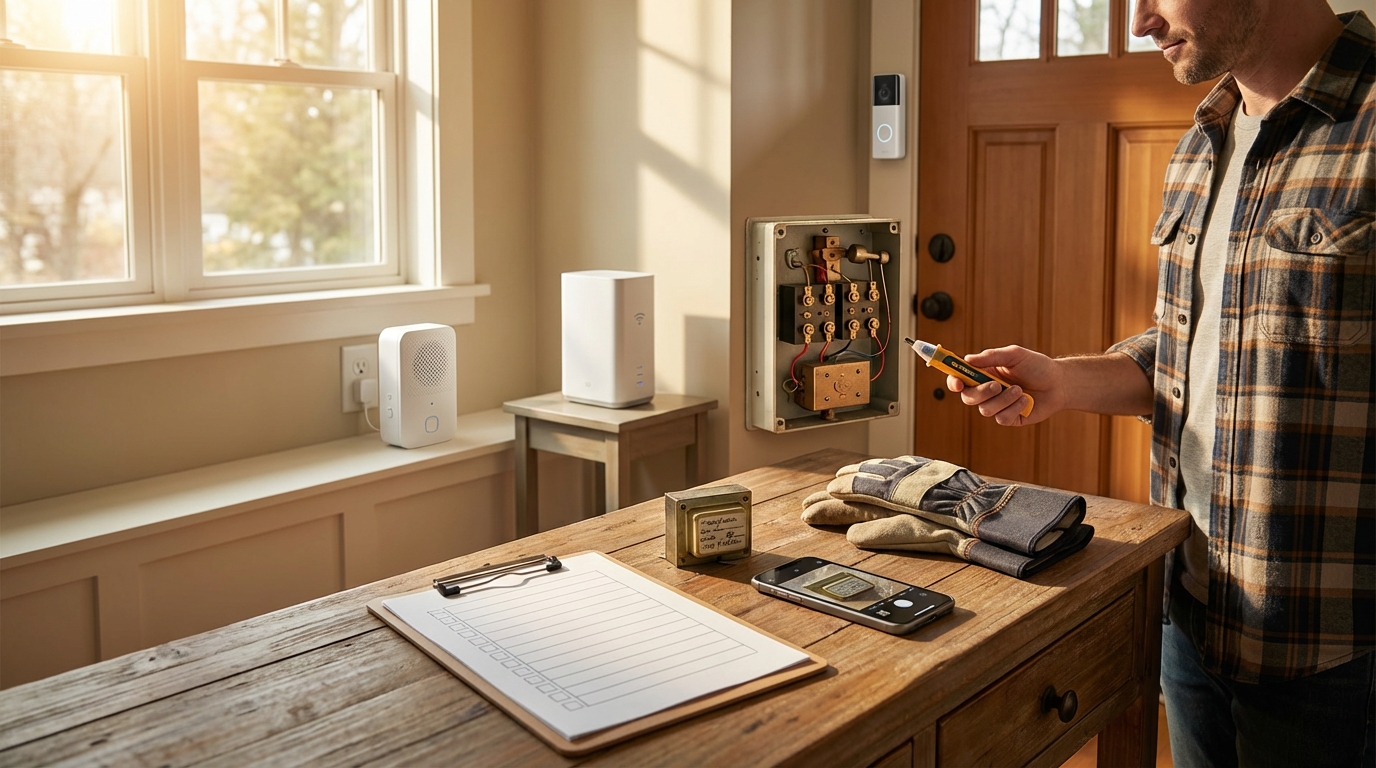
What to identify immediately
- Mechanical vs electronic chime — open the cover (photo) and look: mechanical chimes have visible moving hammers/strikers; electronic chimes are sealed boxes with PCB or speaker openings.
- Wi‑Fi credentials & strength — have your SSID and password ready; test Wi‑Fi signal where you plan to put a plug‑in chime.
- Decide plug‑in or hardwired — renters typically choose plug‑in; homeowners with existing internal chimes may want hardwired integration.
Tools & safety: kill the breaker before touching chime terminals; have a non‑contact voltage tester, flat/Phillips screwdriver, phone/camera to photograph wiring/transformer, and the Ring app installed.
Fact: Ring Chime and Chime Pro connect via Wi‑Fi and are compatible with all Ring Video Doorbell models — see Ring’s Chime & Chime Pro setup guide (ring.com/support — 2026-04-12).
Pitfall to avoid: Do not assume a working mechanical chime is automatically compatible. Never probe terminals with power on — always switch off the breaker first.
Prerequisites checklist (wiring, transformer questions, and what we couldn’t find — research to run next)
Collect this information BEFORE you decide which chime to buy or before any wiring work.
Exact info to photograph and record
- Number of wires at the chime (2 or 3) — photograph both terminal sides.
- Chime type photo — wide shot of unit, close-up of the hammer or PCB, label stickers.
- Transformer label photo — note voltage (VAC) and VA rating. If no label, do not guess.
- Doorbell model and video resolution (e.g., Ring 2K/4K) — required if you plan to use a Chime Kit Mini.
What transformer labels to watch for: any printed VAC and VA numbers. If the label is missing or unclear, mark this as “call an electrician” and avoid powering the circuit until verified.
Research gaps we must test (No reliable data found): transformer VA mapping to Ring models and definitive mechanical vs electronic chime prerequisites. Research Findings: “No reliable data found on mechanical vs electronic chime prerequisites, transformer voltage/VA and wiring layout, or required tools for Ring Chime installation.” (Research Findings — Source: N/A — 2026-04-12).
Pitfall: Don’t rely on forum estimates for transformer VA. Photograph the label and verify; do not assume standard values like 8–16 VAC unless shown.
Step‑by‑step installation checklist for Ring Chime (plug‑in and Chime Pro) — a beginner can follow
Follow this numbered order. Safety first: avoid mains work unless you’re confident and the breaker is off.
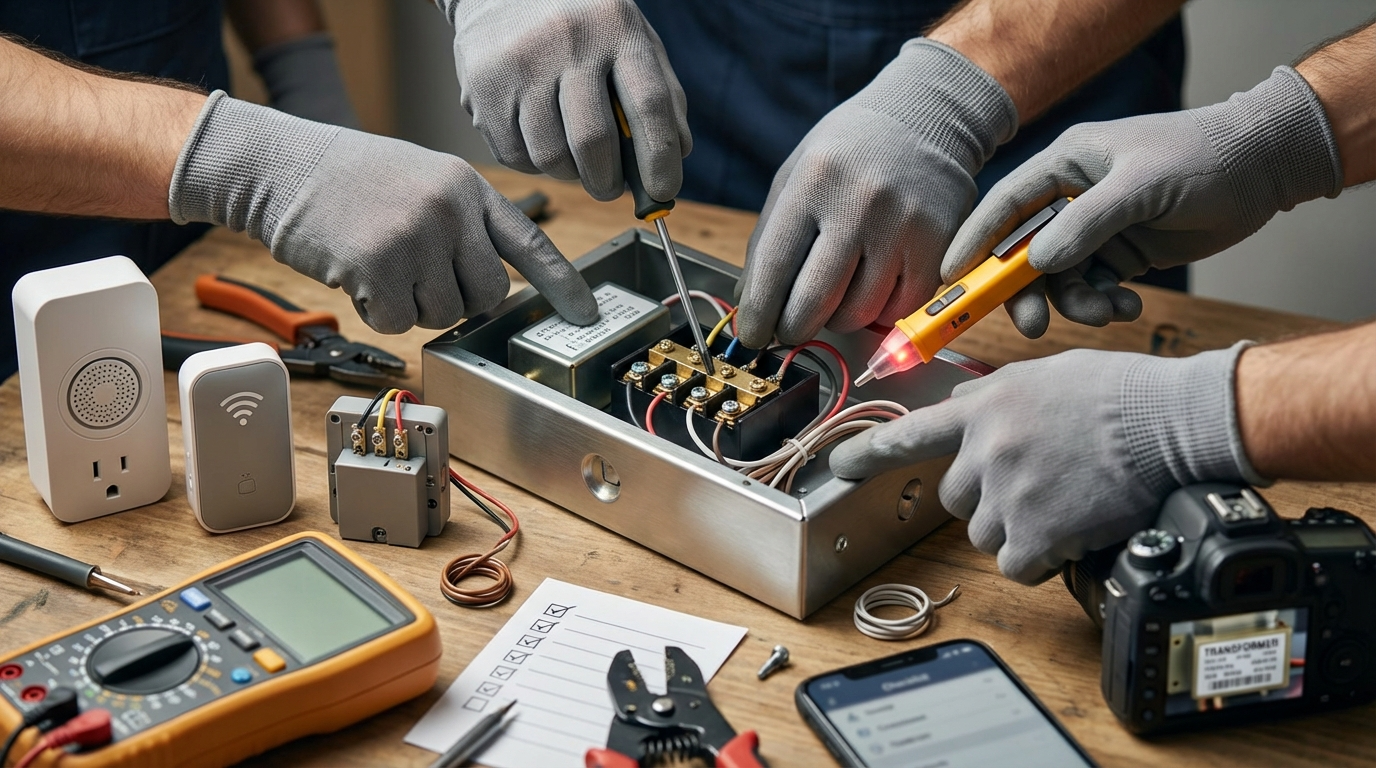
- Install the Ring app and sign in. Have Wi‑Fi SSID and password ready.
- Open Ring app → Dashboard → Tap “Set Up a Device” → choose Chime/Chime Pro and follow prompts. (Ring step sequence: open app, tap Set Up a Device, follow prompts, plug chime in, enter Wi‑Fi — ring.com/support — 2026-04-12.)
- Plug the Chime into a central outlet for coverage. For Chime Pro, place where Wi‑Fi signal from router is still strong to act as an extender.
- If the chime’s LED is flashing during setup, progress in the app. If not flashing, press the side/setup button for 5 seconds to re-enter setup mode (Ring guidance: press side button 5s if light not flashing — ring.com/support — 2026-04-12).
- Enter Wi‑Fi credentials when prompted; join the Ring temporary Wi‑Fi if required, then return to your home SSID.
- Confirm the chime shows “online” in the Ring app and test with a real doorbell press (not motion) — verify audio plays.
- Adjust volume and tone in the Ring app and test again from outside the house with a real press.
Pitfall to avoid: Skipping the Ring app setup flow or only testing motion events. Always confirm with a physical doorbell press to validate press→chime routing.
Printable verification & diagnostics checklist (how to prove the chime is correctly installed)
Run these short tests after installation. Each test should be a simple pass/fail you can tick off on-site.
Quick verification steps
- LED status: chime LED is solid/flashing as the app indicates — PASS/FAIL.
- App connection: Ring app shows chime “online” — PASS/FAIL.
- Real press test: Press the doorbell physical button outside — chime sounds audibly — PASS/FAIL.
- Motion vs ring: Trigger motion and press; verify chime handles both as expected (some settings differentiate) — PASS/FAIL.
Diagnostic checklist (one-line printable block)
[ ] Chime plugged in & LED visible
[ ] Ring app shows chime online
[ ] Physical doorbell press produced sound
[ ] Volume set to audible level
[ ] If not working: unplug/replug chime, re-enter Wi‑Fi, factory reset (press 5s), retest
Fact: After setup, always press the doorbell to confirm chime sounds and check the Ring app connection status (Ring support — ring.com/support — 2026-04-12).
Pitfall: Testing only via the app or motion events misses routing problems; a physical press is the definitive check.
Common beginner mistakes and fast fixes (miswired terminals, wrong transformer, mute/settings, poor placement)
Symptoms mapped to quick fixes so you can resolve most issues without a tech call.
Top mistakes and how to fix them
- No sound at press:
- Check chime LED and power — unplug/replug first.
- Re-run Ring app setup; press the chime side button 5 seconds to re-enter setup if LED not flashing (Ring support — ring.com/support — 2026-04-12).
- For hardwired setups, confirm terminals are on the correct chime screws and power is off when touching wiring.
- Chime only for motion or double chimes:
- Check notification settings in app and check for duplicate chime entries.
- Isolate one chime at a time while testing to identify interference.
- Poor sound/placement:
- Move plug‑in chime to an open outlet, not inside cabinets or behind doors.
Research note: There is no reliable, consolidated data on common mistakes like miswired terminals, wrong transformer VA, mute/settings, or poor placement (Research Findings — ring.com/support — 2026-04-12). That gap is why we recommend photographing wiring and transformer labels before attempting fixes.
When to stop and call a pro: exposed hot wires, unclear transformer labels, or repeated failures after following isolation and reset steps — do not proceed with live-wire testing.
Best picks by budget & use‑case: renters, large homes, apartments, and multi‑door setups
Decision tree and short picks by use case so you can pick and buy with confidence.
Decision tree (quick)
- Renters / no wiring → Plug‑in Ring Chime (wireless via Wi‑Fi).
- Weak Wi‑Fi or large home → Chime Pro (extends Wi‑Fi and acts as a chime).
- Hardwired multi‑door / 2K or 4K Ring → Chime Kit Mini + internal chime wiring.
- Smart‑home integrators → choose chimes that support local integrations or bridge devices; verify compatibility.
Picks by budget & notes
- Budget (renters): Ring Chime (plug‑in) — low complexity, no wiring required; compatible with Ring Video Doorbells via Wi‑Fi (ring.com/support — 2026-04-12).
- Midrange (large homes): Ring Chime Pro — improves reliability in weak Wi‑Fi areas and acts as chime + repeater (ring.com/support — 2026-04-12).
- Pro (hardwired/multi‑door): Chime Kit Mini — for hardwired 2K/4K doorbells to work with internal chimes; must follow wiring and power-off steps (Chime Kit Mini info — 2026-04-12).
Short purchasing checklist per use-case: verify Ring model compatibility, photograph transformer, check Wi‑Fi coverage, and decide plug‑in vs hardwired based on renter status and router location.
Related reading: if you’re installing a whole doorbell system or want long-form guidance, see the site’s Ring Video Doorbell Installation checklist and our buying guides: Ring Video Doorbell Installation: 7-Step Easy Setup Checklist, Best Video Doorbell Without Subscription, and Video Doorbell Without Subscription. For broader smart-home choices, see Best Smart Home Devices and system planning in Smart Thermostat Installation.
Pitfall to avoid: Don’t recommend a plug‑in chime in a home with poor Wi‑Fi without also offering Chime Pro or a wired fallback.
Plug‑in vs hardwired chimes: real reliability, range and the data we still need to test
Short practical comparison and a callout of measurable gaps we will test in-house.
Practical tradeoffs
- Installation complexity: plug‑in = minutes; hardwired = may need breaker off and wiring checks.
- Reliability: plug‑in depends on Wi‑Fi; hardwired depends on transformer stability and wiring integrity.
- Range & multi‑chime sync: plug‑in units rely on the network; Chime Pro can extend coverage. Chime Kit Mini supports some hardwired 2K/4K setups (ring.com/support — 2026-04-12).
Research gaps and lab tests required (No reliable data found): latency (ms) press→sound across configurations, decibel output (dB SPL) at distances, transformer VA mapping, battery life for portable chimes, and multi‑chime sync skew. We will publish lab results after:
- Transformer VA mapping: photograph 20 transformers and map to required VA for Ring models.
- Latency benchmarks: 50 trials per configuration (plug‑in, Chime Pro, hardwired).
- dB SPL measures: 1m and 3m reads for popular chime models.
- Multi‑chime sync: 2–6 chime skew tests and average ms.
Pitfall: Don’t present plug‑in chimes as equally reliable in all homes — Wi‑Fi and local network issues change behavior.
Real‑world failure modes, troubleshooting flows, and escalation paths (power kit, transformer swap, factory reset)
Expect these failure modes and follow the stepwise escalation below.
Common failure modes
- Silent/delayed chime on press.
- Chime triggers only on motion or only via cloud notifications.
- Duplicate/triplicate chimes when multiple units are misconfigured.
- RF/Wi‑Fi interference causing missed sounds or latency.
Troubleshooting flow (symptom → quick checks → fixes → escalate)
- Confirm LED and “online” status in app. If offline, unplug/replug chime and re-setup via app (press side button 5s to re-enter setup if needed — ring.com/support — 2026-04-12).
- Test a real doorbell press. If no sound, inspect internal chime wiring with power OFF; photograph terminals and transformer.
- If wiring/transformer is suspect, consider installing a Ring power kit or replacing transformer — only after verifying voltage/VA label or consulting an electrician.
- If repeated phantom triggers or duplicates persist, factory reset one chime at a time and isolate devices to find the offending unit.
- Escalate to electrician when transformer labels mismatch Ring guidance or when exposed hot wires exist.
Fact: For Chime Kit Mini and other hardwired integrations, turn off power first and check wiring per Ring instructions (Chime Kit Mini info — 2026-04-12).
Pitfall: Avoid repeated factory resets without diagnosing wiring or power issues — resets can mask root causes.
Conclusion
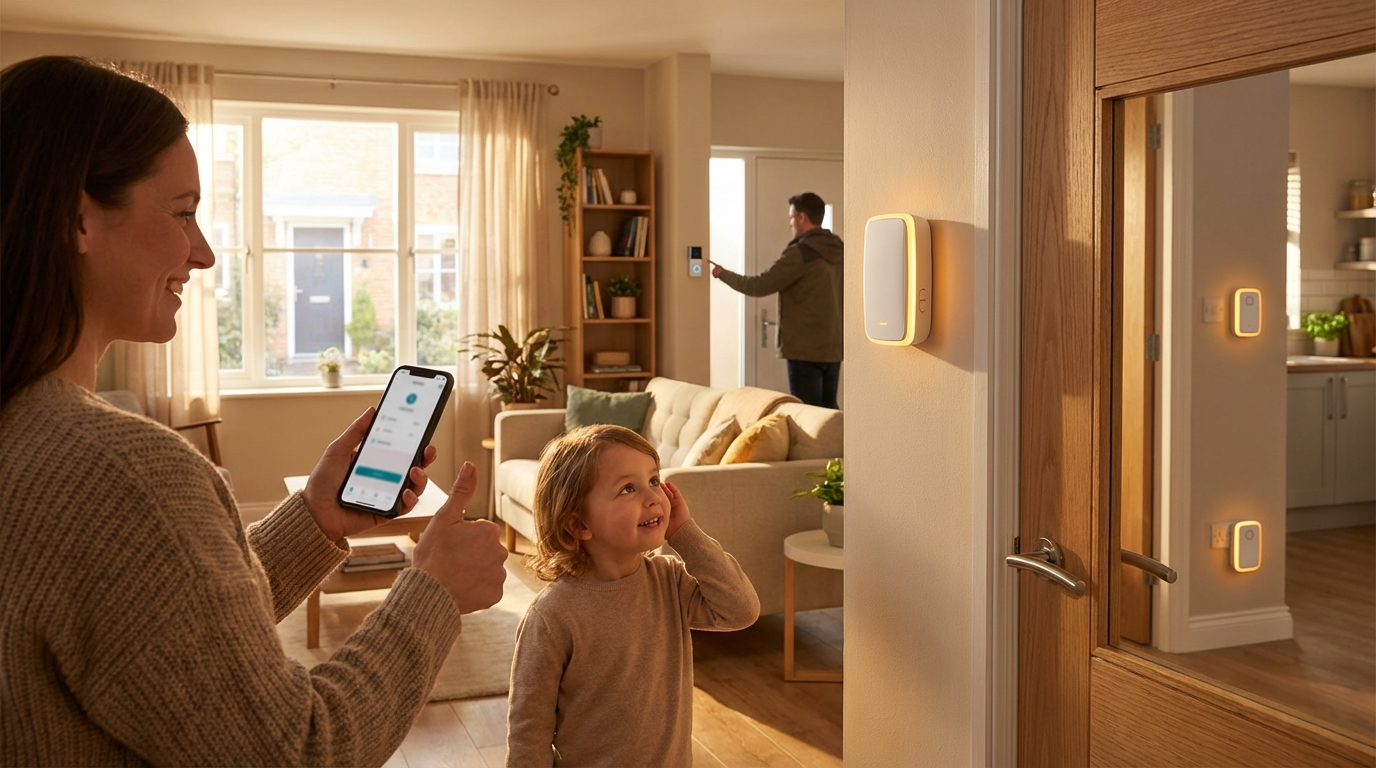
This guide helps homeowners and renters compare, install, and verify indoor chimes for Ring setups safely. Start with the compatibility checks, decide plug‑in vs hardwired based on your Wi‑Fi and renter status, follow the step‑by‑step setup, and run the printable verification checklist to prove success. If you need hands‑on wiring decisions (transformer VA or power kit) photograph labels and consult an electrician rather than guessing.
Ready to compare chimes and finish installation? Use the checklists above, review the Ring support articles referenced, and pick the best chime for your home type — remember: chimes for ring video doorbell depend on Wi‑Fi for plug‑in units and on correct transformer wiring for hardwired setups. If you want more buying help, compare models in our buying guide and read the Ring Video Doorbell installation checklist linked above.
FAQ
Will a Ring Chime/Chime Pro work with any Ring Video Doorbell?
Yes — Ring’s documentation states Chime and Chime Pro connect via Wi‑Fi with all Ring Video Doorbell models (ring.com/support — 2026-04-12).
How do I know if my indoor chime is mechanical or electronic before I start?
Visual check: mechanical chimes have a moving hammer or striker; electronic chimes are solid housings and often have a label. Photograph the unit and transformer for verification.
What if my chime won’t connect to Wi‑Fi during setup?
Follow the Ring app flow, press the chime’s setup button for 5 seconds to re-enter setup, re-enter Wi‑Fi credentials, and consider moving the chime closer or using a Chime Pro to extend Wi‑Fi (ring.com/support — 2026-04-12).
Do I need a power kit or transformer replacement?
If your transformer label doesn’t match Ring’s requirements or you have unstable chime behavior with hardwired installs, a power kit or transformer change may be necessary — photograph the transformer and consult the transformer mapping decision steps before acting.
What are quick signs the chime is working after installation?
The chime’s LED shows the configured status, the Ring app shows the chime as online, and a doorbell press produces an audible chime — always verify with a real button press (ring.com/support — 2026-04-12).