

### Blog Post:
home assistant dashboard — a verified, local-only Lovelace dashboard you can build today, even if you’re new to Home Assistant.
This checklist-first guide walks a beginner from a fresh Home Assistant install to a mobile-friendly, locally-reliable Lovelace UI, plus a practical hardware-buying playbook and diagnostics so you can verify each step.
Key Takeaways
- Minimal prerequisites: run Home Assistant OS, reserve a static LAN IP, create backups, and add core integrations — verify each before building the UI.
- Follow a verification-driven build: fresh install → add integrations → create views/cards → test mobile; each step includes a one-line verification test.
- Diagnose common Lovelace failures (WebSocket, JS errors, overloaded custom cards) and pick hardware with a simple decision tree (Pi vs NUC vs VM).
- Prep before you build: Checklist to make your Lovelace dashboard locally reliable
- From zero to usable dashboard: A step-by-step checklist with one verification step per task
- Pick the right local hardware: reliable, costed options for a beginner Home Assistant setup
- Design a mobile-first Lovelace layout so your dashboard works on phones and tablets
- Diagnose and fix when Lovelace is slow, blank, or loses controls (step-by-step)
- Backup, export/import, multi-user permissions and offline-first behavior for Lovelace
- Top beginner mistakes and a one-line fix for each
- Conclusion
- FAQ
Prep before you build: Checklist to make your Lovelace dashboard locally reliable
Before you design a single card, confirm the platform, network, backups and core integrations so the dashboard stays local and reliable.
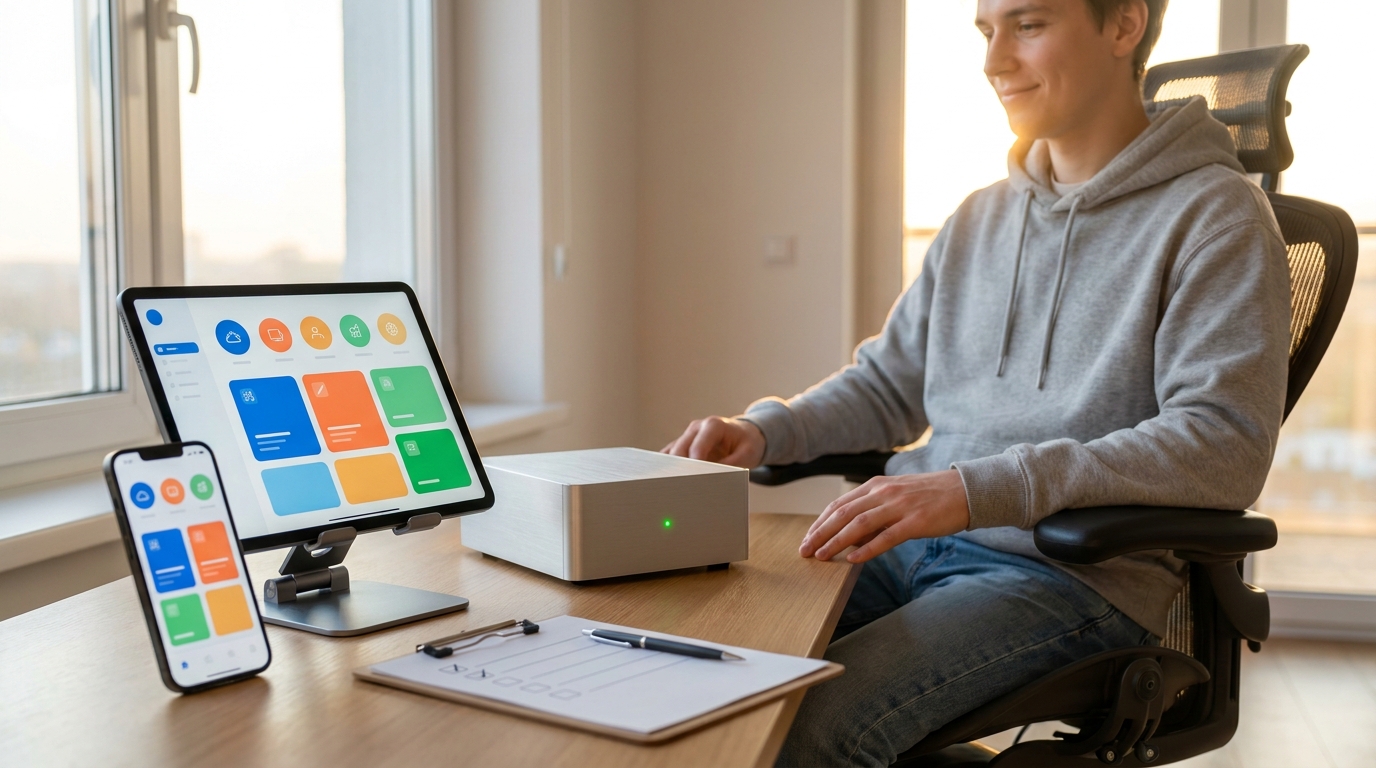
Prerequisites (compact checklist)
- Install type: Home Assistant OS (HAOS) — recommended for beginners to run a local-only instance with Supervisor. Verify: open Settings → System and confirm “Supervisor” is present and System info shows HAOS. (See Home Assistant installation docs — accessed 2026-04-21).
- HA minimum: use a recent stable release; ensure Supervisor appears in the UI and core runs on default port
8123. Verify: access http://homeassistant.local:8123 and login within 10s. - Network: set a DHCP reservation or static LAN IP for your HA host; register a local DNS name (e.g., homeassistant.local) or add a hosts file entry. Verify: ping your HA IP and confirm DNS resolves to the reserved IP.
- Remote access policy: for local-only operation, block WAN port-forwarding for 8123 at your router; if you later enable remote access, use Let’s Encrypt only after testing local reliability. Verify: router shows no port-forward for 8123 and external port checks report closed.
- SSL/DNS: local-only builds can use HTTP on LAN; if you enable remote features later, prefer Let’s Encrypt. Verify: only enable SSL after creating a test snapshot and confirming dynamic DNS/port rules in a lab environment (see backup link below).
- Backups & users: create a full snapshot before UI edits; maintain one admin and one limited user for daily use. Verify: download the snapshot and check the file size and date in Supervisor → Backups.
- First integrations: add Zigbee/Z-Wave (ZHA or Zigbee2MQTT), MQTT (if used), and enable discovery for common devices. Verify: each integration shows entities in Settings → Devices & Services and entities list shows expected entries.
Cited fact: Home Assistant OS is the recommended OS for full Supervisor functionality — see the official install page for supported methods (https://www.home-assistant.io/installation/ — accessed 2026-04-21).
Pitfall to avoid: Starting dashboard design before verifying network stability and backups — this often causes loss of configs after device failure.
From zero to usable dashboard: A step-by-step checklist with one verification step per task
A compact, verification-first runbook that takes you from first boot to a minimal Lovelace dashboard.
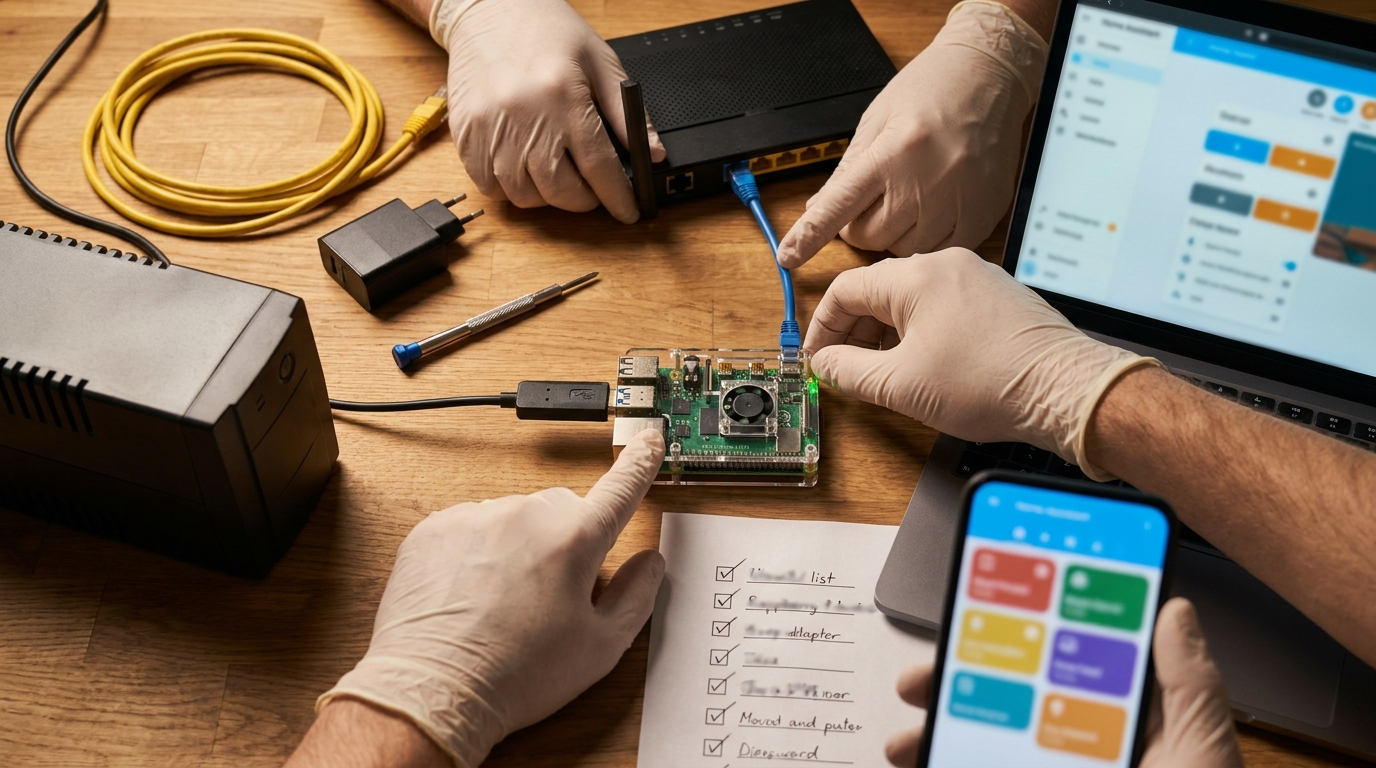
Step 0 — Fresh install verification
- Purpose: Confirm your HAOS instance and network reachability.
- Exact Actions: Boot HAOS, complete onboarding, go to Settings → System → Info.
- Verification Test: Open http://homeassistant.local:8123 and confirm login within 10 seconds.
Step 1 — Create accounts & snapshot backup
- Purpose: Ensure recoverability and safe editing by non-admin users.
- Exact Actions: Settings → System → Backups → Create full snapshot; Settings → People → Add non-admin user.
- Verification Test: Download the snapshot file and confirm Supervisor → Backups shows the snapshot with a timestamp.
Step 2 — Add core integrations
- Purpose: Expose local devices to Lovelace (Zigbee/Z-Wave/MQTT/Wi‑Fi devices).
- Exact Actions: Settings → Devices & Services → Add integration (ZHA or Zigbee2MQTT), configure radio dongle or adapter, enable MQTT broker add‑on if needed.
- Verification Test: New entities appear under Settings → Devices & Services and respond to state changes within 5–10s.
Step 3 — Use the UI editor to add Views/Cards
- Purpose: Build a functional dashboard without YAML conflicts.
- Exact Actions: Go to Overview → Edit Dashboard → Add View → Add Card → choose Entities, Button, Picture Glance, etc.
- Verification Test: Each card shows the correct entity and toggles or updates without throwing errors in the browser console.
Step 4 — Configure mobile responsiveness
- Purpose: Ensure the dashboard is usable on phones and tablets.
- Exact Actions: Create a dedicated “Phone” view with a buttons-grid or vertical-stack; enable “Show in sidebar” for testing; open Companion app or mobile browser.
- Verification Test: On a phone, the main view loads within expected time (set your threshold) and buttons are usable without horizontal scrolling.
Minimal Lovelace YAML (copyable)
views:
  - title: Phone
    path: phone
    badges: []
    cards:
      - type: grid
        columns: 2
        square: false
        cards:
          - type: entity-button
            entity: light.living_room
            name: Living
          - type: entity-button
            entity: climate.home
            name: Thermostat
Exportable UI JSON: use Settings → Dashboards → Manage dashboards → Export to download the UI export as JSON for safe storage.
Cited fact: Lovelace editor and YAML options are documented at the official Lovelace docs (https://www.home-assistant.io/lovelace/ — accessed 2026-04-21).
Pitfall to avoid: Editing both YAML dashboards and the UI editor simultaneously — that causes conflicts and lost edits.
Ask the community or paid support when you have reproducible errors after: (1) restoring a clean snapshot fails, (2) frontend throws JS exceptions on multiple devices, or (3) Supervisor logs show repeated addon crashes. Prepare logs and exact reproduction steps.
Pick the right local hardware: reliable, costed options for a beginner Home Assistant setup
Match your expected device count to hardware that supports stable local performance and easy upgrades.
Options & recommended specs
- Raspberry Pi 4 (4GB or 8GB) — good for small installs (10–50 entities, a few automations). Verify: Pi 4 supports up to 8GB RAM on official models (see Raspberry Pi documentation — accessed 2026-04-21).
- Raspberry Pi Compute Module — for custom panels or integrated builds; choose if you need eMMC and professional mounting.
- Home Assistant Green / Blue alternatives — purpose-built devices with Home Assistant support; confirm availability on vendor pages before purchase.
- Intel NUC or small x86 box — recommended for >50 devices, camera processing, or heavy recorder DB use. Verify: typical NUCs offer 4–8 cores and 8–16GB RAM suitable for camera-heavy setups.
- VM (Proxmox) on existing NAS/PC — cost-effective for advanced users; verify passthrough of USB/Zigbee sticks to the VM.
Purchase checklist
- Power: use official PSU or a quality USB-C power supply; verify stable voltage under load.
- Storage: prefer SSD or eMMC over SD card; verify USB boot or SSD imaging works on your model.
- UPS: add a small UPS for graceful shutdown and snapshot scheduling; verify HA logs show clean shutdown on simulated power loss.
- Cooling: passive or active cooling for NUC/Pi under continuous load; verify CPU never hits thermal throttle in 24–48h monitoring.
Cited fact: Raspberry Pi 4 models are available with up to 8GB RAM (Raspberry Pi Foundation product specs — accessed 2026-04-21).
Pitfall to avoid: Choosing a cheap SD-card-only Pi with no SSD or UPS — it increases risk of corrupted installs and data loss.
Design a mobile-first Lovelace layout so your dashboard works on phones and tablets
Design for small screens first: prioritize essential controls and use conditional cards to reduce clutter.
Principles
- Create a dedicated Phone view with a compact grid or vertical stacks.
- Use conditional and glance cards to hide non-critical information on small screens.
- Use the companion app for native notifications and easier mobile testing.
Practical templates and testing
- Phone template: 2-column grid, 6–8 card limit; Tablet template: 3–4 columns with more sensor details.
- Test widths: 360px (small phones), 420–768px (larger phones/tablets). Verify: layout at these widths does not require horizontal scrolling.
- Tools: browser device emulation and the Home Assistant Mobile Companion app for native testing.
Cited fact: Lovelace layout strategies and editor guidance are available in the official docs (https://www.home-assistant.io/lovelace/ — accessed 2026-04-21).
Pitfall to avoid: Designing only for desktop widths — leads to cramped or unusable mobile UI.
Diagnose and fix when Lovelace is slow, blank, or loses controls (step-by-step)
Follow a prioritized diagnostic checklist to find the simplest fix first and avoid destructive actions.
Common failure modes
- WebSocket disconnects (frontend fails to subscribe to states).
- Frontend JavaScript errors from custom cards or resource load failures.
- Integration timeouts or backend overload (recorder DB or CPU-bound tasks).
- Too many custom cards or heavy camera feeds causing memory/CPU saturation.
Diagnostics checklist (in order)
- Check the browser console for JS errors (F12 → Console). Verification: errors referencing custom-card.js or resource load failures indicate broken custom cards.
- Check Home Assistant logs: Settings → System → Logs and Supervisor logs for addon crashes. Verification: repeated errors or stack traces in logs within the last hour.
- Check WebSocket status: in the browser devtools → Network filter for WS frames on port 8123. Verification: closed or failing WS frames indicate connectivity issues.
- Safe Mode: disable custom cards by temporarily cloning the view and removing resources; reload UI. Verification: if issue disappears, a custom resource is the culprit.
- Restart frontend add-on or HA host if resource exhaustion reported. Verification: UI loads cleanly after restart and error messages stop.
Fixes to try (non-destructive order)
- Refresh and hard-reload the browser cache (Ctrl/Cmd+Shift+R).
- Disable custom cards or unload resources one-by-one to identify the bad resource.
- Move heavy camera processing off-host (use a dedicated NVR) or reduce camera stream quality.
- Increase host resources (move from Pi to NUC or VM) if CPU/memory limits are hit. Verification: monitor CPU/memory for 24–48 hours and confirm stable UI load times.
- Restore a working snapshot only after exporting logs and verifying the snapshot integrity. Verification: restore to a test instance if possible before production restore.
Cited fact: The Home Assistant frontend communicates via WebSocket on the default port 8123; check network frames in devtools for WS activity (HA docs overview — https://www.home-assistant.io/ — accessed 2026-04-21).
Pitfall to avoid: Immediately reinstalling and losing history/backups instead of first exporting snapshots and checking logs.
Backup, export/import, multi-user permissions and offline-first behavior for Lovelace
Backups and permissions keep dashboards recoverable and appropriately shared. Design for local-first behavior so WAN outages don’t break control.
Snapshots and verification
- Create full snapshots (include add-ons, config, and DB) via Supervisor → Backups. Verification: download and confirm file integrity and date.
- Schedule snapshots and store a copy off-host (USB or NAS). Verification: automated snapshot appears in Supervisor with success status.
Export/import Lovelace
- UI export: Settings → Dashboards → Manage dashboards → Export — saves a JSON file of UI-managed dashboards. Verification: import JSON on a test instance and confirm appearance.
- YAML: for manual YAML dashboards, copy the raw YAML and store in version control. Verification: reload Lovelace and confirm no errors in logs.
Multi-user and visibility
- Create non-admin users for family members and assign dashboard visibility per user. Verification: log in as the non-admin account and confirm only intended views/entities show.
Offline-first strategies
- Avoid cloud-only integrations for critical controls; prefer local integrations with cloud optional. Verification: disable WAN and confirm local entities continue to toggle within 5–10s.
Cited fact: Backups (snapshots) are created in Supervisor → Backups; exported dashboard JSONs are available from Dashboards management (Home Assistant docs — https://www.home-assistant.io/common-tasks/backup/ — accessed 2026-04-21).
Pitfall to avoid: Relying on cloud-only entities without local fallbacks — causes lost controls when internet is down.
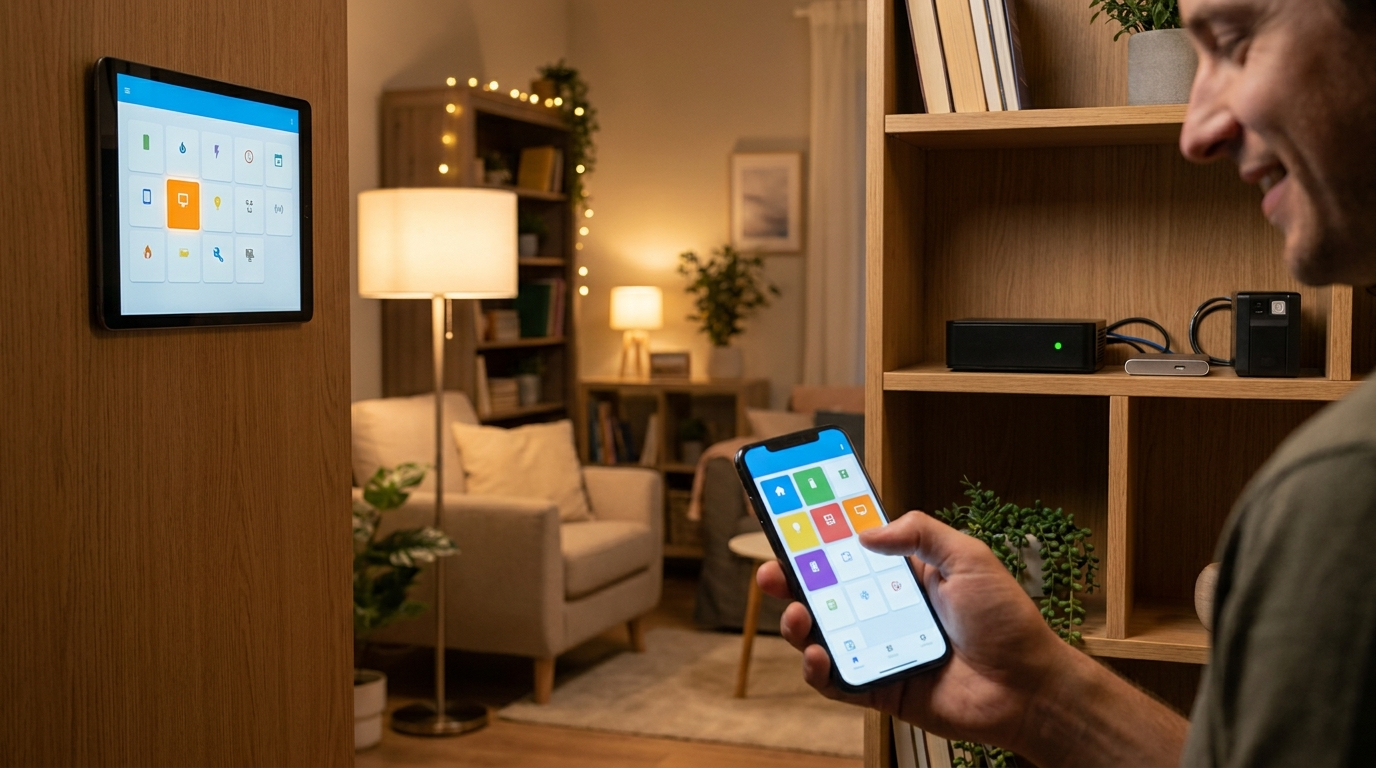
Top beginner mistakes and a one-line fix for each
Common errors, how to detect them, and one-line fixes with verification.
- YAML vs UI conflicts — Detect: UI save fails or shows different cards. Fix: pick one method; export and back up existing UI before switching. Verify: no UI errors after reload.
- Too many custom cards — Detect: JS errors in console mentioning custom-card. Fix: disable custom resources and reintroduce one at a time. Verify: console shows zero JS errors.
- Wrong entity IDs — Detect: cards show “Entity not found”. Fix: check Settings → Entities for correct ID and update the card. Verify: card shows entity state.
- Permissions oversights — Detect: non-admin can’t see dashboards. Fix: assign view to user or create user-specific dashboard. Verify: log in as that user and confirm visibility.
- Missing backups — Detect: no snapshots in Supervisor. Fix: create full snapshot and export it off-host. Verify: snapshot file downloadable and restorable on test instance.
Cited fact: The community often reports frontend JS errors when custom resources break after updates — check the browser console and support forums for matching error strings (community threads and HA docs — accessed 2026-04-21).
Pitfall to avoid: Presenting generic fixes — always check logs and reproduce the error before applying a fix.
Conclusion
Follow this verification-first checklist to build a reliable, local-only home assistant dashboard that works on phones and stays recoverable. Start with HAOS, a static LAN IP, full snapshots, and a minimal mobile-first view. If you need hardware recommendations, use the Pi-for-beginners or NUC-for-scale decision path in this guide and verify resources for 48 hours before committing.
CTA: Compare hardware and read more setup checklists in our detailed guides — or subscribe for step-by-step downloads and a ready-to-import minimal dashboard JSON.
FAQ
What minimal Home Assistant installation should a beginner use for a local-only Lovelace dashboard?
Use Home Assistant OS (HAOS); verify by confirming Supervisor access and Settings → System shows HAOS.
How do I confirm my dashboard works when the internet is down?
Disable WAN and verify local device toggles and automations respond within 5–10 seconds.
What single snapshot should I make before editing dashboards?
Create a full snapshot including config, add-ons and DB; verify by downloading and checking the snapshot file in Supervisor → Backups.
How can I tell if a custom card is breaking my Lovelace view?
Open the browser console for JS errors and disable custom cards via Safe Mode or by removing resources; verify by reloading Lovelace with no console errors.
Which hardware choice is simplest for beginners and how do I verify it’s sufficient?
A Raspberry Pi 4 (4GB) with SSD/USB boot is simplest; verify by monitoring CPU/memory under normal use and ensuring UI load time stays acceptable.
How do I give a family member limited dashboard access?
Create a non-admin user, assign specific dashboards or views, and verify by logging in as that user to confirm limited visibility.
—