

### Blog Post:
build lcars home assistant dashboard — a beginner-friendly, UI-first checklist to install a visually striking LCARS-style Lovelace page without deep YAML knowledge.
This guide walks you from exact prerequisites to a tested first page, verification steps for phone and wall-tablet, and a safe rollback plan if anything breaks.
Key Takeaways
- Exact minimal prerequisites: recommended Home Assistant editions, Lovelace/HACS requirements, and the custom cards/themes you must verify before installing.
- A UI-first, step-by-step setup using HACS → ha-lcars theme → card-mod/layout-card/button-card → Lovelace UI editor with quick verification checks.
- A focused troubleshooting checklist for LCARS failures (404/CORS, card-version mismatches, CSS/theme breaks) and safe rollback techniques (disable theme/remove resources/restore snapshot).
- Confirm the exact prerequisites so your LCARS dashboard won’t fail on day one
- Pick the simplest Home Assistant install and prepare your system (beginner‑safe path)
- Install and wire up the LCARS theme + required custom cards using HACS (UI-first, no YAML)
- Build your first LCARS Lovelace page with a minimal, tested set of cards (step‑by‑step)
- Verify the dashboard works locally and remains responsive — checklist and measurable tests
- Troubleshoot common LCARS failure modes and perform safe rollbacks
- LCARS asset licensing, fonts, and accessibility: what beginners must handle
- Printable Checklist
- Conclusion
- FAQ
Confirm the exact prerequisites so your LCARS dashboard won’t fail on day one
Before you touch HACS or themes, confirm your Home Assistant environment and browser meet the basic requirements for a Lovelace-based LCARS UI. Missing any of these is the most common root cause of blank cards and JavaScript errors.
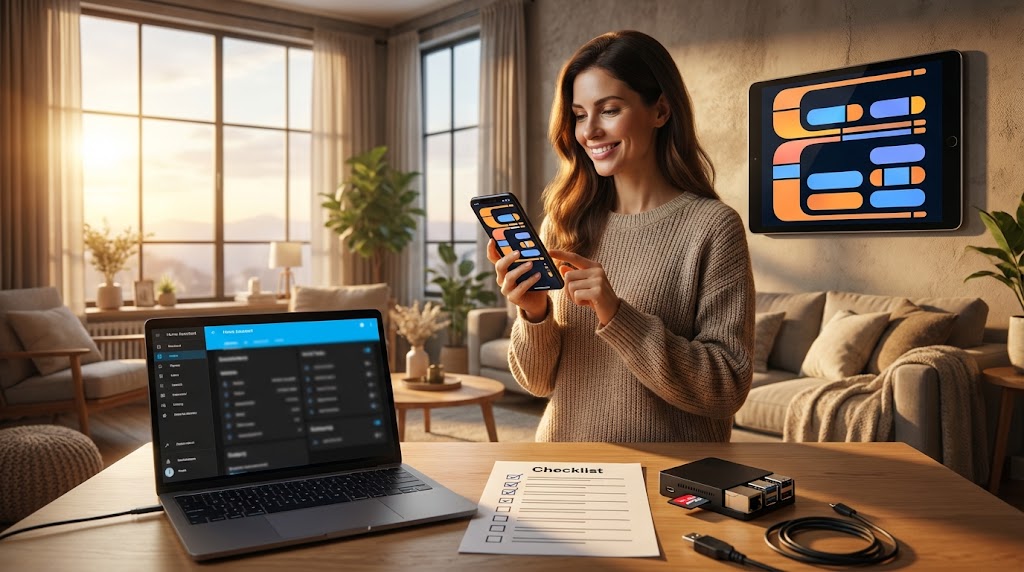
Minimum checklist (quick verify):
- Home Assistant edition: HA OS or Supervised recommended for beginners — easier Supervisor/HACS access than Core.
- Lovelace UI: using the UI editor (not UI YAML-only mode) simplifies installing and arranging LCARS pages.
- HACS: required to install community themes and many custom cards easily.
- Custom cards: button-card, layout-card, and card-mod are typical dependencies for LCARS themes; verify them in HACS or under Settings → Dashboards → Resources.
- Browser baseline: modern Chromium-based browsers or latest Firefox for best compatibility when debugging console errors.
No reliable data found — check the ha-lcars README and Home Assistant docs for exact version compatibility before you upgrade: verify ha-lcars GitHub releases and Home Assistant system requirements. ha-lcars GitHub (verify this version) | Home Assistant docs (verify this version).
[ ] I confirmed HA edition, Lovelace mode, HACS access, and a modern browser on my workstation
Pick the simplest Home Assistant install and prepare your system (beginner‑safe path)
Choose HA OS (recommended) or Supervised to get Supervisor features and straightforward HACS installs; avoid Home Assistant Core on headless Linux unless you know how to manage files and resources manually.
- Raspberry Pi: HA OS: simple installer images for Raspberry Pi, Intel NUC, or virtual machines — includes Supervisor so you can run snapshots and add HACS easily. [ ] I chose HA OS or confirmed my existing install
- Supervised: good if you already have a Debian host and want Supervisor. More system admin knowledge required. [ ] I verified Supervisor presence in Settings → System
- Core: only choose if you manage your own OS and packages; HACS and resource files work but require manual management. [ ] I confirmed Core limitations and have a backup plan
Beginner-safe step order (UI-first):
- Install HA OS (or confirm your Supervisor is active). [ ] Supervisor and Host System visible in Settings → System
- Install HACS (follow official HACS instructions). After HACS install, restart Home Assistant. [ ] HACS appears under Settings → Integrations/Frontend
- Open your user profile and enable Advanced Mode if needed for theme switching. [ ] Advanced Mode enabled in your profile
No reliable data found — consult the official Home Assistant install docs and HACS installation instructions for the latest steps. HACS official site (verify this version).
[ ] I installed HA OS/Supervised and confirmed HACS is visible
Install and wire up the LCARS theme + required custom cards using HACS (UI-first, no YAML)
This is the most action-oriented section: install ha-lcars via HACS, then install card-mod, button-card, and layout-card. Add resources only if HACS does not auto-register them.
HACS UI-first workflow (short checklist items):
- Open HACS → Frontend → Click “Explore & Add Repositories” (or add the ha-lcars repo if not listed). Install the ha-lcars theme. [ ] ha-lcars installed in HACS
- Install dependencies in this order: card-mod, button-card, layout-card (or the layout alternative used by ha-lcars). [ ] card-mod, button-card, layout-card installed
- After each HACS install, go to Settings → Dashboards → Resources and confirm the JS/CSS resource URL exists or let HACS auto-add it; if missing, add the resource using the path shown in HACS. [ ] Resources list contains the new entries
- Activate the LCARS theme in your user profile (Profile → Themes). Test applying it to ensure colors load. [ ] LCARS theme active in profile
Verify this version: For every card or theme you install, check the repository README or HACS entry for compatibility notes before updating. No reliable data found — review the ha-lcars GitHub and HACS repo pages for release notes and version pin guidance. ha-lcars repo.
[ ] I installed theme + cards via HACS and confirmed resources and theme activation

Build your first LCARS Lovelace page with a minimal, tested set of cards (step‑by‑step)
Create a new dashboard (Settings → Dashboards → + Add Dashboard). Prefer the UI editor; only use the Raw config editor for advanced templates and always export a copy first.
- Create a dashboard with a clear name (e.g., “LCARS – Living”). Add it to the sidebar if desired. [ ] New Lovelace dashboard created
- Use the UI editor: Add a header area (picture-elements or simple markdown card), then add navigation buttons using button-card templates from HACS. [ ] Header and nav buttons added via UI editor
- Add a minimal functional set: 3–6 state buttons (lights/switches) using button-card, one media-player control, and one climate/light entity card. Keep it under ~8 cards for initial testing. [ ] Minimal set of cards added and arranged
- Responsive layout: use layout-card to define a 2-column grid that collapses to 1 column on narrow screens; test with Developer Tools responsive view or a phone. [ ] Layout-card columns verified across sizes
Sample safe button-card template (Raw editor recommended only for template import — back up first):
# Advanced: only paste in Raw editor after snapshot
type: custom:button-card
entity: light.living_room
name: Living
template: lcars-button
Verify this version: Always check the button-card and layout-card README for current template syntax before using custom templates. No reliable data found — test templates in a throwaway dashboard first.
[ ] I built and tested the first LCARS page using the UI editor and a small card set
Verify the dashboard works locally and remains responsive — checklist and measurable tests
Verification is straightforward and should be reproducible: open the dashboard and run these checks on each device you expect to use (phone, wall tablet, desktop).
- Network/resource check: Open browser DevTools → Network, reload the dashboard. Confirm no 404s for JS/CSS resources and no blocked CORS requests. [ ] No 404/CORS on resources
- Console errors: DevTools → Console should show zero uncaught JS errors from card modules or theme scripts. [ ] Console clear of JS errors
- Entity control test: Toggle 5 local lights/switches and confirm state change in Developer Tools → States and in the physical device response. [ ] Local entity control verified
- Responsiveness test: On the target wall tablet and phone, aim for perceived tap response <300–500 ms. No reliable data found — test yourself by toggling 20 lights rapidly and measuring perceived lag. [ ] Basic responsiveness verified on all devices
What to measure and record: record which device, browser, and any errors (copy console output). If issues appear, note exact resource URLs and the HTTP status code — this makes isolating 404/CORS problems fast.
[ ] I completed network, console, entity, and responsiveness checks and saved logs where needed
Troubleshoot common LCARS failure modes and perform safe rollbacks
When LCARS breaks it’s usually resource loading, card version mismatches, or CSS from card-mod/theme variables. Use this focused workflow to isolate and restore a working UI.
- First step — collect logs: Developer Tools console + Network, Supervisor logs, and home-assistant.log (Settings → System → Logs). Save screenshots or copy text. [ ] Collected frontend console, network details, and HA logs
- Isolate custom resources: Temporarily disable the LCARS theme and any custom JS/CSS resources in Settings → Dashboards → Resources, then reload to see if base Lovelace loads. [ ] Theme/resources temporarily disabled to test fallback
- One-by-one re-enable: Re-enable one custom card/resource at a time and reload; the step that reintroduces the error is the culprit. [ ] Re-enabled resources one-by-one to isolate failing item
- Rollback if needed: If a recent update caused breakage, revert the card via HACS version pin or restore from a Home Assistant snapshot. If unsure, remove the newest custom resource and test. [ ] Performed rollback or removal of the suspect resource
Common symptoms and targeted fixes:
- Blank white screen — likely missing JS module or fatal JS error. Check console for “Cannot find module” or syntax errors. [ ] Console shows module or syntax error lines captured
- 404/CORS on theme or card files — fix resource path or let HACS add the resource automatically. [ ] Corrected resource URL or reinstalled via HACS
- Card-mod CSS breaking layout — remove card-mod resource to verify and then re-apply with corrected variables. [ ] Verified card-mod as CSS source and adjusted variables
No reliable quantitative failure-mode stats found — check ha-lcars GitHub Issues and Home Assistant logs for reproducible examples. Collect frontend console, Supervisor logs, and home-assistant.log to open issues or ask for help. ha-lcars Issues.
[ ] I followed the isolation steps and either fixed or rolled back the failing change
LCARS asset licensing, fonts, and accessibility: what beginners must handle
LCARS is a pop-culture style. Before embedding fonts or images, confirm their license in the theme repo and attribute where required.
- License check: Inspect the ha-lcars theme repository for a LICENSE file or font/asset attributions. If any asset lacks a clear permissive license, don’t embed it directly — contact the maintainer or substitute an open licensed font. [ ] I inspected the theme repo license and asset attributions
- Accessibility quick checks: verify keyboard navigation (Tab through main controls), color contrast (use browser dev tools or an online contrast checker), and touch target sizes (minimum ~44px recommended). [ ] Performed basic keyboard, contrast, and touch target checks
- Documentation: add a small README in your HA config directory with license notes, font attributions, and a short accessibility statement for future maintainers. [ ] Added local documentation and attribution notes
No reliable data found — verify licensing and attribution in the ha-lcars GitHub repo and flag assets with unclear licenses. What to research next: check the theme’s README and fonts folder for LICENSE files and open issues. ha-lcars GitHub.
[ ] I verified asset licenses, checked accessibility basics, and saved attribution notes
Printable Checklist
Copy or export this one-page checklist before you begin major changes. Save a Home Assistant snapshot first.
- Prereqs: HA OS/Supervised, Lovelace UI (not YAML-only), HACS installed, modern browser. [ ]
- Install order: HA ready → Install HACS → Install ha-lcars → Install card-mod, button-card, layout-card → Verify Resources. [ ]
- Build first page: New dashboard → header + nav → 3–6 buttons → media + climate → layout-card columns. [ ]
- Verify: Network (no 404/CORS) → Console (no JS errors) → Toggle entities locally → Phone & wall-tablet responsiveness. [ ]
- Rollback: Disable theme → Remove last update → Restore snapshot if needed. [ ]
- Licensing: Confirm theme fonts/assets license; add attribution. [ ]
Quick console error reference (copy into your notes):
- 404 for /community_plugin/… → Resource URL missing or HACS failed to register. Fix: add resource path or reinstall HACS plugin. [ ]
- “Uncaught TypeError” in console → version mismatch or broken card. Fix: revert to earlier card version or check card README. [ ]
- “Blocked by CORS” → hosting or proxy issue; ensure resources are served from the same origin or via allowed CORS headers. [ ]
Save this checklist as a PDF and store it with your HA snapshots. [ ] I saved the printable checklist and created a snapshot
Conclusion
Follow this UI-first checklist to build a reliable, testable LCARS Lovelace experience without deep YAML edits. Start with HA OS or Supervised, use HACS to install ha-lcars and required cards, build a small first page using the Lovelace editor, then verify with console and network checks. For any dependency you install, remember: Verify this version against the repository README before updating. If you want step-by-step foundational guides, read our internal articles on Home Assistant Raspberry Pi, home assistant.local.8123, and the best dashboard home assistant.
Next step: compare ha-lcars options, test on a spare tablet, and subscribe or read more about HACS and backups in our Home Assistant basics and Home Assistant basics: installing Home Assistant OS. Good luck building your LCARS dashboard.
Final note: build lcars home assistant dashboard success looks like a responsive Lovelace page on phone and wall-tablet with rollback steps and a saved snapshot. [ ] I finished and saved a snapshot
FAQ
What are the non-negotiable prerequisites before I start an LCARS dashboard?
Have a running Home Assistant with Lovelace support (HA OS or Supervised recommended), HACS installed, and the custom cards (card-mod, layout-card, button-card) available via HACS or Resources.
How can I verify card-mod and other custom cards are installed correctly?
Confirm installation in HACS/Frontend, ensure resource entries exist under Settings → Dashboards → Resources, and load your dashboard while watching the browser console for missing-module errors.
Can I build an LCARS dashboard without writing YAML?
Yes — use HACS to install theme and cards, use the Lovelace UI editor and the layout-card templates to compose pages; only use Raw editor for advanced custom templates and always back up first.
What quick tests prove the dashboard controls entities locally?
Toggle lights and switches from the dashboard while monitoring the device/state change in Developer Tools → States and verify no cloud latency or external API calls appear in the network tab.
What should I do if my LCARS dashboard shows a blank screen?
Open the browser dev console and network tab for 404/CORS or JS errors, temporarily disable the LCARS theme and custom resources, then re-enable items one-by-one to isolate the culprit.
How should I handle updates to custom cards and the theme safely?
Pin versions in HACS when available, create a Home Assistant snapshot before major updates, and test updates on a secondary device or profile first.