

tp-link kasa smart wi-fi plug ep25 won’t connect android — this guide helps you diagnose the exact Android‑side symptom, run low‑cost fixes, verify success, and know when to escalate or buy a cheap workaround.
Key Takeaways
- Symptom→Cause mapping: If Kasa shows “Connect to Wi‑Fi / No internet” or the TP‑Link_Smart_Plug_XXXX SSID is missing, follow the exact Android permission toggles and a 10‑second hold factory reset first — these steps resolve the majority of Android setup failures. (Source: TP‑Link FAQ 2229 — 2023‑10‑01; community thread — 2024‑05‑15)
- Low‑cost verification: Manually connect Android to TP‑Link_Smart_Plug_XXXX, confirm LED orange/green blinking after a 10s hold, and verify Kasa advances — if these checks fail, test router 2.4 GHz and AP isolation before buying hardware. (Source: TP‑Link FAQ 2229 — 2023‑10‑01; community thread — 2024‑05‑15)
- Cheap fallbacks before replacement: Use an Android hotspot or temporary 2.4 GHz guest SSID, or an inexpensive Wi‑Fi bridge/extender under $20 — research local prices before buying (No reliable data found for exact success rates; see Research Next Steps).
- Fast symptom checklist so you know which exact Android error you have
- Root causes mapped to the exact Android symptom (what each symptom really means)
- Step-by-step fixes for each symptom — Android-first, zero-cost methods
- Router and network fixes to test next — cheap tests that prove or disprove 2.4 GHz / AP isolation / captive portal issues
- Android-specific edge cases to test (permissions, VPNs, IPv6, special SSID characters)
- Cheap fallbacks and when to buy: budget workarounds under $20 (what to try before replacing anything)
- When to escalate — hardware replacement, warranty, or advanced network help
- Conclusion
- FAQ
Fast symptom checklist so you know which exact Android error you have
Read this checklist aloud and record the exact messages before you change anything. The following one‑line deciphers and immediate verification steps will tell you whether the phone, plug, or router is at fault.
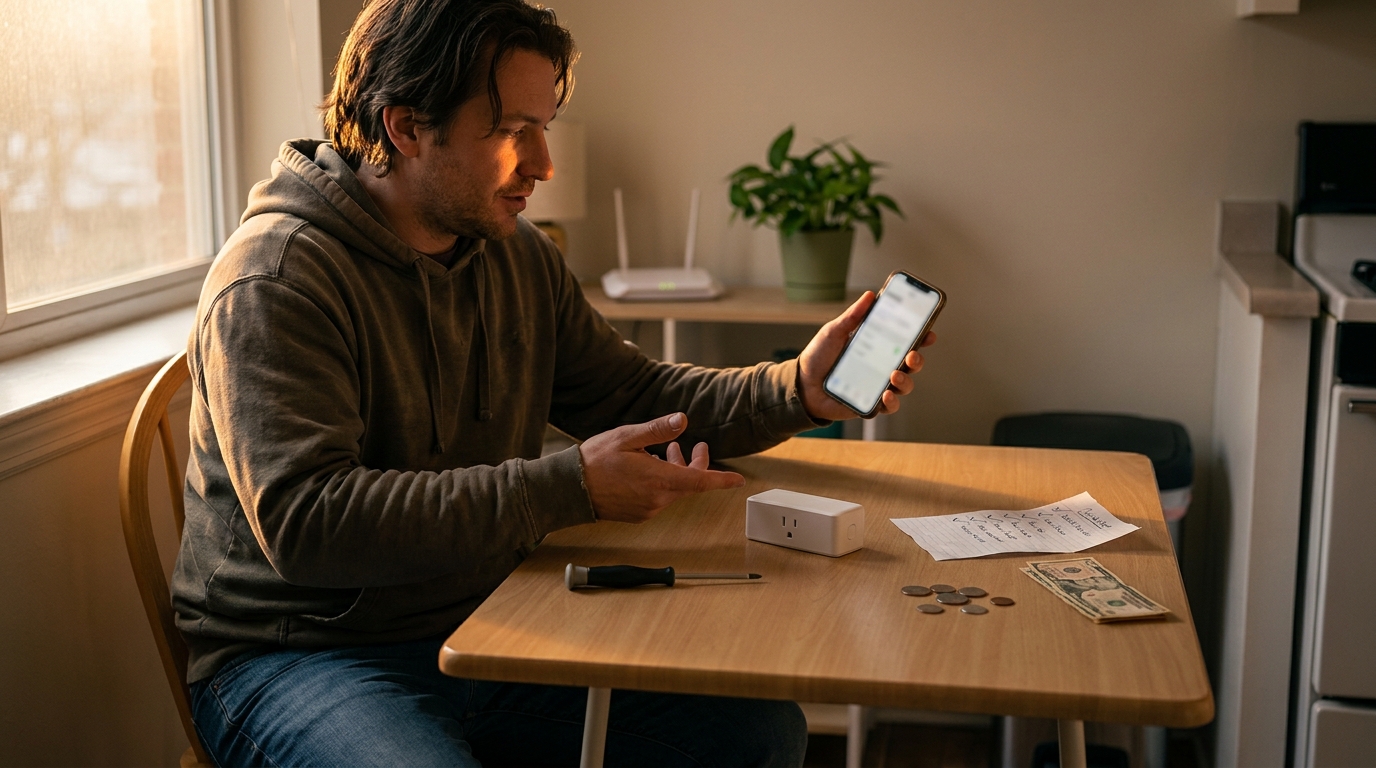
Symptoms and one‑step verification
- Kasa: “Connect to Wi‑Fi” or “No internet”
One‑step: On Android, confirm Wi‑Fi shows your home SSID and web pages load. Note full error text and Kasa app version. (See TP‑Link support flow: TP‑Link FAQ 2229 — 2023‑10‑01.) - Can’t see TP‑Link_Smart_Plug_XXXX SSID
One‑step: Open Settings > Network & internet > Wi‑Fi and scan. If absent, try reset the EP25 (see reset section). (See TP‑Link FAQ 2229 — 2023‑10‑01.) - Kasa asking for SSID password during plug setup
One‑step: Check whether Kasa is asking for the phone’s current router password vs. TP‑Link SSID — write the exact prompt. Manual connect to TP‑Link_Smart_Plug_XXXX can prove soft‑AP flow. - LED not blinking orange/green during reset
One‑step: Power cycle and hold the button 10 seconds; if LED never blinks orange/green, capture a photo and time stamp. (Community reset confirmation: TP‑Link community — 2024‑05‑15.)
How to record useful debug info: copy the exact Kasa error text, take screenshots of Android Wi‑Fi screen, note Android OS (Settings > About phone), and Kasa app version (Play Store page or Settings > About in app).
Pitfall to avoid: Don’t buy a replacement before confirming LED/SSID and Android permissions.
Root causes mapped to the exact Android symptom (what each symptom really means)
Map the symptom to likely root cause, then run a focused test listed here to confirm.
Common symptom → root cause pairs
- Missing TP‑Link SSID → Plug not in soft‑AP (config) mode or Android Wi‑Fi scanning permission blocked. Quick test: force the EP25 into setup (hold 10s) and watch LED for orange/green blink. (See community confirmation: 2024‑05‑15.)
- Kasa “No internet” → Phone not on normal home Wi‑Fi or a captive portal / guest network blocking device‑to‑device traffic. Quick test: open a browser while on your home SSID; if portal appears, complete it first. (See: TP‑Link FAQ 2229 — 2023‑10‑01.)
- LED not orange/green → EP25 didn’t enter config mode (firmware or stuck state). Quick test: power cycle, then hold button 10s until orange/green blink is observed; if never, gather photos — possible hardware fault. (Community: 2024‑05‑15.)
- App asks for Wi‑Fi password but fails → Android auto‑connect or remembered networks interfering. Quick test: manually join TP‑Link_Smart_Plug_XXXX from Settings > Wi‑Fi (no password) then return to the app. (TP‑Link manual flow: 2023‑10‑01.)
Which side to change
- Phone fixes: Android permissions, manual Wi‑Fi connect, reboot phone.
- Plug fixes: Factory reset (10‑second hold), power cycle, reinstall Kasa.
- Router changes: 2.4 GHz SSID or guest network/policy changes, AP isolation tests.
Pitfall to avoid: Don’t blame “2.4 GHz only” until you confirm the plug entered soft‑AP and Android permissions are correct.
Step-by-step fixes for each symptom — Android-first, zero-cost methods
This is the action section. Follow each numbered no‑cost step exactly, in order. Verify success after each step before moving on.
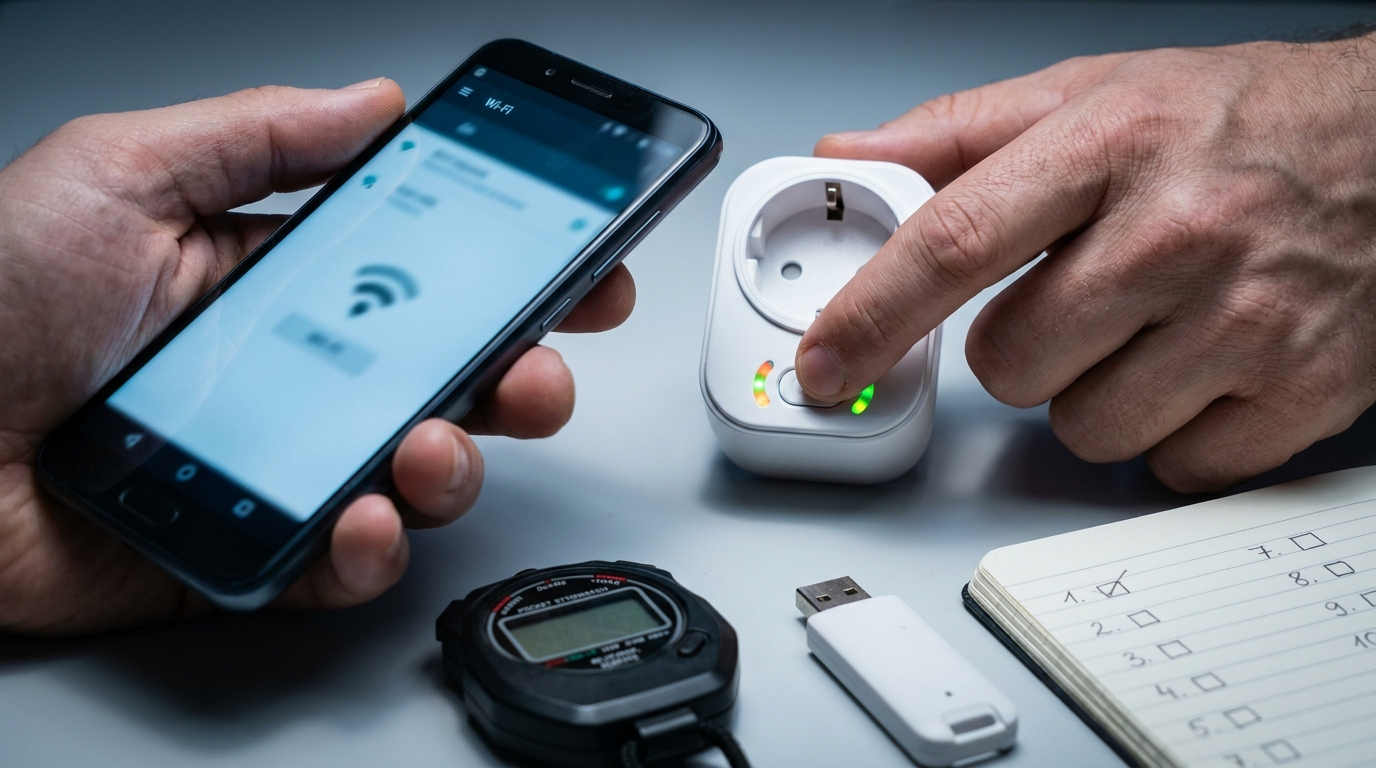
Prepare: app and phone
- No‑cost step 1 — Update & note versions: Open Google Play, update Kasa; note Kasa version (Settings > About in app). Record Android version: Settings > About phone > Android version. (Cite: TP‑Link FAQ 2229 — 2023‑10‑01.)
- No‑cost step 2 — Force close Kasa: Settings > Apps > Kasa > Force stop; then open Kasa and attempt setup again.
- No‑cost step 3 — Reboot phone: Hold power > Restart. Retry Kasa setup.
Exact Android permission paths (Android 10–14)
- Settings > Apps & notifications (or Settings > Apps) > Kasa.
- Tap Permissions > locate “Nearby devices” / “Location” / “Local network” (name varies by Android version). Enable Local Network/Wi‑Fi scanning permission. (Cite: TP‑Link FAQ 2229 — 2023‑10‑01.)
- If prompt doesn’t appear in Kasa, open Settings > Network & internet > Wi‑Fi > Wi‑Fi preferences and enable scanning options (if present).
Factory reset EP25 (exact sequence)
- No‑cost step — Remove plug from outlet, wait 5 seconds, plug in.
- Press and hold the EP25 power button for exactly 10 seconds and release when the LED blinks orange/green — this is soft‑AP/config mode. Watch the LED; if no orange/green blink, repeat once more. (Community source: 2024‑05‑15.)
- Immediately open Android Settings > Wi‑Fi and look for “TP‑Link_Smart_Plug_XXXX”. If it appears, tap to connect (no password). Return to Kasa and tap “Try Again”. (Manual connect flow: TP‑Link FAQ 2229 — 2023‑10‑01.)
Verify success
- Pass: Kasa advances from “Connect to Wi‑Fi” screen to device naming and shows your home SSID selection.
- Fail: If LED never blinks orange/green or SSID never appears to any phone after two resets, escalate to router checks or collect evidence for support.
Pitfall to avoid: Don’t give generic “reset” advice — follow the exact 10‑second hold and confirm orange/green LED before assuming success.
Router and network fixes to test next — cheap tests that prove or disprove 2.4 GHz / AP isolation / captive portal issues
If Android‑first fixes fail, these low‑cost router tests prove whether the network is blocking setup.
Check 2.4 GHz and signal strength
- On your router admin page or app, confirm a 2.4 GHz SSID is broadcasting (often shown separately). If only one SSID exists, check whether it is dual‑band combined.
- Move the phone and plug within 1–2m of the router during setup; target signal > −70 dBm for reliable onboarding (recommended threshold in TP‑Link guidance). (See: TP‑Link FAQ 3434 — 2023‑10‑01.)
Guest network and AP isolation test
- Create a temporary guest 2.4 GHz SSID (no captive portal), or disable AP/client isolation if enabled.
- Connect phone to this guest SSID and retry Kasa setup. If plug connects, the main SSID has isolation rules.
Captive portal test
- Connect phone to the router SSID, open a browser and load a site to trigger any login/portal.
- If a portal appears, complete it or use a different network/hotspot for setup first — captive portals can block device pairing.
Pitfall to avoid: Don’t assume WPA3 or IPv6 is the culprit; confirm soft‑AP and Android permission issues first.
Android-specific edge cases to test (permissions, VPNs, IPv6, special SSID characters)
These edge cases often appear in forums but are easy to test from the phone.
- Local Network / Wi‑Fi scanning permission (Android 11+): Settings > Apps > Kasa > Permissions → enable Local network / Nearby devices. If the toggle isn’t visible, check App info or open Kasa and accept the prompt. (Cite: TP‑Link FAQ 2229 — 2023‑10‑01.)
- VPNs, IPv6, firewall apps: Disable any VPN or DNS filter app (Settings > Network & internet > VPN) before setup — these can block mDNS/soft‑AP flows.
- SSID special characters: If your home SSID contains unusual characters, temporarily rename it to plain ASCII for setup then rename back after the plug joins.
- Carrier‑grade NAT / mobile hotspot limits: Use a Wi‑Fi hotspot from another phone for setup if router options aren’t available; this is a cheap fallback (see next section).
Pitfall to avoid: Don’t factory reset the EP25 repeatedly without checking Android permissions or active VPNs first.
Cheap fallbacks and when to buy: budget workarounds under $20 (what to try before replacing anything)
Prioritize these budget options (no‑cost first). No reliable public data exists for success rates or exact current prices — see Research Next Steps.
- No‑cost: Use a second Android phone or borrow one to test manual setup; create a temporary hotspot from another phone and attempt EP25 setup.
- Cheap (≤$20): Buy a basic Wi‑Fi range extender or bridge (~$10–$20 typical street price); set it to 2.4 GHz guest mode and run setup through it. Local prices vary — confirm before purchase (No reliable data found for current pricing — Research Next Steps).
- Alternate smart plug: If you must replace, low‑cost smart plugs range in the $8–$20 band in many markets — check return/refurb policies before buying.
After any fallback, verify: the device appears in Kasa, you can toggle on/off, and it survives a 24–72 hour reliability check (observe for drops or re‑auth prompts).
Pitfall to avoid: Recommending specific models or exact prices without fresh local checks — current pricing and stock must be verified by the buyer.
When to escalate — hardware replacement, warranty, or advanced network help
Before you escalate, complete this evidence checklist. Only escalate if tests prove the device is defective or incompatible.
Final verification checklist (collect before contacting support)
- Two power cycles and two factory resets (10s holds) attempted, with photos showing LED behavior and timestamps.
- Screenshots of Android Wi‑Fi scan showing absence/presence of TP‑Link_Smart_Plug_XXXX.
- Screenshot of exact Kasa error text and Kasa app version number; Android version noted.
- Results of router tests: guest SSID/AP isolation attempt and captive portal behavior recorded.
How to file a TP‑Link support ticket
- Attach photos/screenshots from the checklist above.
- State the exact steps you ran (factory reset timing, Android model and OS, Kasa version) and reference the community reset guidance you followed. (Community: 2024‑05‑15.)
- Ask for RMA/warranty if LED never enters soft‑AP after two clean resets and SSID never appears to any phone.
Cheap replacement options: If you buy a replacement, confirm return/refurb policies and keep evidence to support warranty claims.
Conclusion
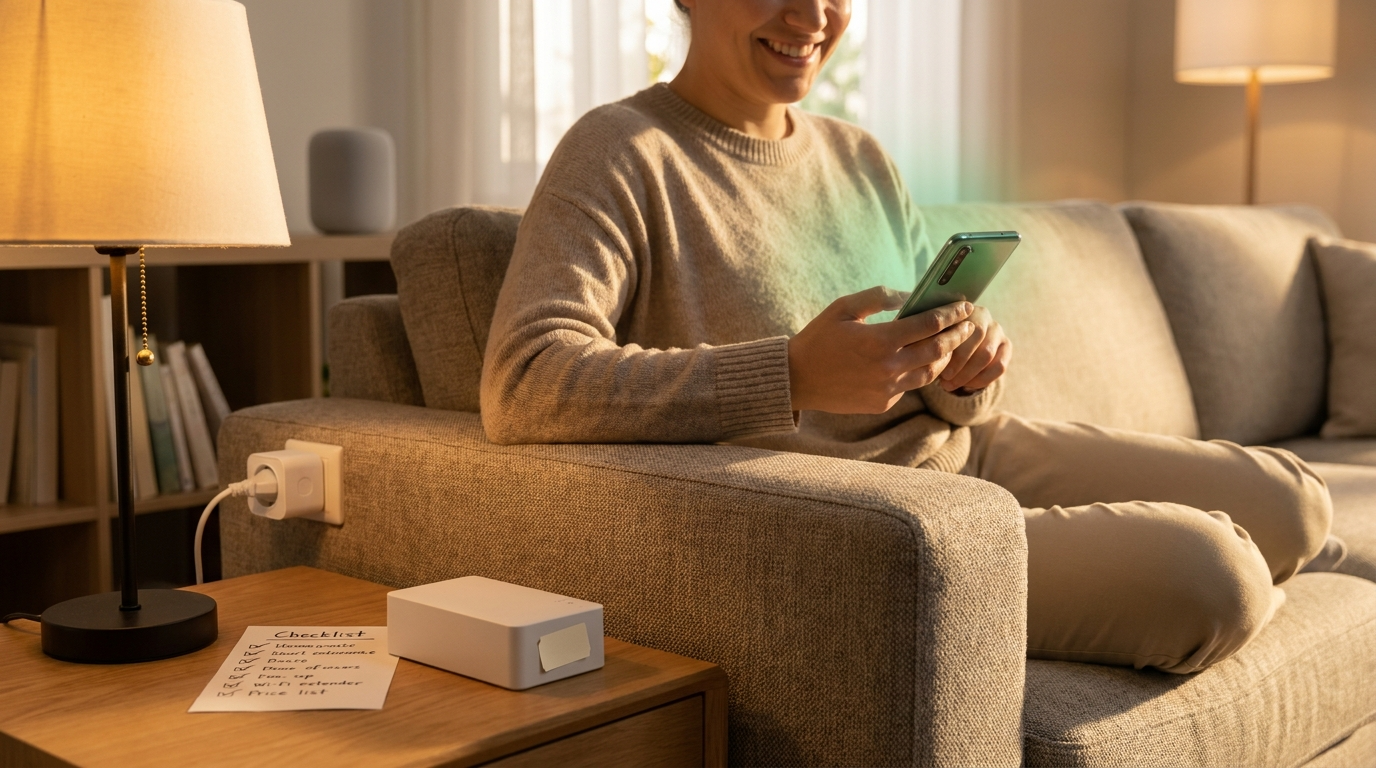
Follow the Android‑first, budget‑first flow: record the symptom, enable Local Network permission (Settings > Apps > Kasa > Permissions), perform the exact 10‑second factory reset and watch for the orange/green blink, and manually connect Android to TP‑Link_Smart_Plug_XXXX to verify. Use cheap fallbacks (hotspot or inexpensive extender) before replacing hardware. If you still can’t fix it, collect screenshots/photos and contact TP‑Link support with the evidence outlined above.
If you still have problems with tp-link kasa smart wi-fi plug ep25 won’t connect android, compare cheap replacement options and read more troubleshooting: Outdoor Smart Plug: 7 Proven Guide To Avoid Costly Mistakes, Feit Smart Plug: 7-Step Checklist, and Alexa Smart Plug: Top 7 Best Picks. Subscribe for updates or check our smart‑plug troubleshooting basics and smart‑plug safety and load testing guide before replacing hardware.
FAQ
Why can’t my Android phone see TP‑Link_Smart_Plug_XXXX during setup?
Most often the plug isn’t in soft‑AP mode or Android’s Local Network/Wi‑Fi permission is off — do a 10‑second reset and enable Local Network permission in Settings > Apps > Kasa. (Cite: TP‑Link FAQ — 2023‑10‑01; community thread — 2024‑05‑15.)
What exact button timing forces EP25 into setup mode?
Press and hold the EP25 power button for 10 seconds until the LED blinks orange/green to enter soft‑AP/config mode. (Cite: community thread — 2024‑05‑15.)
The Kasa app says “No internet” — is the plug broken?
Not usually — “No internet” frequently means your phone isn’t on your normal home Wi‑Fi or a captive portal is blocking the flow; verify phone Wi‑Fi and try again. (Cite: TP‑Link FAQ — 2023‑10‑01.)
Should I disable WPA3 or change my router encryption?
Only after confirming the plug can’t join a simple 2.4 GHz SSID and after trying Android‑side fixes; many issues are permission/SSID/soft‑AP related first. (No reliable data found for WPA3 specific EP25 issues — Research Next Steps.)
What cheap fallback should I try before replacing the plug?
Try an Android hotspot or temporary 2.4 GHz guest SSID and a $10–$20 Wi‑Fi bridge/extender before buying a new plug; check local prices first (No reliable data found on exact costs — see Research Next Steps).
How do I collect proof if I need TP‑Link support or a return?
Capture photos of the EP25 LED during reset, screenshots of Kasa error messages, Android Wi‑Fi screen showing SSID absence, and note Android/Kasa versions and router model.