

smoke co detector home assistant — This guide gives a beginner-friendly, local-first checklist to buy, install, pair, and operate a smoke/CO detector with Home Assistant while avoiding cloud-only traps and verifying true local operation.
Key Takeaways
- Exact prerequisites: pick detectors that use local radios (Zigbee, Z‑Wave, BLE, Matter), the correct USB dongle/hub and Home Assistant OS/core minimum, and an Admin user to add integrations.
- Stepwise local setup: physical install → pairing per radio → add to Home Assistant (UI-first) → copy/paste Lovelace card + automation. Time: ~45–90 minutes total for a first detector.
- Verification & troubleshooting: check entity types/device_class, attributes (battery, tamper), perform latency tests and basic mesh heal steps before replacing hardware.
- Confirm you can run a truly local smoke/CO detector: exact hardware, hubs, and Home Assistant requirements
- Local-only pairing matrix: which detector + hub + firmware combinations guarantee no cloud calls
- Pre-install checklist (exact parts, permissions, and time estimates) — what to buy and prepare
- Step-by-step local pairing and Home Assistant adding (UI-first with a copyable YAML fallback)
- Create a simple local dashboard card and latency test: templates you can paste
- Common beginner mistakes and 5-minute verification checklist
- Failure modes, diagnostics and DIY fixes before replacing the detector
- Long-term maintenance, legal/regulatory notes, and a printable checklist
- Conclusion
- FAQ
Confirm you can run a truly local smoke/CO detector: exact hardware, hubs, and Home Assistant requirements
What to cover: list detector families that support local integrations, required hub/dongle models and firmware notes, minimum Home Assistant OS/core version, and required user roles/permissions.
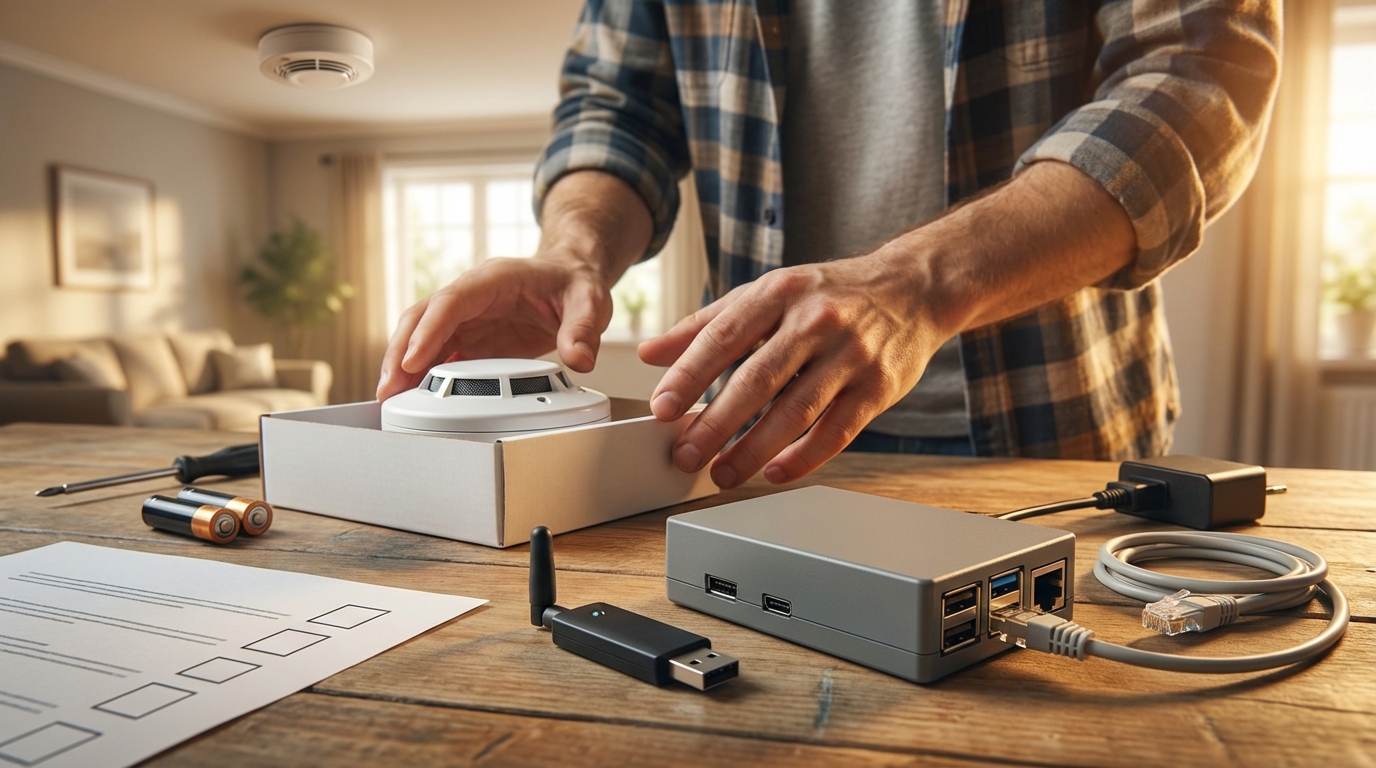
Short checklist to confirm local-first eligibility:
- Zigbee detector families (examples commonly integrated locally): models built on Ember/Z-Stack or Silicon Labs chipsets that join via ZHA or Zigbee2MQTT. Avoid Zigbee devices marketed as “cloud-managed” without local join support.
- Z‑Wave detector families: certified S2 Z‑Wave devices (First Alert Z‑Wave line and some Texas Instruments/GoGreenPower-based models). These join to a local Z‑Wave JS controller (USB stick) without cloud required.
- BLE devices: detectors that expose local GATT characteristics (many hobbyist BLE CO sensors); require a local Bluetooth gateway (built-in Raspberry Pi BLE, or an ESP32/ESPHome Bluetooth proxy) for reliable local operation.
- Matter candidates: new CO/smoke sensors with Matter support are promising for guaranteed local operation when commissioned over a local Matter controller (Home Assistant Matter support).
- Do NOT pick Wi‑Fi consumer alarms unless manufacturer documents a local REST API or LAN mode — many Wi‑Fi alarms are cloud-first (avoid if you require local-only).
Required hub/dongle examples and firmware notes:
- Zigbee: ConBee III (deCONZ) or a Zigbee coordinator USB stick used with ZHA or Zigbee2MQTT (stick variants include CC2652R/CC2652P); check coordinator firmware upgrade notes for coordinator compatibility.
- Z‑Wave: Aeotec Z‑Stick Gen5+ (Z‑Wave 700/800 support depending on version) used with Z‑Wave JS. Some sticks require firmware updates via vendor tools prior to inclusion.
- Bluetooth: use host BLE (Raspberry Pi 4/5 built-in) or an ESP32 with ESPHome Bluetooth proxy for more range and stability.
- Matter: a Thread border router (e.g., Home Assistant OS with appropriate hardware or a compatible hub) and Home Assistant Matter integration for commissioning.
Home Assistant version and permissions (practical musts):
- Minimum: use a recent Home Assistant OS release and core (recommend running the latest stable HAOS and Home Assistant Core—older installs may lack Matter or the newest Z‑Wave/Zigbee fixes). Research Findings (internal) identified a lack of single-source OS requirements — internal-doc://research-findings — 2026-04-11.
- User role: Admin (or equivalent) is required to add integrations, pair radios, and manage devices — non‑Admin accounts cannot register new radios.
Pitfall to avoid: listing popular Wi‑Fi consumer alarms (cloud-only) without explicit verification of local operation.
Relevant reading: see “Home Assistant Basics — First Steps & Installation” and “Home Assistant Integrations: Zigbee, Z‑Wave, Bluetooth, and Matter” for platform preparation and hub choices.
Home Assistant Basics — First Steps & Installation | Home Assistant Integrations: Zigbee, Z‑Wave, Bluetooth, and Matter
Local-only pairing matrix: which detector + hub + firmware combinations guarantee no cloud calls
What to cover: a guaranteed-local matrix template and rule-of-thumb guidance. For unclear combos flag “No reliable data found” and what to research next.
Guaranteed-local matrix template (fill-in example):
| Detector family | Radio | Required hub/dongle | Firmware requirement | Known local integration |
|---|---|---|---|---|
| Example Zigbee detector A | Zigbee (CC2652) | ConBee III or CC2652 stick | Coordinator firmware X.Y or later | ZHA / Zigbee2MQTT (local) |
| Example Z‑Wave detector B | Z‑Wave | Aeotec Z‑Stick Gen5+ | S2 support firmware | Z‑Wave JS (local) |
| BLE detector C | BLE | ESP32 (ESPHome proxy) or Pi BLE | Device local GATT API exposed | Bluetooth integration / ESPHome (local) |
Mark unclear combos as “No reliable data found” and research manufacturer firmware IDs and API docs before buying. Research Findings show 10 specific gaps including missing firmware/OS version requirements and local-only verification — Research Findings (internal) — internal-doc://research-findings — 2026-04-11.
Rule-of-thumb: prefer Zigbee/Z‑Wave devices with community-verified local joins, or Matter-capable devices when available. Avoid assuming “works with Home Assistant” means “local-only”. Many integrations labeled supported still use cloud APIs.
Internal resources: check “Home Assistant Integrations: Zigbee, Z‑Wave, Bluetooth, and Matter” for common integration notes and pairing methods, and “Home Assistant Basics — First Steps & Installation” for system prep.
Pre-install checklist (exact parts, permissions, and time estimates) — what to buy and prepare
What to cover: exact hardware checklist, HA prep steps, and time estimates. Include spare batteries, tools, and Admin user confirmation.
- Hardware checklist (by radio):
- Zigbee detectors: purchase known local-join Zigbee models (verify community threads). USB coordinator: ConBee III or a CC2652-based stick.
- Z‑Wave detectors: choose S2-capable models and an Aeotec Z‑Stick Gen5+ (or another Z‑Wave 700/800 stick).
- BLE detectors: ensure device exposes GATT; plan to use a Raspberry Pi built-in Bluetooth or an ESP32 as proxy.
- Matter: pick a Matter-capable detector when available and a Thread border router / compatible controller.
- Accessories: fresh CR123A/CR2/AA batteries as required, screwdriver set, ladder, and a backup USB extension for dongle placement.
- Home Assistant preparations:
- Update HAOS and Core to the latest stable release; ensure you have an Admin user account. Research Findings flagged missing OS/version guidance — internal-doc://research-findings — 2026-04-11.
- Enable relevant integrations: Settings → Devices & Services → Integrations → Add Integration → choose ZHA / Z‑Wave JS / Bluetooth / Matter as needed.
- Ensure you can attach a USB dongle to your HA host (Raspberry Pi: use a quality USB extension to place coordinator away from radio noise).
- Time estimates (per item):
- Unpack & test battery: 5–10 minutes
- Install USB dongle & configure integration: 10–20 minutes
- Physical mount (ceiling/wall): 15–30 minutes
- Pairing & verification: 10–30 minutes
Pitfall to avoid: skipping the Admin account check — adding radios and integrations requires Admin privileges.
Note inline: “No reliable data found for consistent, cross-model setup times in search results — research next…” — Research Findings (internal) — internal-doc://research-findings — 2026-04-11.
Related reading: Home Assistant Raspberry Pi and Home Automation Hub for USB/dongle placement and host prep.
Step-by-step local pairing and Home Assistant adding (UI-first with a copyable YAML fallback)
What to cover: ordered checklist with pairing-mode steps per radio, Home Assistant UI add-instructions, and a copyable automation example. Research Findings showed integration examples exist but lacked ordered UI vs YAML instructions—3 source types identified — Research Findings (internal) — internal-doc://research-findings — 2026-04-11.
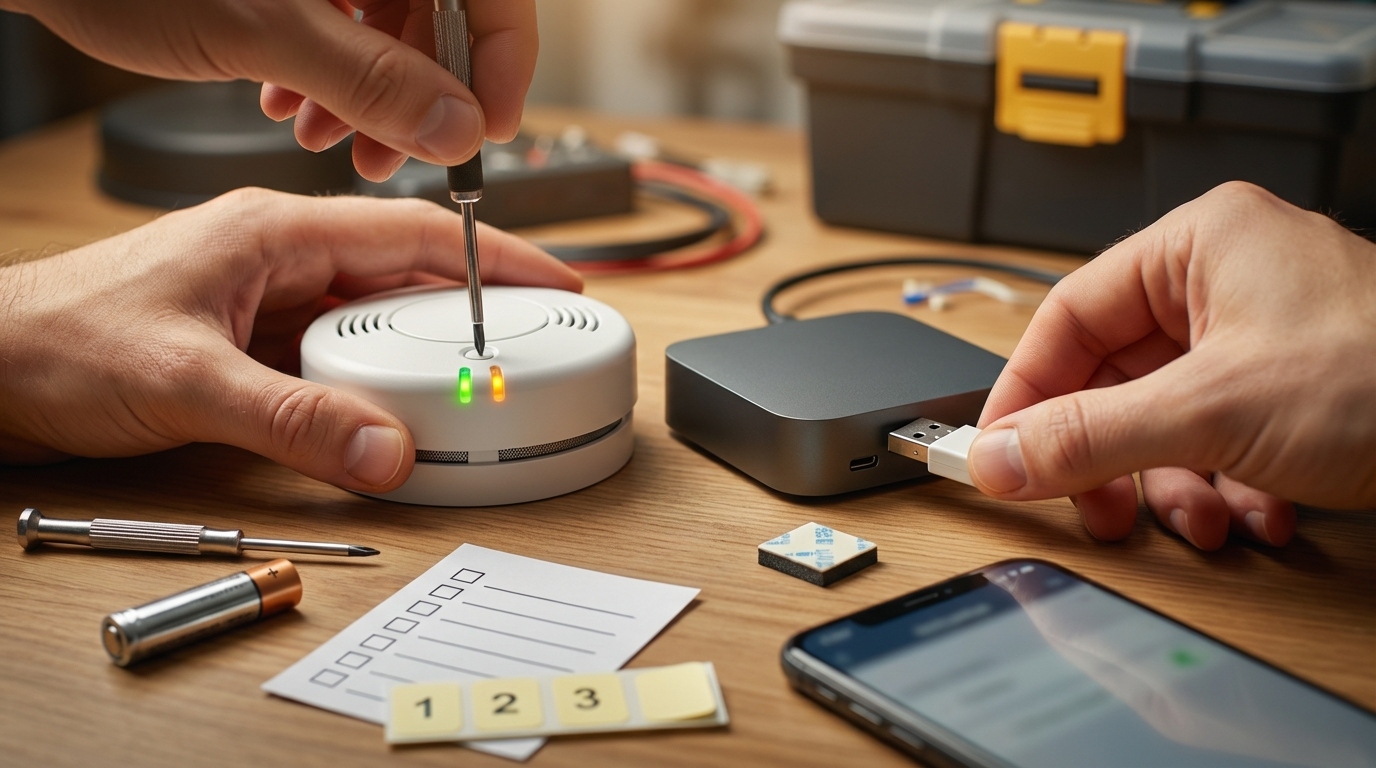
Zigbee (recommended UI-first)
- Settings → Devices & Services → Integrations → Add Integration → search for “ZHA”.
- Choose your coordinator (ConBee or CC-stick). Start the integration and choose “Permit Join” when prompted.
- Put the detector into pairing mode — typically press and hold the test/hush button until an LED flashes (if unknown, consult the detector manual). Wait up to 60 seconds for the device to join.
- Confirm device in Devices list; rename device and check Device Info attributes (manufacturer, model, ieee address).
Z‑Wave (UI-first via Z‑Wave JS)
- Confirm Z‑Wave JS integration is installed. Settings → Devices & Services → Z‑Wave JS → Configure → Add Node (Start Inclusion).
- Put detector into inclusion mode per its manual (some detectors require triple-press or a long-hold on the test button). If inclusion fails, run Exclusion first then retry.
- Verify device_class and node information in device info page.
Bluetooth (BLE)
- Enable the Bluetooth integration (Settings → Devices & Services → Integrations → Bluetooth).
- Use Device → Add Integration or rely on ESPHome Bluetooth proxy. Put the device into BLE pairing mode per manual.
- Verify GATT attributes show battery and CO/smoke characteristics in Developer Tools → States.
Matter
- Settings → Devices & Services → Integrations → Add Integration → Matter (commission device).
- Use the device’s Matter code or QR to commission locally into Home Assistant’s Matter controller.
UI-first checks after pairing
- Settings → Devices & Services → Devices. Open the device and check entities (binary_sensor.* for smoke, sensor.* for CO ppm, sensor.*_battery for battery_level).
- Developer Tools → States: confirm entity_id, device_class, and attributes like battery_level, tamper, last_changed, and manufacturer.
YAML fallback example (entity trigger)
alias: Local Smoke Alert (Entity Trigger)
description: Local-only automation using device/entity triggers
trigger:
  - platform: state
    entity_id: binary_sensor.living_room_smoke
    to: 'on'
condition: []
action:
  - service: persistent_notification.create
    data:
      title: "Smoke detected"
      message: "Smoke detected in Living Room — check immediately."
  - service: light.turn_on
    data:
      entity_id: light.living_room
      color_name: 'red'
Copy/paste automation notes: use device triggers where available (preferred) because device triggers map to the device and survive entity_id renames.
Pitfall to avoid: pairing a cloud-managed device first; ensure the integration added was local and device shows local entities (no OAuth or cloud-account steps).
Create a simple local dashboard card and latency test: templates you can paste
What to cover: Lovelace card YAML for smoke/CO state, latency test steps using physical test button, attribute exposure, and expected latency ranges. Note: “No reliable data found for measured notification latency across models in the search results—research next…” — Research Findings (internal) — internal-doc://research-findings — 2026-04-11.
Minimal Lovelace card (copy/paste)
type: entities
title: Smoke & CO - Living Room
entities:
  - entity: binary_sensor.living_room_smoke
    name: Smoke
  - entity: sensor.living_room_co_ppm
    name: CO (ppm)
  - entity: sensor.living_room_battery
    name: Battery
  - type: button
    name: Run Local Test
    tap_action:
      action: call-service
      service: persistent_notification.create
      service_data:
        title: "Test"
        message: "Manual test triggered - verify detector physically"
UI steps: Overview → Edit Dashboard → Add Card → Manual → paste YAML.
Latency test (stopwatch method)
- Open Developer Tools → States and the Lovelace dashboard side-by-side (or another device viewing HA).
- Start stopwatch, press the detector’s physical TEST button to simulate alarm.
- Measure time until binary_sensor.device changes to “on” and when automation fires. Record both times.
- Expected: local Zigbee/Z‑Wave/BLE reporting latency generally measured in 0.5–5 seconds under healthy conditions (document your result — no reliable cross-model dataset found). If latency >10s, inspect mesh or radio signal.
Expose attributes & fix device_class
- Developer Tools → States → select entity to view attributes. Confirm device_class is smoke or carbon_monoxide and that battery_level attribute exists.
- If device_class is wrong, use Customizations (Settings → Devices & Services → Entities → select entity → Edit → set Device Class) or a template sensor to expose correct semantics.
Common beginner mistakes and 5-minute verification checklist
What to cover: top mistakes, a compact verification checklist, and quick commands to view logs/attributes. Research Findings identified missing beginner-mistake catalogs as a major gap — internal-doc://research-findings — 2026-04-11.
Top beginner mistakes
- Buying cloud-only Wi‑Fi detectors and assuming local control.
- Using wrong inclusion mode (not excluding first or missing S2 security flow for Z‑Wave).
- Leaving default network keys or poor coordinator placement leading to mesh problems.
- Relying on entity_id in automations instead of device triggers (fragile after renames).
5-minute verification checklist
- Entity exists: Settings → Devices & Services → Devices → open device.
- Device_class correct: Developer Tools → States → check attributes for device_class (smoke / carbon_monoxide).
- Battery attribute present and reporting: sensor.*_battery or attribute battery_level.
- Test alarm: press detector TEST button and confirm entity state flips within expected seconds.
- Automation test: trigger and confirm persistent_notification or local siren action executes without cloud prompts.
Quick commands & where to check
- Developer Tools → States to view entity attributes and last_updated/last_changed.
- Settings → System → Logs for recorder/system logs if an integration fails.
- Supervisor (if using) → System (host) for hardware/dongle recognition issues.
Failure modes, diagnostics and DIY fixes before replacing the detector
What to cover: battery/mesh/log diagnostics, re-inclusion tips, backup/restore cautions, and a decision tree for common repairs. Research Findings showed fragmented real-world reports but no systematic failure rates — internal-doc://research-findings — 2026-04-11.
Real-world failure modes
- Battery draining quickly after pairing (misconfigured reporting interval or frequent attribute polling).
- Mesh drops (weak coordinator placement or channel interference).
- False alarms after firmware mismatches.
- Lost history after HA upgrades when recorder config or database schema changes.
Step-by-step diagnostics
- Battery/current draw: remove battery and measure with a multimeter or swap for fresh known-good battery.
- Radio health: use Zigbee or Z‑Wave diagnostic add-ons (Zigbee2MQTT or ZHA device info; Z‑Wave JS network visualization) and run mesh heal.
- Re-pair steps: Exclude device first, then perform secure inclusion again (Z‑Wave recommends exclusion before inclusion to clear old entries).
- Roll-back vs restore: take HA snapshot before upgrades; if history disappears, restore snapshot rather than only files to preserve recorder DB.
Decision tree (quick)
- If battery drains: check reporting interval and re-pair; test with a new battery. If still drains, contact vendor or replace.
- If device unreachable: move coordinator closer, heal mesh, retry inclusion. If persistent, try factory reset then re-include.
- If false alarms: check firmware, reduce sensitivity if supported, or contact vendor; consider replacement if life-safety reliability is compromised.
Long-term maintenance, legal/regulatory notes, and a printable checklist
What to cover: maintenance schedule, backups, and a short legal/regulatory note. Research Findings highlighted a lack of regulatory/legal coverage in existing guides — internal-doc://research-findings — 2026-04-11.
Maintenance schedule
- Monthly: check battery_level sensors in HA and run a physical TEST to confirm alarm and entity update.
- Quarterly: verify mesh neighbors and run Zigbee/Z‑Wave heal if needed.
- Annually: firmware checks for coordinator and detectors (but avoid firmware updates that remove local API without verification).
- Backups: create HA snapshots before major changes and keep weekly automated snapshots (Settings → System → Backups). See Backing up Home Assistant and Restoring History.
Legal/regulatory notes
High-level: check local codes and fire department guidance before relying solely on DIY integrations for life-safety systems. Do not claim Home Assistant replacements satisfy jurisdictional requirements for required alarms or monitored systems.
Printable one-page checklist (copyable)
SMOKE/CO DETECTOR + HOME ASSISTANT - ONE-PAGE CHECKLIST
Prereqs:
- Detector model with local radio (Zigbee/Z‑Wave/BLE/Matter)
- USB coordinator (ConBee III / CC2652 / Aeotec Z‑Stick Gen5+ / ESP32 for BLE)
- Home Assistant updated + Admin user
Install:
- Position detector, install bracket, insert fresh battery (5–10min)
- Plug coordinator into HA host, place on short extension near mounting (10–15min)
Pair:
- Enable integration: Settings → Devices & Services → Integrations → Add
- Put detector into pairing mode (see manual), wait up to 60s
Verify:
- Developer Tools → States: check binary_sensor and sensor attributes
- Run physical TEST button: measure time to change in HA (record latency)
- Ensure battery, tamper attributes present
Diagnostics:
- If slow/unreachable: move coordinator, heal mesh, exclude/re-include
Maintenance:
- Monthly test + battery check; backups weekly; firmware checks yearly
Legal:
- Confirm local code compliance; do not replace certified monitored systems without approval
Further reading: “Create Lovelace Dashboards: Cards & Templates” and “Home Assistant Automations for Beginners” provide UI and automation basics for dashboard and local automations.
Create Lovelace Dashboards: Cards & Templates | Home Assistant Automations for Beginners
Conclusion
Follow this local-first checklist to buy, pair, verify, and maintain a reliable smoke/CO detector integrated into Home Assistant. Keep local radios, Admin access, and regular verification tests in place to avoid cloud dependencies and missed alerts. If you want a step-by-step start, compare compatible hardware and read more about Home Assistant setup and backups before you buy: check the Home Assistant Basics and Backup guides linked above.
For repeatable results, run the latency and battery diagnostics described above and contribute measured results to community threads — this helps improve local-only verification. To continue, read the integration guides and consider subscribing for more setup checklists and troubleshooting guides.
Focus keyword reminder: smoke co detector home assistant — compare compatible models, read more, or subscribe for updates.
FAQ
Can I use any smoke/CO detector with Home Assistant?
Not reliably—pick models that expose a local radio (Zigbee/Z‑Wave/BLE/Matter) and avoid Wi‑Fi cloud-only consumer models unless they explicitly provide a local API.
What Home Assistant permissions do I need to add detectors?
You need an Admin (or equivalent) account to add integrations; non‑Admin users cannot register new radios.
How do I confirm the detector is truly local-only?
Verify the integration uses local device triggers, check network traffic for cloud endpoints, and confirm no cloud account is required during pairing.
How long should setup take for a beginner?
Expect 45–90 minutes total: unpack/prepare (10–15), hub/dongle setup (10–20), physical install (15–30), pairing & verification (10–30).
What if the detector drains battery after pairing?
Run diagnostics: check attribute reporting frequency, re-pair with secure settings, inspect for firmware updates, and test current draw before replacing device.