

philips hue smart plug — a compact, Hue‑branded smart outlet that lets you automate a lamp or small appliance with Bluetooth instantly and add full Zigbee/Bridge features later. This guide shows a strict budget path: what you must have, what to skip, a one‑room install checklist, verification steps, and short diagnostics so you can decide whether to buy a Hue Bridge or use a cheaper Wi‑Fi alternative.
Key Takeaways
- You can use the Philips Hue smart plug without a Bridge for local Bluetooth control (save the Bridge cost) if your phone meets OS requirements: Android 10.0+ or iOS 16+ (Philips Hue product page — 2026-04-24).
- Basic electrical compatibility: the plug is for a standard 120V AC outlet — do an outlet inspection and load check before use (Dell retailer spec — 2026-04-24).
- On a strict budget, skip buying a Hue Bridge until you need remote access, voice integrations, or full Zigbee mesh — typical Bridge price to consider: ~$50–$60 (cost reference — 2026-04-24).
- Save money now — exact prerequisites you must have vs what you can defer
- Safety first — outlet inspection, power‑rating checks and what we couldn’t find
- Step‑by‑step install & pairing checklist (Bluetooth first; Bridge next) — printable
- Beginner verification — 10 compact tests to confirm correct operation
- Common setup failures and a prioritized diagnostic checklist you can run in 5 minutes
- Real connectivity failure modes & durable fixes for a reliable Zigbee mesh on a budget
- Budget total cost of ownership (TCO) — when the Hue plug is worth the premium vs cheaper Wi‑Fi plugs
- FAQ
- Conclusion
Save money now — exact prerequisites you must have vs what you can defer
Short cover list: must‑have phone + Bluetooth and a working 120V outlet; optional Bridge for remote/voice; defer Matter/mesh until you need it.
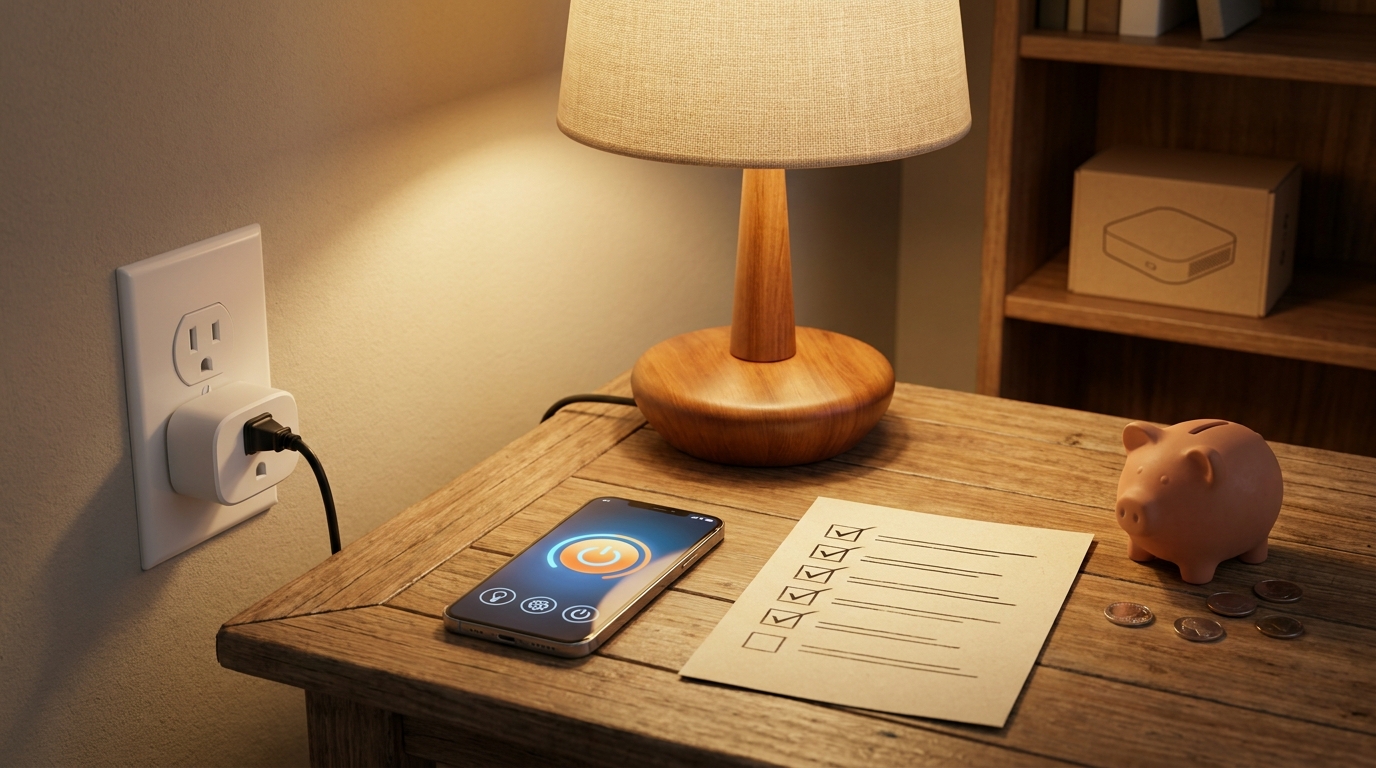
What to keep now vs later (budget rules):
- Must‑have (do this now)
- Phone with Bluetooth + supported OS: Android 10.0+ or iOS 16+ for Hue Bluetooth control (Philips Hue product page — 2026-04-24).
- One lamp or appliance and a standard 120V AC outlet (visual inspection required).
- Philips Hue Bluetooth app (use Bluetooth pairing flow for in‑room control).
- Optional (defer to save $50–$60)
- Hue Bridge — required only for remote access, full Zigbee mesh, HomeKit/Alexa/Google voice integrations and multi‑room automations.
- Matter/cross‑ecosystem setup — add later if you expand to multiple Matter devices.
Quick cost decision rules — Buy Bridge now?
- Buy a Bridge now if you need remote control while away, voice commands via Alexa/Google/HomeKit, or plan to use more than 3–4 Zigbee accessories in multiple rooms.
- Skip the Bridge if you only want local, in‑room app control for a lamp and want the lowest upfront cost. You can always add a Bridge later.
Keywords: philips hue smart plug; smart plug compatible with alexa
Data/Stat to cite: “Bluetooth control via Philips Hue requires Android 10.0+ or iOS 16+.” — https://www.philips-hue.com/en-us/p/hue-smart-plug/046677552343 — 2026-04-24
Pitfall to avoid: Telling users the Bridge is always required — the Bluetooth path provides local control without a Bridge.
Safety first — outlet inspection, power‑rating checks and what we couldn’t find
Short cover list: inspect outlet, verify lamp wattage, check for heat/damage, and do a load estimate before using the plug.
Outlet inspection quick checklist:
- Visual: discoloration, melted plastic, burning smell — do not use.
- Stability: plug the lamp in and wiggle — if loose, replace outlet or use a different one.
- Polarity and grounding: for standard lamps, ensure third‑prong ground is present if lamp requires it.
Power rating checks:
- Confirm lamp wattage printed on bulb or lamp label. For LED bulbs, use the bulb’s watt equivalent; for incandescent/halogen check actual watt rating.
- Estimate total load: sum of all bulbs + any attached appliance. If unsure, defer to lower loads (lamps, chargers). Do not use with high‑draw appliances (space heaters, microwaves).
Data/Stat to cite: “Designed for standard 120V AC outlets.” — https://www.dell.com/en-us/shop/philips-hue-smart-plug/apd/aa972542/home-automation — 2026-04-24
What we could NOT find (and what to ask Philips/retailer):
- No reliable data found for certified max load (amps/watts) and typical standby draw. Research next: request the product datasheet or PR contact for model 552349 specifying maximum continuous current (A), maximum watts at 120V, and standby power in watts.
- Research next: ask Philips for confirmed dust/temperature operating range and any outdoor rating (none publicly listed).
Keywords: smart plug; best smart plug
Pitfall to avoid: Claiming a specific max‑watt/amp rating when the docs don’t list it — always label unknowns and request the certified numbers.
Step‑by‑step install & pairing checklist (Bluetooth first; Bridge next) — printable
Short cover list: prerequisites, ordered steps for Bluetooth pairing, Bridge pairing, and voice assistant addition. This is the action section — follow the numbered checklist exactly.
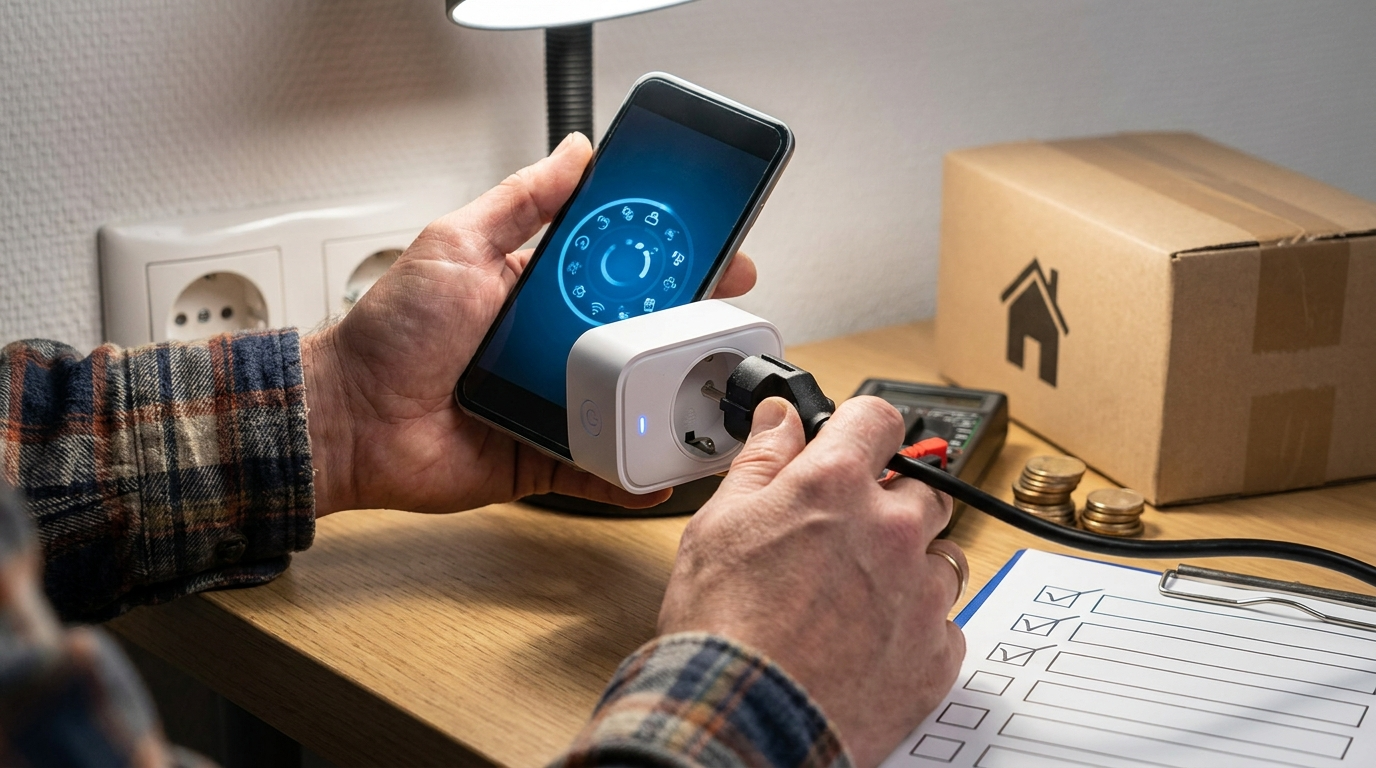
Prerequisites — must have vs optional
- Must‑have
- Phone: Android 10.0+ or iOS 16+ with Bluetooth enabled.
- Hue Bluetooth app installed and updated.
- Working lamp and a standard 120V outlet.
- Optional (defer)
- Hue Bridge (add later if you need voice/remote or multi‑room automations).
- Alexa/Google integration (requires Bridge).
Ordered install steps (follow exactly)
- Outlet inspection: unplug anything, visually inspect (no heat/damage). If outlet fails inspection, stop and repair outlet.
- Prepare lamp: unplug lamp, remove fragile bulbs, confirm wattage on lamp or bulb label.
- Plug the Hue smart plug into the outlet — leave lamp unplugged for now.
- Open the Hue Bluetooth app on your phone (use Bluetooth pairing flow). Confirm Bluetooth is enabled on phone.
- In the app: Add device → Accessories → Smart plug → Scan QR code on the plug or follow on‑screen discovery. If using Bridge workflows, add the Bridge first (see note below).
- Once app shows device, plug the lamp into the smart plug and turn lamp power switch ON (so the plug can switch power digitally).
- Name the plug and assign to a room inside the Hue app.
- Create a simple automation (routine): add on/off schedule or a 1‑minute test timer to confirm automation firing.
- If you want Alexa/Google/HomeKit voice control now: add the Hue Bridge and then enable Hue skill/integration in Alexa/Google/Home apps (Bridge required).
- Test app control and verify lamp toggles on/off.
Bridge note: “Hue Bridge must be connected and added to the Hue app first for Bridge (Zigbee) workflows.” — https://www.philips-hue.com/en-us/support/connect-hue-product/accessories/smart-plug — 2026-04-24
Add to Alexa/Google/HomeKit (Bridge required)
- Install and connect the Hue Bridge to your router and add it in the Hue app.
- In Alexa app: Skills & Games → search “Philips Hue” → enable and link your Hue account (Bridge must be online).
- In Google Home: Add → Works with Google → search “Philips Hue” → link account.
- In HomeKit: add Bridge via Home app (Bridge advertises HomeKit compatibility once added to Hue app).
Printable checklist (single‑page — screenshot or print)
✓ Phone: Android 10+/iOS 16+ & Bluetooth ON
✓ Hue Bluetooth app installed
✓ Outlet visually OK (no heat/damage)
✓ Lamp wattage checked (bulb/lamp label)
✓ Plug inserted, lamp initially unplugged
✓ App: Add device → scan QR or discover
✓ Plug lamp in; toggle from app
✓ Create 1‑minute automation and test
✓ If voice/remote needed: add Hue Bridge later
Internal reading: If you want a broader buying comparison read “How to choose a smart plug on a budget” and for Zigbee vs Wi‑Fi deep dive see “Zigbee vs Wi‑Fi: which is cheaper to run”. For Bridge setup basics, consult “Setting up a Hue Bridge”. To estimate savings, try “Calculate smart plug energy savings”. Also compare options in “Top Rated Smart Plugs” for cheap Wi‑Fi alternatives.
Keywords: philips hue smart plug; wifi smart plug
Pitfall to avoid: Switching apps (Hue Bluetooth vs Hue full app) at the wrong time — start with Bluetooth for single plug pairing unless you already have a configured Bridge.
Beginner verification — 10 compact tests to confirm correct operation
Short cover list: local app on/off, visual lamp check, latency, automation and voice tests (if Bridge present).
Data/Stat to cite: “Hue Smart Plug supports direct Bluetooth control without a Hue Bridge.” — https://www.philips-hue.com/en-us/support/connect-hue-product/accessories/smart-plug — 2026-04-24
- Power sanity: App shows device listed and Online.
- Manual toggle: Tap ON in app — lamp must light within 0–2 seconds.
- Physical lamp check: Toggle lamp switch (physical) to confirm non-smart lamp remains controllable via plug (switch must remain ON for app control).
- Latency test: Use a stopwatch or phone timer — press app ON and measure time to lamp light. Record result (expected low single‑digit seconds for Bluetooth).
- Repeatability: Toggle ON/OFF five times — confirm consistent behavior.
- Automation test: Create a 1‑minute timer routine — confirm it fires and lamp state changes.
- Status persistence: Close the app and re-open — device still shows correct state.
- Power‑cycle test: Unplug plug for 10s and plug back in — verify it restores to previous state or default (note the behavior).
- Voice test (if Bridge added): Ask Alexa/Google to turn the plug on — lamp should respond (confirm Hue skill linked).
- Failproof check: Confirm when app shows ON, the lamp is actually lit — never assume app state alone.
Keywords: smart plugs; smart plug compatible with alexa
Pitfall to avoid: Not verifying both app control and the physical lamp response (some beginners stop when the app shows ‘on’).
Common setup failures and a prioritized diagnostic checklist you can run in 5 minutes
Short cover list: wrong pairing method, Bluetooth off, lamp unpowered, Bridge offline, Alexa skill not enabled.
Top quick checks (5‑minute runbook):
- Bluetooth discovery fail: Verify phone Bluetooth is ON; close other Bluetooth apps; move phone within 2 ft of plug; retry discovery in the Hue Bluetooth app.
- Wrong app: Confirm you are using the Hue Bluetooth app when not using a Bridge; if Bridge is added use the full Hue app and add the Bridge first.
- Lamp power: Confirm the lamp’s physical switch is ON and the bulb is seated correctly.
- Bridge offline: If using a Bridge, open Hue app Home → Settings → Hue Bridges and confirm Bridge status is Online. Restart your router if Bridge shows offline.
- Voice not working: After adding Bridge, enable the Hue skill in the Alexa app or link Hue in Google Home and re‑discover devices.
When to factory reset vs when to move it physically:
- Factory reset plug if you previously paired it to another account or it won’t appear after trying discovery + power cycle (reset procedure: consult Hue support for exact button/reset sequence).
- Move it physically if you see intermittent Bluetooth/Zigbee signal problems — try the plug in the same room as the phone or closer to Bridge to isolate range issues.
Data/Stat to cite: “Hue Smart Plug is Bluetooth and Bridge (Zigbee) compatible — advanced voice/remote features require the Bridge.” — https://www.philips-hue.com/en-us/p/hue-smart-plug/046677552343 — 2026-04-24
Keywords: smart plug; philips hue smart plug
Pitfall to avoid: Suggesting a Wi‑Fi reset flow — clearly explain there is no direct Wi‑Fi pairing.
Real connectivity failure modes & durable fixes for a reliable Zigbee mesh on a budget
Short cover list: symptoms, logs to capture, durable fixes (placement, cheap repeaters, channel basics).
Symptoms to watch for:
- Intermittent disconnects — plug works, then drops in app.
- Automations not firing — schedule exists but device doesn’t change state.
- Bridge offline or slow responses — hub connectivity issues.
- Overloaded circuits — tripping breakers or fuse issues (rare for lamps, check load).
Diagnostics to capture (what to note):
- Timestamped event: note local time of failure and last successful action in Hue app.
- Hue app device status: Online/Unavailable and any error messages.
- Bridge network status: is Bridge connected to router? Note LED status and app Online flag.
Durable fixes (budget‑first):
- Move the plug closer to the Bridge or your phone while testing — placement is the cheapest fix.
- Add a cheap Zigbee repeater: many smart bulbs act as repeaters; a low‑cost Zigbee outlet/bulb placed between the plug and Bridge can help. Choose repeaters rated for continuous duty and compatible with Philips Hue.
- Channel basics: If you suspect Zigbee congestion, check the Bridge’s Zigbee channel (requires Bridge access in Hue app) and avoid Wi‑Fi channels 1,6,11 overlap where possible — change Wi‑Fi channel first only if you control the router.
- Firmware: keep the Bridge and Hue app updated; note firmware changes may affect accessory behavior (capture version numbers if failures start after updates).
Data/Stat to cite: “Model reference 552349 identifies the Bluetooth + Bridge‑compatible plug variant (use when requesting precise technical specs).” — https://ny.home.myorustore.com/Lighting/I-PHPSMRTPG-01-SMRT-PLUG-V1.html — 2026-04-24
Research gaps and editorial tasks (must follow up):
- No reliable data found on standby watts and Zigbee range/latency benchmarks — Research next: request measured standby watts and Zigbee range tests versus TP‑Link/Kasa from Philips PR or an independent bench test.
- Research next: snapshot MSRP and street prices across Amazon, Best Buy, Home Depot and Philips direct (capture date/time).
- Research next: confirm minimum Bridge firmware needed for Matter and any accessory compatibility changelogs from Philips support.
Keywords: smart plug; wifi smart plug
Pitfall to avoid: Recommending expensive repeaters before checking placement and Bridge health.
Budget total cost of ownership (TCO) — when the Hue plug is worth the premium vs cheaper Wi‑Fi plugs
Short cover list: device price vs Bridge add, amortization example, buyer scenarios.
TCO worksheet (quick):
- Device cost: retail price of the Hue smart plug (check current MSRP at retailers).
- Optional mandatory cost: Hue Bridge (~$50–$60 if you need remote/voice).
- Other: replacement bulbs, electricity savings (estimate), possible energy monitor.
Simple amortization example (illustrative, update with live prices):
- Hue plug $25 + Bridge $55 = $80 total for voice/remote + plug.
- Cheaper Wi‑Fi plug: $12 each, no hub required for voice via Alexa built into many plugs.
- Decision: If you only want one smart lamp in one room, Wi‑Fi plug is cheaper up front. If you plan a multi‑room Zigbee mesh or already own Hue lights, Hue plug adds value by integrating into scenes and mesh.
Buyer scenarios:
- Buy Hue plug if: you already use Hue lights, plan to expand Zigbee mesh, or want Bridge‑only features like HomeKit integration and Matter via Bridge.
- Choose Wi‑Fi plug if: you need the lowest upfront cost, only one room, and rely on Alexa/Google built into your Wi‑Fi ecosystem.
Data/Stat to cite: “Typical Hue Bridge cost to consider when calculating TCO: ~$50–$60” — https://www.youtube.com/watch?v=iBkWnXLCm3c — 2026-04-24
Keywords: best smart plug; philips hue smart plug
Pitfall to avoid: Comparing only device retail prices and ignoring the Bridge requirement for key features — include hub cost in TCO.
FAQ
Can I use the Philips Hue smart plug without buying a Hue Bridge?
Yes — it supports direct Bluetooth control from phones running Android 10.0+ or iOS 16+ for local in‑room control (Philips Hue product page — 2026-04-24).
Do I need to enable any Alexa/Google skill to control the plug by voice?
Only if you add the Hue Bridge; enable the Hue skill or link Hue in the Google Home app after the Bridge is added.
What outlet specs should I check before plugging in a lamp?
Verify it’s a standard 120V AC outlet, inspect for heat/damage and confirm the lamp wattage does not exceed the plug’s certified load (manufacturer max not publicly listed — request exact amps/watts).
What quick checks fix a plug that won’t appear in the app?
Ensure Bluetooth is on, use the Hue Bluetooth app (not a Wi‑Fi setup), confirm lamp is powered, and if using Bridge ensure the Bridge is online in the Hue app.
How can I test an automation to be sure it will run when I’m away?
Create a short delay routine and confirm it fires locally; to test remote automations you need the Bridge and confirm Bridge remote access is online.
Will this plug work with non‑Hue Zigbee hubs or Matter devices?
The plug supports Zigbee via the Bridge and Hue is rolling Matter support through the Bridge — behavior on non‑Hue Zigbee hubs is not reliably documented and should be tested (see research gap).
Conclusion
For a budget‑first install you can set up a single philips hue smart plug using Bluetooth and your phone without buying a Hue Bridge. Follow the preflight safety checks, the exact pairing order, and the 10 verification tests above; add a Bridge later only if you need remote access, voice integration, or a multi‑room Zigbee mesh. Compare options and costs before you buy — read more on how to choose a smart plug on a budget or run the TCO worksheet above before deciding.
Next step: if you want alternatives, compare this guide to our “Top Rated Smart Plugs” picks to choose the lowest‑cost Wi‑Fi option that suits your room.