

### Blog Post:
lorex home security system — a budget-first plan to check readiness, pick the right kit, and install with no surprise upgrades. This guide gives exact prerequisites to inventory, a prioritized DIY install checklist with time estimates, a repeatable verification suite, and an itemized 1/3/5-year TCO template you can reuse.
Key Takeaways
- Run the exact prerequisites first (router Wi‑Fi standard, upload speed check, camera count, power/outlet map, and PoE vs siamese cable plan) to avoid surprise electrician bills.
- Follow a prioritized, low-cost DIY install checklist (site survey → anchor cameras → cable/hub routing → NVR/DVR network → firmware updates → verification tests) with time estimates and printable steps.
- Run the verification suite (motion‑zone tuning, IR/night check, HDD write/retention sanity, audio/video sync, and simulated power/network failover) before finalizing purchases.
- Confirm your house is Lorex-ready so you don’t pay for surprise upgrades
- Site survey and mapping: how to plan camera count, mounting points, and power with one pass
- Low-cost, prioritized DIY install checklist (step-by-step for wired and wireless)
- Common beginner mistakes and low-cost fixes that restore video quality and reduce false alarms
- Post-install verification suite every budget buyer must run (quick tests that prove reliable recording)
- Concrete, itemized TCO checklist (what to cost and what we still need research on)
- Wired vs Wireless: which Lorex configuration minimizes 3–5 year cost for common house sizes
- Printable checklist: buy/install/verify before you call it done (one‑page workflow)
- Conclusion
- FAQ
Confirm your house is Lorex-ready so you don’t pay for surprise upgrades
Before you buy a Lorex kit, inventory the house so the purchase matches reality. Skipping this step triggers unplanned electricians, PoE switch buys, or router upgrades.
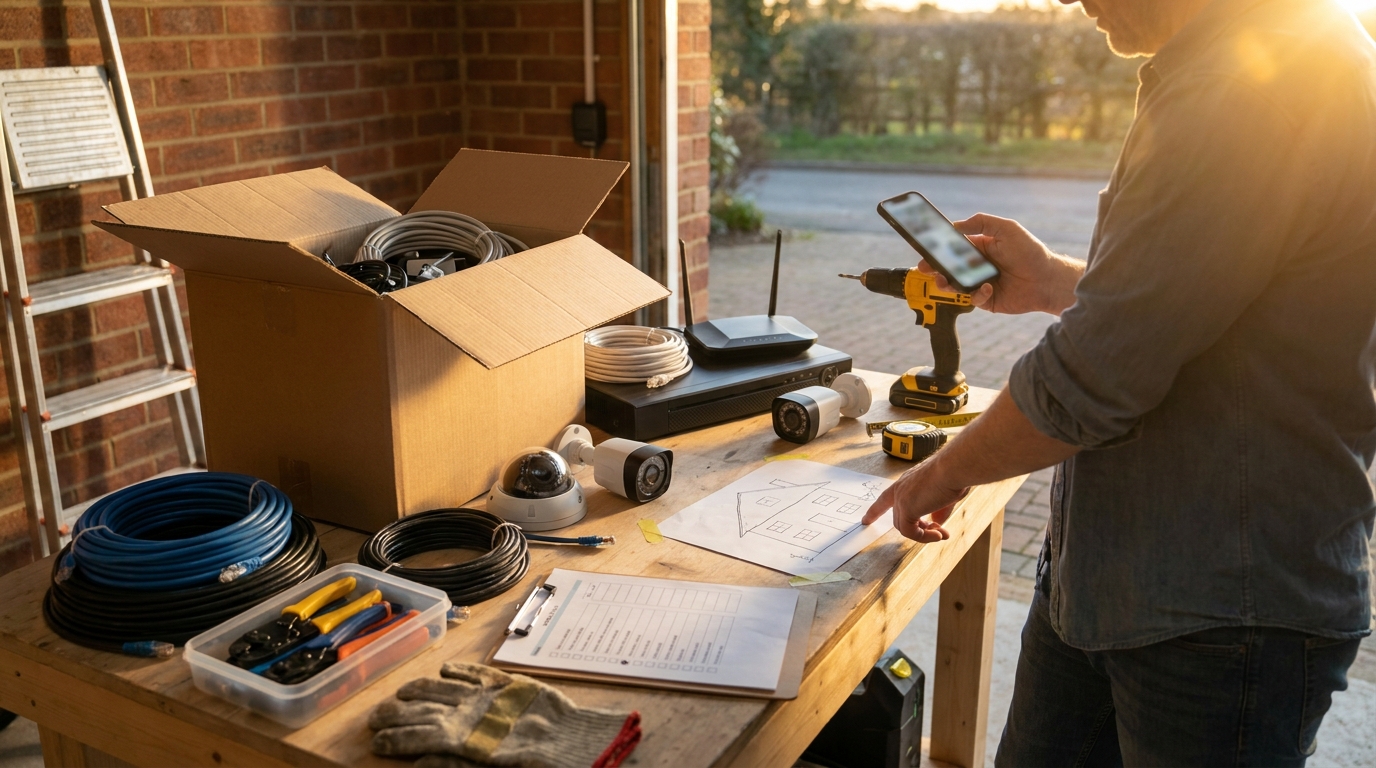
Exact items to inventory (Prerequisites)
- Router model & Wi‑Fi standard — note exact model and firmware date. Lorex Wi‑Fi 6 cameras benefit from Wi‑Fi 6 routers: Lorex Wi‑Fi‑6 guidance (2026-04-19).
- Internet upload test — run a 30‑second upload speed test from the intended NVR/DVR location and save the result. No reliable data found on exact upload minimums for Lorex — research required.
- Number of planned cameras and channel limits — confirm your chosen hub/NVR supports your camera count; many Lorex Home Hub/NVR Wire‑Free systems expand up to 6 cameras: Lorex beginner’s guide (2026-04-19).
- Existing mounting points and distances to nearest power outlet — photograph and measure outlet distance from each proposed mount. If you’re using RG59/siamese analog, you’ll need local power options (see wiring section).
- Power plan — mark whether each camera will have a nearby outlet or if you intend PoE runs.
Quick tests to run now
- Upload speed: run from the NVR/DVR spot and capture a screenshot. Save for vendor support or TCO decisions. (Note: No reliable data found on minimum upload figures.)
- Photo record: take photos of every proposed mounting point with a ruler or tape measure visible; record outlet distances in feet/meters.
- Wi‑Fi check: use a phone app to confirm 5 GHz availability at each wireless camera location; Lorex wireless/hub setups can require 5 GHz in some flows: Lorex Smart Home setup (2026-04-19).
Pitfall to avoid: buying a kit before mapping power/outlet locations and counting cameras — this causes last‑minute electrician bills or PoE switch purchases.
Site survey and mapping: how to plan camera count, mounting points, and power with one pass
Do one walkthrough and collect everything you need to layout installs, cable runs, and wireless constraints.
How to walk the property
- Route: start at main entrance(s), then perimeter, then blind spots (side yards, alleyways). Photograph and annotate sight-lines and potential obstructions (trees, fences, reflective surfaces).
- Measurements: mark typical mounting heights — use 8–10 ft for doorways and 9–12 ft for perimeter (common practice). No reliable data found on Lorex-specific mandated heights — treat these as best-practice starting points.
- Count channels: list planned cameras vs kit channel limits (confirm up to 6 cameras for many Lorex Home Hub/NVR Wire‑Free systems: Lorex guide (2026-04-19)).
Power plan & cable routing
- PoE vs RG59/siamese: PoE wired systems carry power + video over one Ethernet cable (single run per PoE camera) — Lorex install notes (2026-04-19).
- Analog RG59 siamese requires separate power runs; mark outlet distances for each camera location.
- Plan a single Ethernet trunk to a PoE switch or place the NVR/DVR near the router to minimize cable length.
Wireless constraints
- Map 5 GHz coverage — some Lorex wireless/hub flows require a 5 GHz network (see setup guidance): setup page (2026-04-19).
- Identify interference sources (large metal objects, HVAC units, power lines) and mark them on the plan.
Pitfall to avoid: assuming Wi‑Fi coverage is enough without a 5 GHz check — that causes dropped wireless camera events and rework.
Low-cost, prioritized DIY install checklist (step-by-step for wired and wireless)
Follow this prioritized sequence and check each step. Time estimates assume one installer, basic tools, and single-story small house.
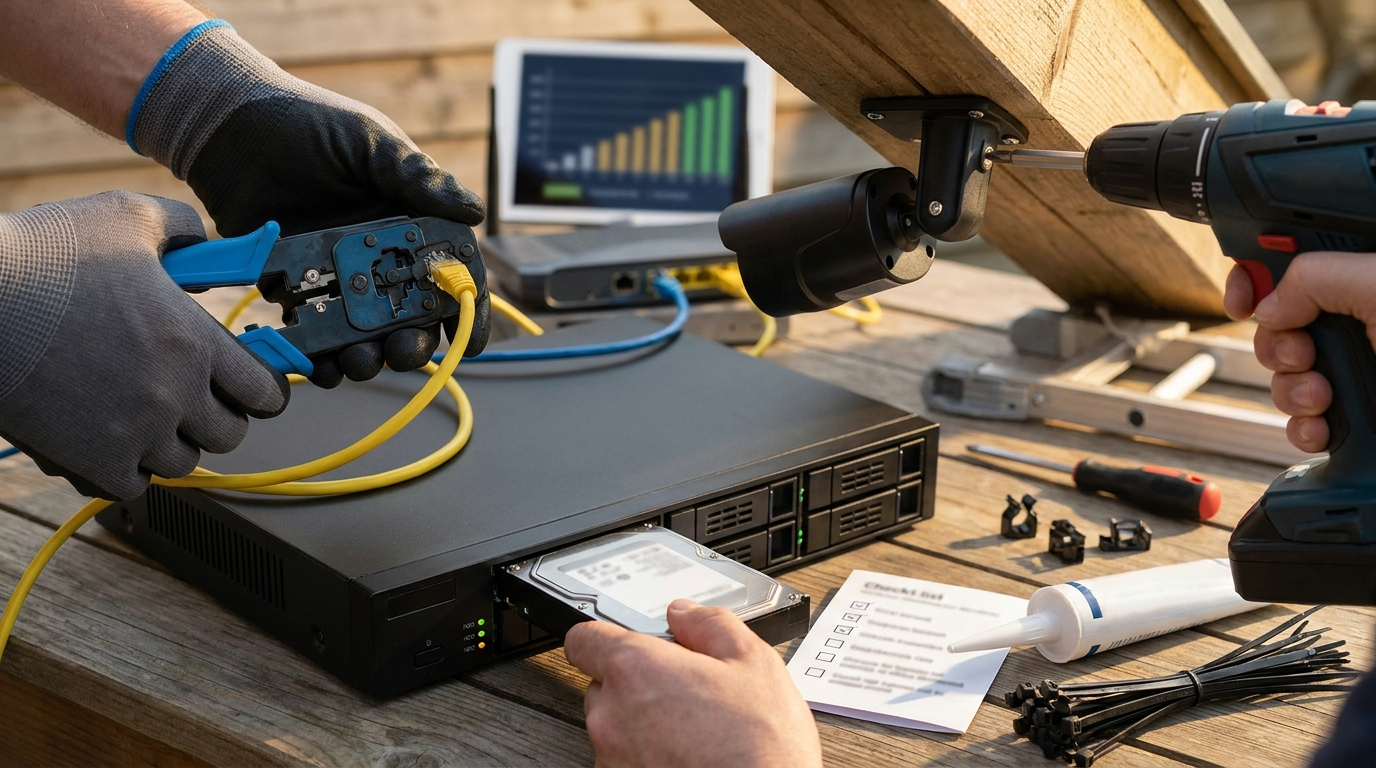
Priority steps (with time estimates)
- Site survey & plan review — 30–60 min. Confirm photos, outlet distances, and 5 GHz spots.
- Mount NVR/DVR close to router — 15–30 min. Reserve static or DHCP IP and note local LAN address.
- Run cable or position hubs — 30–90 min per run (PoE) depending on routing; wireless hub placement 15–30 min.
- Mount first two “anchor” cameras — 15–30 min each. Test feed immediately.
- Finish remaining runs and mounts — 15–30 min per camera.
- Network config and firmware updates — 30–60 min. Update recorder first, then cameras (recommended order in community practice; No reliable data found on manufacturer-ordered update sequence).
- Final verification tests — 30–60 min (see verification suite below).
NVR/DVR quick setup
- Place recorder near router; reserve IP or note DHCP mapping.
- Port forwarding: some Lorex DVR/NVR setups reference port 80 (HTTP) for remote access — review quick-start: LH340 quick-start (2026-04-19).
- Enable remote viewing only after creating a secure admin account; avoid simple passwords.
Firmware/update order
- Recommended safe order: update recorder → update cameras → reboot devices. If manual does not state, follow this sequence. No reliable data found on official firmware-order rules — add to research follow-ups.
Low-cost tools & materials
- For PoE: Cat5e/Cat6, RJ45 crimper kit, cable tester, exterior-rated junction boxes.
- For analog: RG59 siamese cable, BNC connectors, 12V power adapters (note separate power runs) — RG59 reference: Lorex install page (2026-04-19).
- Common: drill, ladder stabilizer, silicone caulk, cable clips, zip ties, sacrificial wood screws.
Pitfall to avoid: mounting all cameras before confirming NVR feed and remote view — test anchors first to avoid remounting if a cable or feed fails.
Common beginner mistakes and low-cost fixes that restore video quality and reduce false alarms
Address these typical errors early to prevent hours of rework and false alarms.
Typical mistakes
- Poor mounting angle → backlight or washed-out image.
- Too-low mounting height → IR bloom and false triggers from pets or street traffic.
- Leaving default motion sensitivity and zones → many false alarms.
- Wrong recording schedule or bitrate → unexpected HDD fill and overwritten footage.
Low-cost fixes
- Adjust angle and raise camera 1–2 ft to cut IR bloom; add a small shade or anti‑glare shield.
- Tune motion zones and sensitivity; exclude small ground zones where vegetation moves.
- Lower bitrate for steady scenes to save HDD space; use event-only recording on low-priority cameras.
- Verify continuous vs scheduled recording settings to match retention goals.
Verification: run live-checks in daylight and at night; while tuning, have an assistant walk predetermined paths to confirm motion-zone behavior.
Data note: Lorex local-recording models use included hard drives or MicroSD, which typically avoid monthly fees: Lorex local storage guidance (2026-04-19).
Pitfall to avoid: relying on default motion settings and assuming IR auto-adjust will be optimal — this causes false alarms and missed events.
Post-install verification suite every budget buyer must run (quick tests that prove reliable recording)
Run this repeatable suite and record pass/fail results before calling the install complete.
Mandatory tests (how to run)
- Motion-zone tuning & false-alarm simulation — walk each zone multiple times and trigger expected events; tune to reject pets/road traffic.
- Daytime + IR/night check — record 1‑minute clips in both conditions to verify exposure and IR performance. Lorex consumer Wi‑Fi/Wire‑Free options include 2K resolution settings — check: 2K reference (2026-04-19).
- Audio/video sync — record a clap near the camera; confirm audio lines up within one video frame.
- Local storage verification — check HDD/MicroSD is mounted, recording, and shows free space. Run a 1‑hour sample at your chosen bitrate and extrapolate retention.
- Simulated network outage — disconnect WAN and confirm recorder continues to record locally and recovers once network returns.
- Simulated power outage — cut power to a single camera or recorder (use a switched outlet), then restore; confirm auto-reconnect and no data corruption.
Retention-duration sanity check (short method)
- Set camera to your real-world bitrate (example: 2K event bitrate). Record a continuous 1‑hour sample to the HDD.
- Note file size and HDD write speed/errors. Extrapolate hours = (Available HDD GB) / (GB per hour sample).
- Document results and adjust bitrate or recording schedule if extrapolated retention is below requirement.
Pass/Fail criteria and remediation (examples)
- Fail: No local recording during WAN outage → Remediate: check HDD status, recorder settings, and local schedule; replace HDD if writes fail.
- Fail: Excess false alarms in night scenes → Remediate: lower sensitivity, shrink motion zones, raise camera, or add exclusion polygons.
- Fail: Audio delayed by >0.5s → Remediate: reduce encoding latency, upgrade recorder firmware, or change camera stream codec if supported.
Pitfall to avoid: skipping simulated power/network outage — recovery issues usually surface only under failure conditions.
Concrete, itemized TCO checklist (what to cost and what we still need research on)
Collect these costs before buying. Fill values into the provided Google Sheets template (deliverable).
Itemized cost lines to capture
- Base kit price (SKU + retailer) — No reliable data found for current kit prices; research required.
- Per-camera incremental cost (each additional camera SKU) — No reliable data found.
- Cable/connectors/mounts — Cat5e/Cat6 vs RG59 per run estimates — No reliable data found on average per-run cost for your region.
- Optional cloud subscription vs local storage cost delta — Lorex local storage typically avoids monthly fees: Lorex storage note (2026-04-19).
- Monitoring fees (if using third-party service) — No reliable data found.
- Expected replacement parts over 3–5 years (PSU, HDD replacements, batteries for wire-free) — estimate and include replacement intervals.
- Warranty and repair costs — No reliable data found for typical repair costs; research vendor warranty terms.
Template for 1/3/5‑year TCO (fields to fill)
- Initial capex = base kit + added cameras + cables/mounts + labor (DIY = 0 or minimal).
- Recurring (annual) = batteries + cloud subscription (if any) + expected HDD replacements / failures amortized.
- Replacement reserve = expected cost of one HDD and one camera over 5 years divided by five for annual reserve.
Research required: current SKU pricing, exact Lorex upload/minimum bandwidth specs, and HDD retention numbers per bitrate. No reliable data found in Research Findings — follow-up tasks listed below.
Suggested next research steps (quick list):
- Gather current SKU pricing and retailer SKUs for entry/mid/best-value kits.
- Obtain Lorex official minimum upload speeds per channel.
- Run or obtain an HDD retention calculator for 1080p/2K/4K at common bitrates.
Wired vs Wireless: which Lorex configuration minimizes 3–5 year cost for common house sizes
Decide with concrete trade-offs rather than assumptions. Use the rule-of-thumb below for a budget-first decision.
Trade-offs
- Installation labor/time: wired PoE requires cable runs (higher initial labor), wireless reduces upfront labor but may need repeated battery replacements and repositioning.
- Equipment cost: wired requires cabling or PoE switch; wireless requires hub + batteries. Battery replacements add runtime cost.
- Reliability: PoE provides stable power + video over Ethernet; wireless is subject to 5 GHz coverage and interference — Lorex wireless flows may require 5 GHz: setup guidance (2026-04-19).
- Recording and HDD sizing: higher sustained bitrates (continuous recording) favor wired PoE for stable throughput. PoE/ethernet supports higher sustained streams: PoE note (2026-04-19).
Decision matrix (rule-of-thumb)
- Small apartment / 1-2 cameras — Wire‑free hub usually cheaper up-front if 5 GHz is available and placement is flexible.
- 3‑bed house (4 cameras recommended) — PoE NVR + 4 cameras typically minimizes headaches for continuous recording and storage retention.
- 4+ bed house / larger perimeter — Wired PoE or a mixed approach (wired critical points, wire‑free for portable spots) reduces recurring costs and failure points.
Pitfall to avoid: assuming wireless equals cheaper TCO — battery and hub expansion limits (many Lorex Home Hub/NVR Wire‑Free systems expand up to 6 cameras) change outcomes quickly: Lorex expandability (2026-04-19).
Printable checklist: buy/install/verify before you call it done (one‑page workflow)
Print this one page. Tick each box during the project.
- Prerequisites: router model noted, 5 GHz confirmed at camera spots, upload speed screenshot saved (or note “No reliable data found” until you collect upload minimums).
- Count: planned cameras ≤ hub/NVR channels (confirm up to 6 for many Lorex hubs — source 2026-04-19).
- Power map: outlets measured & photos taken for each mount.
- Decide wiring: PoE runs planned or RG59 siamese listed per analog camera (see install notes 2026-04-19).
- Tools on hand: crimper, cable tester, drill, sealant, zip ties.
- Anchor cameras mounted & tested before remaining installs (test video + audio).
- Recorder configured: local IP logged, admin passwords hardened, port forwarding only if required (see quick-start docs: LH340 guide 2026-04-19).
- Firmware update plan: recorder first → cameras (note: No reliable data found on official order; research required).
- Verification suite run: motion-zone tuning, day/night clips, HDD write sample, audio sync, simulated network/power outage.
- TCO documented: base kit price, per-camera, cable/mounts, HDD replacement plan, battery replacement schedule, cloud vs local delta (mark any items with “No reliable data found”).
If X fails: see remediation links — tune motion zones (beginner mistakes), check cabling (low-cost install checklist), replace HDD or lower bitrate (TCO checklist).
Conclusion
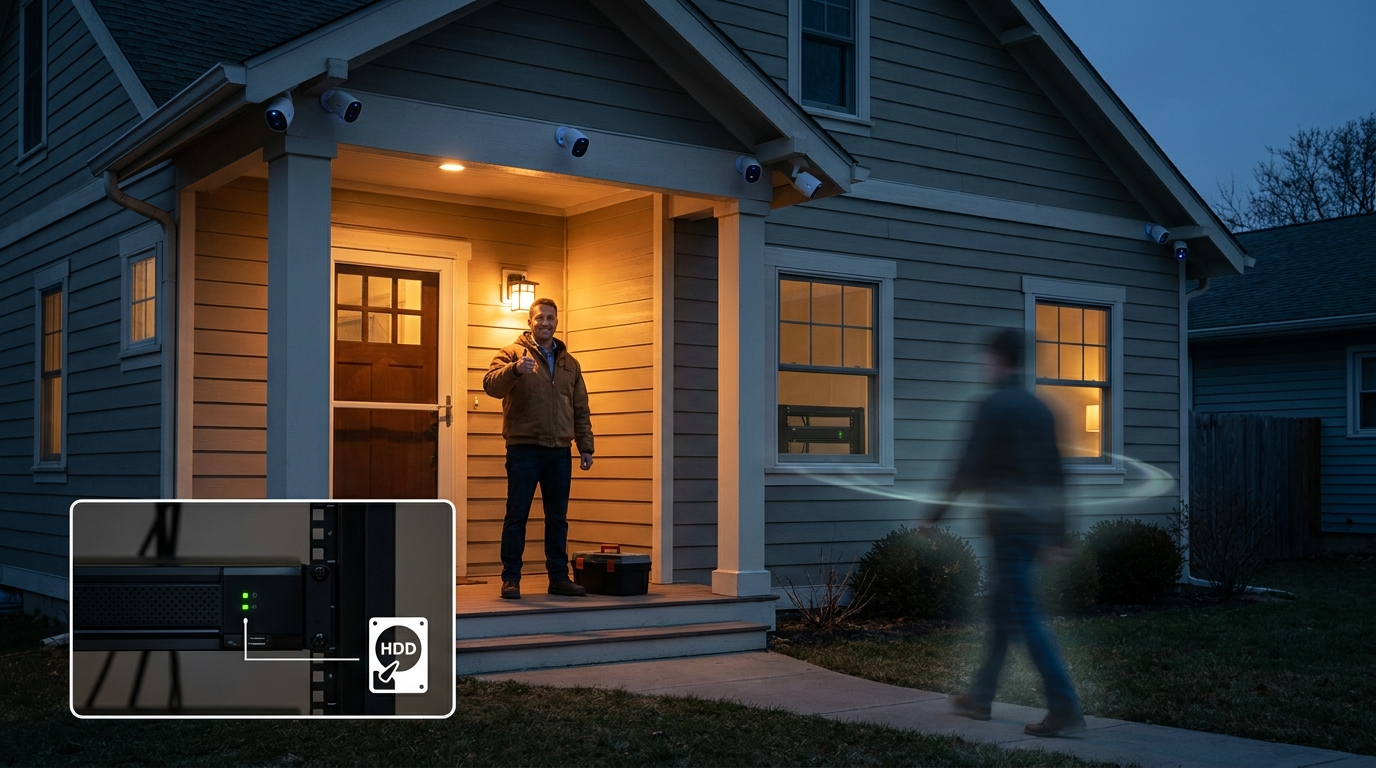
This checklist-first approach removes surprise upgrades and gives you a repeatable verification plan for a reliable Lorex home security system. Collect the prerequisites, run the site survey, follow the prioritized install, and execute the verification suite before finalizing purchases. For budget-first buyers, wired PoE usually reduces 3–5 year headaches for 3+ camera homes, while wire‑free fits very small installs with good 5 GHz coverage.
Next step: compare models and populate the TCO template with current SKUs and prices (research follow-ups required). Want a downloadable TCO sheet and the printable checklist? Download the Google Sheets TCO template and printable checklist link included with this article. If you’re ready, compare kits in our home-security buying guide.
Final note: before you buy, confirm upload speed and exact HDD retention numbers — No reliable data found in official Research Findings; collect those figures during SKU research.
FAQ
What exact router features do I need before buying a Lorex system?
Confirm your router supports 5 GHz for Lorex wireless hubs and ideally Wi‑Fi 6 for Wi‑Fi‑6 cameras; place the NVR/DVR near the router and check firmware — see prerequisites above.
How many cameras can a Lorex home hub support?
Many Lorex Home Hub/NVR Wire‑Free systems are expandable up to 6 cameras — source (2026-04-19).
Do I need to open router ports to get remote viewing?
Some Lorex DVR/NVR setups reference port forwarding (port 80) for remote access — check quick-start documentation for your model: LH340 guide (2026-04-19).
What quick tests prove my system records reliably after install?
Run motion-zone tuning, day/night IR checks, HDD write test and retention extrapolation, audio/video sync, and simulate power/network loss to confirm auto-recovery.
Are there monthly fees for local Lorex recording?
Local-recording Lorex systems that use included hard drives or MicroSD typically have no monthly fees — source (2026-04-19).
If I want the cheapest reliable setup for a 3‑bed house, wired or wireless?
Wired PoE systems usually reduce long-term maintenance and bitrate/retention headaches for higher-resolution, constant-recording setups; wireless may be cheaper up-front but adds battery/replacement uncertainty.