

lockly smart lock buyers: this guide puts model-by-model prerequisites and an install-first checklist on one page so you can pick the right SKU, confirm door and hub specs precisely, and self‑install with confidence.
Key Takeaways
- Confirm door measurements and hub requirements before buying: backset must be 2‑3/8″ or 2‑3/4″ (60mm/70mm), check bore (2‑1/8″ typical), deadbolt type, and whether your chosen Lockly SKU includes a Wi‑Fi hub.
- Follow the step‑by‑step installation checklist (top→bottom→middle screw order, battery/program sequence, alignment rules) and use the printable preflight checklist to avoid misalignment and app pairing failures.
- Use the model matrix and buyer profiles to map Secure Pro, Secure Plus, and Vision differences — note where public specs are missing (battery life estimates, torque limits, encryption details) and what to ask the vendor.
- Confirm your door is Lockly‑ready: exact measurements and hub checklist
- Model‑specific prerequisites matrix (Secure Pro vs Vision vs Secure Plus)
- Preflight tools & measurements checklist you can print and use
- Install step‑by‑step checklist with screw order, alignment tips and exact verification steps
- Troubleshoot common failures during and after install (quick fixes + when to escalate)
- Buyer comparison: Lockly line vs August, Schlage, Yale — what the spec sheets actually prove (and what’s missing)
- Best Lockly model for specific buyer profiles (renters, homeowners, Airbnb hosts, budget buyers) — clear tradeoffs
- Printable final checklist + “what to research next” worksheet
- Conclusion
- FAQ
Confirm your door is Lockly‑ready: exact measurements and hub checklist
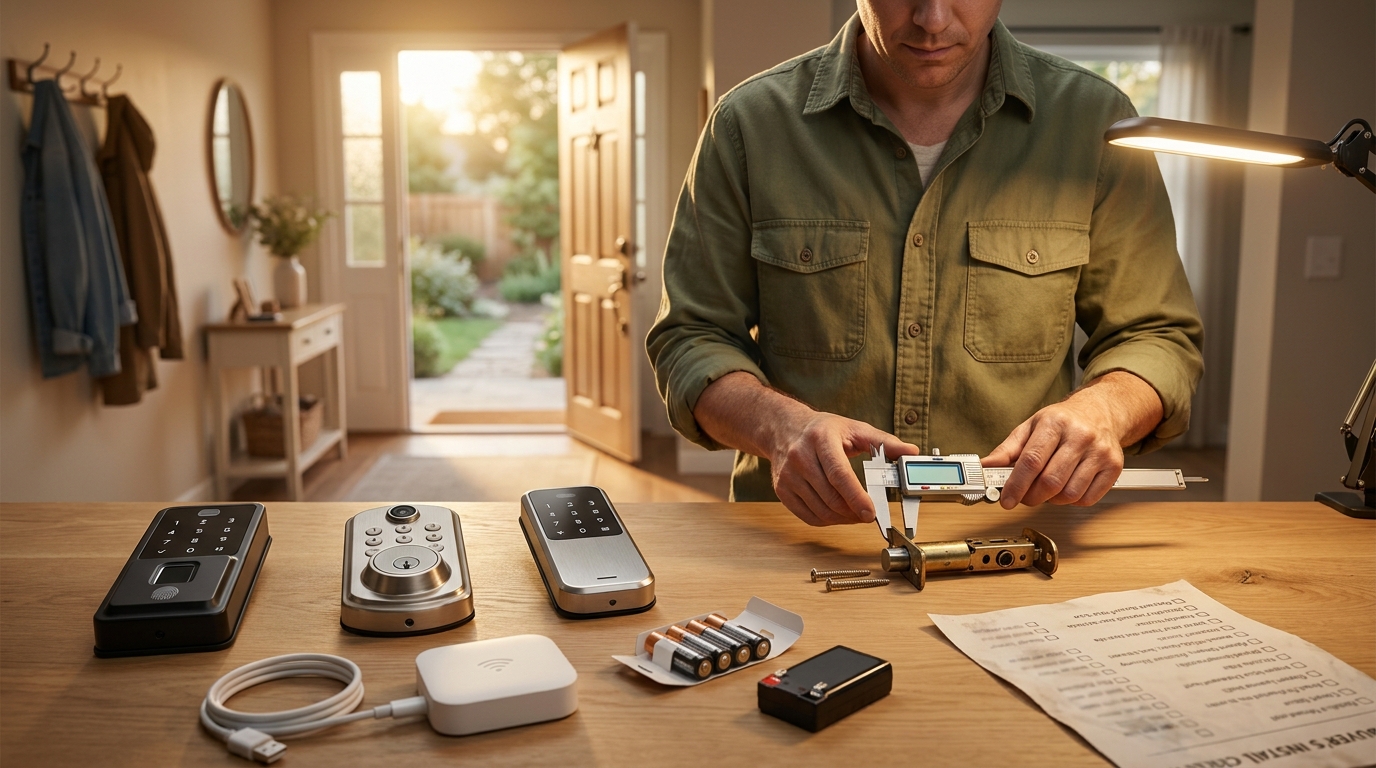
Measure before you buy. Confirm these exact specs so the unit you order fits and the remote features work.
Measurements to verify
- Bore diameter: most Lockly installs expect a 2‑1/8″ (54mm) face bore — confirm on the SKU page and measure your door before ordering.
- Backset: verify either 2‑3/8″ (60mm) or 2‑3/4″ (70mm). Lockly supports these two backsets; verify on the product page (Verify door backset of 2‑3/8″ or 2‑3/4″ (60mm or 70mm). (SafeWise — 2023-10-15)).
- Door thickness: measure edge → edge. No reliable public data found for exact supported thickness ranges for every SKU — check the PDF/manual for your SKU before purchase.
- Deadbolt type: Lockly replaces single‑cylinder deadbolts; confirm your current deadbolt is standard single‑cylinder.
Hub / bridge checklist (remote access)
Remote features depend on a hub. Do not assume Wi‑Fi remote is built in.
- Secure Pro: Secure Link Wi‑Fi Hub is included on some Secure Pro packages (check SKU). (Secure Link Wi‑Fi Hub required for remote access on Secure Pro (included) — Product PDF — 2022-05-01).
- Vision: Vision Connect Hub is typically pre‑paired with Vision packages. (Product PDF — 2022-05-01).
- Secure/Secure Plus: some SKUs require you to buy the Secure Link hub separately — verify inclusion before checkout.
Pitfall to avoid: buying a model for “remote features” without confirming hub inclusion. If the SKU does not include the hub you will not get cloud/remote access out of the box.
Model‑specific prerequisites matrix (Secure Pro vs Vision vs Secure Plus)
Use this at‑a‑glance matrix to map door fit, power, and hub requirements per major Lockly family.
| Model family | Backset | Hub inclusion | Battery type | Notes / app |
|---|---|---|---|---|
| Secure Pro | 2‑3/8″ or 2‑3/4″ (60/70mm) | Secure Link Wi‑Fi Hub: often included (verify SKU). (2022-05-01) | 4x AA (typical Secure family) | Lockly Home app (iOS/Android). (2022-05-01) |
| Vision / Vision Elite | 2‑3/8″ or 2‑3/4″ (adjustable) | Vision Connect Hub usually pre‑paired (verify SKU). (SafeWise — 2023-10-15) | 2x rechargeable lithium (Vision series) | Pre‑paired hubs speed setup; confirm rechargeable policy on product page. |
| Secure Plus / Latch Edition (PGD628F) | 2‑3/8″ or 2‑3/4″ | Basic use may not require hub — remote access requires Secure Link sold separately. | 4x AA or as SKU states | Good for local keyless use or renters; confirm SKU for hub inclusion. |
Pitfall to avoid: treating all Lockly models as interchangeable — hub inclusion and battery types vary by SKU. Confirm the product PDF and SKU details before purchase: official product PDF (2022-05-01).
Preflight tools & measurements checklist you can print and use
Gather these tools and network items before you begin — it saves trips and returns.
Tools
- Phillips screwdriver (magnetic preferred), flathead screwdriver
- Ruler or tape measure (mm + inches), small pliers
- Optional: drill + 1/2″ bit for new doors
- Masking tape and pencil to mark alignment
Source checklist: “Tools: Phillips screwdriver, flathead screwdriver, ruler, pliers; optional drill (1/2″ bit) for new doors.” (2022-05-01).
Network / hub power
- Hub power: 5V 1A USB supply (verify hub box). (2022-05-01)
- Wi‑Fi: 2.4GHz network for hub connectivity (Lockly hubs use 2.4GHz)
- Phone with Lockly Home app (iOS or Android).
Pitfall to avoid: starting install without confirming 2.4GHz availability or hub power. If your home network is 5GHz/mesh-only, test 2.4GHz reach near the door.
Need printable preflight? See the final checklist section below for a one‑page PDF‑ready list and the “what to research next” worksheet.
Install step‑by‑step checklist with screw order, alignment tips and exact verification steps
This is the hands‑on sequence to finish a Lockly install in ~30–60 minutes for most doors. Read each step, then do them in order.
Step‑by‑step (exact sequence)
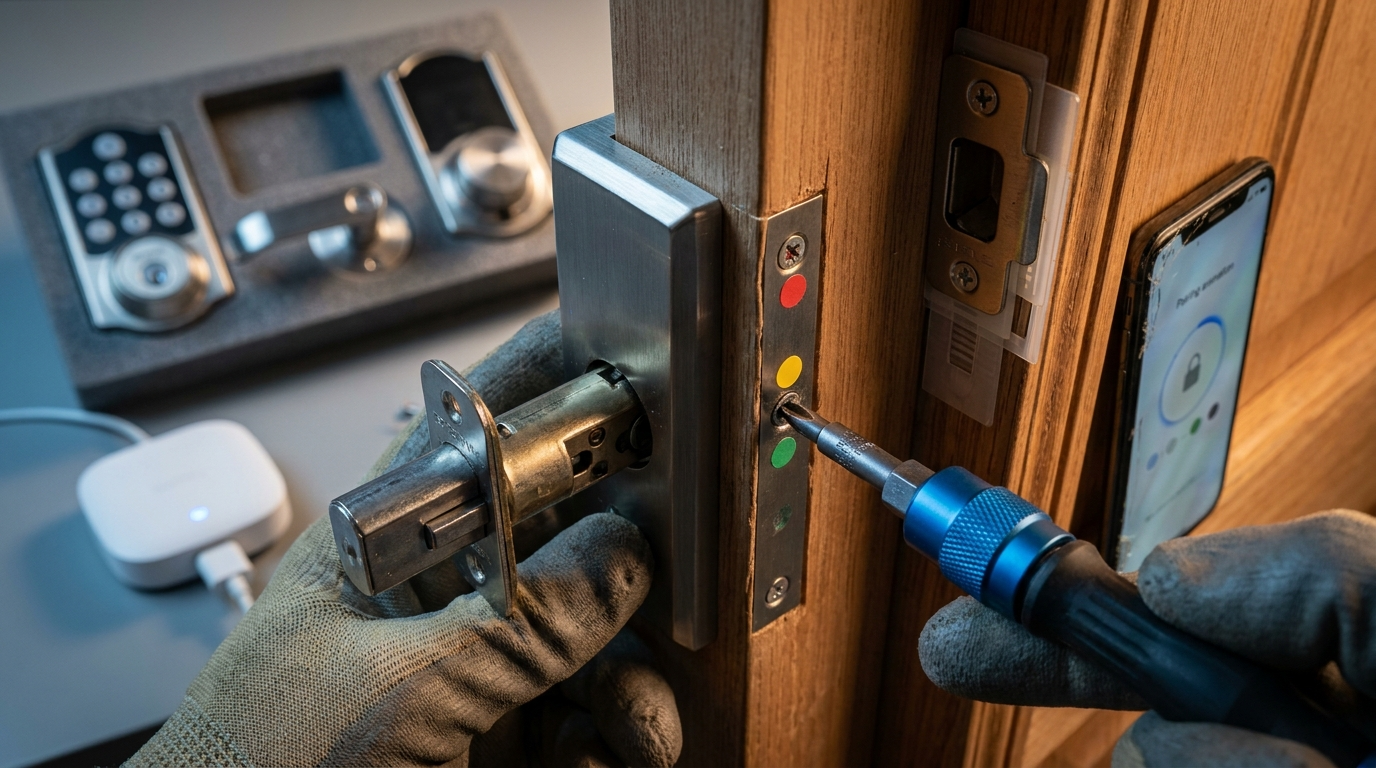
- Remove existing hardware: unscrew interior trim and remove old deadbolt. Confirm bore = 2‑1/8″. (Step guidance reference: install video — 2023-05-15).
- Set backset: adjust latch/backset to 2‑3/8″ or 2‑3/4″ per door. Vision models allow backset adjustment by twisting while locked. (SafeWise — 2023-10-15).
- Install latch into edge bore: secure with screws provided. Make sure the bevel faces the door swing.
- Dry‑fit exterior assembly (no screws tightened). Insert spindle/plate and confirm tailpiece alignment into latch.
- Mount interior assembly: align and start screws by hand. Use screw order: top → bottom → middle. Hand‑tighten only (avoid power drivers).
- Battery/program sequence: install initial batteries per model instructions — many Secure units accept 4x AA where you insert 3, then hold PROGRAM while inserting 4th to auto-detect door swing. (Lockly install guide — 2023-01-20).
- Test mechanical throw: with door open, turn thumb turn — deadbolt should extend/retract smoothly. If it binds, loosen screws, realign, retest.
- Pair app & enroll first user: connect the hub (if required) and pair the lock with Lockly Home app before final cover installation. Confirm at least one user PIN on the keypad or app user is active.
- Install strike plate & dust box on jamb; test again with door closed.
- Final torque: hand‑tighten screws only. No reliable torque spec found in public docs — do not overtighten. (Action: request torque specs from Lockly support.)
Verification checklist (do this before finishing)
- Mechanical: deadbolt extends fully with door open and closed.
- Electronic: lock powers on, beeps, keypad light responds, app sees lock and allows enrollment.
- Remote: if using hub, confirm hub is on 2.4GHz and shows online in app.
Pitfalls to avoid: overtightening screws, skipping app enrollment before putting on final covers, and assuming all models use same battery type. Follow the screw order and hand‑tighten only. Source installation steps and screw order reference: Lockly install guide — 2023-01-20.
Troubleshoot common failures during and after install (quick fixes + when to escalate)
Symptoms and immediate fixes so you can get back to a working door without calling support unless necessary.
Symptom: deadbolt binding / won’t fully extend
- Quick fix: open door, loosen interior screws slightly, realign thumb turn vertical, retest throw.
- If persistent: check strike plate position and shim jamb as needed.
Symptom: keypad unresponsive at first power or pair fails
- Check batteries and contacts; reseat batteries. Confirm battery chemistry matches SKU (4x AA or 2x rechargeable for Vision). (Product PDF — 2022-05-01).
- If hub pairing fails: confirm hub power is 5V 1A USB and connected to 2.4GHz network. (Product PDF — 2022-05-01).
When to factory reset or escalate
- Factory reset: use only after troubleshooting steps fail. No reliable public reset procedure found for all models — consult the SKU manual or contact Lockly support for exact reset steps.
- Escalate to Lockly support when mechanical override is not possible or motor stalls after firmware update.
Note: Secure Pro and Vision packages often include hubs/door sensors which simplifies hub troubleshooting — but Secure Plus Latch Edition (PGD628F) may not require a hub for basic use. (video — 2022-08-10).
Buyer comparison: Lockly line vs August, Schlage, Yale — what the spec sheets actually prove (and what’s missing)
Compare measurable criteria, and explicitly call out where vendors don’t publish hard numbers so you can follow up.
| Criteria | Lockly (what we can confirm) | Competitors (what to verify) |
|---|---|---|
| Encryption / security | No reliable public data found for encryption bit length or security whitepaper — action: request encryption details from Lockly support. | August/Schlage/Yale publish mixed details; verify each vendor’s whitepaper. |
| Compatibility | Lockly supports Alexa/Google via included or optional hubs; Lockly Home app for iOS/Android. (2022-05-01). | August/Schlage/Yale vary: check HomeKit/SmartThings compatibility per SKU. |
| Battery type / life | Known: Secure families often use 4x AA; Vision uses 2x rechargeable lithium. No reliable public battery‑life (months @ X cycles/day) figures — action: request from manufacturer. | Competitors often provide estimated months — verify under your expected cycles/day. |
| Installation | Installation time: often <30 minutes for many Lockly installs (video). (video — 2022-08-10). | Comparable: Schlage/August typically 20–60 minutes; confirm tools required per SKU. |
Actionable next steps: for security buyers, contact Lockly and request an encryption whitepaper, firmware release history, and battery life estimates at a target cycle rate. Do not accept “no data” as final — request documentation.
Best Lockly model for specific buyer profiles (renters, homeowners, Airbnb hosts, budget buyers) — clear tradeoffs
Match profiles to model families with clear tradeoffs and what to verify before buying.
| Profile | Recommended Lockly family | Tradeoffs & what to confirm |
|---|---|---|
| Renters / non‑permanent | Secure Plus Latch Edition (PGD628F) | Less permanent; may not require hub for basic keyless entry. Confirm that landlord rules allow replacement and check warranty transfer. |
| Homeowners — security focus | Secure Pro | Includes Secure Link hub in many SKUs — verify hub inclusion, confirm battery type (4x AA) and request security docs. |
| Airbnb hosts / remote management | Vision or Secure Pro (hub included) | Prefer Vision Connect or Secure Link pre‑paired — confirm remote features, multi‑user PIN management, and any subscription/recurring fees. |
| Budget buyers | Secure Plus basic | Local keyless features without hub; verify if remote access requires extra hub purchase. |
Pitfall to avoid: recommending a model without noting hub inclusion or installation permanence. Where data is missing (fees, warranty transferability), contact the vendor and request written clarification.
Printable final checklist + “what to research next” worksheet (items reviewers often omit)
Print this one‑page checklist and take it to the door before you buy or install.
Preflight checks:
- Measure bore: _____ (target 2-1/8")
- Measure backset: _____ (2-3/8" or 2-3/4")
- Door thickness: _____ mm / _____ in
- Deadbolt type: single-cylinder? Y / N
- SKU includes hub? Y / N  — confirm PDF: https://images.thdstatic.com/catalog/pdfImages/d4/d4b4d1e5-5e6a-47d6-b4bc-6401c66ee1cf.pdf
- Hub power: 5V 1A USB available? Y / N
- Wi-Fi 2.4GHz near door? Y / N
- Batteries available: 4x AA or 2x rechargeable?
- Tools on hand: Phillips, flathead, ruler, pliers, drill (1/2")?
- App ready: Lockly Home installed on phone (iOS/Android)
- Mechanical override test planned? Y / N
What to research next (critical missing specs)
- Torque specs for mounting screws — No reliable data found; action: request Lockly installation manual or technical support.
- Battery life estimate (months at 10 cycles/day) — No reliable data found; action: request manufacturer or aggregate user reports.
- Encryption bit length and firmware support history — No reliable data found; action: request security whitepaper from Lockly.
- Warranty transferability for rentals — No reliable data found; action: verify T&C on SKU and contact vendor.
Link to deeper install visuals and troubleshooting: installation guides and troubleshooting resources like smart lock troubleshooting.
Conclusion
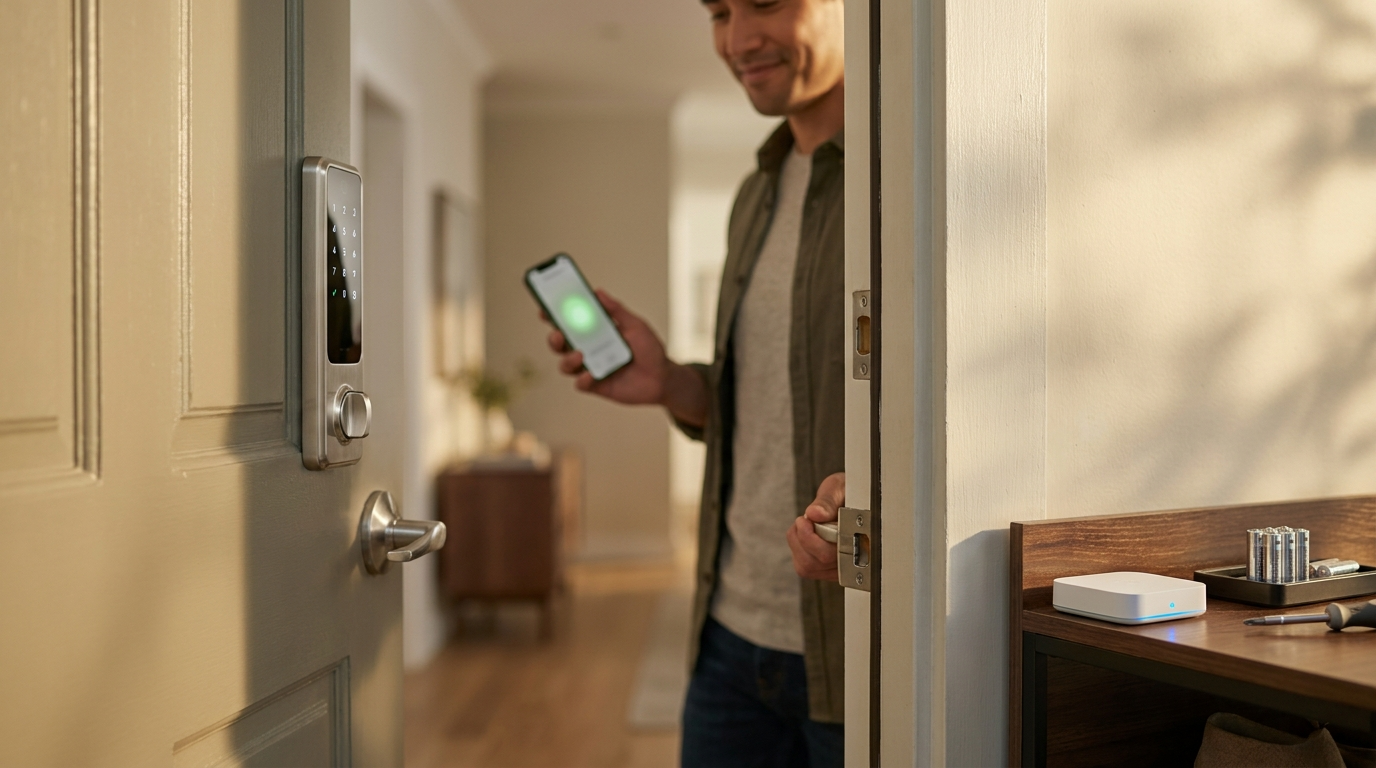
Use the model matrix and preflight checklist to confirm the exact SKU fits your door and includes the required hub. If you follow the screw order, battery/program sequence, and pair the lock before final tightening you should complete a reliable Lockly install in about 30–60 minutes. Before buying, verify hub inclusion and ask the vendor for missing specs (battery life estimates, torque limits, encryption whitepaper). If ready, compare models and buy the correct SKU — and keep this guide and checklist on your phone during install.
Ready to compare or read more? Visit detailed installs and comparisons to finalize your decision and buy the right lock.
FAQ
What exact door measurements do I need before buying a Lockly smart lock?
Measure bore (typically 2‑1/8″), door thickness, and backset (Lockly supports 2‑3/8″ or 2‑3/4″ i.e., 60mm/70mm); confirm against the SKU page. (SafeWise — 2023-10-15).
Which Lockly models include a Wi‑Fi hub and which require one?
Secure Pro often includes Secure Link hub; Vision typically includes Vision Connect pre‑paired; some Secure/Secure Plus SKUs sell the hub separately — always check the product PDF. (PDF — 2022-05-01).
What tools and screws do I need and what screw order should I follow?
Have Phillips & flathead screwdrivers, ruler, pliers (optional 1/2″ drill bit); tighten screws in order top → bottom → middle and hand‑tighten to avoid misalignment. (Lockly guide — 2023-01-20).
How can I verify the lock is mechanically and electronically working before I finish?
With the door open, test deadbolt throw by turning the thumb turn (deadbolt should extend/retract smoothly), then insert batteries and pair the app to enroll a user before final cover screws. (Lockly guide — 2023-01-20).
What common mistakes should I avoid during install?
Avoid overtightening screws, failing to check backset and hub needs, skipping app enrollment before final assembly, and assuming all models use the same battery type. (Product PDF — 2022-05-01).
What should I do if the lock won’t pair or the keypad is unresponsive after install?
Recheck batteries/contacts, ensure hub is on 2.4GHz and powered (5V 1A USB), retry pairing per Lockly app, and if necessary use mechanical override or follow manufacturer support steps. (Product PDF — 2022-05-01).