

kwikset smart lock change code — This checklist walks a non-technical homeowner through safe, ordered steps to add, change, delete, and recover Kwikset user codes (keypad, Premis app, and Z‑Wave) so you can finish reliably in 10–30 minutes.
Factory reset your Kwikset: when and how (Download One‑Page Checklist)
Key Takeaways
- Always verify four prerequisites first (door open, fresh batteries, battery cover off, know whether a master/programming code exists) before touching the Program button to avoid incomplete programming or lock corruption.
- Use the exact ordered sequences (Program presses, master-code entry if set, then new code + Lock button) and wait for the model-specific success cue (green LED + single long beep) — all codes must be 4–8 digits and most SmartCode models accept up to 4 user codes.
- If anything goes wrong: replace batteries, retry the exact sequence, then follow the 10–30 minute quick-restore (battery init, app/hub reconnect, re-pair Z‑Wave if needed); factory reset is a last-resort and will remove Z‑Wave pairing and all codes.
- Avoid a Lockout: 6 Prerequisites to Check Before You Change Any Kwikset Code
- Exact Button-by-Button Checklist: Add / Change / Delete Codes on Keypad SmartCodes (910/914/916)
- Pick the Right Flow: When to Use Keypad, Premis App, or Your Z‑Wave Hub (and exact app steps)
- 10–30 Minute Quick‑Restore: Fast Steps to Get Your Keypad + App/Hub Working After Battery, Phone or Router Changes
- Top 9 Beginner Mistakes — and a One‑Line Fail‑Safe for Each
- Troubleshooting Before You Call Support: 7 Real‑World Failure Modes and Safe DIY Recoveries
- Quick Specs Cheat‑Sheet: What to Know Before You Buy or Troubleshoot
- Conclusion
- FAQ
Avoid a Lockout: 6 Prerequisites to Check Before You Change Any Kwikset Code
Benefit: Prevent mid-program power loss or ignored inputs by confirming the physical and account basics first. Do these four checks every time before you press Program.
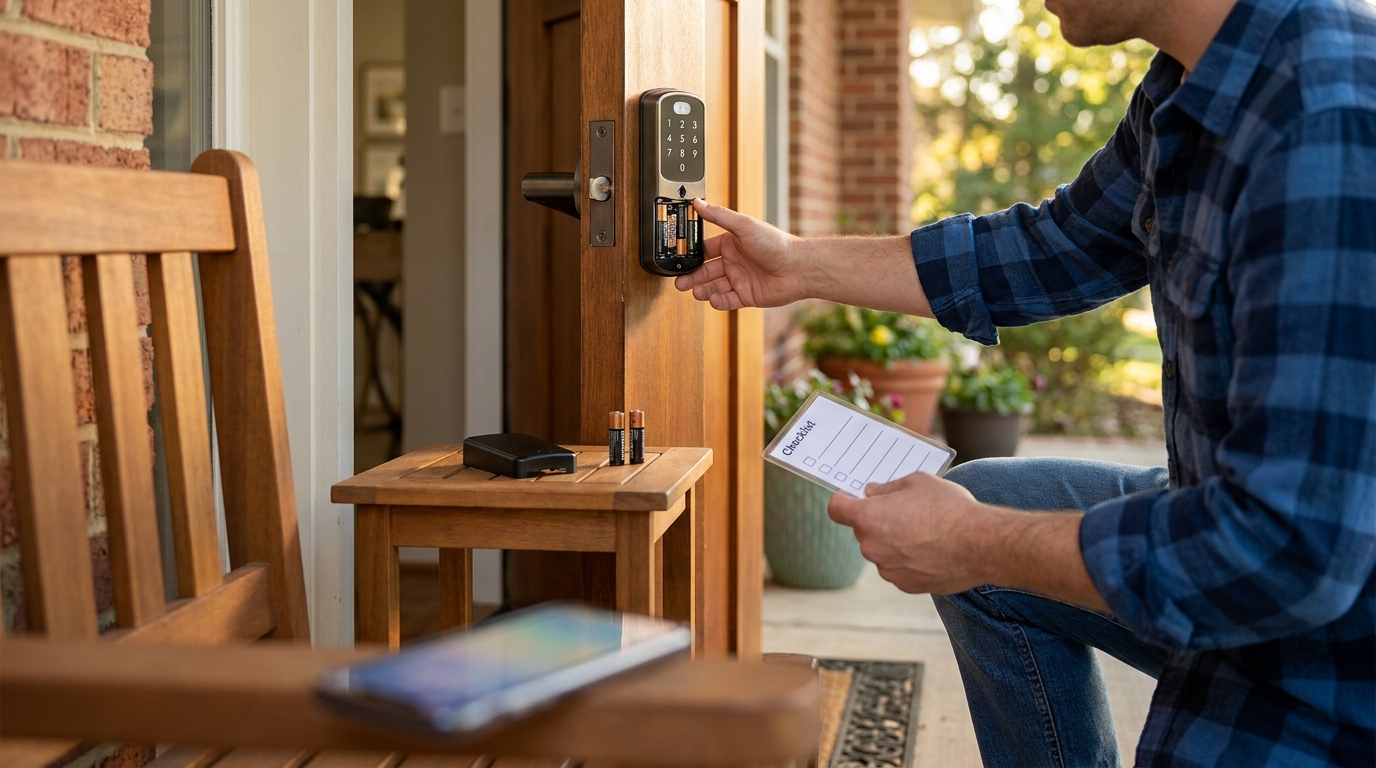
- Door open: Keep the door open; many Kwikset locks ignore programming commands when the door is closed.
- Battery cover removed: You must access the Program button.
- Fresh batteries: Replace batteries before programming; low power can corrupt programming mid‑sequence.
- Know master/programming code status: Determine if a master code exists before starting (see verification below).
- Confirm model & connectivity: Identify whether your unit is keypad-only (SmartCode), Premis (app-managed), or Z‑Wave (Home Connect 620) — this decides the flow.
What to cover: Confirm door open, battery cover off, fresh batteries, master-code state, and model/connectivity type.
Keywords to include: kwikset smart lock change code; smart lock
Data/Stat to cite: All codes must be 4–8 digits — Kwikset support (programming code) — 2026-05-07.
Pitfall to avoid: Starting programming with low batteries or with the door closed (locks often ignore programming with door closed).
Exact Button-by-Button Checklist: Add / Change / Delete Codes on Keypad SmartCodes (910/914/916)
Benefit: Follow exact presses, timing windows, and verification cues so you add or remove a code on a SmartCode in under a minute and avoid silent failures.
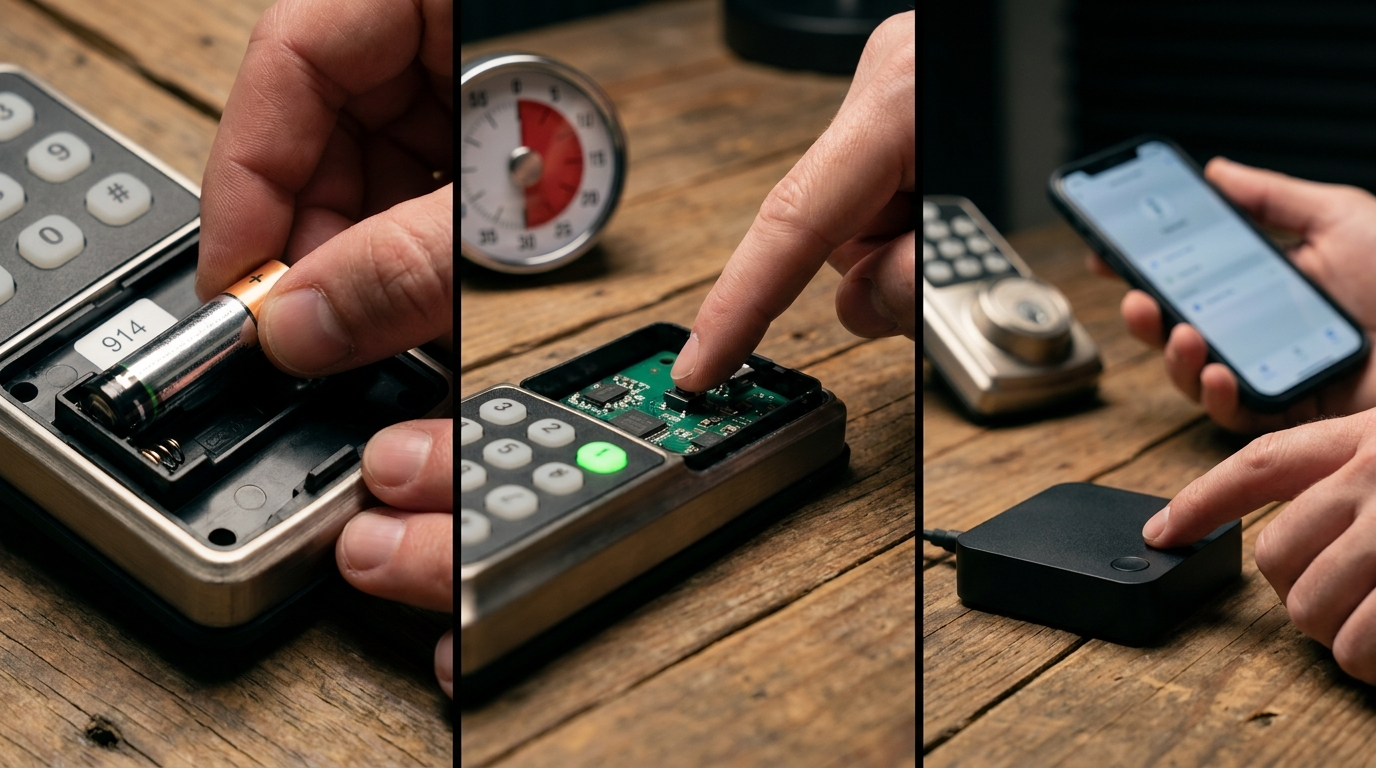
What to cover: Ordered sequences (Program presses = slot), master-code flow, timing windows, success cue LED/beep, and test from outside.
Keywords to include: smart lock with keypad; kwikset smart lock change code
Data/Stat to cite: “Press the Program button once … two beeps … enter new 4–8 digit user code” — Kwikset support and behavior confirmation video YouTube — 2026-05-07.
Pitfall to avoid: Forgetting to press the Lock button after code entry or rushing entries (leads to silent rejection).
Add a New User Code — No Master Code Set (SmartCode)
- Open the door.
- Remove battery cover.
- Press the Program button once (1 press = first user). Do not hold — press and release within 1 second.
- Wait for two beeps.
- Enter your new 4–8 digit user code.
- Press the Lock button.
- Watch for a green LED flash and loud single beep (success). If you see a red LED or two short beeps, the programming failed — retry.
- Close door and test from outside with the new code.
Add additional users (2nd–4th) — No Master
- Press the Program button twice (2 presses = second user; 3 = third; 4 = fourth), each press within 2–3 seconds of the last.
- Then follow steps 4–8 above for entry and verification.
Add / Delete When Master Code Exists
- Open door and remove battery cover.
- Press the Program button once.
- Enter your master/programming code (4–8 digits) and press Lock.
- Follow on-screen (keypad) prompts: to add, enter new user code → press Lock; to delete, enter code to delete → press Lock → repeat entry → press Lock.
- Confirm success by green LED + single long beep.
Verification — 1‑Minute “Confirm Success” Mini‑Checklist (Keypad)
- [ ] After programming, see green LED flash + single long beep.
- [ ] Close door and from outside enter the new code; door should unlock within 1–3 seconds.
- [ ] If failure: replace batteries, wait 10–15s, retry the exact sequence.
Pick the Right Flow: When to Use Keypad, Premis App, or Your Z‑Wave Hub (and exact app steps)
Benefit: Choose the correct control path so you don’t mix app, keypad, and hub actions and accidentally lose codes or pairing.
What to cover: Map model to flow, Premis app exact steps, when hub manages codes, and common sync pitfalls.
Keywords to include: smart lock; best smart lock
Data/Stat to cite: “Premis requires Premis App; all code changes performed through app” — Kwikset support (add/delete user code) — 2026-05-07.
Pitfall to avoid: Assuming app-created codes automatically appear in keypad user list (they can be separate systems) — leads to confusion.
Which flow to use
- SmartCode keypad models (910/914/916): Use the keypad flows above — no app required.
- Premis: Use the Premis App to add/delete codes (app-managed).
- Home Connect 620 (Z‑Wave): Use your Z‑Wave hub/app (Ring, SmartThings, Hubitat) to manage codes and schedules.
Premis App — Exact Steps to Add a Code
- Open the Premis App.
- Select the lock you want to manage.
- Tap the user icon (upper right).
- Enter a user name.
- Enter a 4–8 digit code or tap Generate Random Code.
- Tap Submit and test from outside.
Source: Kwikset Premis support — 2026-05-07.
Verification — 1‑Minute “Confirm Success” Mini‑Checklist (App / Hub)
- [ ] In app, verify the new user appears in the user list.
- [ ] Test keypad entry from outside (or app unlock) within 2–3 seconds.
- [ ] If using Z‑Wave: confirm hub shows device as “Online”. If not, restart hub and re-include if needed.
Internal resources: use Fix Z‑Wave pairing for Kwikset locks for hub re-pair steps and Kwikset smart lock installation checklist for model verification.
10–30 Minute Quick‑Restore: Fast Steps to Get Your Keypad + App/Hub Working After Battery, Phone or Router Changes
Benefit: Recover access quickly after the common disruptions (battery swap, phone swap, router change) using safe ordered steps.
What to cover: Battery replacement sequence, Premis app quick fixes, Z‑Wave hub restart and re-include, and the minimal tools/info list.
Keywords to include: smart locks; smart lock installation
Data/Stat to cite: “Wait 10–15 seconds for lock to initialize after new batteries” and “restart hub: unplug 10–15 seconds, wait 30–60 seconds to boot” — Kwikset support — 2026-05-07.
Pitfall to avoid: Removing and re-adding lock to hub before restarting the hub or replacing batteries — wastes time and can trigger false pairing failures.
Battery replacement quick path (3–10 minutes)
- Open door and remove battery cover.
- Install fresh batteries (check polarity).
- Wait 10–15 seconds for lock to initialize.
- Test a known code from outside.
- If failure: restart phone Bluetooth (Premis) or restart hub (Z‑Wave).
Z‑Wave hub restart (10–30 minutes total)
- Unplug the hub from power.
- Wait 10–15 seconds.
- Plug hub back in and wait 30–60 seconds to boot.
- If still offline: remove lock from hub and re-add (inclusion mode).
Minimal tools/info list: fresh batteries, model number, phone + app credentials, hub credentials. For guided battery replacement, see Replace Kwikset lock batteries safely.
Top 9 Beginner Mistakes — and a One‑Line Fail‑Safe for Each
Benefit: Avoid the repeatable beginner errors that cost time or cause factory resets.
What to cover: Nine mistakes with one-line actionable fail-safes tied to each mistake.
Keywords to include: kwikset smart lock change code; smart locks
Data/Stat to cite: “SmartCode locks support up to 4 user codes” — DoorLocksDirect — 2026-05-07; master code length rule 4–8 digits — Kwikset support — 2026-05-07.
Pitfall to avoid: Giving generic fixes — each fail-safe below is one-line and specific.
- Wrong master code — Fail‑safe: Try Program once; if it prompts for code, stop and retrieve master code or plan factory reset.
- Mistimed presses — Fail‑safe: Wait for LED/beep before next step.
- Battery dies mid‑program — Fail‑safe: Replace batteries first.
- Confusing master vs user — Fail‑safe: Remember: master programs; user unlocks.
- Wrong code length — Fail‑safe: Use 4–8 digits only.
- Exceeding code slots — Fail‑safe: Delete an old code before adding.
- Door closed while programming — Fail‑safe: Always keep door open during programming.
- Overlapping prefixes (955) — Fail‑safe: Ensure unique first 4 digits on SmartCode 955.
- Misreading beeps/LEDs — Fail‑safe: Log your lock’s success cue (green LED + long beep) on first successful programming.
Troubleshooting Before You Call Support: 7 Real‑World Failure Modes and Safe DIY Recoveries
Benefit: Try safe, reversible fixes in order so you avoid unnecessary support calls or destructive resets.
What to cover: Lost master code and factory reset warnings, corrupted user lists, Z‑Wave pairing failures, deadbolt jams, battery mid‑program failures, app vs keypad mismatch, and safe steps before support.
Keywords to include: smart lock; smart-lock-troubleshooting
Data/Stat to cite: “Factory reset method — remove battery cover, press and hold Program button for 10+ seconds” — Kwikset PDF — 2026-05-07.
Pitfall to avoid: Recommending factory reset as first step — must be last resort and always warn that Z‑Wave pairing and all codes will be wiped.
- Lost master code: Confirm master exists; if so, factory reset only — factory reset instructions — 2026-05-07.
- Corrupted user list after reset: Do a second reset, reinsert batteries, add one code and verify before continuing.
- Z‑Wave pairing failures: Remove from hub, restart hub (10–15s unplug, 30–60s boot), then include again; see Fix Z‑Wave pairing for Kwikset locks.
- Deadbolt jam: Manually inspect strike/bolt; do not force motor — contact support or check What to do when a Kwikset deadbolt jams.
- Battery died mid‑program: Replace batteries, wait 30s, retry sequence.
- App vs keypad mismatch: Force app refresh or log out/in; remember app codes and keypad codes may be separate systems (Premis vs SmartCode).
- Final safe attempts before calling: battery replace → retry exact sequence → restart hub/app → factory reset last.
Quick Specs Cheat‑Sheet: What to Know Before You Buy or Troubleshoot
Benefit: Fast model reference so you pick the right flow and avoid unsupported features during troubleshooting.
What to cover: Model quick specs (max user codes, code length, programming time), missing specs to research (battery voltage, Premis max codes), and a printable mini-table for quick decisions.
Keywords to include: best smart lock; smart lock installation
Data/Stat to cite: “Max user codes: SmartCode 910/913/914/915/916 up to 4 user codes” — DoorLocksDirect — 2026-05-07; “Programming time: keypad ~30–60 seconds per code; app ~15–30 seconds per code” — YouTube and Kwikset support — 2026-05-07.
Pitfall to avoid: Presenting “battery life in months” as a firm spec — research found no reliable official battery-life figure; contact Kwikset for model specifics.
| Model | Entry | Max User Codes | Code Length |
|---|---|---|---|
| SmartCode 910/914 | Keypad | Up to 4 | 4–8 digits |
| SmartCode 916 | Touchscreen (local) | Up to 4 | 4–8 digits |
| Premis | App (Premis) | Not specified (app-managed) | 4–8 digits |
| Home Connect 620 | Z‑Wave (hub) | Hub-dependent | 4–8 digits |
Missing specs to research: minimum battery voltage, official battery-life months, Premis exact code limits, and firmware update requirements — recommended next steps: contact Kwikset Support or check model PDFs.
Conclusion
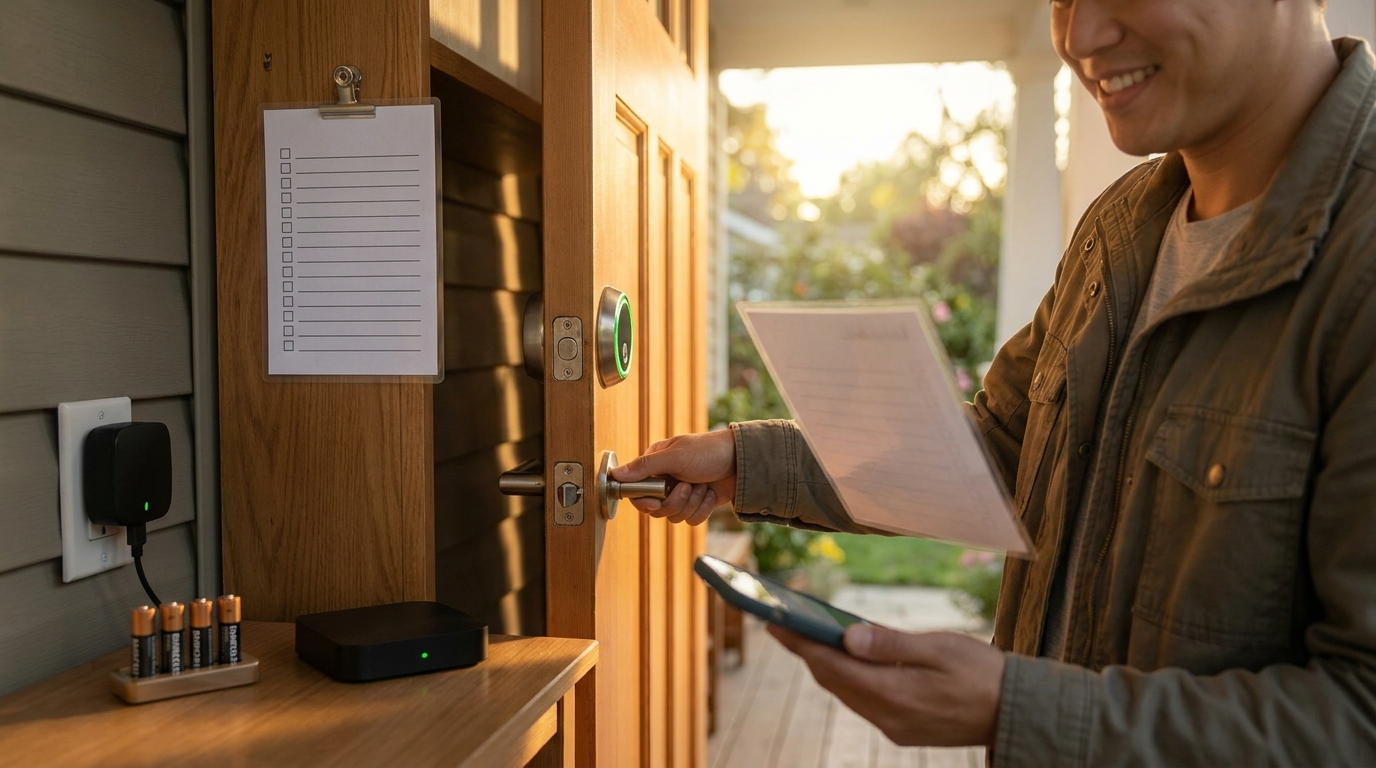
Follow the checklist above step-by-step: verify the four prerequisites, use the exact Program → master (if set) → new code → Press Lock sequence, and confirm the model-specific LED/beep success cue. If you keep fresh batteries and follow the flows for keypad, Premis app, or Z‑Wave hub, you can complete a kwikset smart lock change code or restore access in 10–30 minutes.
CTA: Read more guides or compare troubleshooting steps — start with Replace Kwikset lock batteries safely and Factory reset your Kwikset: when and how.
FAQ
How can I tell if a master/programming code is already set?
Try entering programming mode without a master code — if the lock simply waits for a new code after the Program press (two beeps) no master code is set; otherwise the lock will prompt for the master code first (Kwikset support) https://www.kwikset.com/support/topics/programming-code — 2026-05-07.
What exact code length and how many user codes can I program?
All Kwikset user codes must be 4–8 digits long, and most SmartCode models support up to 4 user codes (plus an optional master code) Kwikset, DoorLocksDirect — 2026-05-07.
How long should I wait after replacing batteries before programming?
Install fresh batteries, wait 10–15 seconds for initialization, then proceed with programming steps and test (Quick‑Restore guidance) Kwikset support — 2026-05-07.
Will a factory reset remove the Z‑Wave pairing and all user codes?
Yes — factory reset clears all user codes and Z‑Wave pairing info, so you must re-pair the lock to your hub and reprogram codes (factory reset instructions) Kwikset PDF — 2026-05-07.
My code beeped “success” but the door didn’t open — what should I try first?
Check for a jammed deadbolt or misaligned strike plate, manually operate the deadbolt from inside, and if mechanical movement is blocked contact support after basic clearing attempts (deadbolt jam troubleshooting) Kwikset support — 2026-05-07.
If a code change fails, what ordering of quick steps should I try in the first 10 minutes?
Replace batteries, open door and remove battery cover, follow the exact keypad program sequence (Program presses → master if required → user code → press Lock), wait for green LED + beep, then test from outside (quick‑restore checklist) Kwikset — 2026-05-07.