

home assistant connect zbt-1 — quick, foolproof checklist to unbox, install, pair one device, and verify local ZHA control without diving into firmware flashing or the CLI.
Key Takeaways
- Confirm host & USB readiness first: use a supported Home Assistant host (Raspberry Pi / Home Assistant Blue) with USB mapping — this prevents 50% of discovery/pairing failures (Supported hosts: Raspberry Pi / Home Assistant Blue listed as supported hardware — https://home-assistant-skyconnect.netlify.app/new-zigbee/ — 2026-04-21).
- Physically place the ZBT‑1 on an extension cable away from USB 3.0 ports to avoid 2.4 GHz interference; the dongle uses 2.4 GHz radio and can transmit up to +20 dBm, so placement matters (2.4 GHz radio — place away from USB 3.0 sources; TX power up to +20 dBm — https://www.home-assistant.io/connectzbt1/ — 2026-04-21).
- If pairing or automations are flaky, follow a short diagnostics path: confirm ZBT‑1 appears in Settings > Devices & Services, check ZHA add-device flow, review Developer Tools > Logs for errors, then test entity control — escalate only after USB, range, and firmware checks (Auto-discovered ZBT‑1 + ZHA flow — https://home-assistant-skyconnect.netlify.app/new-zigbee/ — 2026-04-21).
- Confirm your Host & Software so setup won’t fail on day one
- Place and power the ZBT‑1 correctly to avoid RF and USB interference
- Install the Connect ZBT‑1 integration and configure ZHA in 6 precise UI clicks
- Pair your first Zigbee device with minimal fuss and confirm it’s local
- Verification checklist: logs, integration status, and entity tests that prove success
- Common beginner mistakes with ZBT‑1 and exact verification steps that prove you fixed them
- Troubleshoot flaky pairing or automations: real‑world failure modes and an escalation path
- Conclusion
- FAQ
Confirm your Host & Software so setup won’t fail on day one
Start here to avoid the most common setup failures. The ZBT‑1 requires a Home Assistant host with USB access — not a remote container without passthrough.
Supported hosts and why they matter
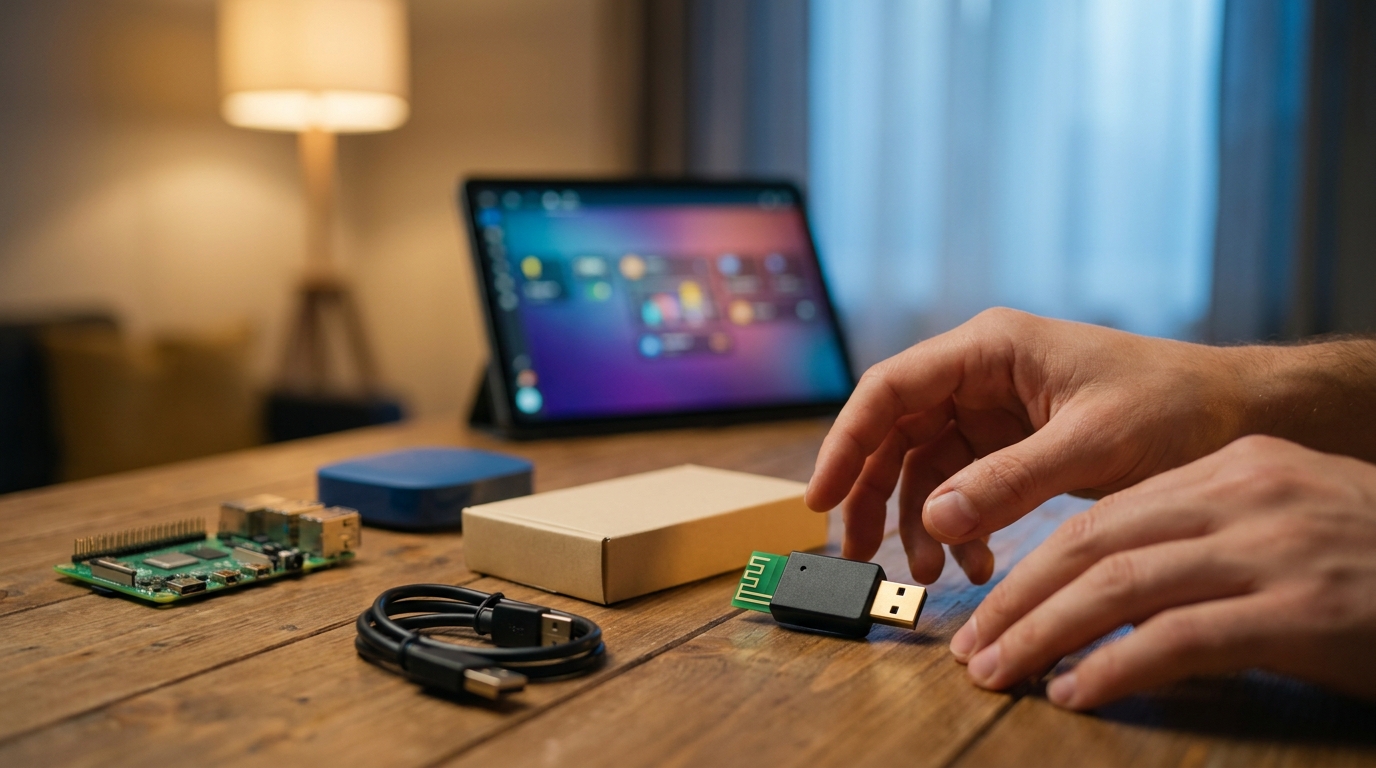
Use a full Home Assistant OS host with USB access: Raspberry Pi, Home Assistant Blue, or HA Green. Supported hosts: Raspberry Pi / Home Assistant Blue listed as supported hardware — https://home-assistant-skyconnect.netlify.app/new-zigbee/ — 2026-04-21. Containers (raw Docker on a NAS) will usually fail unless you explicitly pass the USB device through.
Prerequisites (quick checklist)
- Home Assistant OS on a supported host (Raspberry Pi or Home Assistant Blue/Green). See guides: Home Assistant Raspberry Pi: 7 Easy Guide To Avoid Mistakes and Home Assistant Raspberry Pi: 7-Step Best Easy Setup Checklist.
- Update Home Assistant OS to the latest release before plugging in. (No specific HA version listed — assume latest; check release notes).
- USB mapping: host must expose the USB device to Home Assistant (USB passthrough). Avoid containers without passthrough. Reference: Auto-discovered ZBT‑1 + ZHA flow — 2026-04-21.
- Keep an available USB 2.0 port or powered USB hub for the dongle.
- Required integrations: Connect ZBT‑1 auto-discovery and Zigbee Home Automation (ZHA).
Pitfall to avoid
Do not try to run the ZBT‑1 in an unmapped container or on a NAS without USB passthrough — the device will not be discovered.
Helpful internal reads: Home Assistant Not Connecting and Home Automation Hub planning for USB/network notes.
Place and power the ZBT‑1 correctly to avoid RF and USB interference
How you physically position the dongle affects pairing and range more than many expect.
Placement and cabling
Use the included USB extension cable and plug the dongle into a USB 2.0 port or a powered hub on a separate USB bus. Avoid USB 3.0 ports and nearby SSD enclosures: 2.4 GHz radio — place away from USB 3.0 sources; TX power up to +20 dBm (https://www.home-assistant.io/connectzbt1/ — 2026-04-21).
Power considerations
If your host’s USB ports are shared with high-draw devices, use a powered hub. The dongle’s radio can transmit up to +20 dBm; don’t mount it inside heavy-metal enclosures or behind concrete.
Pitfall to avoid
Plugging the dongle into a laptop/host USB 3.0 port next to an SSD often causes pairing and range failures. Use the extension cable and move the dongle to a central location for best mesh building.
Install the Connect ZBT‑1 integration and configure ZHA in 6 precise UI clicks
Follow this exact, non-technical 6-click flow in the Home Assistant UI for the fastest setup.
- Settings → Devices & Services
- Wait for “Connect ZBT‑1” to appear under “Discovered” (auto-discovered). (Auto-discovered ZBT‑1 + ZHA flow — https://home-assistant-skyconnect.netlify.app/new-zigbee/ — 2026-04-21)
- Click Configure on Connect ZBT‑1
- Choose the Zigbee firmware option shown (note: setup may push firmware; do not skip this screen)
- Select Zigbee Home Automation (ZHA) when prompted and click Submit
- Assign the Coordinator to an area and Finish
Required screenshots: capture each step above — Settings list, discovery banner, Configure screen, firmware selection, ZHA confirmation, area assignment. (Writer: include annotated screenshots named 01-settings.png → 06-finish.png in the screenshot folder.)
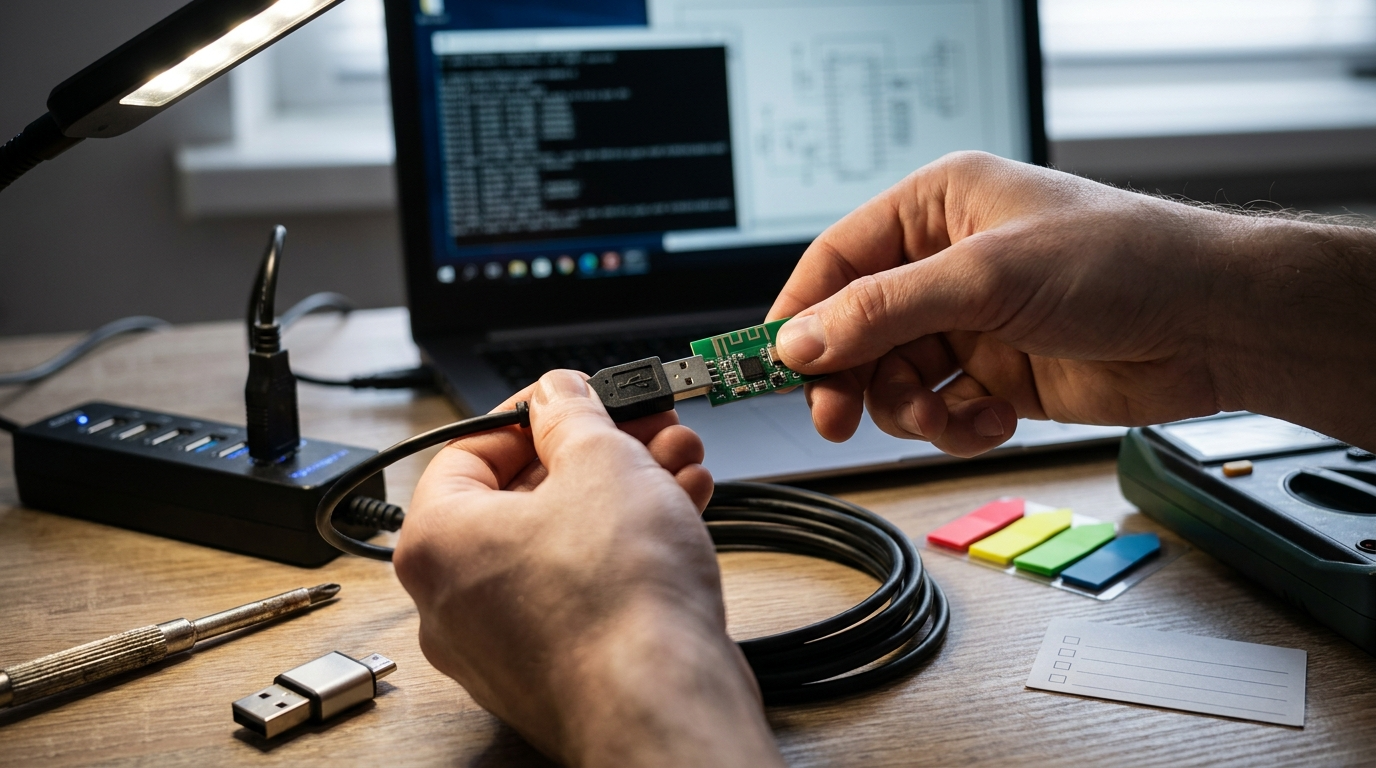
Note on firmware: Most installs let Home Assistant push Zigbee firmware during the Configure flow. No minimum ZBT‑1 firmware is reliably documented — Zigbee firmware is commonly pushed during setup (No reliable data found — research next). If the UI offers manual firmware choices, pick the Zigbee coordinator firmware.
Internal link references for setup and automations: Home Assistant Raspberry Pi guide, How To Import Thread Credentials, and Home Automation Hub.
Pair your first Zigbee device with minimal fuss and confirm it’s local
Pairing is local — the coordinator and devices talk on your LAN; no cloud required to pair or run automations.
Step-by-step pairing (ZHA Add Device)
- Open Settings → Devices & Services → Integrations → ZHA
- Click “Configure” on ZHA if shown, then click “Add Device”
- Put your Zigbee device into pairing mode (manufacturer steps) — watch the ZHA UI for activity
- When the device appears, give it a clear name and assign it to an area
- Confirm the new entity appears in Settings → Devices & Entities and on your Dashboard
Quick automation test: create a one-action automation that toggles the new light entity. Trigger it manually from the UI and confirm immediate local response.
Reminder: Zigbee pairing is local to the coordinator — do not expect cloud pairing.
Verification checklist: logs, integration status, and entity tests that prove success
Follow these ordered verification steps to confirm the dongle and first device work.
Exact UI checks (in order)
- Settings → Devices & Services — verify Connect ZBT‑1 appears and shows “configured”. (Auto-discovered ZBT‑1 + ZHA flow — https://home-assistant-skyconnect.netlify.app/new-zigbee/ — 2026-04-21)
- Settings → Integrations → ZHA — open the integration and check the device list for your paired device
- Settings → Devices & Entities — open the device page and click one entity (e.g., light) to toggle from the UI
- Developer Tools → States — search for the entity and toggle its state to verify immediate response
- Developer Tools → Logs — search for “zigpy”, “zha”, or “firmware” errors (sample strings below)
Search in Logs: "zigpy", "zha", "firmware"
Sample log lines to paste to the forum:
[ERROR] zigpy.device - Failed to initialize device XYZ: Timeout
[WARNING] zha - Coordinator firmware push failed: <reason>
[INFO] zha - Device 00:0d:6f:xx:xx:xx joined
One-minute test
Toggle the new entity from Developer Tools → States and note response time. A working local setup should toggle instantly (under a few hundred ms for local-only automations). If toggles are delayed, capture logs before rebooting.
Common beginner mistakes with ZBT‑1 and exact verification steps that prove you fixed them
Short list: cause, fix, and exactly what to check in the UI afterward.
- USB 3.0 interference — Cause: dongle near USB3.0 port/SSD. Fix: use extension cable and move away. Verify: Settings → Devices & Services shows Connect ZBT‑1; ZHA device list populates after re-pair.
- No USB passthrough (container host) — Cause: container not exposing the dongle. Fix: run on Home Assistant OS or enable USB passthrough. Verify: Connect ZBT‑1 appears in Devices & Services.
- Skipping firmware screen — Cause: assuming firmware not needed. Fix: rerun Configure and choose Zigbee firmware. Verify: Developer Tools → Logs shows firmware push or success messages.
- Expecting cloud-only pairing — Cause: confusion over Zigbee vs Wi‑Fi. Fix: use ZHA Add Device. Verify: ZHA shows device and entities exist in Dashboard.
- Incorrect permissions — Cause: host user lacks USB access. Fix: fix host USB permissions or move host to supported hardware. Verify: device is discovered.
Search and copy exact log snippets: in Developer Tools → Logs search for “zigpy” and “zha”. If you need to post to the community, include these exact lines with timestamps.
Missing public specs: maximum Zigbee endpoints, antenna spec/range, power draw (mA), CPU/flash, pairing latency benchmarks, full firmware release history, retail prices/warranty. Action: contact vendor or check vendor firmware/release notes page. Suggested sources to query: vendor product page, firmware changelog, vendor support email.
Request template to vendor (copy/paste): “Model: ZBT-1; Serial: [your serial]; Firmware: [reported version in HA]; Please provide: max endpoints supported, antenna details, power draw (mA), CPU/flash specs, full firmware changelog with dates, and warranty/retail terms. Thank you.”
Troubleshoot flaky pairing or automations: real‑world failure modes and a step‑by‑step escalation path
Diagnose from easiest to most invasive. Capture logs before repeated reboots so you can escalate with context.
Common failure modes & checks
- RF interference: USB 3.0 or other 2.4 GHz sources. Check by moving the dongle on the extension cable. Data: extension cable recommended; USB 3.0 interference documented — https://home-assistant-skyconnect.netlify.app/new-zigbee/ — 2026-04-21.
- USB power issues: use powered hub if ports are overloaded. Verify by moving to a powered hub then checking Devices → ZHA device list.
- Coordinator firmware regression: UI firmware push failed. Check Developer Tools → Logs for firmware errors; re-run Configure.
- Coordinator overload: if many devices act flaky, isolate to 1 device and test pairing range.
Stepwise escalation path
- Move dongle on extension cable to a central, clear location.
- Switch to a powered USB 2.0 hub on a separate bus.
- Test with a single device (remove other end devices from the mesh).
- Check Developer Tools → Logs for “zigpy” or “zha” errors and save the log window with timestamps.
- If firmware errors show, re-run Configure in Settings → Devices & Services; do not reflash unless instructed by vendor/community.
- Collect diagnostics: timestamped logs, list of paired devices (ZHA device list screenshot), Home Assistant version, and coordinator firmware version (shown in the ZHA integration page).
- Post to Home Assistant community with collected diagnostics and the sample log lines shown earlier; include “what I tried” steps.
When to escalate: after steps 1–4 if device still fails. Do not repeatedly reboot before collecting logs — you will lose context.
Where to post: Home Assistant community forum and the vendor support channel. Include the diagnostic bundle described above.
Conclusion
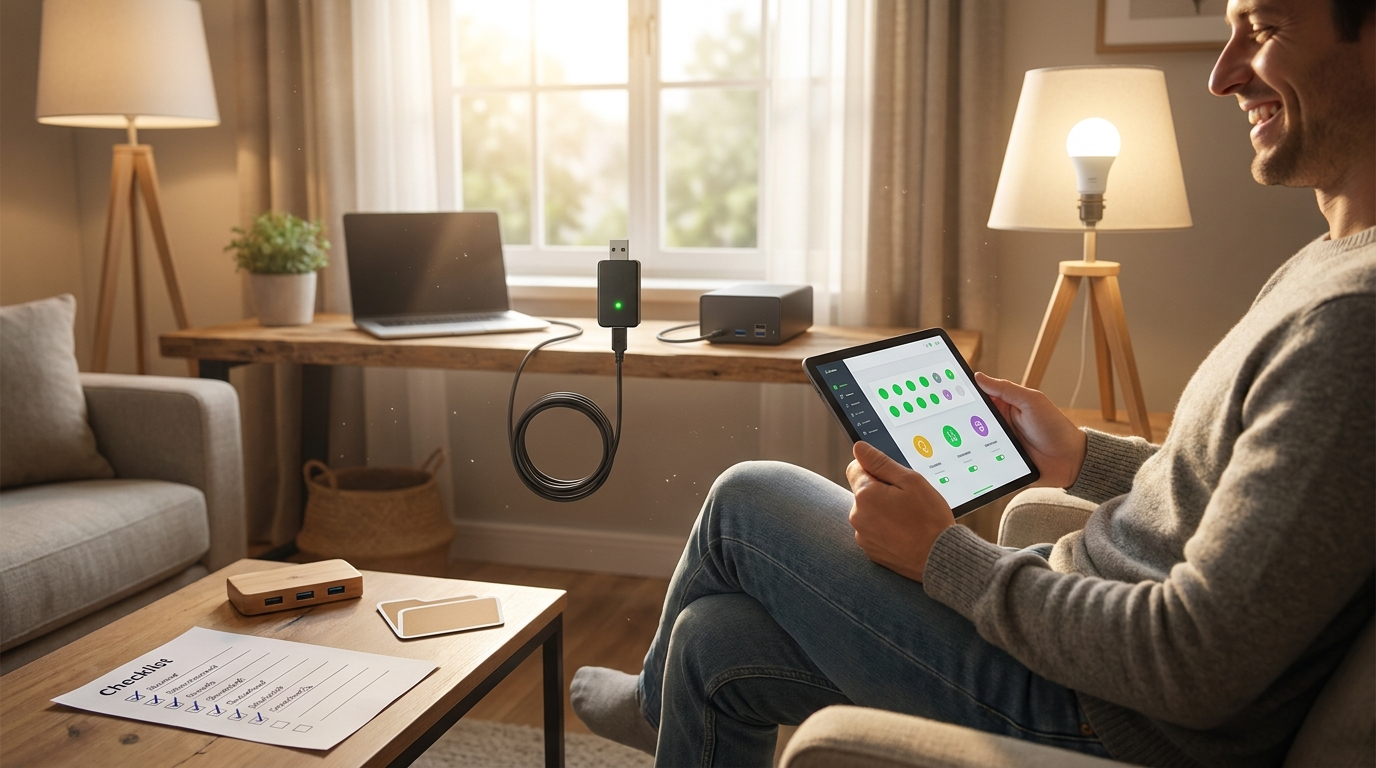
Follow the ordered checklist above from host confirmation to pairing and verification; you should have a working ZHA coordinator and first local Zigbee device visible in the Home Assistant dashboard within 20–30 minutes. If you’re choosing hardware, confirm host compatibility first and use the extension cable for best results. Want to compare install steps or read deeper? Check the Raspberry Pi setup and ZHA how-to linked above, subscribe for updates, or buy a ZBT‑1 from a trusted vendor after verifying the specs we marked as “No reliable data found”.
Focus again: home assistant connect zbt-1 — verify host & USB mapping, place the dongle away from USB3, and follow the exact UI clicks above for the fastest path to a working dashboard.
FAQ
What exact Home Assistant host do I need to use the ZBT‑1?
Use a full Home Assistant OS host with USB access (Raspberry Pi, Home Assistant Blue/Green) — do not rely on a container without explicit USB passthrough. (Source: https://home-assistant-skyconnect.netlify.app/new-zigbee/ — 2026-04-21)
Do I need a special USB hub or extension cable?
Yes — use the included extension cable or a powered USB 2.0 hub and avoid USB 3.0 ports to reduce 2.4 GHz interference. (Source: https://home-assistant-skyconnect.netlify.app/new-zigbee/ — 2026-04-21)
Can I use ZBT‑1 without the cloud (100% local)?
Yes — ZHA pairing and automations are local by default; no cloud is required to pair or run Zigbee automations. (Source: https://www.home-assistant.io/connectzbt1/ — 2026-04-21)
What logs or UI places prove the dongle is working?
Confirm the dongle under Settings → Devices & Services, verify devices in ZHA, test entity toggles in Developer Tools → States, and check Developer Tools → Logs for related ZHA/zigpy errors. (Source: https://home-assistant-skyconnect.netlify.app/new-zigbee/ — 2026-04-21)
What should I do if a device won’t pair or automations are flaky?
Reposition the dongle (extension cable), use a powered hub, remove nearby USB 3.0 devices, re-run ZHA “Add Device,” and if still failing collect logs and escalate to the Home Assistant community. (Source: https://home-assistant-skyconnect.netlify.app/new-zigbee/ — 2026-04-21)
Where can I find exact hardware specs (max devices, power draw, pairing latency)?
Most public pages omit those numbers — No reliable data found — research next; contact the vendor or check the firmware/release notes page for the latest specs.
- Unbox ZBT‑1 & USB extension cable
- Confirm Home Assistant OS on supported host
- Update Home Assistant to latest release
- Attach extension cable to dongle
- Plug dongle into USB 2.0 or powered hub
- Open Settings → Devices & Services (wait for discovery)
- Click Configure → choose Zigbee firmware
- Complete ZHA setup and assign area
- ZHA → Add Device → put device in pairing mode
- Verify entity in Developer Tools → States and toggle
- Test a simple automation to toggle the device
- If fail: capture logs, reposition dongle, escalate
Download printable checklist (PDF) (writer: generate PDF)
Screenshots folder: provide 01-settings.png → 06-finish.png
- Obtain vendor-confirmed numbers for max Zigbee endpoints, antenna specs/range, power draw (mA), CPU/flash specs, pairing latency, full firmware release history (dates & versions), and retail prices/warranty across major vendors. Until provided: mark as “No reliable data found”.
- Provide exact UI log entries (copy/paste examples) and the minimal diagnostic bundle to collect before escalation (which files and how to extract them from Home Assistant OS).
- Produce annotated screenshots for each UI step and a screenshot folder (01-settings.png … 06-finish.png) plus a downloadable PDF of the one-page checklist.
- Silicon Labs Multiprotocol EFR32MG21 chipset — https://www.home-assistant.io/connectzbt1/ — 2026-04-21
- Frequency 2.4 GHz & TX Power up to +20 dBm — https://www.home-assistant.io/connectzbt1/ — 2026-04-21
- Auto-discovered ZBT‑1 + ZHA flow — https://home-assistant-skyconnect.netlify.app/new-zigbee/ — 2026-04-21