

govee home assistant — this guide gets local-only Govee control working in Home Assistant quickly, helps you pick the right hardware by budget, and gives a prioritized troubleshooting path so a beginner can finish a reliable setup in one session.
This is a buyer’s guide and step-by-step recipe: no HACS, no cloud keys, minimal YAML. Read the quick setup, check the buy checklist, then follow the diagnostic ladder if discovery or drops happen.
Key Takeaways
- Quick setup: Using Home Assistant 2023.12+ and the official “Govee lights local” integration, you can add LAN-enabled Govee Wi‑Fi devices through the UI without HACS, API keys, or YAML — enable per-device “LAN Control” in the Govee app first (see exact UI path). (Source: home-assistant.io — Govee lights local — 2026-05-07)
- Buy smart by control method: For local-only reliability, prefer LAN‑API capable Wi‑Fi Govee models (requires enabling LAN Control) for whole‑room lighting; use BLE devices only with recommended USB BLE adapters and careful placement. (Research finding: No reliable model-by-budget list found; next step: check Govee developer docs.)
- Diagnostics & limits up front: Community LAN integrations commonly poll every 60s with a 600s HTTP fallback — plan automations and network settings (disable client isolation, keep a single NIC on HA host) to avoid “no devices found” failures. (Source: govee-lan-hass GitHub — 2026-05-07)
- Get local Govee control working in under 15 minutes (exact minimal setup)
- Best picks by budget: budget (<$30), midrange, and pro
- Comparison table: LAN vs BLE vs Hubs
- Exact hardware & network checklist that prevents discovery/dropouts
- Diagnose and fix the 6 most common real-world failures
- Performance expectations and limits
- Automations & Lovelace recipes for beginners
- FAQ
- Conclusion
Get local Govee control working in under 15 minutes (exact minimal setup)
What to cover: exact prerequisites, the per‑device LAN toggle path in the Govee app, the Home Assistant UI flow to add the official local integration, and quick verification steps in the HA UI.
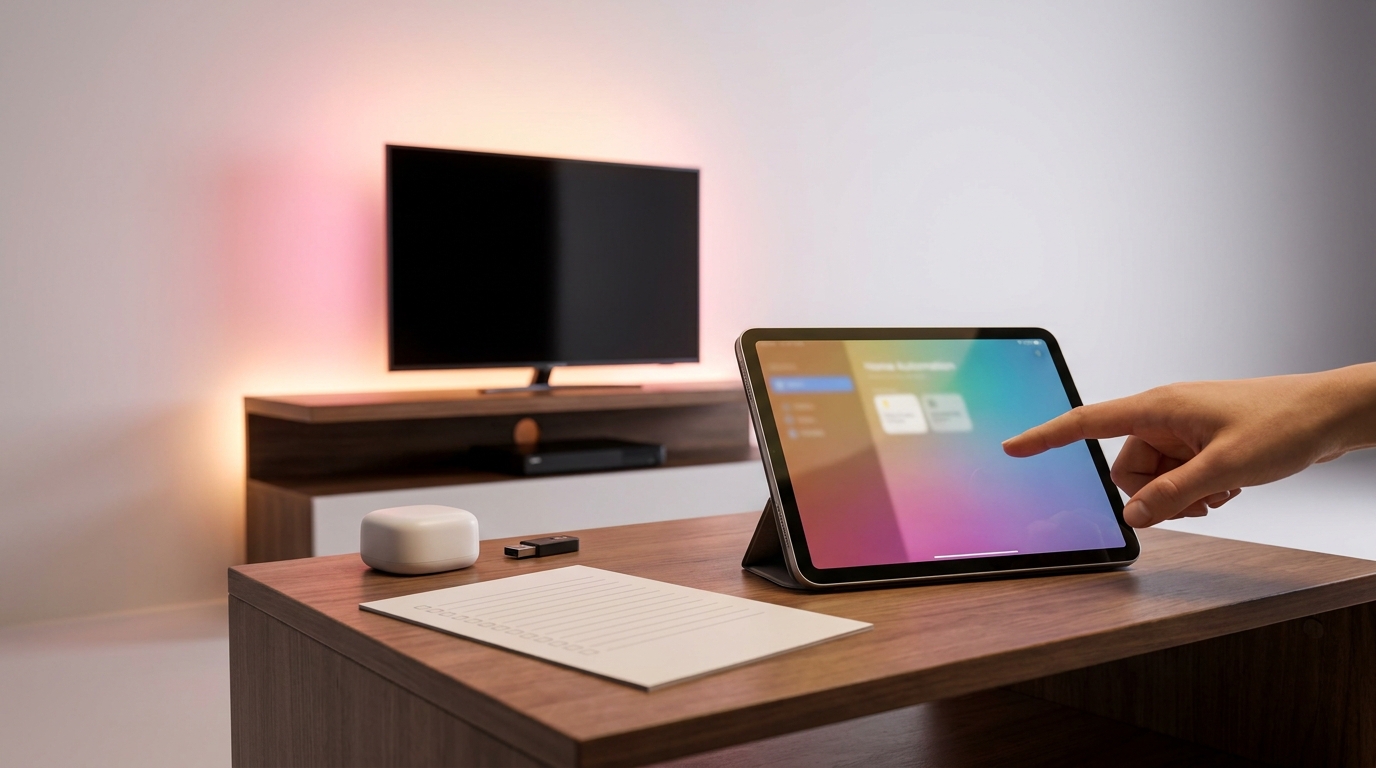
Prereqs (minimal): Home Assistant 2023.12 or newer; a Govee device that advertises LAN API support; your HA host and Govee device on the same network/VLAN. The official local integration removes the need for HACS or API keys — see the Home Assistant integration page: Govee lights local (documented 2026-05-07; integration added Dec 2023).
Step-by-step UI flow (exact clicks)
- Open the Govee mobile app → open a device → tap the gear/settings icon → find and enable the LAN Control toggle for that device. (This toggle is per device — if you skip it the device will not be discovered.)
- In Home Assistant: Settings > Devices & Services > Add Integration > search “Govee lights local”.
- Follow on-screen discovery. Accept detected devices and finish. No YAML or API key required.
Minimal verification in HA UI: open Settings > Devices & Services > Entities — find your Govee lights (light.your_name) — test: turn on/off, open color picker, change brightness.
Pitfall to avoid: Skipping the per‑device LAN Control toggle in the Govee app — devices will not be discovered by the official integration. Community reports show this is the most common setup failure (see diagnostics section).
Useful reading: official docs — home-assistant.io (2026-05-07).
Best picks by budget: budget (<$30), midrange, and pro — which Govee models and connection methods to buy
What to cover: a decision framework (LAN Wi‑Fi vs BLE vs hubs/USB BLE) per budget/use-case, a quick “best picks by budget” table, a buying checklist, and product page questions to confirm LAN support.
Recommendation framework (short)
- Budget (<$30, single strip or accent): consider BLE strips if you only need a single-room lamp — cheaper but limited range. Expect increased setup complexity for BLE in HA (USB BLE adapter recommended).
- Midrange (whole-room lighting): prefer Wi‑Fi LAN‑API Govee models (LAN Control) for easier local integration and multi-zone control from HA.
- Pro (multi-room, outdoor): choose LAN‑API Wi‑Fi models or hubbed solutions that explicitly list local/LAN API support and offer return policies; plan network segmentation and stronger Wi‑Fi coverage.
Best picks by budget — quick comparison
| Budget tier | Typical device | Connection | When to buy |
|---|---|---|---|
| Budget <$30 | Single LED strip (basic) | BLE or cheap Wi‑Fi | Accent lighting, single room, buy if close to HA host |
| Midrange | Whole-room LED strip / bar | LAN (Wi‑Fi) with LAN Control | Whole-room scenes, prefer explicit LAN API models |
| Pro | Outdoor strips, multi-room setups | LAN Wi‑Fi + good Wi‑Fi or hub | Multi-zone & outdoor: verify IP rating & LAN API support |
Data note: No reliable public list mapping every Govee model to LAN/API support was found during research — next step: consult Govee developer docs or product pages before purchase. Marked research gap: model-by-budget verification required.
Buying checklist (copy when shopping)
- Does the product page or manual explicitly mention “LAN Control”, “LAN API”, or “local control”?
- Model family (H6xx/H7xx) mentioned in technical details?
- Return policy and firmware update notes — can you return if LAN control is removed later?
- Power & weather rating for outdoor use.
Before you buy, confirm LAN Control on the live product page or on Govee developer documentation. If unsure, prefer sellers with a flexible return policy.
Related reading: Home Assistant Raspberry Pi: 7 Easy Guide To Avoid Mistakes, Home Assistant Not Connecting: Top 7 Best Picks Guide (By Budget)
Comparison table: LAN vs BLE vs Hubs — pick by range, reliability, and local‑control capability
What to cover: a side-by-side table, Home Assistant support notes, and a short decision flow for common needs.
| Connection | Local-control | Range | Reliability | HA support notes | Best use-case |
|---|---|---|---|---|---|
| Wi‑Fi (LAN API) | High (local LAN) | House Wi‑Fi coverage | High when LAN Control present | Official “Govee lights local” integration detects LAN devices via UI | Whole-room lighting; multi-zone |
| Bluetooth (BLE) | Local (range-limited) | Short (meters) — affected by walls | Moderate; depends on adapter & placement | Requires USB BLE adapter on HA host for multiple devices | Single-room accents, bedside strips |
| Hub / proprietary | Varies (some local) | Hub coverage | High if hub supports local API | Check if hub exposes local control to HA | Large multisite or outdoor where direct Wi‑Fi is weak |
Fact to cite: Community LAN implementations (example project) poll LAN devices every 60s with a 600s HTTP fallback — plan automations accordingly: govee-lan-hass GitHub — 2026-05-07.
Quick decision flow
- I want whole-room scenes and reliability → choose LAN (Wi‑Fi) Govee models and confirm per-device LAN Control.
- I want cheap accent lighting → BLE is OK if the device sits close to the HA host or a BLE USB adapter.
- I want outdoor/multi-room → plan Wi‑Fi coverage or hub + confirm hub exposes local API to HA.
Exact hardware & network checklist that prevents discovery/dropouts (placement, adapters, router settings)
What to cover: HA host minimum notes, single-NIC advice, router settings, USB BLE adapter placement, and a printable checklist.
Host & network basics
- Run Home Assistant 2023.12+ on a stable host. If on Raspberry Pi, use recommended images and power supplies — see basics for Pi setup: Home Assistant Raspberry Pi: 7-Step Best Easy Setup Checklist.
- Use one primary network interface for HA (avoid multi‑NIC discovery issues). Community thread reports discovery fails on multi‑NIC setups: community.home-assistant.io — 2026-05-07.
- Router settings: disable AP/client isolation, keep devices in same VLAN, and allow mDNS/UDP discovery across the LAN.
USB BLE adapter & placement (if using BLE)
- Place adapter with clear line-of-sight toward BLE devices, antenna up. Keep it on a short USB extension cable away from noisy electronics.
- Research gap: no reliable public data on specific BLE adapter models and device counts — mark as research required before large BLE deployments.
- HA version >= 2023.12
- LAN Control toggled per Govee device
- HA host and devices on same VLAN
- AP isolation disabled
Need help with network discovery? Start with the two items above: single NIC for HA and LAN Control toggles — most discovery failures trace to those two causes. For deeper networking, see home assistant docker: 7-Step Easy Setup Checklist and Home Assistant Dashboard: 7-Step Easy Setup Checklist for UI validation tips.
Diagnose and fix the 6 most common real-world Govee + Home Assistant failures (step-by-step)
What to cover: symptom → diagnostic action → log locations → fixes → escalation. Include a worked example of “No devices found” and explain basic packet-capture hints.
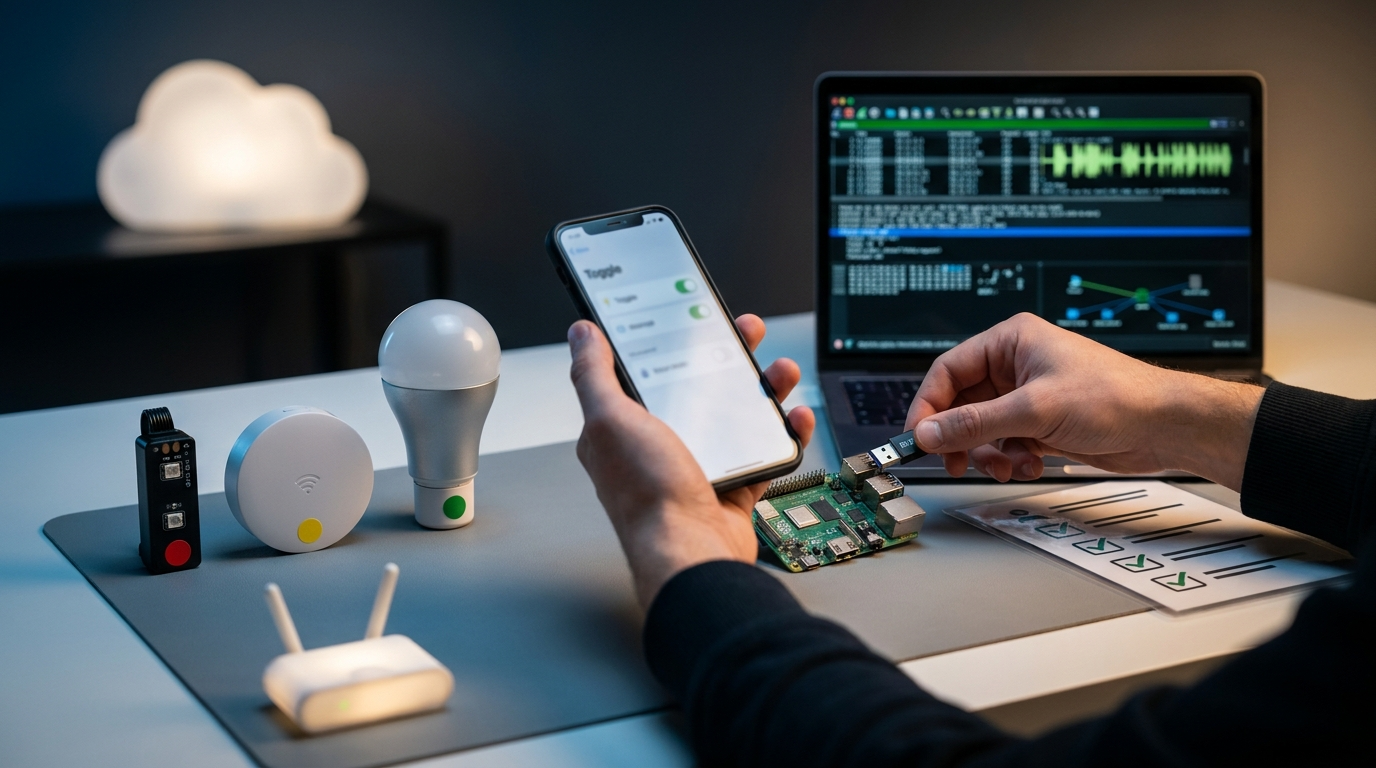
Top 6 failure patterns & fixes
- No devices found
- Diagnostics: Confirm LAN Control in Govee app; check HA logs (Settings > System > Logs). Community thread documents this pattern: community.home-assistant.io — 2026-05-07.
- Fix: Enable LAN Control per device → HA: Add Integration > “Govee lights local” → rediscover. If still missing, check VLAN/NIC issues.
- Escalate: Collect HA logs and the device IP, then post to the community thread or open an issue with integration logs attached.
- Intermittent drops
- Diagnostics: Check Wi‑Fi signal, router logs, and HA uptime; try pinging device IP from HA host.
- Fix: Improve Wi‑Fi coverage, assign static IPs, disable AP isolation.
- BLE devices not responding via adapter
- Diagnostics: Verify adapter visible to HA, check kernel USB logs, move adapter closer to devices.
- Fix: Use a short USB extension, avoid metal enclosures, test one device at a time.
- States stale in HA
- Diagnostics: Review integration polling intervals in logs; community LAN projects show 60s polling defaults (govee-lan-hass — 2026-05-07).
- Fix: Design automations tolerant of polling delays or use direct commands in automations to force state changes.
- Device reverts to cloud-only after update
- Diagnostics: Check Govee app release notes; verify LAN Control still enabled.
- Fix: If LAN Control removed by firmware, contact Govee support and keep purchase receipts for returns.
- Discovery blocked by multi‑NIC host
- Diagnostics: Check HA host routing and interface bindings; see community report on discovery issues with multi‑NIC setups: community thread — 2026-05-07.
- Fix: Move HA to a single NIC network or adjust routing; use a bridge to expose the correct LAN.
How to capture useful logs (beginner-friendly): enable debug logging for integrations in Settings > System > Logs → take a screenshot and copy the last 200 lines. For packet captures, ask in the community before capturing — beginners should use tcpdump only when instructed.
Performance expectations and limits: polling, latency, adapter capacity, and Raspberry Pi impact
What to cover: polling intervals you can expect, what is unknown and must be tested, and a basic test plan to measure latency and load.
Measured/known numbers: community LAN integrations poll every 60s with a 600s HTTP fallback in some implementations — see govee-lan-hass (2026-05-07). Beyond that, latency and device limits per BLE adapter are research gaps (no reliable data found).
What to expect
- LAN-control: state updates are generally fast for commands, but some community poll-based integrations will reflect state changes on a 60s cadence.
- BLE: range and latency vary; plan to test your placement. No reliable adapter device-count numbers were found publicly — this is a research gap.
- Raspberry Pi: basic host load for a few lights is low, but large fleets or BLE scanning can increase CPU usage — measure on your device before wide deployment.
How to measure (simple test plan)
- Deploy one Govee device, record HA command timestamp and device reaction time (use an automation that logs time when command sent and when state reports change).
- Increase to N devices and observe CPU/memory on HA host (top, htop) while repeating commands.
- For BLE adapters, run a 15‑minute stability test where all devices toggle every 30s and watch for drops; log reconnect times.
Note: do not publish specific ms latencies or adapter counts without field tests — mark as “how we would measure” and run the simple test above before final purchases.
Automations & Lovelace recipes for beginners — copy-paste examples and troubleshooting checks
What to cover: three starter automations (motion-triggered, circadian ramp, color scene), a Lovelace light card example, UI/YAML notes, and common mistakes.
Starter automation 1 — motion-triggered lighting (UI-friendly)
# UI: Create automation
Trigger: Motion sensor state = 'on'
Action: Device: Light > Choose light entity > Turn on → set brightness to 180
Delay: 5 minutes
Action: Turn off light
Starter automation 2 — circadian brightness ramp (YAML example)
alias: 'Wake ramp'
trigger:
  - platform: time
    at: '06:30:00'
action:
  - service: light.turn_on
    target:
      entity_id: light.your_govee_light
    data:
      brightness_pct: 50
      transition: 600
Starter automation 3 — color scene trigger
alias: 'Movie Scene'
trigger:
  - platform: state
    entity_id: input_boolean.movie_mode
    to: 'on'
action:
  - service: light.turn_on
    target:
      entity_id: light.your_govee_light
    data:
      rgb_color: [40,10,90]
      brightness: 120
Sample Lovelace light card (edit via UI): add a standard light card, pick your Govee entity, enable color wheel. If you use custom HACS cards, remember they may expect different entity attributes — the official integration provides standard light entities.
Common beginner mistakes that break automations
- Using the wrong entity_id (case-sensitive).
- Assuming instant state updates when integration polls on a 60s cadence — use action-based commands when you need immediate change.
- Referencing HACS-only entities that don’t exist with the official integration.
No reliable public data was found on community blueprints specifically for Govee automations — consider using the built-in automation editor and the examples above as a baseline.
Related: Home Assistant Dashboard: 7-Step Easy Setup Checklist
FAQ
Do I need HACS or an API key to use Govee locally with Home Assistant?
No — the official “Govee lights local” integration via Home Assistant UI works for LAN‑API enabled devices without HACS or API keys (Home Assistant 2023.12+). (Source: home-assistant.io — 2026-05-07)
Which Home Assistant version do I need for the official local Govee integration?
Use Home Assistant 2023.12 or newer — the local integration was added in that timeframe. (Source: home-assistant.io — 2026-05-07)
My Govee devices don’t show up — what’s the first thing to check?
Confirm the per-device “LAN Control” toggle is enabled in the Govee app and that your HA host and device are on the same network (watch for multi‑NIC issues). (Source: community thread — 2026-05-07)
Should I prefer Wi‑Fi (LAN API) or Bluetooth for local Home Assistant control?
For whole‑room and multi‑room control prefer LAN‑API Wi‑Fi models; BLE can be fine for single‑room devices but requires careful adapter placement — model-level recommendations need verification (research gap).
What polling/refresh rate can I expect from local integrations?
Community LAN implementations often poll every 60s with a slower HTTP fallback of 600s — design automations with that in mind unless you implement direct push/driver solutions. (Source: govee-lan-hass — 2026-05-07)
Are there privacy/security concerns with enabling LAN Control?
Enabling LAN Control allows local network control without cloud tokens; ensure your LAN is segmented and avoid exposing HA to untrusted networks. There is a gap in public privacy analyses of Govee LAN behavior — treat your LAN security as the primary control.
Conclusion
Local Govee control in Home Assistant is straightforward if you follow one minimal recipe: run Home Assistant 2023.12+, enable per-device LAN Control in the Govee app, then add the official “Govee lights local” integration via Settings > Devices & Services. Confirm devices in the Entities list, pick hardware by control method (LAN for whole-room, BLE for single-room), follow the hardware & network checklist, and use the diagnostic ladder above if things fail.
Next step: compare specific Govee models on product pages for explicit “LAN Control” mentions, test one device with your HA host, and use the printable buying checklist above before bulk purchases. Ready to buy or learn more? Compare models, check your Raspberry Pi host guide, or subscribe for update notes.
—
### Products to Insert
Product 1:
– Product Idea: Govee Wi‑Fi LED Strip (LAN‑enabled model)
– Amazon Affiliate Link: https://www.amazon.com/s?k=Govee+Wi‑Fi+LED+Strip+(LAN‑enabled+model)&tag=reviewmysmart-20
– Insertion Keyword Phrase: LAN Control
Product 2:
– Product Idea: USB Bluetooth 5.0 BLE Adapter (long-range, external antenna)
– Amazon Affiliate Link: https://www.amazon.com/s?k=USB+Bluetooth+5.0+BLE+Adapter+(long-range,+external+antenna)&tag=reviewmysmart-20
– Insertion Keyword Phrase: USB BLE adapter
Product 3:
– Product Idea: 8‑Port Gigabit Unmanaged Ethernet Switch
– Amazon Affiliate Link: https://www.amazon.com/s?k=8‑Port+Gigabit+Unmanaged+Ethernet+Switch&tag=reviewmysmart-20
– Insertion Keyword Phrase: single NIC
Product 4:
– Product Idea: Addressable RGB LED Strip (whole‑room, multi‑zone, Wi‑Fi compatible)
– Amazon Affiliate Link: https://www.amazon.com/s?k=Addressable+RGB+LED+Strip+(whole‑room,+multi‑zone,+Wi‑Fi+compatible)&tag=reviewmysmart-20
– Insertion Keyword Phrase: LED strip
Product 5:
– Product Idea: Wi‑Fi Smart Plug (for remote power‑cycle/reboot)
– Amazon Affiliate Link: https://www.amazon.com/s?k=Wi‑Fi+Smart+Plug+(for+remote+power‑cycle/reboot)&tag=reviewmysmart-20
– Insertion Keyword Phrase: power-cycle your router