

cannot update zwave device firmware in home assistant — this guide walks you step-by-step, from capturing the exact logs to a prioritized recovery sequence and a ready-to-paste support package if you need help.
Key Takeaways
- Capture the right evidence first: full Home Assistant logs, Z‑Wave JS debug logs, Z‑Wave JS UI screenshots and timestamps before restarting anything.
- Follow the ordered sequence: preflight checks → in-place fixes (battery pull, reload integration) → controller/stick recovery → factory reset/re‑include as last resort.
- Device specifics matter: sleeping battery nodes and wrong firmware files cause most failures; some sticks (ZWA‑2) need vendor recovery tools.
- Symptoms checklist — Quickly identify the exact failure state so you can pick the right fix
- How to reproduce and record the failure — Make your problem solvable by you or by support
- Root causes mapped to quick tests — Narrow down the fault in under 10 minutes
- Prioritized, step‑by‑step fixes and fallbacks (try these in order)
- Beginner end‑to‑end preflight and update checklist (one page you can print)
- Device‑specific edge cases and tested recoveries (Zooz, Inovelli, ZWA‑2 and sleepers)
- When to escalate and exactly what to include in bug reports or forum posts
- Conclusion
- FAQ
Symptoms checklist — Quickly identify the exact failure state
Preface: collect evidence before you reboot or unplug anything. The exact UI state and log timestamps make the difference between an easy recovery and a forced re‑include.
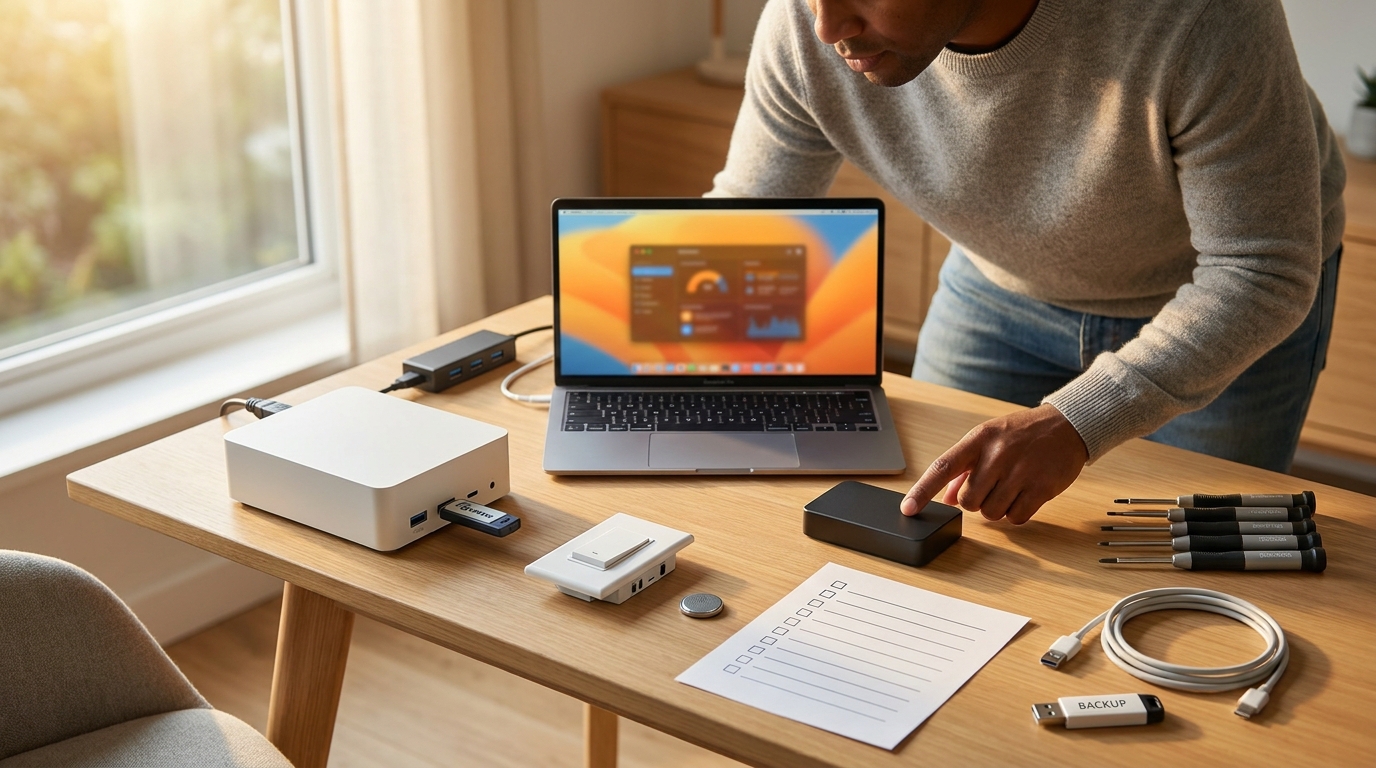
What to look for (visual):
- Home Assistant device becomes “Unavailable” immediately after you start the update.
- Z‑Wave JS UI shows the firmware update stuck at a stage like “ProtocolInfo” or does not advance through “Transfer” / “Verify”.
- Update dialog in HA shows an error: “cannot update” or the progress bar stalls indefinitely.
Exact logs and strings to capture:
- home-assistant.log — capture a 5–10 minute window around the attempt (timestamps). Community report: devices stuck in “ProtocolInfo stage” after failed OTA — see community thread (2023-10-15): community.home-assistant.io/t/failed-ota-firmware-updates-how-to-fix/798506 (2023-10-15).
- Z‑Wave JS addon logs — enable debug and export the addon logs during the attempt (recommended in community capture guides — 2022-09-18): zwave-js-firmware-update-stuck (2022-09-18).
- Z‑Wave JS UI console output / firmware dialog screenshots (progress stage, any red error text).
Screenshots and timestamps checklist (short):
- Screenshot of HA device list showing “Unavailable” (include time).
- Screenshot of the Z‑Wave JS firmware dialog at the stuck stage (include time).
- Copy of the firmware filename used and its checksum (copy the filename from your downloads folder).
How to reproduce and record the failure — Make your problem solvable by you or by support
Goal: create a minimal, repeatable reproduction and package the exact evidence support needs.
Reproduce steps (repeatable)
- Select the device in the Home Assistant Z‑Wave JS UI.
- Open the firmware update dialog → choose the firmware file → click Start.
- Watch and note the first timestamp when the dialog changes and when it errors or stalls.
- If it fails, do one clean retry (do not reboot anything) to reproduce the same log lines.
Enable and pull logs
- Enable Z‑Wave JS debug in the add‑on settings before attempting the update.
- Copy the Home Assistant log window (home-assistant.log). Example to extract a window on HA OS via SSH:
awk '/2024-01-20 10:00:00/,/2024-01-20 10:10:00/' /config/home-assistant.log > /config/ha-zwave-failure.log
- Export the Z‑Wave JS addon logs from Supervisor UI or run (SSH):
ha supervisor logs --addon core_zwave_js > /config/zwavejs-debug.log
(adjust addon slug if you use zwavejs2mqtt).
- Download or screenshot the Z‑Wave JS UI firmware dialog and neighbor table at the same timestamps.
What to include in a support package
- home-assistant.log excerpt (same time window as the update attempt).
- zwavejs-debug.log (full addon debug output during attempt).
- Firmware file (filename + checksum), device model, Node ID, controller serial path.
- Screenshots of the HA update dialog and the Z‑Wave JS UI neighbor table.
- A short reproduction list: exact clicks and times you pressed Start.
Community guidance recommends capturing Z‑Wave JS debug logs and the full home-assistant.log during the attempt: community thread (2022-09-18).
Root causes mapped to quick tests — Narrow down the fault in under 10 minutes
Follow these quick tests in order — each test is one check you can do in under two minutes.
- Sleeping battery node — Quick test: check node awake state in Z‑Wave JS (lastActive, interview stage). Community posts show sleeping Zooz nodes often cause queued updates to stick: community (2022-09-18).
- Wrong firmware file — Quick test: confirm firmware filename and checksum match the zwave-js firmware repo before attempting. See the official repo: zwave-js/firmware-updates.
- USB controller access — Quick test: verify Supervisor > System > Hardware lists the correct serial path (e.g., /dev/ttyACM0). If not visible, the controller is not attached.
- Integration mismatch or recent Z‑Wave JS update — Quick test: did the problem start after a Z‑Wave JS addon upgrade? If yes, consider rollback (community reported recovery by downgrading to 10.11.0 — 2024-01-20).
- Mesh/routing issues — Quick test: check the node’s neighbor table in Z‑Wave JS and run a heal for a quick routing check.
Prioritized, step‑by‑step fixes and fallbacks (try these in order)
This is the action core. Do each step in order and test after each full step completes.
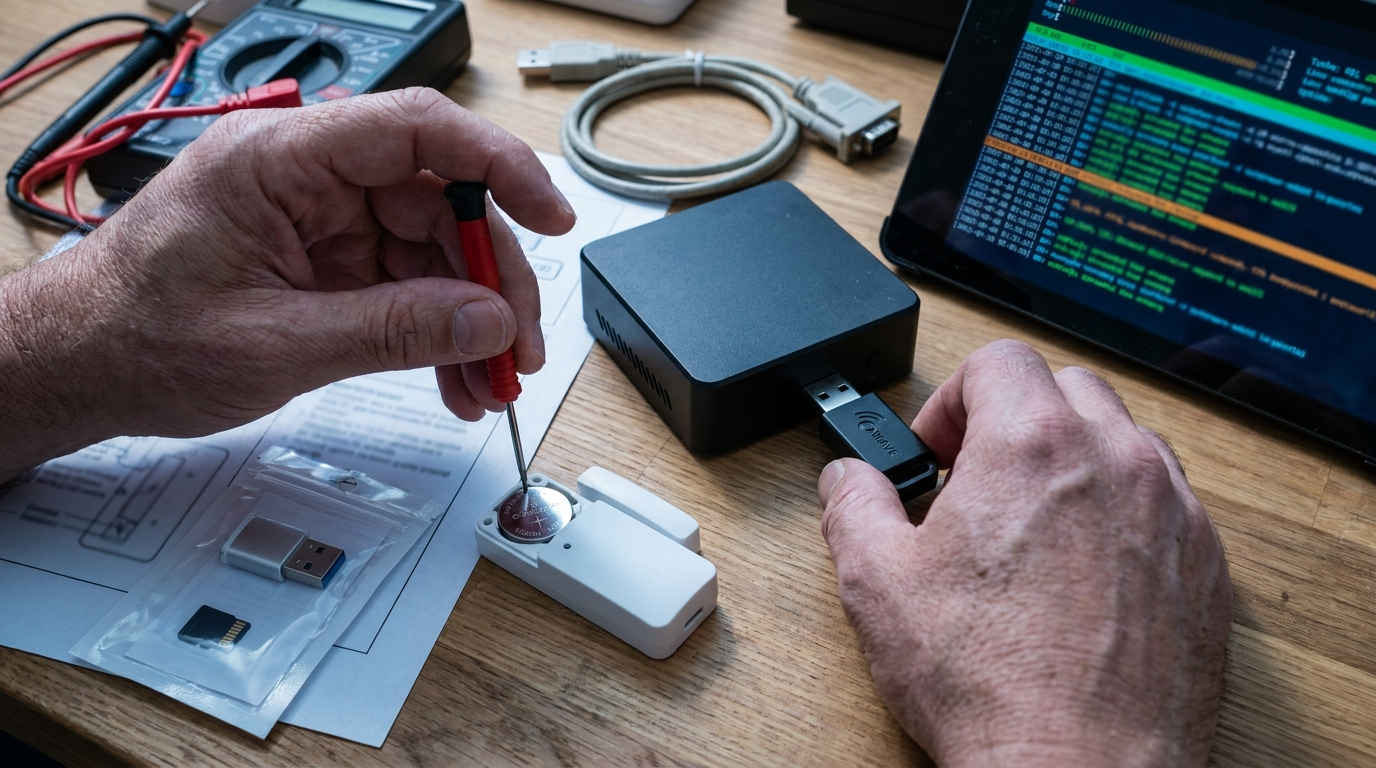
Immediate low‑risk fixes
- Collect logs (home-assistant.log + zwavejs-debug.log) and screenshots before any change.
- battery pull (sleeping nodes): remove battery 10–15s and reinsert; keep the device next to the controller while retrying the update.
- Retry the update from Z‑Wave JS UI. Expect a short unavailability and then re‑interview.
Mid‑level fixes
- Reload the Z‑Wave JS integration: Settings → Devices & Services → Z‑Wave JS → three‑dot menu → Reload. This can clear stuck state without rebooting HA.
- Clear queued update by removing USB stick (or stopping the addon) then restarting the Z‑Wave JS addon. Example CLI to dump addon logs on HA OS:
ha supervisor logs --addon core_zwave_js > /config/zwavejs-debug.log
- Downgrade the Z‑Wave JS addon if the issue starts immediately after an update (community rollback to 10.11.0 reported success — 2024-01-20).
High‑risk fallbacks (use only after backups)
- Factory reset the device and re‑include. Only after you have a full HA snapshot and Z‑Wave JS backup.
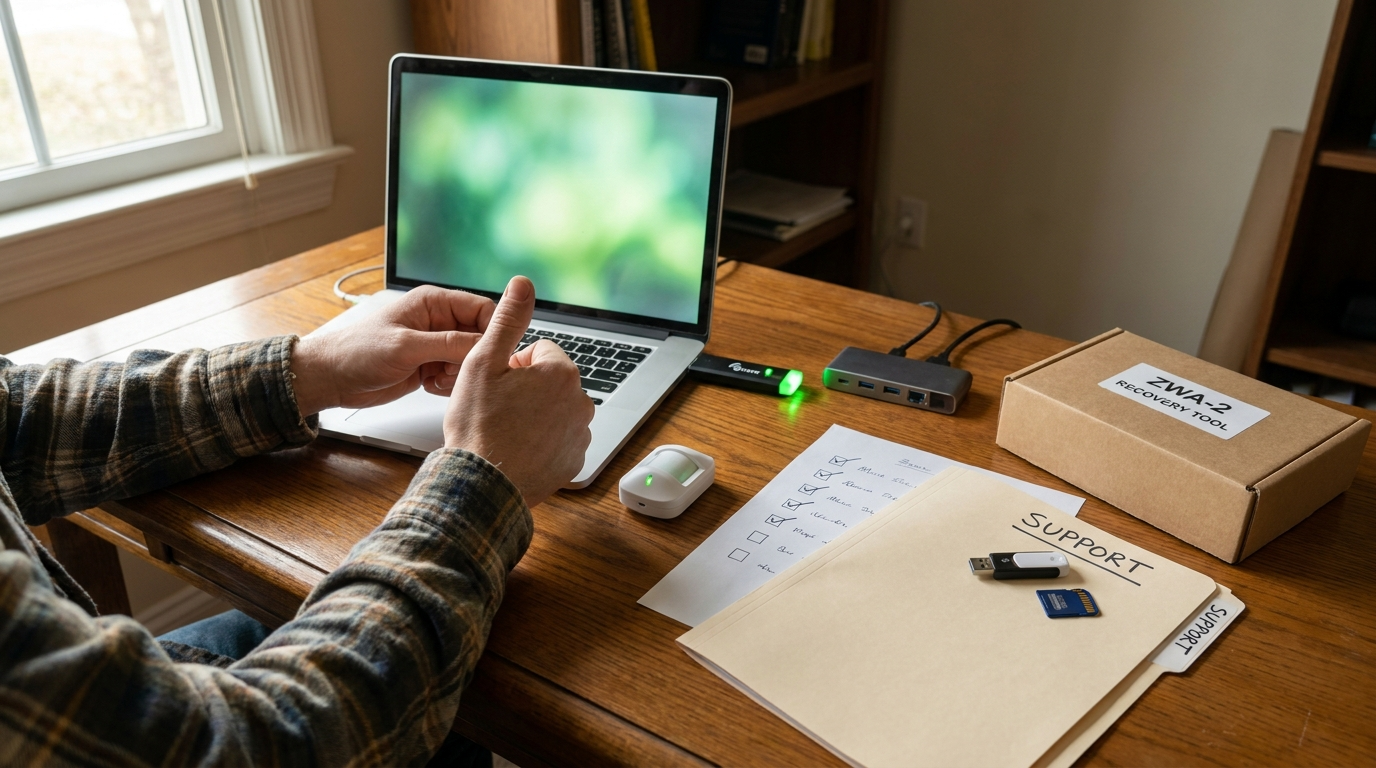
- Use manufacturer flasher or external serial programmer when the vendor explicitly documents it (for sticks like the ZWA‑2 or devices reported bricked). See device vendor instructions and community recovery videos before proceeding.
- If the stick itself is bricked, use vendor recovery tools (e.g., ZWA‑2 web toolbox video recovery demo — YouTube).
Beginner end‑to‑end preflight and update checklist (one page you can print)
Print this box. It’s a one‑page preflight + immediate fixes checklist for any beginner using HA OS with a USB stick.
Preflight (before you click Start)
- Take a full HA snapshot (Supervisor → Snapshots) — see backup guidance in the Home Assistant Raspberry Pi: 7-Step Easy Setup Checklist for general backup tips: Home Assistant Raspberry Pi: 7-Step Easy Setup Checklist.
- Download firmware from zwave-js/firmware-updates and copy filename + checksum into your notes.
- Enable Z‑Wave JS debug logging in the add‑on settings.
- Confirm controller serial path in Supervisor → System → Hardware (note /dev/tty* path).
- If device sleeps, bring it near controller and prepare to pull battery.
Immediate fixes if update fails
- Save logs & screenshots with timestamps.
- Battery pull + wait 10–15s → reinsert → retry update.
- Reload Z‑Wave JS integration (Settings → Devices & Services → Z‑Wave JS → Reload).
- Stop the Z‑Wave JS add‑on, remove USB stick for 10s, reattach and start add‑on to clear stuck queues.
Printable checklist (copy & print)
[ ] HA Snapshot taken
[ ] Firmware filename + checksum recorded
[ ] Z‑Wave JS debug enabled
[ ] Controller path recorded (/dev/ttyXYZ)
[ ] Device near controller & awake (or batteries removed)
If fail:
[ ] Save home-assistant.log excerpt
[ ] Save zwavejs-debug.log
[ ] Battery pull 10–15s
[ ] Reload Z‑Wave JS
[ ] Remove USB stick to clear queue
Device‑specific edge cases and tested recoveries (Zooz, Inovelli, ZWA‑2 and sleepers)
Short, proven recoveries and what to expect per device family.
- Zooz sensors — symptom: update stalls and device shows dead. Recovery: battery pull, keep device next to controller, retry. Community examples: stuck Zooz sensors recovered after a battery pull — 2022-09-18.
- Inovelli / metal switches — symptom: post‑update unavailable; exclusion often times out. Recovery: try re‑interview; if still dead, factory reset then re‑include per vendor steps (expect to reassign scenes and parameters).
- ZWA‑2 stick — symptom: stick bricked after interrupted update. Recovery: vendor web toolbox recovery demonstrated in video and community recoveries — YouTube demo. Use vendor tool before replacing the stick.
- Sleeping battery nodes (general) — tip: do not attempt OTA unless the device can be forced awake; otherwise the update will queue and time out. Battery pull is the simplest rescue in many reports.
When to escalate and exactly what to include in bug reports or forum posts
If you reach this step, prepare a minimal reproducible report that makes it easy for developers or the vendor to act.
What to include (exact list)
- Home Assistant version (Settings → System → Info) and Z‑Wave JS addon version.
- Controller model + firmware and its serial path (e.g., /dev/ttyACM0).
- Device model + Node ID, and the firmware filename used (include checksum).
- home-assistant.log excerpt matching timestamps (attach as a file, not a screenshot).
- zwavejs-debug.log (full debug output covering the attempt).
- Screenshots of the Z‑Wave JS UI firmware dialog and neighbor table with timestamps.
- Exact reproduction steps (click list) and the time you pressed Start.
Sample bug report template (copy/paste):
Title: "cannot update zwave device firmware in home assistant" - [Device Model] Node [#] - stuck at ProtocolInfo

1) HA version: 2024.X.Y
2) Z‑Wave JS addon version: X.Y.Z
3) Controller: [Model] fw [version], path: /dev/ttyACM0
4) Device: [Model] Node [#], current fw: [x.y.z]
5) Firmware file: filename.bin (sha256: 0123...)
6) Exact steps: Select device → Firmware dialog → Choose file → Start
7) Timestamps and attached logs:
   - home-assistant.log excerpt: /config/ha-zwave-failure.log
   - zwavejs-debug.log: /config/zwavejs-debug.log
8) Screenshots: firmware dialog + neighbor table
9) Reproduction: attempted twice, same failure
Where to escalate
- Z‑Wave JS GitHub for integration/addon bugs (include logs and reproduction).
- Manufacturer support for device‑specific bricking or vendor flasher requirements.
- Home Assistant community forum for troubleshooting and rollback tips.
Conclusion
Follow the capture → quick tests → ordered fixes flow and you will resolve most “cannot update zwave device firmware in home assistant” cases without re‑including devices. If the problem persists, assemble the support package above and escalate with full logs so maintainers or the vendor can act. Read more on related Home Assistant procedures and backups to avoid data loss and speed recovery.
CTA: Compare recovery options and read more setup tips in the Home Assistant Dashboard: 7-Step Easy Setup Checklist and the home assistant zwa-2: 7-Step Easy Setup Checklist for controller recovery procedures.
FAQ
Why does Home Assistant say “cannot update” when I start a Z‑Wave firmware update?
Usually because the controller or device lost communication (wrong firmware file, sleeping node, or a queued/stuck update); collect logs first and test controller access.
Which logs do I need to attach when asking for help?
Z‑Wave JS debug logs, the home-assistant.log for the same timestamp, a screenshot of the Z‑Wave JS UI firmware dialog, the firmware filename and checksum, and device model + Node ID.
My device became Unavailable mid‑update — can I recover without factory reset?
Often yes—try battery pull/wake + HA restart, reload the Z‑Wave JS integration, or remove the USB stick to clear the queued update before factory resetting.
How do I know if the firmware file is correct?
Cross‑check vendor/zwave-js firmware repo filename and checksum, and confirm the device expects that firmware type/version before starting the OTA.
Can I downgrade Z‑Wave JS if an update caused trouble?
Yes—downgrading to a previously stable addon version (example: 10.11.0 was reported to recover devices) can be an effective rollback.