

wall panel home assistant rotary — a simple, step-by-step guide to get a tactile rotary controller on a mounted Home Assistant wall panel without deep electronics work.
This guide gives a compact checklist, clear wiring pathways (Pi GPIO, ESPHome, USB HID), kiosk mapping examples, printable verification steps, and local-first recovery advice for beginners.
Key Takeaways
- Exact prerequisites: fastest path = Android tablet + WallPanel + USB/Bluetooth HID encoder; DIY path = Raspberry Pi 4 + official touchscreen + rotary HAT or ESPHome peripheral.
- Step-by-step checklist: unbox → flash/connect → install kiosk → wire rotary → configure mappings → verify → mount (printable checklist included).
- Reliability & recovery: handle encoder jitter with debounce, run a local watchdog, provide PSU headroom, and implement ESPHome local fallback automations.
- Prerequisites: the exact hardware and software you must have before starting
- Fastest plug‑and‑play combos for beginners — pick one path and finish today
- Step-by-step beginner checklist: unbox → mount (printable)
- Rotary wiring & config diagrams beginners can follow (Pi GPIO, ESPHome, USB HID)
- Kiosk app mapping: how to map rotary actions to Lovelace controls and automations
- Verification & printable pre‑mount checklist — test these before you seal the wall
- Real-world failures and recovery: avoid a brick on the wall
- Quick buyer’s specs & numbers to compare (costs, CPU/RAM, PSU, encoder specs)
- Conclusion
- FAQ
Prerequisites: the exact hardware and software you must have before starting
What to cover: minimum/recommended display sizes (7″–10″), tablet vs Pi displays, PSU and cabling, and kiosk + rotary software choices.
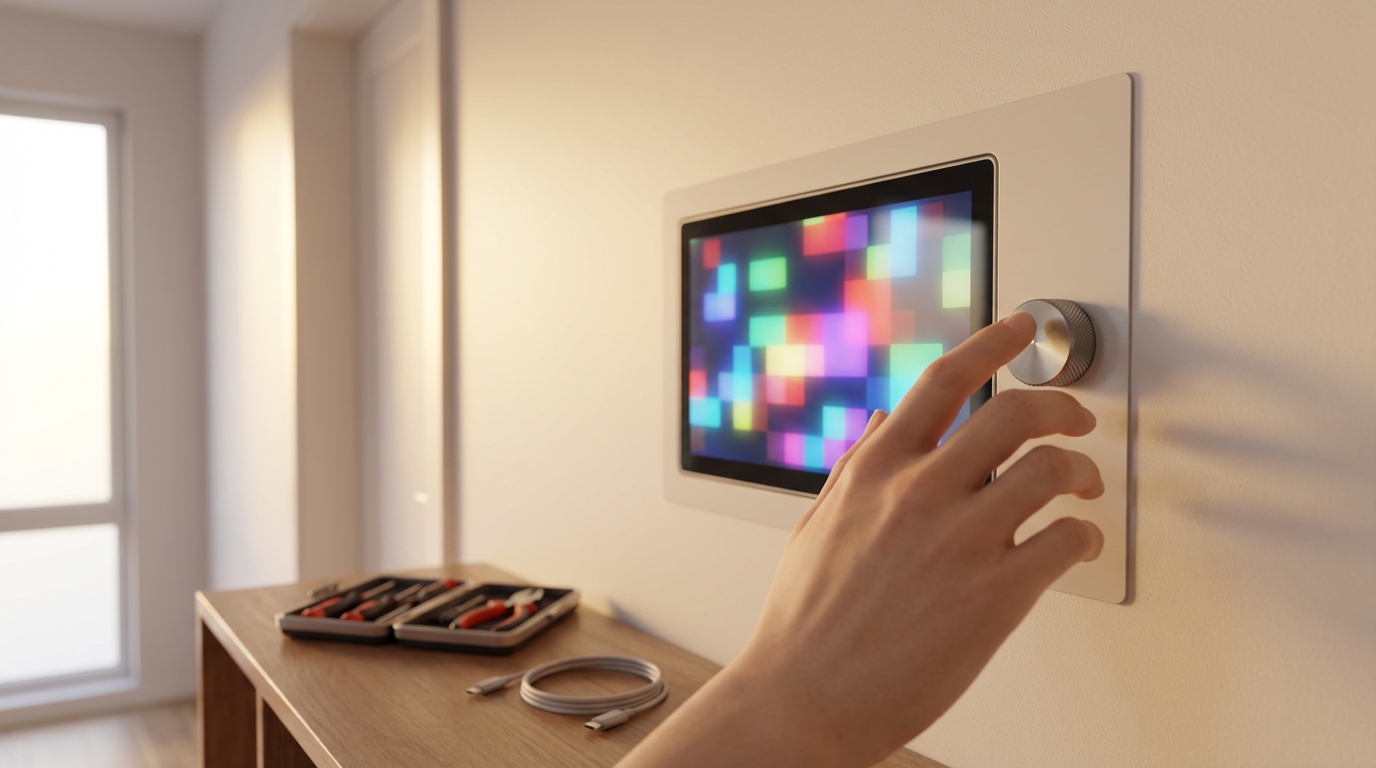
Itemized prerequisites (tools, hardware, software):
- Hardware (fastest path): Android tablet (7″–10″), reliable USB-C charger, USB-A/Bluetooth rotary HID encoder (or BLE knob).
- Hardware (DIY path): Raspberry Pi 4 (2–4GB), official Raspberry Pi 7″ touchscreen or 10″ alternative, microSD (high-endurance) or SSD, rotary encoder HAT or breakout, and optional ESP32/ESP8266 for remote encoder.
- Power: quality PSU with 20–30% headroom (see wiring section). Use short, thick USB-C or barrel cables to avoid voltage drop.
- Software: Home Assistant instance (local or remote), WallPanel or Fully Kiosk for Android tablets, optionally Lovelace kiosk browser for Pi, and ESPHome for remote encoders.
- Tools: screwdriver, multimeter, small wire strippers, USB power meter (recommended), mounting box and wall anchors.
Notes and keywords: this guide assumes you already have a working Getting started with Home Assistant — initial install and onboarding flow or equivalent.
Data note: No reliable data found for universal display compatibility; research next steps:
- Search WallPanel Android app documentation and Fully Kiosk docs for recommended Android versions and touch behavior.
- Check Raspberry Pi official touchscreen specs for compatibility and driver notes.
- Verify tablet model charge specs and whether the device supports sustained charging while mounted.
- Confirm rotary HID compatibility with your tablet/OS (USB/Bluetooth HID support).
Pitfall to avoid: do not skip PSU headroom planning or assume any touchscreen will work without checking drivers and power connectors.
Fastest plug‑and‑play combos for beginners — pick one path and finish today
What to cover: quick, actionable tradeoffs and one recommended validated combo per path.
Paths:
- Tablet path (fastest): Cheap Android tablet + WallPanel app + USB or Bluetooth HID rotary encoder. Pros: minimal wiring, fast to deploy; cons: vendor updates and long-term OS support.
- Pi path (local-first): Raspberry Pi 4 + official touchscreen + rotary HAT or GPIO encoder + optionally ESPHome peripheral. Pros: local control and flexibility; cons: more wiring and SD/OS maintenance.
- Commercial panels: Turnkey options exist (higher cost, closed ecosystems). Good if you want zero tinkering.
Trade-offs to evaluate: local control, performance, longevity, security, and ease of replacement.
Recommendations and links: review Lovelace and dashboard choices in Lovelace dashboard fundamentals — cards, views, and custom views before picking UI layout.
Data note: No reliable data found for price ranges or update lifecycles; research next steps:
- Search “best Android tablet for WallPanel” and check WallPanel GitHub for recommended models.
- Search Raspberry Pi 4 touchscreen kit price and Pi HAT vendor pages for encoder HAT pricing.
- Survey maker forums (r/homeassistant) for long-term reliability reports of tablet vs Pi panels.
Pitfall to avoid: don’t pick a solution that relies on cloud-only features if you require offline operation.
Step-by-step beginner checklist: unbox → mount (printable)
What to cover: linear numbered build checklist with commands/URLs and kiosk + rotary configuration steps.
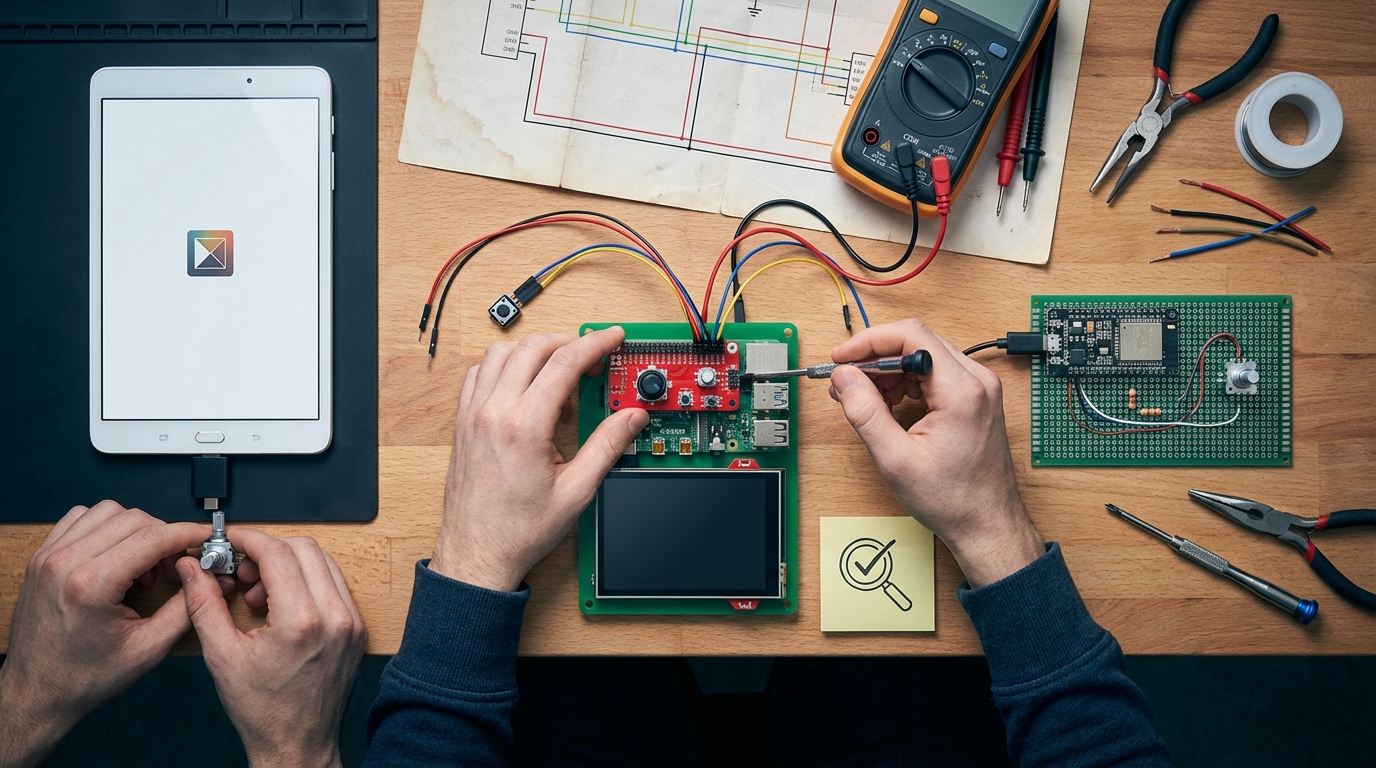
- Inventory and safety check: confirm you have display, PSU, rotary encoder, cables, microSD/SSD, and mounting box. Expected result: all items present.
- Flash or prepare OS:
- Pi path: flash Home Assistant OS or Raspberry Pi OS+browser using balenaEtcher; verify boot and network. Expected: HA accessible at homeassistant.local:8123 (see onboarding link).
- Tablet path: factory reset tablet, install WallPanel or Fully Kiosk from Play Store, grant kiosk permissions, and test browser access to your Home Assistant URL.
- Install kiosk app / enable Lovelace kiosk:
- WallPanel: configure URL and MQTT if using MQTT events for knob actions.
- Fully Kiosk: configure key mapping for HID or JavaScript event forwarding.
- Pi: set up Chromium in kiosk mode or use a dedicated kiosk add-on.
- Rotary encoder wiring options (choose one): USB HID (plug-and-play), ESPHome (ESP32 remote), or Pi GPIO/HAT. Expected: encoder sends CW/CCW/press events to HA.
- Configure HA entities & automations:
- Create scripts to handle CW/CCW steps and clicks (volume, selector, brightness).
- For ESPHome, paste provided YAML (see wiring section) and compile/upload.
- Security/network checks: create a kiosk user, enable TLS, and reserve a DHCP address for the panel. Expected: kiosk authenticates without exposing main account.
- Final mounting prep: test all functions on a benchtop, then mount using the chosen box and anchors. Expected: wall-mounted panel stable and fully functional.
Links for onboarding and deeper setup: refer to Home Assistant Raspberry Pi: 7-Step Best Easy Setup Checklist and ESPHome primer for Home Assistant — sensors, switches, and binary sensors for Pi and ESP steps.
Data note: No reliable data found for exact step commands across all kiosk apps; research next steps:
- Search “WallPanel MQTT setup Home Assistant” for exact MQTT event mapping.
- Search “ESPHome rotary encoder example” and copy tested YAML snippets.
- Check Fully Kiosk key mapping docs for handling HID keyboards and JavaScript API.
Rotary wiring & config diagrams beginners can follow (Pi GPIO, ESPHome, USB HID)
What to cover: three wiring approaches with clear pull-up/pull-down and debounce guidance.
Pi GPIO + rotary HAT
- Wiring: CLK to GPIO, DT to GPIO, SW (push) to GPIO, common to GND. Use Pi internal pull-ups (configure in OS) or a 10k pull-up resistor. Expected: stable pulses per detent.
- Debounce: use software debounce in ESPHome or add a small RC (10k + 100nF) on switch line for hardware debounce.
ESPHome (ESP32/ESP8266) remote encoder
Example snippet for ESPHome (conceptual — adapt pins):
binary_sensor:
  - platform: gpio
    pin: GPIO15
    name: "Encoder A"
  - platform: gpio
    pin: GPIO2
    name: "Encoder B"
sensor:
  - platform: rotary_encoder
    name: "Knob"
    pin_a: GPIO15
    pin_b: GPIO2
    resolution: 4
    filters:
      - delayed_on: 10ms
Expected: ESPHome publishes events to HA locally; use local automations.
USB / Bluetooth HID encoder
- Plug encoder into tablet/USB hub. Confirm it appears as a keyboard or HID device that sends keycodes for CW/CCW/press.
- Map keycodes to HA actions via WallPanel or Fully Kiosk key mapping or via a local automation listening for key events.
Electrical notes: typical detents are 20–30 pulses per revolution (PPR) or higher; choose resolution and automation steps accordingly. No reliable data found for universal PPR recommendations; research next steps:
- Search maker forums for common PPR values used for volume vs selector knobs.
- Search “rotary encoder debounce circuit” for hardware debounce patterns and resistor/capacitor values.
- Search “ESPHome rotary encoder example YAML” for tested configurations.
Pitfall to avoid: missing pull-up/pull-down or debounce leads to ghost steps.
Kiosk app mapping: how to map rotary actions to Lovelace controls and automations
What to cover: mapping CW/CCW/press to MQTT events, HID keycodes, or direct entity calls; Lovelace examples (volume, media_player step, cycling scenes).
Mapping options:
- MQTT events from WallPanel or ESPHome: subscribe in HA and call scripts/services on event payload.
- HID keycodes: map keys to JS events in Fully Kiosk or to browser-based key listeners in Lovelace.
- Direct API: send REST calls from kiosk app to HA for quick entity changes (requires auth token secure handling).
Example Lovelace script (pseudo)
script:
  knob_volume_up:
    sequence:
      - service: media_player.volume_set
        data_template:
          entity_id: media_player.living_room
          volume_level: "{{ state_attr('media_player.living_room','volume_level') | float + 0.05 }}"
Kiosk settings to avoid: screen sleep, gesture captures that steal knob focus, and aggressive battery optimization on tablets.
Resources: check mapping pages and examples for WallPanel and Fully Kiosk (consult their official docs). No reliable data found for universal keycode mappings; research next steps:
- Check WallPanel GitHub and Fully Kiosk documentation for HID/event mapping examples.
- Search maker threads for JavaScript listeners in Lovelace that translate key events to service calls.
Verification & printable pre‑mount checklist — test these before you seal the wall
What to cover: concrete tests (rotary step count/stability, touch, Wi‑Fi, HA connectivity) and a one-page printable checklist.
Verification tests (run these and mark PASS/FAIL):
- Rotary step test: rotate 10 full turns; count reported steps in HA — PASS if counts match expected PPR × turns. If you see jitter, do: “If you see ghost steps, enable debounce in ESPHome or add RC hardware debounce.”
- Push button test: press 20 times and confirm single event per press. If double events, add 50–100ms debounce.
- Touch test: tap all edges of screen and confirm Lovelace responses; if unresponsive, check touch driver or cable seating.
- Offline test: disconnect internet and reboot HA; confirm local automations (ESPHome or scripts) continue to run.
- Power test: measure voltage at device under load; ensure PSU provides stable voltage with >20% headroom.
Printable one-page checklist
- [ ] Inventory complete
- [ ] PSU and cables tested
- [ ] Kiosk app loads Home Assistant UI
- [ ] Rotary encoder sends CW/CCW/press events
- [ ] Debounce stable (no ghost steps)
- [ ] Automations triggered by knob mapped and tested
- [ ] Local fallback tested (ESPHome or scripts)
- [ ] Mounting hardware and security checks done
- [ ] Backup image saved and labeled
Security checks: set TLS, create restricted kiosk user, and document recovery steps. For more HA setup and resilience tips, see Securing Home Assistant — local access, SSL, and user roles.
Data note: No reliable data found for best-practice verification metrics; research next steps:
- Search maker forum posts for common verification steps and sample logs.
- Collect typical voltage/drop numbers for your exact touchscreen and Pi model from vendor pages.
Real-world failures and recovery: avoid a brick on the wall
What to cover: common failure modes, local-first recovery strategies, and maintenance tips.
Common failure modes and mitigations:
- Encoder jitter — mitigation: enable software debounce or add hardware RC; reduce GPIO noise by shortening wires.
- Kiosk browser crash — mitigation: run a watchdog service to restart kiosk or Chromium on failure.
- SD card corruption (Pi) — mitigation: use SSD or high-endurance microSD and schedule read-only overlays or frequent backups.
- Wi‑Fi dropout — mitigation: reserve a local fallback (ESPHome local automations) and consider captive VLAN for stability.
Recovery plan checklist:
- Local watchdog running (auto-restart kiosk).
- ESPHome device fallback for core controls (lights/locks).
- Power UPS or high-quality PSU to avoid brownouts.
- Weekly health-check automation to send heartbeat into HA logs.
Maintenance tips: capture logs, keep a backup image, and prefer scheduled reboots only if necessary — prefer watchdogs. For robust Pi builds, refer to ESPHome primer for Home Assistant — sensors, switches, and binary sensors.
Data note: No reliable data found for failure rates or exact card lifespans; research next steps:
- Search “SD card corruption Raspberry Pi mitigation” for best practices.
- Search “ESPHome fallback automations” for examples of local-first redundancy.
- Search “watchdog service Home Assistant” for recommended patterns.
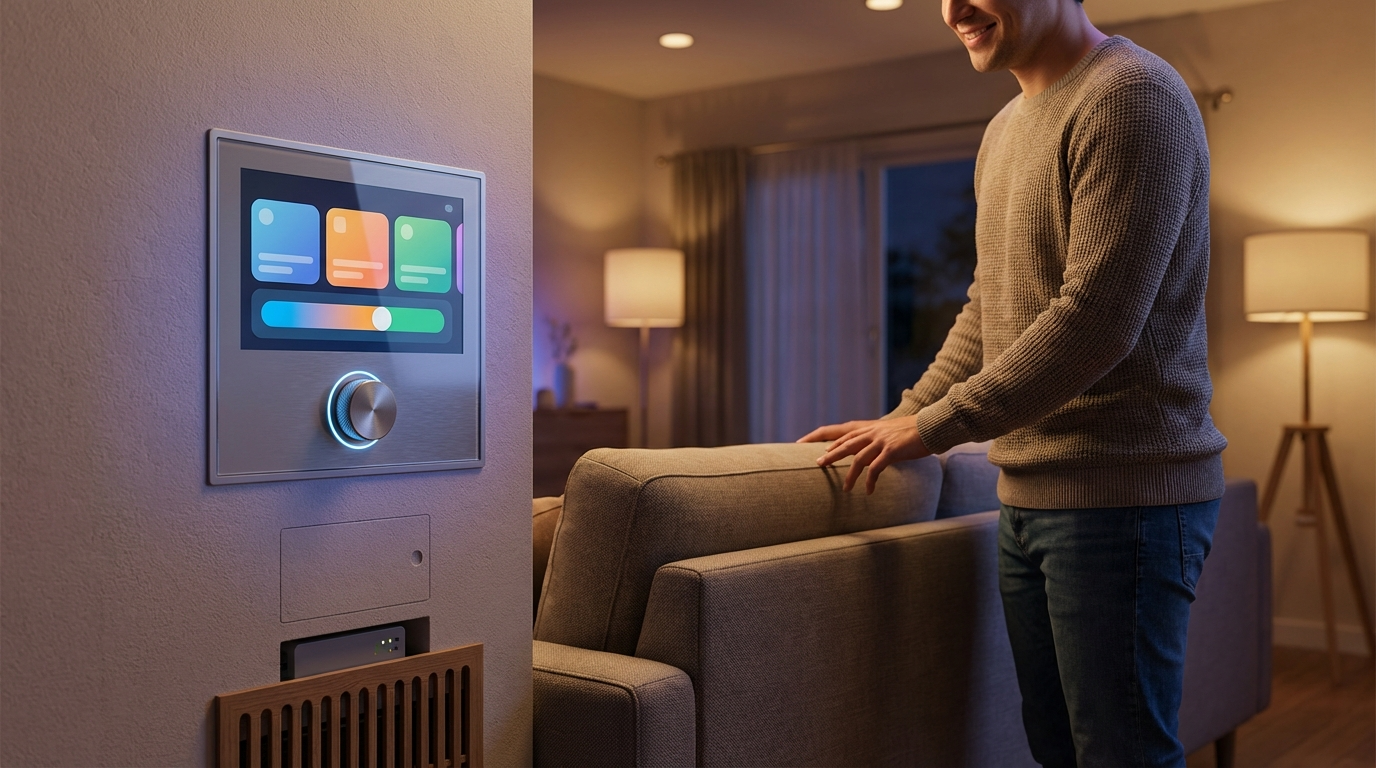
Quick buyer’s specs & numbers to compare (costs, CPU/RAM, PSU, encoder specs)
What to cover: cost buckets, recommended CPU/RAM/storage, power draw expectations, and encoder specs (detents, PPR).
- Cost buckets (guidance, not exact prices): low = tablet + encoder; medium = Pi kit + touchscreen + encoder; high = commercial panel.
- Recommended minimums: tablet with responsive UI (no specific model recommended here); Pi 4 with 2–4GB for responsive local dashboard; SSD or high-endurance microSD for storage.
- PSU headroom: allow 20–30% over measured draw; test with USB power meter.
- Encoder specs: prefer detented encoder for tactile steps; choose PPR based on use (lower PPR for volume, higher for fine selection).
Latency/refresh expectations: test by rotating and timing HA response; aim for sub-150ms perceived latency for good UX.
Data note: No reliable data found for hard numbers; research next steps:
- Compile vendor specs for Pi touchscreen HATs and PSUs from Raspberry Pi Foundation and HAT vendors.
- Survey community builds for measured latency and responsiveness.
Pitfall to avoid: giving hard numbers without source — measure your specific hardware before finalizing.
Conclusion
Beginner-friendly wall panel projects are achievable: pick the tablet + WallPanel + USB/Bluetooth HID encoder path for speed, or the Raspberry Pi + touchscreen + rotary HAT for local-first control. Follow the checklists, run the verification tests, and implement a watchdog and fallback automations so your wall panel home assistant rotary remains responsive and recoverable. Compare paths, read the linked setup guides above, and subscribe to community threads for device-specific notes.
FAQ
Can I use any Android tablet as a wall panel?
Yes for basic kiosk use, but check power delivery, touch responsiveness, WallPanel/Fully Kiosk compatibility, and long-term update policy before committing.
Do I need an ESPHome device to make a rotary encoder work?
No — you can use USB/Bluetooth HID encoders or Pi GPIO with a HAT; ESPHome is the common low-cost local option for remote encoders.
How do I stop rotary encoder jitter or ghost steps?
Use hardware or software debouncing (ESPHome debounce settings or a small RC circuit), correct pull-ups/pull-downs, and test PPR settings.
Which kiosk app is best: WallPanel or Fully Kiosk?
Both work; WallPanel is popular and open-source-friendly for MQTT, Fully Kiosk offers more commercial features — choose based on needed features and privacy preferences.
What power supply do I need for a Pi-based panel?
Pick a PSU with 20–30% headroom over measured draw (e.g., Pi4 plus touchscreen typically needs a quality 3–5A USB-C supply), and test with your exact peripherals.
How do I ensure the panel is usable during Wi‑Fi or HA outages?
Implement local fallback automations (ESPHome local logic), watchdog/reboot strategies, or keep core functionality on the panel via local controllers.
Is a rotary encoder a good input for all automations?
It’s ideal for incremental controls and cycling selections, but for precise numeric input or text entry, prefer touch input or dedicated interfaces.