

simplisafe smart lock — this checklist shows exactly how to confirm compatibility, avoid returns, and finish a DIY install with one uninterrupted session.
If you’re a homeowner, renter, or small property manager deciding whether to buy or install a SimpliSafe Smart Lock, read this start-to-finish buyers-comparison checklist and installation playbook before you click “buy.”
Key Takeaways
- Pre-check first: You must confirm your system is Gen 3 and have the SimpliSafe app/account active before buying — the SimpliSafe Smart Lock requires a Gen 3 base (see SimpliSafe support; Gen 3 requirement) (support.simplisafe.com — 2025-05-01).
- Install order matters: Do the physical mount first, then pair using the system keypad Menu > Devices > Add Smart Lock, then force any firmware updates before final keypad/user setup — typical full install runs 3–15 minutes (YouTube — 2023-10-01).
- Retain manual fallback: The SimpliSafe Smart Lock mounts over your existing single‑cylinder deadbolt and keeps the physical key/thumbturn for manual use — test the tailpiece adapter fit pre-buy and keep a physical key accessible for dead battery or comms failures (YouTube — 2023-10-01).
- Pre-purchase compatibility checklist to guarantee a smooth SimpliSafe smart lock install
- Exact step-by-step physical mount first, then pairing — the 8‑step install order that minimizes retries
- Install verification & secure-communication checklist so you know the lock is truly online
- Tailpiece adapter & deadbolt fit checklist — avoid the 1st-day incompatibility return
- Real-world failure-mode playbook — exactly how to troubleshoot dead batteries, comms dropouts, and warped doors
- What we don’t yet know (and what to research next) — door measurements, ANSI/BHMA grading, battery life & pricing benchmarks
- Buyers’ comparison cheat-sheet — how SimpliSafe stacks vs. August, Schlage, Yale, Kwikset for real purchase decisions
- Printable after‑buy checklist & 1‑page on‑door quick reference (what to keep taped inside the door frame)
- Conclusion
- FAQ
Pre-purchase compatibility checklist to guarantee a smooth SimpliSafe smart lock install
Start here. Use this checklist before you order to avoid returns and pairing headaches.
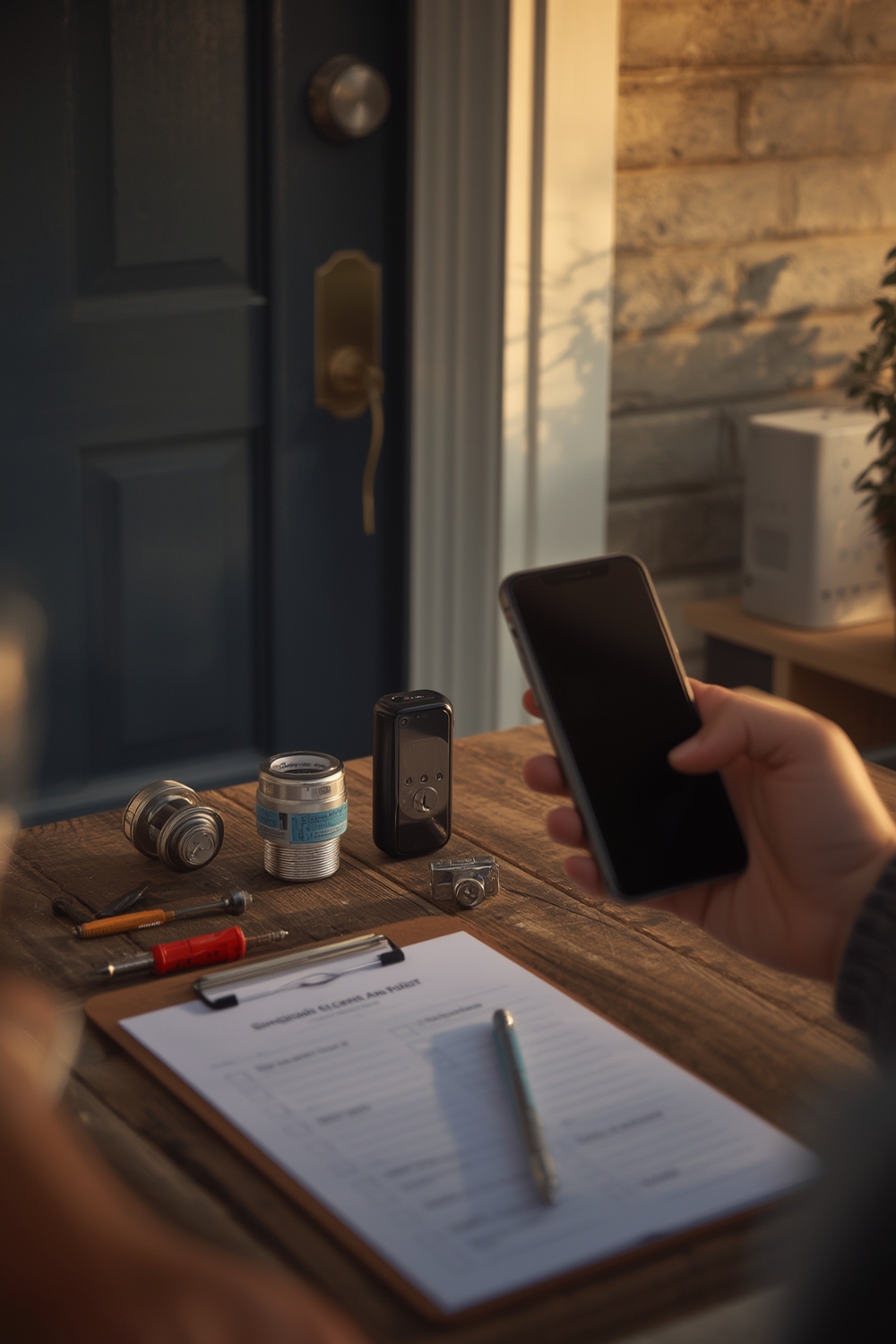
Must-have system checks
- Confirm Gen 3 requirement: the SimpliSafe Smart Lock requires a Gen 3 SimpliSafe system and an active SimpliSafe app/account before pairing — verify your Base Station is Gen 3 and online (support.simplisafe.com — 2025-05-01).
- Sign into the SimpliSafe Mobile App on your phone and confirm your Base Station appears and shows current firmware (you’ll need this to add the lock later).
Door & deadbolt quick visual tests (do these now)
- Confirm you have a single‑cylinder deadbolt (key outside, thumbturn inside). SimpliSafe installs over that style without drilling in most cases (YouTube — 2023-10-01).
- Photograph the inside thumbturn, outside cylinder, and strike plate. Save these photos for returns or contact with support.
- Measure or note: door material, visible gap between deadbolt tailpiece and inside faceplate, and whether the inside thumbturn is multi‑turn or non-standard.
Tools and site prep
- Tools list: Phillips head screwdriver + painter’s tape. Most installs use screws; adhesive keypad is optional (support.simplisafe.com — 2025-05-01).
- Painter’s tape: mark strike plate/edge positions to avoid scuffs when testing the latch alignment.
Photos to keep for returns or support requests: inside thumbturn, outside cylinder, full door edge showing strike plate, and a close-up of the deadbolt tailpiece. These accelerate support & refunds.
Pitfall to avoid: Buying before confirming Gen 3 or before signing into the SimpliSafe app — this causes pairing failures and wasted returns.
Exact step-by-step physical mount first, then pairing — the 8‑step install order that minimizes retries
This is the one-session sequence to follow. Do all physical mounting and manual tests before attempting to pair.
- Secure outside cylinder — make sure the outside keyed cylinder is tight and cannot rotate freely; this prevents tailpiece slippage during adapter fit (YouTube — 2023-10-01).
- Remove inside thumbturn — remove the screw holding your thumbturn and take the inside plate off to expose the tailpiece.
- Attach mounting plate — line up the plate over the outside cylinder and secure with the included screws; keep screws snug but avoid overtightening.
- Fit color-coded tailpiece adapter — choose the adapter that matches your tailpiece profile and slide it onto the tailpiece; test rotation by hand.
- Place the lock body — slot the lock onto the mounting plate over the adapter, ensuring it sits flush.
- Secure with wing latches — engage the wing latches and make small adjustments; misaligned wings are the top cause of retries (YouTube — 2023-10-01).
- Mount the keypad — attach the adhesive or screw-mount keypad on the inside per template; temporary painter’s-tape position is fine for renters.
- Manual function test — before pairing, test manual turn with the physical key and thumbturn; confirm the deadbolt extends/retracts smoothly (YouTube — 2023-10-01).
Now pair:
- On your SimpliSafe keypad: Menu > Devices > Add Smart Lock. Follow prompts to add to your Gen 3 system. If the Base Station firmware is not current, update it first to avoid pairing failures (YouTube — 2023-10-01).
- After pairing, force any firmware update the app offers for the lock before creating user PINs or automations.
Estimated time: 3–15 minutes for an end-to-end session if pre-checks are complete (YouTube — 2023-10-01; YouTube — 2023-10-01).
Pitfall to avoid: Misaligning wing latches/mount plate or attempting to pair before the Base Station is updated — both cause pairing stalls and repeated tears-down.
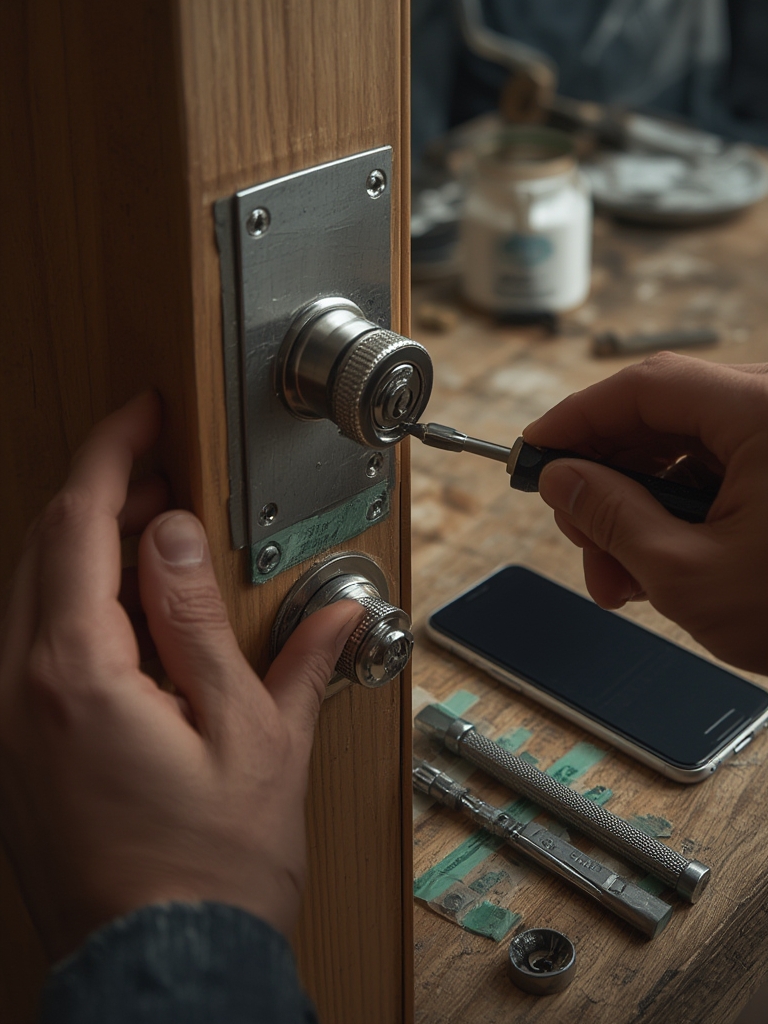
Install verification & secure-communication checklist so you know the lock is truly online
After pairing, verify every step below before you finish.
Manual checks first
- Manual turn: use the inside thumbturn and outside key to lock/unlock three times. If binding occurs, unmount and re-check adapter alignment (YouTube — 2023-10-01).
App & system confirmation
- Open the SimpliSafe app and confirm the new device appears in Devices. Use the keypad Menu > Devices > and verify the lock shows as “online” in the system menu (YouTube — 2023-10-01).
- Test remote lock/unlock from the app and from the keypad PIN entry. Wait 10–20 seconds between commands to confirm stable communication.
- Check firmware: if the lock shows a pending firmware update, apply it immediately and re-run the lock/unlock tests.
Logs & device status
- Confirm the app logs show the pairing event and the last lock/unlock events. If the app lacks logs, re-check account/device permissions and Base Station connectivity.
Pitfall to avoid: Skipping the firmware update after pairing — leaves the lock in a partial/unreliable state.
Tailpiece adapter & deadbolt fit checklist — avoid the 1st-day incompatibility return
Do this three-point fit test with photos before you buy.
3-point tailpiece fit test
- Photo A: inside thumbturn removed, showing tailpiece length and shape.
- Photo B: outside cylinder with key inserted (scale with a ruler or coin for size reference).
- Photo C: strike plate view showing bolt direction and spacing.
SimpliSafe supplies color-coded adapters for common single‑cylinder tailpieces; verify your photos against the adapter shapes before purchase (YouTube — 2023-10-01).
If your deadbolt is non-standard
- Renters: use the temporary-install method — mount with painter’s tape first, test operation, then choose adhesive keypad or leave as temporary for landlord approval.
- Landlord talk script: “I want to install a SimpliSafe Smart Lock that mounts over the existing deadbolt and preserves the physical key. I’ll provide photos and will restore the original hardware on move-out.”
Pitfall to avoid: Assuming “works with any deadbolt” — multi‑turn thumbturns and slim tailpieces commonly fail adapter fit.
Real-world failure-mode playbook — exactly how to troubleshoot dead batteries, comms dropouts, and warped doors
Symptoms, root causes, fixes, and when to escalate.
Immediate-symptom checklist
- No response from keypad: use physical key/thumbturn to secure entry.
- Intermittent remote control: check Base Station connectivity and firmware mismatch.
- Physical binding: test manually for door warp or misaligned strike plate.
Root causes & fixes
- Dead batteries — temporary fix: use manual key. Replace batteries per SimpliSafe guidance (no reliable battery-life months found; see H2-6 for research next steps).
- Base Station/firmware mismatch — fix: verify Base Station is Gen 3 and update firmware before pairing (support.simplisafe.com — 2025-05-01).
- Poor wireless link — move Base Station or use ethernet for the hub; re-pair after updates.
- Mechanical jam from warped door — unmount and check tailpiece alignment; do not forcibly remove the lock if under tension.
When to escalate
- Replace hardware: if hardware fails after re-install and firmware updates, contact support with the photos saved earlier.
- Service call: if door warp causes repeated binding and you lack tools to correct strike plate alignment.
Temporary rental-safe procedures: keep a labeled spare key in a locked on-site box or with a manager, maintain a guest PIN lifecycle (issue, revoke, rotate), and document the fallback plan in your rental listing notes.
Pitfall to avoid: Panic-removing the entire lock during a jam — use the manual key fallback instead to avoid damaging the adapter or finish (YouTube — 2023-10-01).
What we don’t yet know (and what to research next) — door measurements, ANSI/BHMA grading, battery life & pricing benchmarks
We verified install flow and Gen 3 dependency, but several hard specs are not publicly confirmed. Do not publish hard numbers without vendor confirmation.
- No reliable data found on exact door thickness/backset compatibility range, ANSI/BHMA grade, battery-life months under typical use, pairing range in feet, or current street price/warranty dates — mark these as “No reliable data found” until vendor specs or lab tests are available.
- Research next steps for editor authorization:
- Contact SimpliSafe product team for a full spec sheet and deadbolt compatibility chart.
- Request lab tests or retailer-confirmed street price history.
- Run a small field test for battery drain over X cycles to produce a reliable battery-life estimate.
Pitfall to avoid: Publishing hard numbers sourced from third‑party reviews without vendor confirmation — leads to inaccurate buyer expectations.
Buyers’ comparison cheat-sheet — how SimpliSafe stacks vs. August, Schlage, Yale, Kwikset for real purchase decisions
Quick decision points for common use cases.
- Ecosystem & protocols: SimpliSafe Smart Lock requires a Gen 3 SimpliSafe system; there is no verified public data here on direct HomeKit or Z-Wave parity — No reliable data found for encryption, ANSI/BHMA grading, or tamper-resistance comparisons (research next) (Research Findings: No reliable data found).
- Keypad vs keyless: SimpliSafe includes an adhesive-mounted keypad option; compare this to competitor keypad/screw-mounted designs when choosing by tenant durability (YouTube — 2023-10-01).
Decision matrix (short)
- Renters: SimpliSafe is attractive because it mounts over your existing deadbolt and preserves the key; test adapter fit first.
- Families with kids: Use guest PIN lifecycle and app logs (verify logs available in your setup) before relying on remote access for daily school routines.
- Vacation rental hosts: Keep spare physical key, rotate guest PINs, and require Base Station firmware checks before guest arrival.
Pitfall to avoid: Claiming feature parity with competitors on encryption or standards when no verified spec is available.
Printable after‑buy checklist & 1‑page on‑door quick reference (what to keep taped inside the door frame)
One-page, print-ready checklist. Print this and bring it to the door.
- Pre-buy: Confirm Gen 3 Base Station and sign into SimpliSafe app (support.simplisafe.com — 2025-05-01).
- Photo pack: inside thumbturn removed, outside cylinder, strike plate.
- Tools: Phillips screwdriver, painter’s tape.
- 8-step physical install (do all before pairing): secure outside cylinder; remove inside thumbturn; attach mounting plate; fit color-coded adapter; place lock body; secure wing latches; mount keypad; manual test.
- Pair: Keypad Menu > Devices > Add Smart Lock — ensure Base Station firmware is current (YouTube — 2023-10-01).
- Verification: test manual lock/unlock, app lock/unlock, confirm device in Devices list, apply any firmware updates.
- Fallback: keep physical key accessible; label spare key location and guest-PIN policy.
On‑door quick reference card (tape inside frame): Keypad reset steps, spare key location, emergency contact (SimpliSafe support + landlord/manager number).
Print note: this block is single page when printed on A4/Letter with default margins.
Take-to-door collapsible checklist
Pre-buy: confirm Gen 3 and app login. Tools: Phillips screwdriver + painter’s tape. Physical steps 1–8 (secure outside cylinder → manual test). Pair: Menu > Devices > Add Smart Lock. Verify app presence and firmware. Keep physical key accessible.
Pitfall to avoid: Printing a multi-page guide — keep the take-to-door sheet to one page for speed.
Conclusion
Follow the pre-purchase checks, the 8-step physical-first install flow, and the verification tests above to avoid returns and pairing failures. If you confirm your Gen 3 Base Station and test the tailpiece adapter fit, most installs finish in one 3–15 minute session (YouTube — 2023-10-01).
Ready to compare models and next steps? Use this checklist at the door, then decide whether to buy or proceed with installation. Learn more about troubleshooting, battery fallback, and pairing resources before you install your simplisafe smart lock.
CTA: Compare more locks or read detailed troubleshooting guides in our related articles — start with Kwikset Smart Lock Reset: 7 Easy Guide to Avoid Locksmith Fees and the Best Smart Home Devices: 7 Easy Guide to Improve Security.
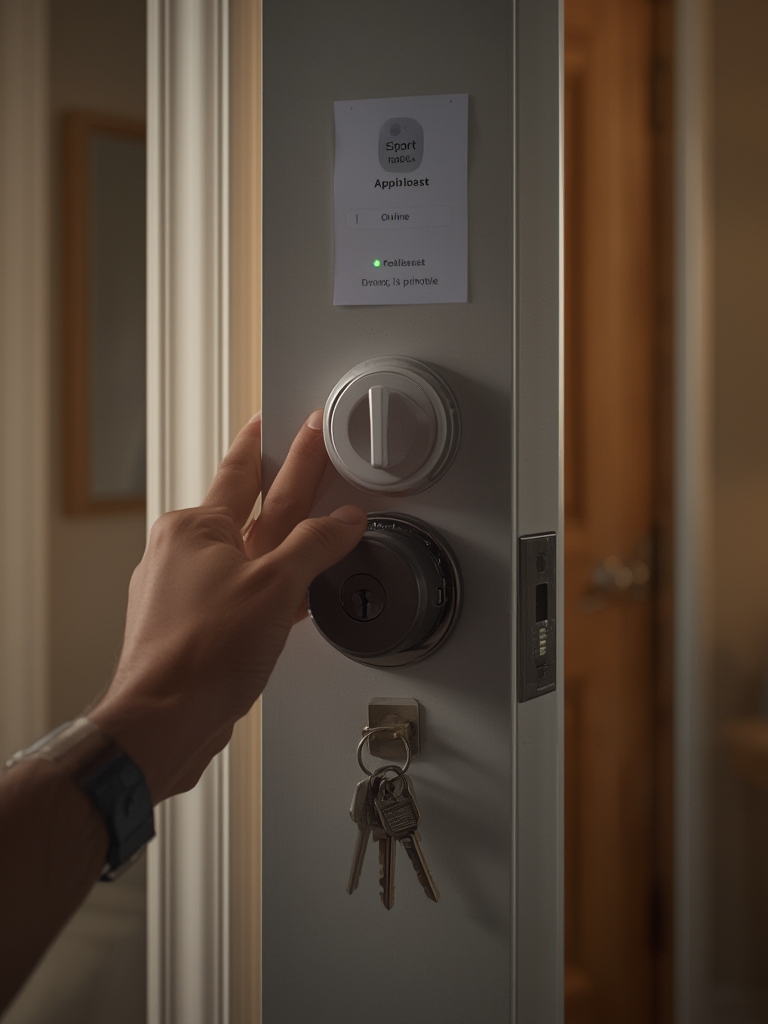
FAQ
Do I need a SimpliSafe base station to use the SimpliSafe Smart Lock?
Yes — the SimpliSafe Smart Lock requires a Gen 3 SimpliSafe system and an active SimpliSafe app/account before pairing (support.simplisafe.com — 2025-05-01).
What tools and prep do I need before attempting installation?
You only need a Phillips head screwdriver and painter’s tape for most installs, plus photos of your current deadbolt for compatibility checks (support.simplisafe.com — 2025-05-01).
How long should the full install and pairing take?
Typical end-to-end install is about 3–15 minutes if pre‑checks are done and Gen 3 firmware is current (YouTube — 2023-10-01).
What should I do if the lock won’t pair after mounting?
Confirm Gen 3 base firmware is up-to-date, retry the device addition via keypad Menu > Devices > Add Smart Lock, and if still failing, use the manual key/thumbturn until support can help (YouTube — 2023-10-01; support.simplisafe.com — 2025-05-01).
Will this replace my physical key?
No — the SimpliSafe Smart Lock installs over most standard single‑cylinder deadbolts and retains the existing key/thumbturn for manual use (YouTube — 2023-10-01).