

home assistant table top touch screen controller is one of the fastest-growing user interfaces for local smart-home control — but shoppers and DIYers face unclear specs, limited public benchmarks, and inconsistent integration notes.
Key Takeaways
- Tabletop touch controllers are valuable for local, glanceable control, but manufacturer specs and market metrics are sparse; rely on hands-on testing and a clear checklist.
- When choosing a device, verify display performance (latency, refresh), boot/network behavior, and Home Assistant compatibility before buying.
- This guide gives a step-by-step setup, a testing checklist, a sample automation flow, and practical troubleshooting steps to avoid common installation mistakes.
Section 1: The Core Concept
What is a tabletop touch controller and why use one? A tabletop touch controller is a small, dedicated touchscreen device placed on a counter, desk, or nightstand to provide always-available, local control of Home Assistant dashboards, automations, and media. People use them for quick scene activation, presence-aware panels, and as secure local access points when voice or phone apps are inconvenient.
Market research on the general smart home automation market is available, but none of the standard industry reports provide reliable, device-level metrics specifically for tabletop touch controllers. For example, broad industry forecasts cover smart-home systems and packages but do not break out tabletop controller unit sales or ASPs in public tables (Precedence Research, Mordor Intelligence). Similarly, integrated smart-home package values are reported in some forecasts, but they do not substitute for per-device pricing and unit data (Intel Market Research).
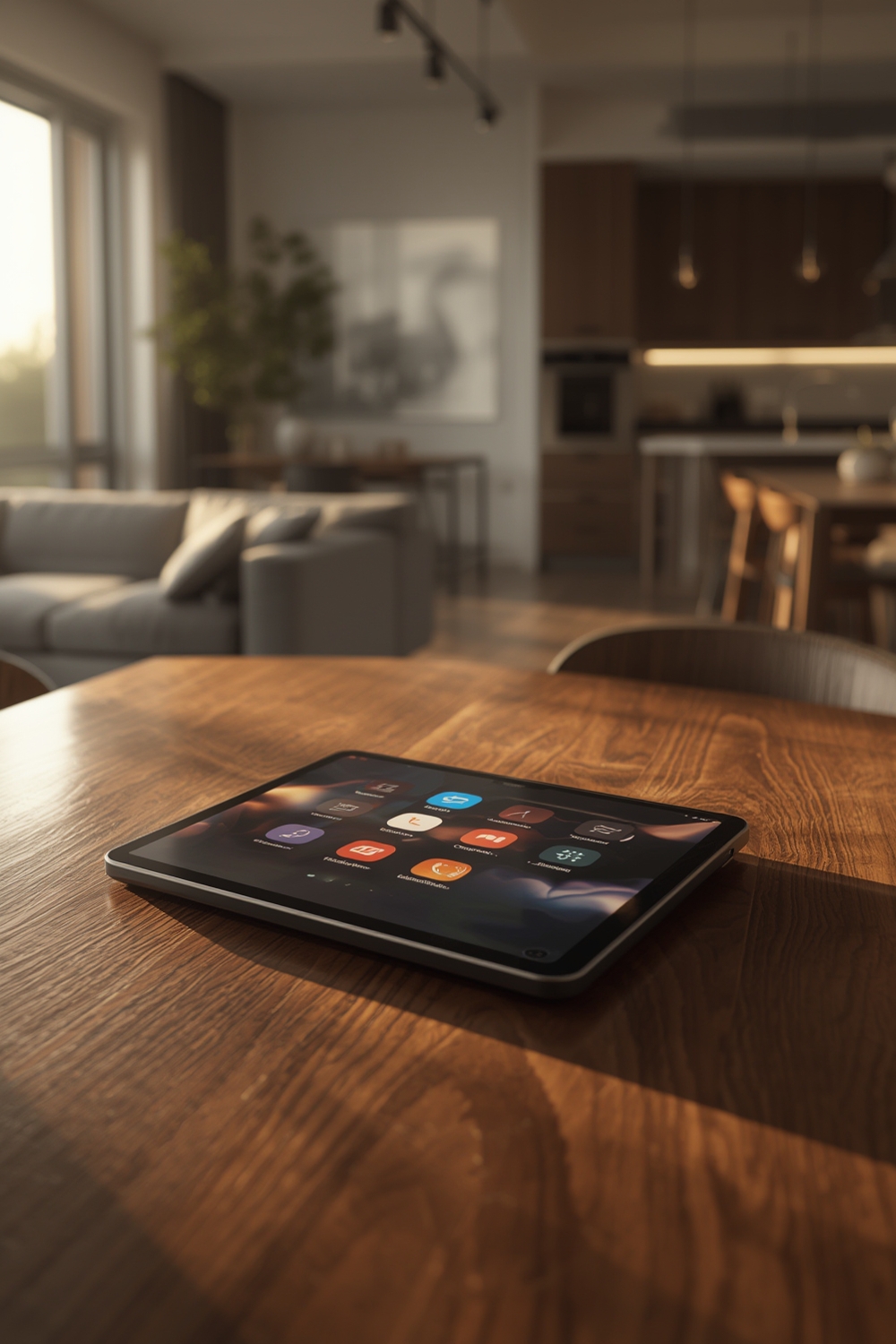
Key limitation to accept up front: because independent device benchmarks and uniform reporting are limited, this guide focuses on practical testing steps, a metrics checklist you can apply to any candidate device, and concrete Home Assistant setup workflows rather than claiming market-level numeric estimates.
Section 2: Step-by-Step Guide
This section walks a beginner through choosing, preparing, and integrating a tabletop touchscreen with Home Assistant. It assumes you will use Home Assistant as the automation server (local or remote) and a Linux/Android-based touchscreen or Raspberry Pi-derived panel as the client.
Step A — Decide form factor and OS
- Portable vs. fixed: choose a battery model for portability; prefer PoE or DC wall supply for stationary placement.
- Operating system: Android tablets and Raspberry Pi touchscreen HATs are common. Android gives vendor drivers and Google compatibility; Raspberry Pi with Debian/Ubuntu allows full control and Home Assistant Companion or kiosk browser.
Step B — Key specs to verify before buying
Use this checklist when comparing models. Measure or request these values from the seller if not published:
- Display size and native resolution (e.g., 7″, 10″, 1280×800, 1920×1200).
- Touch latency and reported polling rate (ms or Hz).
- Refresh rate (60 Hz common; higher helps animations).
- CPU, RAM, and storage (for local dashboards, prefer >=2 GB RAM).
- Boot time to usable dashboard (seconds).
- Network interfaces: Wi‑Fi (band and MIMO), Ethernet, Bluetooth.
- PoE support or power adapter type.
- Battery life and charging method for portable units.
- Firmware update cadence and end-of-life (EOL) policy.
Step C — Install Home Assistant frontend on the panel
Option 1 — Android tablet:
- Install the Home Assistant Companion app from Play Store or use Chromium in kiosk mode.
- Set the tablet to auto-launch the dashboard URL (example: your HA URL or local IP) on boot.
- Disable aggressive battery optimizations and auto-sleep.
Option 2 — Raspberry Pi or Linux SBC with touchscreen:
- Flash a minimal OS (Raspberry Pi OS or Ubuntu), update packages, and install Chromium.
- Create a systemd service or autostart entry to launch Chromium in kiosk mode pointed at your Lovelace dashboard.
- Configure virtual keyboard if required and set display scaling.
Example automation — bedside scene button
- Create a Lovelace button card called “Goodnight”.
- Create an automation in Home Assistant:
alias: Goodnight Button Press
trigger:
  - platform: device
    device_id: YOUR_DEVICE_ID
    domain: button
    type: pressed
action:
  - service: scene.turn_on
    target:
      entity_id: scene.goodnight
  - service: light.turn_off
    target:
      entity_id: group.downstairs_lights
If the panel fails to load the dashboard: check network (ping the HA server), verify the URL and SSL certs, and temporarily open the dashboard on a laptop to confirm Home Assistant is healthy. If touch doesn’t register, test with a mouse—if mouse works, it’s a driver or calibration issue.
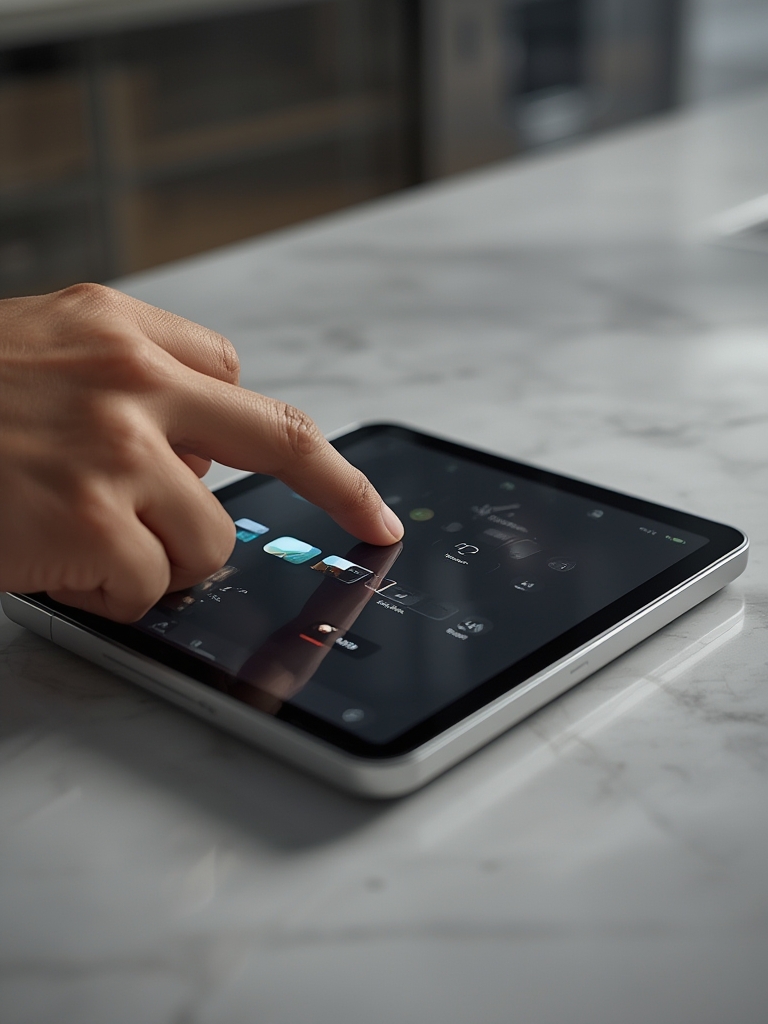
Step D — Secure the panel
- Place the panel on a VLAN or separate Wi‑Fi SSID if you are concerned about device security.
- Use Home Assistant long‑lived access tokens for app integrations and avoid embedding permanent tokens in the kiosk URL.
- Enable automatic operating system and browser updates where possible.
Step E — Routine maintenance
Schedule weekly checks: ensure the panel receives updates, confirm boot time, and validate automations. Create an alert in Home Assistant for “panel offline” using device_tracker or ping integration.
Section 3: Advanced Analysis & Common Pitfalls
Because published device-level benchmarks are rare, the most reliable strategy is to run a short list of tests yourself and document results. Industry sources confirm the lack of granular device metrics in public market reports — the major market forecasts cover broad segments rather than specific tabletop controllers (MarketResearch.com, Precedence Research).
Common pitfalls and how to avoid them:
- UI responsiveness: Slow boards (low RAM/weak CPU) struggle with complex Lovelace builds. Test with a simple view and expand only after confirming smooth scroll and button response.
- Power and placement: Portable units drain quickly with bright screens. For fixed use, avoid USB wall warts with flaky connectors — prefer a quality DC adapter or PoE where supported.
- Boot & recovery: Some manufacturers push slow firmware updates. Keep a backup image or documented steps to reflash the OS.
- Privacy & security: An always-on panel exposes presence and activity. Use screen locks for sensitive controls and place privacy screens if needed.
Interoperability with other ecosystems is primarily a function of Home Assistant, not the panel itself. Home Assistant acts as the bridge to Alexa, Google, Matter, Zigbee, Z‑Wave, and Thread—meaning most tabletop panels simply render the dashboard and rely on the server’s integrations. General market reports note Thread and voice control adoption trends but do not provide controller-specific performance data (Mordor Intelligence, Intel Market Research).
| Test | What to measure | Pass criteria |
|---|---|---|
| Touch latency | Time from touch to UI reaction (ms) | <100 ms for responsive feel |
| Boot time | Seconds until dashboard usable | <30 seconds recommended |
| Network reconnection | Time to reconnect after Wi‑Fi drop | <15 seconds |
Known limitations: vendors may not publish firmware update cadence or EOL dates. When you cannot find official support information, assume limited long-term support and plan for OS-level control (rootable devices or single-board computers) to extend useful life.
For certification and integration signals, look for “Works with Home Assistant” notes. Home Assistant’s event recaps and certification notes are useful to track ecosystem compatibility trends (Home Assistant blog).

Conclusion
Tabletop touch controllers give Home Assistant users a simple, local control surface — but because reliable device-level market metrics and standardized specs are scarce, your decision should be driven by targeted testing and verification of the key metrics listed here. Use the checklist above, test touch and boot performance, and prefer panels that allow OS-level control or easy reimaging for long-term support.
Want to learn more about related smart-home topics? See our guides on Home Assistant Raspberry Pi: 7 Easy Guide To Avoid Mistakes, choosing a Home Automation Hub: 7 Best Guide to Improve Security, and installing a Smart Thermostat Installation: 5 Easy Steps to Save Money. If you worry about wiring or locks after setting up panels, our Best Smart Light Switch: 7 Proven Checklist To Avoid Mistakes and Kwikset Smart Lock Reset: 7 Easy Guide to Avoid Locksmith Fees guides are practical next reads.
If you want more hands-on comparisons, subscribe below to get our device test reports and downloadable checklists for evaluating any home assistant table top touch screen controller.
FAQ Section
What minimum specs should I look for in a tabletop controller?
Look for at least 2 GB RAM, a 60 Hz display, low touch latency (preferably <100 ms), stable Wi‑Fi, and the ability to auto-launch a browser or Home Assistant app on boot.
Can any Android tablet work as a Home Assistant panel?
Yes — most Android tablets can run the Home Assistant Companion app or a browser in kiosk mode, but check for power management settings and touch responsiveness before finalizing purchase.
Do these controllers require the internet to work with Home Assistant?
No. If Home Assistant and the controller are on the same local network, the dashboard and automations can run locally. Internet is only required for cloud integrations and remote access.
How do I secure a bedside panel from accidental presses?
Use a dedicated “cover” Lovelace card or add a simple PIN-protected script that hides controls. Place sensitive controls behind an authenticated Home Assistant view.
Where can I find official compatibility notes for specific controllers?
Check the device vendor pages and the Home Assistant integration documentation; also watch for “Works with Home Assistant” announcements in the Home Assistant blog and community forums.