

feit smart plug — a budget-friendly way to add remote control to lamps, holiday lights, and small appliances. This guide gives a practical, checklist-led install and buy decision flow so you can confirm prerequisites, install without errors, link voice assistants, and weigh the real budget tradeoffs before you buy.
Key Takeaways
- Confirm these hard prereqs before purchase: 2.4 GHz Wi‑Fi only, phone running iOS 11+/Android 6.0+, and create a Feit app account; failure to do so is the most common cause of pairing failure (Feit support). (Source: Feit Help — 2023-01-01)
- For safety and load planning use the device’s 15A rating as a hard limit — do not put heaters/large motors on a single plug; check outdoor models for weatherproof outlet use. (Source: Feit spec PDF — 2021-01-01)
- Expect gaps in public data (standby draw, latency, firmware cadence, price trends); the checklist calls out what to measure at home so budget buyers can compare real TCO vs midrange plugs.
- Preflight: Confirm your router, phone and outlet are Feit‑pairing ready
- Router & signal preflight for Feit smart plug (how to check dBm and avoid 5 GHz traps)
- Step‑by‑step unbox → pair checklist (LED patterns, app flow, and first‑use checks)
- Physical placement & electrical safety checklist (prevent overloads and weather issues)
- Linking to Alexa/Google and verifying voice control (avoid routine failures)
- Budget tradeoffs & TCO quick calculator for Feit smart plug buyers
- Priority troubleshooting checklist for offline plugs, Alexa failures, and multi‑plug flakiness
- Printable 1‑page Feit smart plug preinstall & install checklist (ready to print)
- Conclusion
- FAQ
Preflight: Confirm your router, phone and outlet are Feit‑pairing ready
Before you buy or plug in a Feit smart plug, confirm three hard prerequisites so pairing succeeds on the first try.
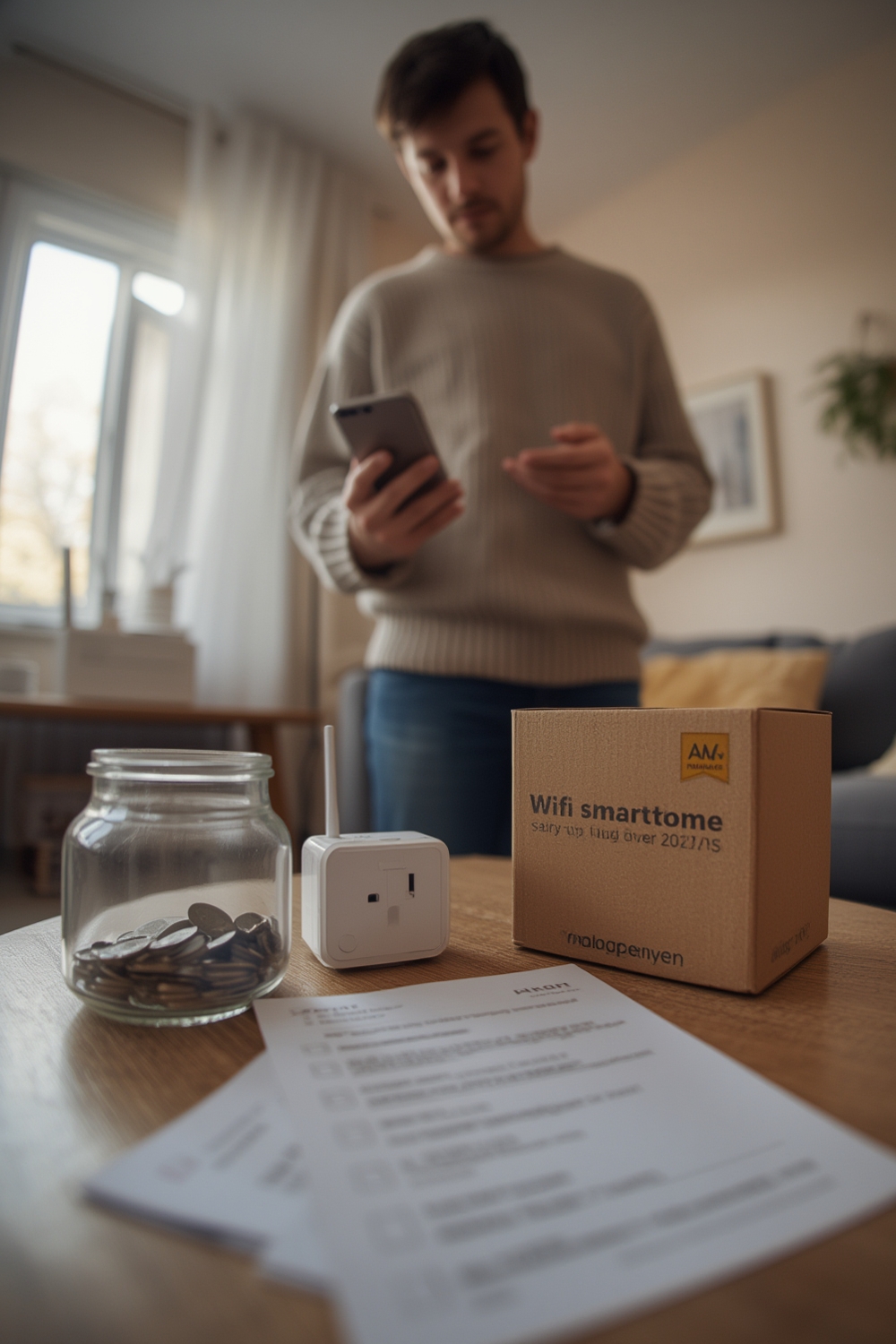
Checklist (quick):
- Wi‑Fi band: Confirm your router is broadcasting a 2.4 GHz SSID and your phone is connected to that SSID — Feit smart plugs require a 2.4 GHz Wi‑Fi network only (Feit Help — 2023-01-01).
- Phone OS: iOS 11.0+ or Android 6.0+ (documented minimums) — update your phone if needed (Feit Help — 2023-01-01).
- Feit app account: Download the Feit Electric app and create or log into an account before pairing.
- Outlet type: Use an outdoor-rated outlet for outdoor SKUs and standard indoor outlets for indoor SKUs.
Pitfalls to avoid: trying to pair while your phone is on a 5 GHz SSID, leaving a VPN active, or skipping the app account step (these are the most common causes of pairing failure cited in Feit support).
Router & signal preflight for Feit smart plug (how to check dBm and avoid 5 GHz traps)
Feit smart plugs only support 2.4 GHz. Confirm band, check signal, and plan for mesh quirks before pairing.
How to confirm 2.4 GHz vs 5 GHz:
- Look at your phone Wi‑Fi settings — many routers use band‑steering and identical SSIDs for 2.4/5 GHz. If the SSID is one name, temporarily create a separate 2.4 GHz SSID or disable 5 GHz during setup.
- On iOS/Android, long‑press the network to view details; if the router shows a frequency field use that. If unsure, connect a second phone that can list the band or temporarily rename the router SSIDs to separate them.
Quick dBm check (practical thresholds)
Feit docs do not list a minimum dBm. Use these practical thresholds:
- >-50 to -60 dBm: excellent — pairing should work reliably.
- -60 to -70 dBm: acceptable — move the plug closer during pairing if you see failures.
- weaker than -75 dBm: likely to fail — relocate router or use a different outlet.
If you do not have a Wi‑Fi analyzer app, perform a simple proximity test: move the plug and phone within 6–10 feet of the router for pairing.
Mesh extenders & band‑steering
Mesh systems often use band‑steering that sends the phone to 5 GHz even when a 2.4 GHz device is nearby. QUICK FIX: create a temporary separate 2.4 GHz SSID or disable the mesh extender for setup. (Remember to restore settings afterward.)
Cited fact: “Feit smart plugs require a 2.4 GHz Wi‑Fi network only” (Feit Help — 2023-01-01).
Step‑by‑step unbox → pair checklist (LED patterns, app flow, and first‑use checks)
This is the action section: follow these numbered steps exactly to avoid the common LED/pairing failures.
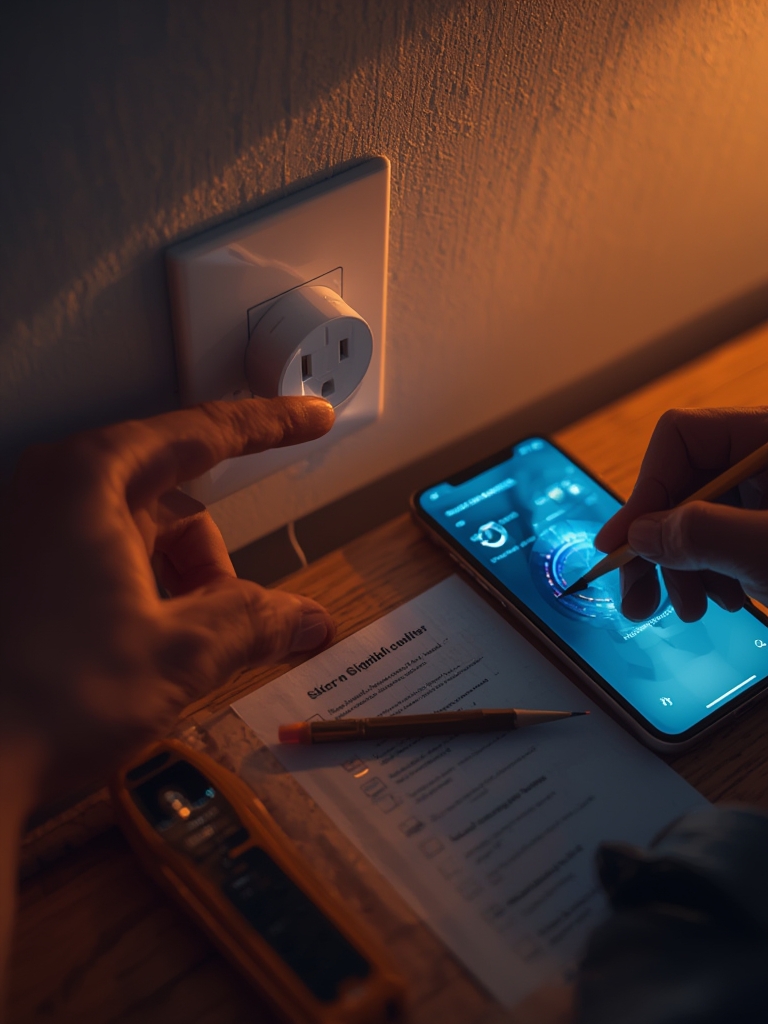
- Unbox and inspect: confirm SKU (indoor vs outdoor) and the manual. Use outdoor‑rated outlet for outdoor SKU.
- Plug it in: insert the plug into the outlet. If LED does not rapidly blink, press and hold the power button ~5 seconds to enter pairing mode (press/hold 5 seconds if LED not rapidly blinking — Feit Help — 2023-01-01).
- Prepare your phone: connect to the 2.4 GHz Wi‑Fi SSID, disable VPN, enable Bluetooth if the app requests it, and open the Feit Electric app. Log in or create an account first.
- Pair in app: tap + → Plugs → choose Indoor Plug or Outdoor Plug (per SKU), confirm the rapid blink prompt, enter your 2.4 GHz Wi‑Fi password, and wait for the LED to change indicating connection. Rename the device to a predictable name (example: “Living Room Lamp”).
- Verify basic control: toggle the plug from the app, then cut power with the physical button to confirm local control works.
Cited app flow: Feit documents the + → Plugs → Indoor/Outdoor Plug flow and the press/hold pairing step (Feit Help — 2023-01-01).
Physical placement & electrical safety checklist (prevent overloads and weather issues)
Budget buyers must plan placement and load to avoid safety hazards and device failure.
- Maximum current: the indoor PLUG/WIFI SKU is rated to 15A — treat 15A as a hard limit; do not plug space heaters, window ACs, or high‑starting‑current motors into a single plug (Feit spec PDF — 2021-01-01).
- How to calculate safe loads: Amps × Volts = Watts. At 120V, 15A × 120V = 1800W max. Keep operating loads well below this (rule: avoid >80% continuous load).
- Outlet condition: inspect the outlet for cracks, loose plates, or scorch marks. If outdoor, confirm a weatherproof cover and GFCI protection where required.
- Avoid stacking heavy adapters or multi‑outlet cubes that block ventilation or stress the outlet spacing.
Pitfall: Treat the 15A spec as the hardware limit — budget plugs rarely have the thermal headroom of commercial in‑line controllers.
Linking to Alexa/Google and verifying voice control (avoid routine failures)
After app pairing, link Feit devices to Alexa and Google for voice control and automation testing.
- Alexa linking: In the Alexa app, go to Skills & Games → search “Feit Electric” → enable the skill and link your Feit account, then Discover Devices. Rename devices in the Feit app first for predictable discovery.
- Google linking: In Google Home, Add Device → Works with Google → search “Feit” and link account. Confirm the device names match what you set in the Feit app.
- HomeKit: Feit does not document HomeKit support in the PLUG/WIFI spec. Confirm in product listing before buying if HomeKit is required (Feit spec PDF — 2021-01-01).
Routine testing
Test these scenarios in order:
- Single voice command: “Alexa, turn on Living Room Lamp.” — expect <1s to 3s response in most cases.
- Scheduled action: create a simple schedule in the Feit app and verify it runs at the set time.
- Multi‑device routine: create an Alexa routine that runs three plugs with 1‑2 second delays; watch for missed triggers and rename devices if routines pick the wrong target.
Pitfall to avoid: using identical device names across rooms — this commonly breaks Alexa routines. Also, do not assume HomeKit compatibility without checking the current product listing.
Internal resources: Read the buying guidance in “How to choose the best smart plug for your budget” and “Top voice assistant tips: keep Alexa routines reliable” for naming and routine best practices: How to choose the best smart plug for your budget, Top voice assistant tips: keep Alexa routines reliable.
Budget tradeoffs & TCO quick calculator for Feit smart plug buyers
Budget-first buyers: understand the PLUG/WIFI SKU tradeoffs and build a simple 3-year TCO using measured or hypothetical inputs.
Budget SKU: PLUG/WIFI — indoor single outlet, 15A (documented) (Feit spec PDF — 2021-01-01).
Major tradeoffs vs midrange plugs
- Connectivity: 2.4 GHz only — may have shorter reliable range vs dual‑band devices.
- Power reporting: public docs do not reliably state standby draw or power reporting — measure at home or expect limited energy metrics.
- Cloud dependence: likely cloud‑based control; lack of local API limits advanced automations.
- HomeKit: not documented — may be unsupported.
Simple 3‑year TCO calculator (inputs to collect)
Collect these inputs at home and plug them into a spreadsheet or the example below:
- Purchase price (USD) — check current street price at retailers.
- Measured standby draw (W) — measure with a Kill‑A‑Watt or smart meter (if not available, label hypothetical values).
- Average daily on hours (h/day).
- Electricity rate ($/kWh).
- Replacement rate over 3 years (percent failing/being replaced).
Sample math (hypothetical — measure before publishing)
Example with hypothetical standby = 0.5 W, price = $12, daily use 2 hours, electricity = $0.15/kWh, replacement chance 10%:
- Energy cost standby: 0.5 W × 24 h × 365 × 3 = 13.14 Wh → 13.14 kWh → $1.97 over 3 years.
- Energy cost active: assume load energy is appliance dependent; include separately.
- Total TCO ≈ purchase $12 + standby $1.97 + replacement $1.20 = $15.17 over 3 years (hypothetical).
Data gaps callout: No reliable public data for standby W, pairing latency (ms), firmware cadence, or typical street price — you should measure standby W and scrape retail prices before finalizing purchase comparisons. See “Energy‑saving setups and measuring standby draw with a kill‑a‑watt” for measurement tips: Energy‑saving setups and measuring standby draw with a kill‑a‑watt.
For outdoor installs and multi‑outlet comparisons, consult the outdoor guide: Outdoor Smart Plug: 7 Proven Guide To Avoid Costly Mistakes.
Priority troubleshooting checklist for offline plugs, Alexa failures, and multi‑plug flakiness
Follow these prioritized tests when a plug goes offline or routines fail.
Symptoms → likely cause → test
- Offline device — likely band/SSID or weak signal. Test: move plug within range of router; confirm phone is on 2.4 GHz; disable VPN; reboot router; factory reset plug (press/hold sequence) and re‑pair.
- Alexa routine misses — likely duplicate names or cloud glitch. Test: rename device to a unique name in the Feit app, test single on/off from Alexa, then rerun routine with small delays.
- Intermittent switching in multi‑plug setups — likely network congestion or overloaded circuit. Test: remove plugs to an isolated SSID or split across outlets/circuits; check load with a watt meter.
Stepwise tests
- Confirm 2.4 GHz and Wi‑Fi password — re-enter manually in app.
- Move plug beside the router — if stable, it’s a range issue.
- Disable VPN / firewall on phone during pairing.
- Reboot router and wait 60 seconds before re‑pairing.
- Factory reset plug: press/hold power button per Feit instructions (check manual / Feit Help) then re‑pair.
- Test single plug in isolation before adding many devices back to the same SSID.
When to escalate: capture screenshots of app errors, note local times of outages, and contact Feit support with logs and retailer purchase info for warranty/replace. Top review gaps are warranty/return experience and cloud‑downtime history — record incidents so you can escalate effectively.
Cited common causes: phone on 5 GHz, VPN active, or LED not rapidly blinking are documented beginner causes of pairing failure (Feit Help — 2023-01-01).
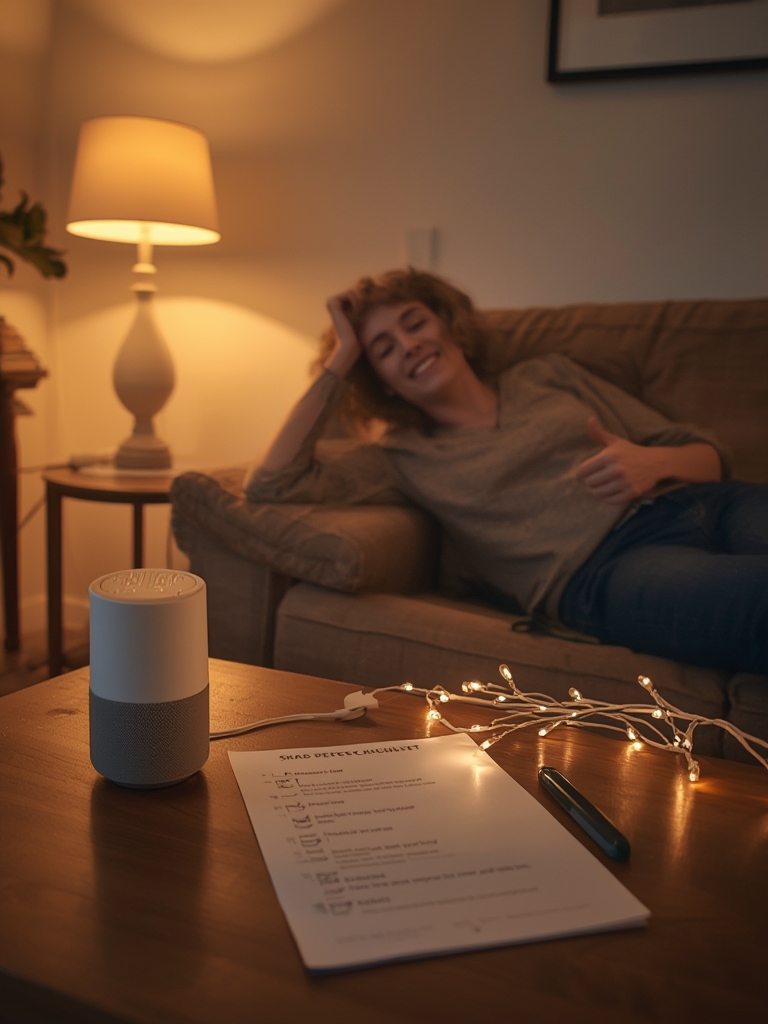
Printable 1‑page Feit smart plug preinstall & install checklist (ready to print)
Copy or print this single‑page checklist and take it to the install site.
FEIT SMART PLUG — PREINSTALL & INSTALL CHECKLIST

Prereqs (DO BEFORE BUYING/INSTALL):
- Router: 2.4 GHz SSID available (Feit requires 2.4 GHz only). (Feit Help — 2023-01-01)
- Phone: iOS 11.0 or Android 6.0+.
- Feit Electric app account created and logged in.
- Confirm SKU: indoor PLUG/WIFI (15A) or outdoor weatherproof SKU.
- Tools to bring: phone, Wi‑Fi password, meter (optional), extension cord (safe), Kill‑A‑Watt (if measuring standby).

Install Steps:
1) Plug unit into correct outlet (outdoor model → weatherproof outlet).
2) If LED not rapidly blinking, press & hold power button ~5 seconds to enter pairing mode.
3) Ensure phone is connected to the 2.4 GHz SSID, disable VPN.
4) Open Feit app: + → Plugs → Indoor/Outdoor Plug → confirm rapid blink → enter Wi‑Fi password → rename device.
5) Verify app control: toggle On/Off.
6) Link to Alexa/Google (enable Feit skill / link account) and test voice command.
7) Create a schedule and verify it runs at scheduled time.

Safety & Load Checks:
- Do not exceed 15A (15A × 120V = 1800W theoretical max).
- Do not use for space heaters, window ACs, or motors with high start currents.
- Inspect outlet condition; use GFCI and weatherproof covers where required.

Troubleshooting Quick Steps (if failure):
- Confirm phone on 2.4 GHz; disable VPN.
- Move plug next to router; test stability.
- Reboot router, re-login to app, factory reset plug and re‑pair.
- Log screenshots/time of failures; contact Feit support + retailer for warranty.

What to measure (data gaps):
- Standby power draw (W) using Kill‑A‑Watt.
- Pairing latency (ms) with timed on/off tests.
- Current street price across retailers (document date & URL).
Escalation template (copy & send): “Device model PLUG/WIFI — serial ____ — purchased at ____ on ____ — symptoms: ____ — steps tried: moved to router, re‑paired, factory reset. Please advise replacement or firmware fix.” Include timestamps and screenshots.
Conclusion
This checklist-first approach keeps costs low while avoiding the biggest buying and install mistakes. Confirm the 2.4 GHz requirement, OS minimums, and the 15A hardware limit before you buy; use the printable checklist at install time to avoid avoidable returns. If you want a quick next step, compare prices and specs in the buying guide and measure standby draw before bulk purchases — especially for feit smart plug deployments. Compare options, read more setup tips, or buy the single‑outlet PLUG/WIFI if it fits your safety and range needs.
FAQ
Can I pair a Feit smart plug on a 5 GHz router?
No — Feit smart plugs require a 2.4 GHz Wi‑Fi network; ensure your phone is connected to the 2.4 GHz SSID during setup (Feit Help — 2023-01-01).
What phone OS do I need to set up a Feit smart plug?
iOS 11.0 or higher or Android 6.0 or higher are the documented minimums (Feit Help — 2023-01-01).
How do I force a Feit plug into pairing mode?
Plug it in and press/hold the power button for about 5 seconds until it enters the rapid‑blink pairing state (Feit docs recommend this if the LED is not blinking — Feit Help — 2023-01-01).
What is the maximum load I can put on a Feit plug?
The documented indoor PLUG/WIFI SKU is rated to 15A — do not exceed this or use high‑draw heaters/ACs on that outlet (Feit spec PDF — 2021-01-01).
My Feit plug keeps going offline — what quick tests should I run?
Confirm 2.4 GHz and strong signal, disable VPN, reboot router, move the plug near the router, test one plug alone, then factory reset and re‑pair (Feit Help — 2023-01-01).
Do Feit plugs report power usage and what if documentation is unclear?
Feit documentation does not reliably publish power‑reporting specs — test your unit in the app and measure with a meter; if necessary, request feature/firmware info from Feit support (No reliable data found — measure standby W at home).