

home assistant docker — this guide is a power-user, command-by-command checklist to install, verify, and operate Home Assistant as a Docker container so your Zigbee/Z-Wave sticks and serial adapters are stable and recoverable.
This article targets advanced users and sysadmins who run local-first Home Assistant setups on Raspberry Pi, NUCs or small VMs and want exact commands, expected outputs, and a clear buying decision matrix.
Key Takeaways
- Must-have preflight: 64‑bit OS + Docker Engine >= 23.0.0 and user added to docker group — install via official script and reboot (Docker Engine 23.0.0 or later required; home-assistant.io/installation — 2026-05-06).
- Networking & hardware access: Use
network_mode: hostandprivileged: true(or explicit /dev mappings) plus/run/dbus:/run/dbus:rofor hardware discovery — missing this is the top cause of immediate ZHA/Z-Wave/USB failures (home-assistant.io/installation — 2026-05-06). - Verification-first install: follow an ordered checklist (create config dir,
docker compose up -d,docker psshows homeassistant Up X (healthy), UI reachable on :8123 after ~5 minutes) and snapshot config immediately — use the exact commands and expected outputs below to avoid guesswork (piaustralia guide — 2026-05-06).
- Avoid downtime — Pre-install hardware & OS checklist (so your Zigbee/Z-Wave stick will be seen)
- Eliminate surprise failures — Host prep: Docker engine, user perms and kernel checks (exact commands)
- Production-ready compose — Copy-paste docker-compose.yml + host networking vs bridge explained
- Stop losing devices — USB passthrough & device-binding checklist for ZHA/Z‑Wave JS/serial adapters
- Execute with confidence — Step-by-step install checklist (commands + expected outputs)
- Verify & protect — Post-install verification, timezone/locale, backups and automated service hooks
- Diagnose fast — Common failure modes, exact diagnostic commands and recovery playbook
- Buy & scale like a pro — hardware, SSD/UPS and decision matrix for RPi vs NUC vs VM
- Conclusion
- FAQ
Avoid downtime — Pre-install hardware & OS checklist (so your Zigbee/Z-Wave stick will be seen)
What to cover: supported hardware baseline, required 64-bit OS choices, kernel and cgroup quick checks. Copyable preflight commands are below.
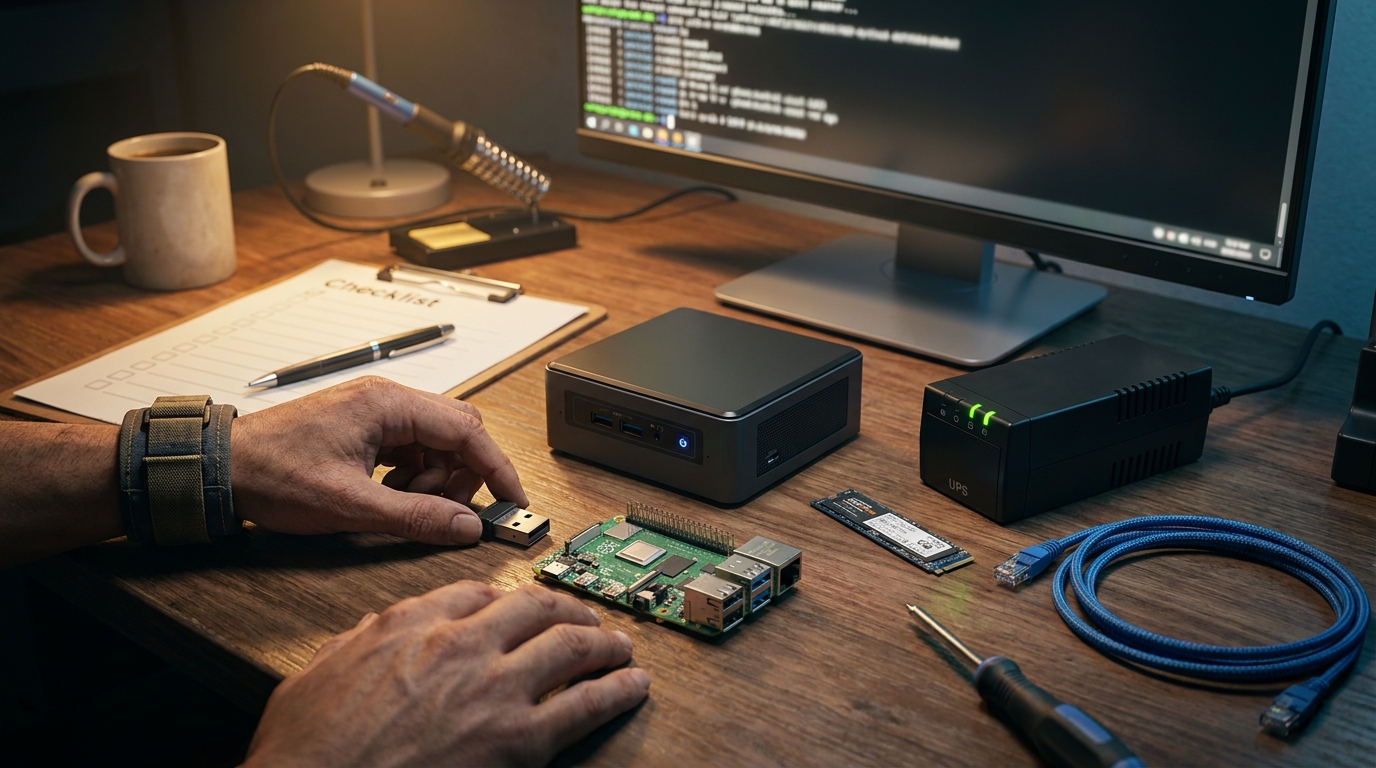
Supported baseline: Raspberry Pi 4 or 5 with minimum 2 GB RAM recommended; Ethernet preferred (home-assistant.io/installation — 2026-05-06). Use a 64-bit OS: Raspberry Pi OS (64-bit) or Debian 11/12 64-bit for Pi; Debian 12 Server for NUC (source: piaustralia guide — 2026-05-06).
Prerequisites (copy/paste)
- Hardware: RPi4/5 (≥2 GB) or Intel NUC; Ethernet.
- OS: 64-bit Raspberry Pi OS or Debian 11/12 (64-bit) / Debian 12 Server for NUC.
- Storage: SSD strongly preferred for recorder DB (avoid SD for production).
Preflight commands (run on host)
# OS update
sudo apt update && sudo apt upgrade -y

# Kernel
uname -r

# cgroup check (quick)
stat -c %T /sys/fs/cgroup || ls /sys/fs/cgroup
Cited fact: “Raspberry Pi 4 or 5 with minimum 2 GB RAM recommended; Ethernet connection preferred” — home-assistant.io/installation — 2026-05-06.
Pitfall to avoid: Installing on 32-bit OS or <2 GB RAM and expecting stable USB/ZHA behavior.
Related reading: see local getting started and integrations primer for Zigbee/Z-Wave details via home-assistant-basics/getting-started and home-assistant-basics/integrations-zigbee-z-wave.
Eliminate surprise failures — Host prep: Docker engine, user perms and kernel checks (exact commands)
What to cover: install Docker via official script, add user to docker group, confirm Docker Engine ≥ 23.0.0, avoid rootless/unsupported flavors and validate cgroup/kernel versions.
Exact install commands
# Official Docker script install
curl -fsSL https://get.docker.com -o get-docker.sh && sh get-docker.sh

# Add your user to docker group
sudo usermod -aG docker $USER

# Reboot to apply groups/kernel updates
sudo reboot
Verify Docker version (required):
docker --version
# expected output: Docker version 23.0.0, build ...
Cited fact: “Docker Engine 23.0.0 or later required” — home-assistant.io/installation — 2026-05-06.
Kernel & cgroup quick checks
# kernel
uname -r
# expected example: 5.10.x or later for Debian 12 hosts

# verify cgroups present
ls /sys/fs/cgroup
Pitfall to avoid: Using an older Docker engine or a rootless Docker flavor; not adding your user to docker group and skipping reboot.
Related: network setup and mDNS discovery explained in home-assistant-basics/networking.
Production-ready compose — Copy-paste docker-compose.yml + host networking vs bridge explained
What to cover: minimal production Docker Compose YAML, why to prefer host networking for discovery, and a systemd wrapper pattern for auto-start.
Minimal production docker-compose.yml (copy-paste)
version: "3.8"
services:
  homeassistant:
    container_name: homeassistant
    image: "ghcr.io/home-assistant/home-assistant:stable"
    volumes:
      - /PATH_TO_YOUR_CONFIG:/config
      - /run/dbus:/run/dbus:ro
    restart: unless-stopped
    privileged: true
    network_mode: host
    environment:
      TZ: Europe/Amsterdam
Cited fact: Example YAML entries use image ghcr.io/home-assistant/home-assistant:stable, /PATH_TO_YOUR_CONFIG:/config and /run/dbus:/run/dbus:ro; use host not bridge for integrations (home-assistant.io/installation — 2026-05-06).
Host networking vs bridge
- Host: required for mDNS/UPnP and many local discovery/integrations. It exposes services directly to LAN ports (discovery works reliably).
- Bridge: isolates container network; use only if you intentionally isolate and map ports — many integrations will break.
Systemd wrapper (pattern)
Systemd unit is required to bring up compose on boot in order and restart cleanly. (Note: a tested systemd template is part of the “Research required” tasks below — currently “No reliable data found” for a canonical tested file across hosts.)
Pitfall to avoid: Running in bridge mode by default and breaking mDNS/discovery or forgetting persistent volumes.
Stop losing devices — USB passthrough & device-binding checklist for ZHA/Z‑Wave JS/serial adapters
What to cover: expose USB devices via privileged vs explicit /dev mappings, validate host USB visibility, udev/permission tips, and exact compose lines.
Compose lines for USB adapters
services:
  homeassistant:
    ...
    devices:
      - "/dev/ttyUSB0:/dev/ttyUSB0"
      - "/dev/ttyACM0:/dev/ttyACM0"
    volumes:
      - /run/dbus:/run/dbus:ro
    privileged: true   # if you prefer blanket hardware access
Validate on host (exact commands and expected outputs):
lsusb
# expected: a line for the USB stick vendor/product, e.g.
# Bus 001 Device 005: ID 10c4:ea60 Silicon Labs CP210x UART Bridge

dmesg | tail -n 50
# expected: kernel messages showing device assigned: e.g. ttyUSB0 or cdc_acm

# Confirm device node
ls -l /dev/ttyUSB0
# expected: crw-rw---- 1 root dialout ... /dev/ttyUSB0
Cited fact: “Privileged: true needed for hardware access like USB” and “Map /run/dbus:/run/dbus:ro” — home-assistant.io/installation — 2026-05-06.
Udev & permissions
- If devices are owned by
dialout, add your host user todialoutor create udev rules to set owner/group/mode persistently. - Example udev file (adjust ATTRS{idVendor}/idProduct per lsusb): /etc/udev/rules.d/99-zigbee.rules with
SUBSYSTEM=="tty", ATTRS{idVendor}=="10c4", ATTRS{idProduct}=="ea60", SYMLINK+="zigbee", GROUP="dialout", MODE="0660"
Pitfall to avoid: Expecting USB devices to “just work” without checking host visibility, or running as non-privileged with no /dev mappings.
For Zigbee/Z-Wave pairing advice and add-on alternatives for Container installs, see home-assistant-basics/integrations-zigbee-z-wave.
Execute with confidence — Step-by-step install checklist (commands + expected outputs)
What to cover: ordered install steps from OS update → Docker install → compose deployment → systemd registration → backup snapshot. Exact commands and expected outputs follow. Use the printable checklist at the end of this section for offline use.
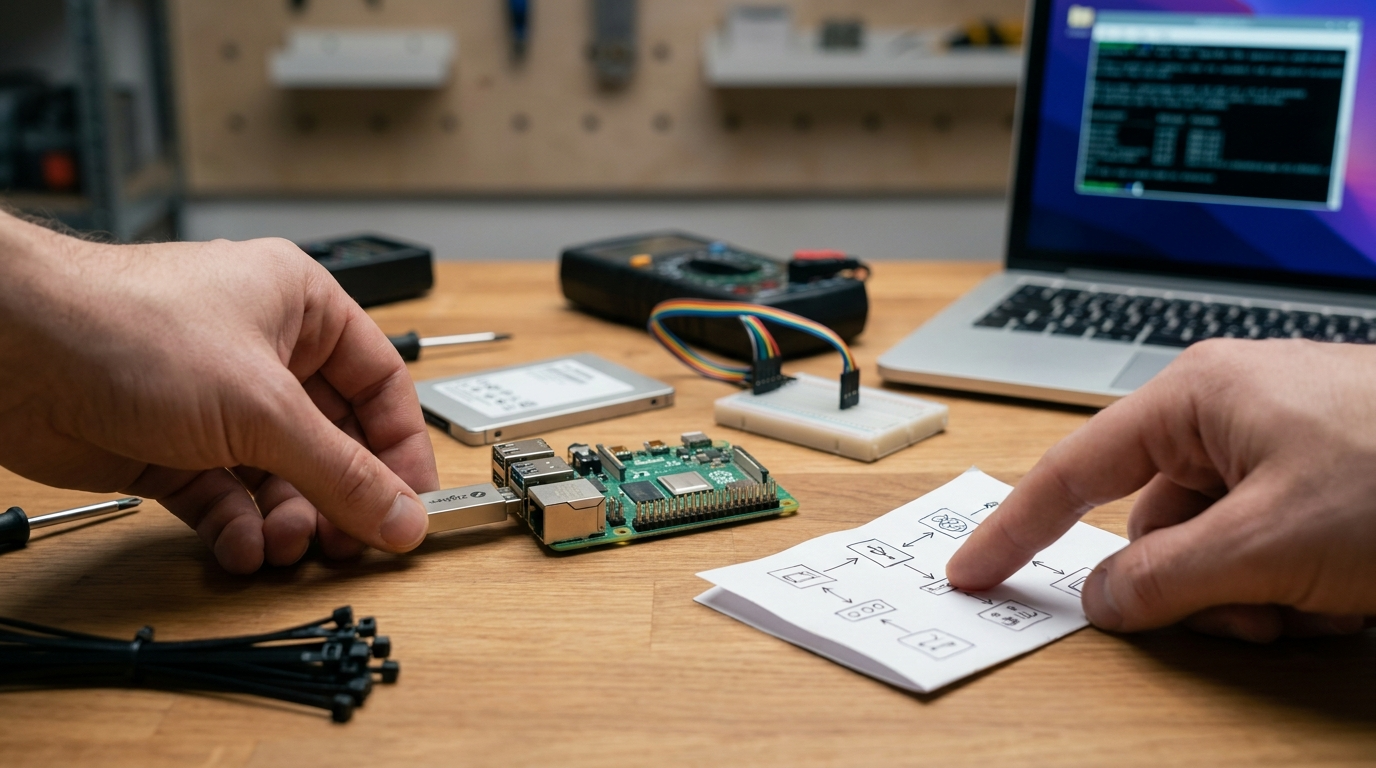
--log-level debug (in container) during first device discovery window to capture adapter detection details and then revert to info level.- Update host and create config directory (copy/paste)
sudo apt update && sudo apt upgrade -y
mkdir -p /home/pi/homeassistant
ls -ld /home/pi/homeassistant
# expected: drwxr-xr-x ... /home/pi/homeassistant
- Install Docker and add user to group
curl -fsSL https://get.docker.com -o get-docker.sh && sh get-docker.sh
sudo usermod -aG docker $USER
sudo reboot
Expected: reboot completes and
docker --versionshows 23.0.0 or later. - Place docker-compose.yml (use the minimal YAML above) at
/home/pi/homeassistant/docker-compose.yml. - Start container
cd /home/pi/homeassistant
docker compose up -d
# expected: containers created and started
Verify:
docker ps --filter "name=homeassistant" --format "{{.Names}} {{.Status}}" # expected string contains: homeassistant Up X (healthy) - Check logs & UI
docker logs homeassistant --tail 100 # expected contains: "Starting Home Assistant" and no repeated errors # After ~5 minutes curl -I http://
:8123 # expected HTTP/1.1 200 OK or the onboarding redirect Access UI: http://
:8123 → onboarding screen after ~5 minutes (expected). - Immediate post-install snapshot
# create a tar snapshot of config immediately
tar -czf /home/pi/homeassistant-snapshot-$(date +%F).tar.gz -C /home/pi/homeassistant .
# expected: tarball created
Pitfall to avoid: Skipping the initial snapshot/backup and assuming the UI is instant — onboarding can take several minutes.
Printable checklist (single-page)
[ ] Host updated: sudo apt update && sudo apt upgrade -y
[ ] Config dir created: mkdir -p /home/pi/homeassistant
[ ] Docker installed via get.docker.com script
[ ] User added to docker group and host rebooted
[ ] docker-compose.yml placed in /home/pi/homeassistant
[ ] docker compose up -d executed
[ ] docker ps shows: homeassistant Up X (healthy)
[ ] UI reachable at http://:8123 (onboarding within ~5 min)
[ ] First snapshot created: tar -czf ~/homeassistant-snapshot-YYYY-MM-DD.tar.gz -C /home/pi/homeassistant .
Related: Automate backups and restores via our backups guide at home-assistant-basics/backups-and-restore.
Verify & protect — Post-install verification, timezone/locale, backups and automated service hooks
What to cover: verify TZ/locale, persistent /config, health checks, backup hooks and monitoring hooks.
Verify environment and health
# Confirm TZ propagated
docker exec homeassistant env | grep TZ
# expected: TZ=Europe/Amsterdam (or your TZ)

# Docker inspect health (if image provides)
docker inspect --format '{{json .State.Health}}' homeassistant || echo "no health info"

# HTTP check
curl -fsS http://localhost:8123/ | head -n 1
# expected: HTTP/1.1 200 OK or HTML content
Automated backups (example systemd timer idea)
Research required: a tested systemd timer and unit that snapshots /config and pushes to remote storage. Currently: No reliable data found for a canonical tested systemd unit across hosts.
- Provide a tested systemd unit + timer that stops the container briefly, tars /config, and copies to remote storage (SFTP/SMB).
- Specify RTO/RPO targets and recommended frequencies (daily, weekly) based on config size.
Logging & monitoring
- Monitor:
docker logs homeassistant,journalctl -u docker.service, and hostdmesgfor USB churn. - Consider external services (MQTT, InfluxDB) as separate containers; Container mode has no Supervisor add-ons (see caveats in FAQ).
Diagnose fast — Common failure modes, exact diagnostic commands and recovery playbook
What to cover: symptoms, exact diagnostic commands, rebind USB, repair recorder DB, restore from snapshot and migration triggers.
Essential diagnostic commands (copy/paste)
# Docker & container state
journalctl -u docker.service --no-pager --since "1 hour ago"
docker logs homeassistant --since 10m
docker inspect homeassistant

# Host USB & kernel
lsusb
dmesg | tail -n 200
ls -l /dev/serial/by-id
Common symptoms and direct recovery steps (short):
- USB dongle disappears: check
dmesg, replug, check udev rules, confirm /dev node exists, restart container:docker restart homeassistant. If persistent, rebind to container or useprivileged: true. - Discovery not working: confirm
network_mode: hostand that mDNS packets are not blocked by host firewall. - Recorder DB errors after power loss: stop container, create copy of /config/home-assistant_v2.db, run sqlite3 integrity checks or restore from snapshot. (Detailed repair steps are part of research tasks below.)
Escalation & migration guidance: if Supervisor/add-ons are required and you need a one-click add-on platform, consider migrating to Home Assistant Supervised or Home Assistant OS. Note: “No reliable data found” for real-world failure frequencies and recovery success rates — see Research required below.
- Collect anonymized journalctl/docker logs to quantify USB drop frequency and capture canonical error messages for replayable recovery playbooks.
- Run failure-injection tests on RPi4/NUC to record recovery success rates and exact timelines for recorder DB restoration.
Buy & scale like a pro — hardware, SSD/UPS and decision matrix for RPi vs NUC vs VM
What to cover: decision matrix for hardware, storage choices, SSD vs SD, UPS and procurement checklist.
Summary decision matrix (practical):
- Raspberry Pi 4 or 5 — low-cost, low-power. Good for small installs <200 entities; requires SSD and UPS in production. (See RPi guide: piaustralia guide — 2026-05-06.)
- Intel NUC — higher performance and reliability for larger installs, better I/O for SSDs and recorder DB.
- Small VM — best for HA consolidation, snapshots, and high-availability strategies if you have a host cluster.
Storage & SSD note: avoid SD for recorder DB; use SATA or NVMe SSD. SSD endurance specifics (TBW) and dongle pricing are currently not available in collected sources.
- No reliable data found: measured CPU/RAM/DB growth benchmarks comparing Container vs Supervised vs OS on RPi4/NUC/VM.
- No reliable data found: recommended dongle models, firmware compatibility and up-to-date pricing.
- Research required: run standardized workloads (50/200/1000 entities) and capture metrics over 7/30/90 days; benchmark cold-start times and DB growth.
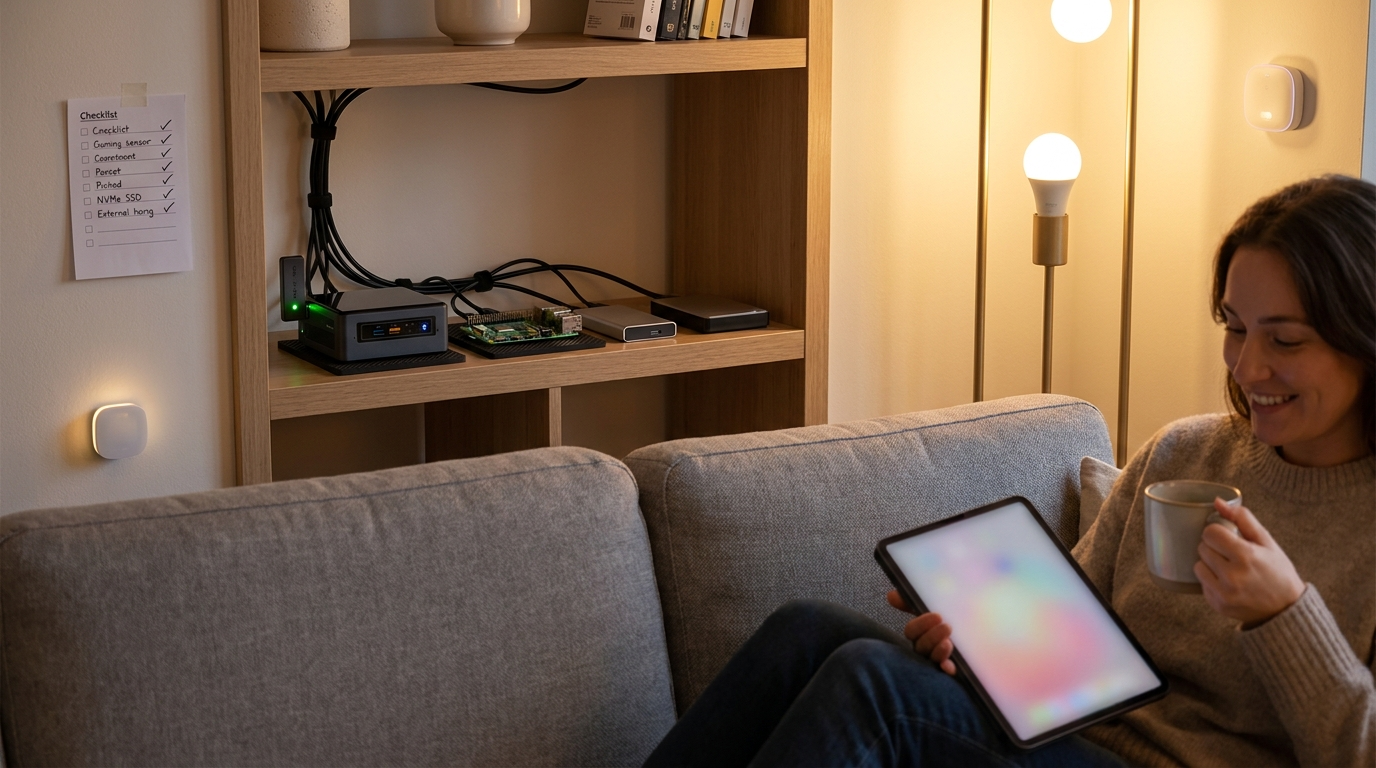
Budget items to plan: SSD for recorder DB, a small UPS (to avoid corruption), and a good quality Zigbee/Z-Wave USB dongle (research required for model picks).
Conclusion
Follow the preflight, kernel/Docker checks, the production compose pattern, and the USB/device validation steps above to get a robust home assistant docker deployment. Snapshot immediately, automate backups, and collect logs so you can recover quickly. Compare hardware choices, run the research tests listed, and subscribe or read more to get benchmark updates and recommended dongles.
CTA: Compare hardware and read more guides: start with home-assistant-basics/getting-started and backup strategies at home-assistant-basics/backups-and-restore.
FAQ
What exact Docker version do I need to run Home Assistant Container?
Use Docker Engine 23.0.0 or later (install via the official get-docker.sh script); verify with docker --version — home-assistant.io/installation — 2026-05-06.
Do I need network_mode: host and privileged: true?
For most local discovery and USB integrations you should use network_mode: host and either privileged: true or explicit /dev mappings (see the compose example).
How can I confirm my Zigbee/Z-Wave stick is visible to the container?
On the host run lsusb and dmesg to confirm the stick appears, map /dev/tty* into compose (or use privileged), then check docker logs homeassistant and the Integrations page in the UI; if missing, check udev rules and permissions.
Does Home Assistant Container include Supervisor and add-ons?
No — Home Assistant Container is core-only and lacks Supervisor/add-ons; run extra services as separate containers or migrate to Supervised/OS if you need add-ons.
How soon should I take the first backup after install?
Immediately after first successful onboarding and device discovery—automate subsequent backups (daily or before config changes).
Appendix — Exact commands (copy/paste)
# Preflight
sudo apt update && sudo apt upgrade -y
uname -r
ls /sys/fs/cgroup

# Docker install
curl -fsSL https://get.docker.com -o get-docker.sh && sh get-docker.sh
sudo usermod -aG docker $USER
sudo reboot

# Create config dir
mkdir -p /home/pi/homeassistant

# Compose start
cd /home/pi/homeassistant
docker compose up -d

# Verify
docker ps --filter "name=homeassistant" --format "{{.Names}} {{.Status}}"
docker logs homeassistant --tail 100
curl -I http://:8123

# USB checks
lsusb
dmesg | tail -n 50
ls -l /dev/ttyUSB0

# Snapshot config
tar -czf /home/pi/homeassistant-snapshot-$(date +%F).tar.gz -C /home/pi/homeassistant .
What we couldn’t find — required research tasks
- Canonical, tested systemd unit + timer to snapshot /config and stop/start the compose stack safely across Debian/Ubuntu/RPi OS.
- Benchmarks: CPU%, RAM, disk I/O, cold-start times, and DB growth comparing Container vs Supervised vs OS on RPi4/NUC/VM under 50/200/1000 entity workloads over 7/30/90 days.
- Dongle recommendations: validated Zigbee and Z-Wave USB dongles with firmware compatibility and price points for 2026.
- Failure-mode frequency data: aggregated logs to quantify USB drop rates, recorder DB corruption frequency, and recovery success percentages per hardware class.