

kwikset smart lock battery — replace it confidently and reconnect your lock in under 10 minutes with this beginner-friendly, step‑by‑step checklist.
This guide is a single‑page script: confirm mechanical access, gather 4 AA alkalines + optional 9V, swap batteries (0–3 min), reconnect the app or hub (3–10 min) and run a 60‑second verification — all without a factory reset unless absolutely necessary.
Key Takeaways
- Always confirm mechanical key access and have 4 fresh AA alkaline batteries plus a 9V for emergency temporary power before you start — don’t use rechargeables. (Have 4 AA alkaline batteries (non‑rechargeable) — YouTube, 2026-04-29)
- Follow a strict, time‑boxed 0–10 minute checklist: open cover → swap 4 AA → test local keypad/mechanical → reconnect app/hub if needed — avoid factory reset unless you can’t re‑pair. (1–2 min swap guidance — iFixit, 2026-04-29)
- Run a concise verification sequence (mechanical key, keypad, app, hub status, auto‑lock/firmware) and keep documented quick fixes (9V temporary power, correct battery orientation) to prevent lockouts. (9V temp trick documented — Kwikset Support, 2026-04-29)
- Confirm these prerequisites so you won’t be locked out
- Swap the batteries in under 3 minutes (time‑boxed steps)
- Re‑pair/connect app after a battery swap or router/phone swap — the 10‑minute script (no factory reset)
- Fast fixes for the 7 most common beginner mistakes (and how to prevent them)
- Verify everything in 60 seconds: the post‑swap checklist to confirm full restoration
- Emergency diagnostics and edge cases: isolate the cause and avoid getting locked out
- Model‑specific battery compartment quirks (Kevo, 888, Premis, Home Connect 620) — what differs and why it matters
- Hard numbers: supported batteries, voltages, expected life, cold‑weather notes, and cost estimates
- Printable 1‑page checklist (prerequisites, step‑by‑step, verification, emergency)
- FAQ
- Conclusion
Confirm these prerequisites so you won’t be locked out
Before you touch the battery cover, confirm these items. Skipping them is the most common cause of an avoidable lockout.
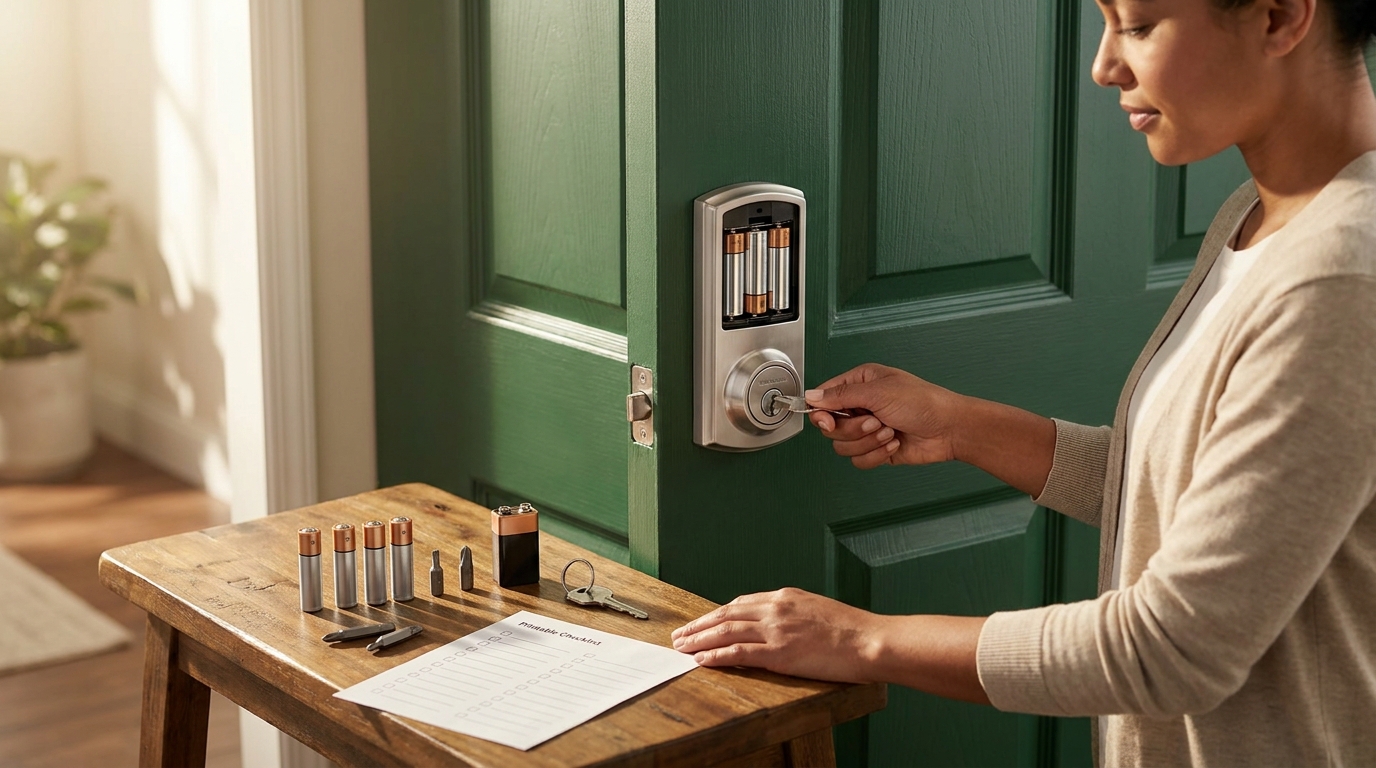
- Mechanical key test: insert your house key and lock/unlock once. If the key sticks, fix that before starting. (Kwikset recommends confirming mechanical access — Kwikset Support, 2026-04-29)
- Know your model number (look behind the interior cover or on paperwork): 888, Kevo, Premis, SmartCode 910, Home Connect 620 — this decides slide vs screw cover. (Model lookup tip — BrinksHome, 2026-04-29)
- Gather tools & power: four fresh AA alkaline batteries (non‑rechargeable) and a Phillips #1 or star bit if your model uses screws. Carry an optional 9V alkaline as emergency temporary power. (Have 4 AA alkaline — YouTube, 2026-04-29)
- App credentials: verify your phone is signed in to the lock’s app and that you know your Wi‑Fi SSID and password if the lock uses Wi‑Fi or an external hub. (No reliable data found on model firmware prereqs — Research next: manufacturer tech sheet and model firmware change logs)
Pitfall to avoid: Don’t start with only rechargeable AAs or without confirming the mechanical key — rechargeables can give lower voltage under load and leave you locked out. (Avoid rechargeables — YouTube, 2026-04-29)
Swap the batteries in under 3 minutes (time‑boxed steps)
Follow this exact 0–3 minute sequence. Work calmly and don’t force parts.
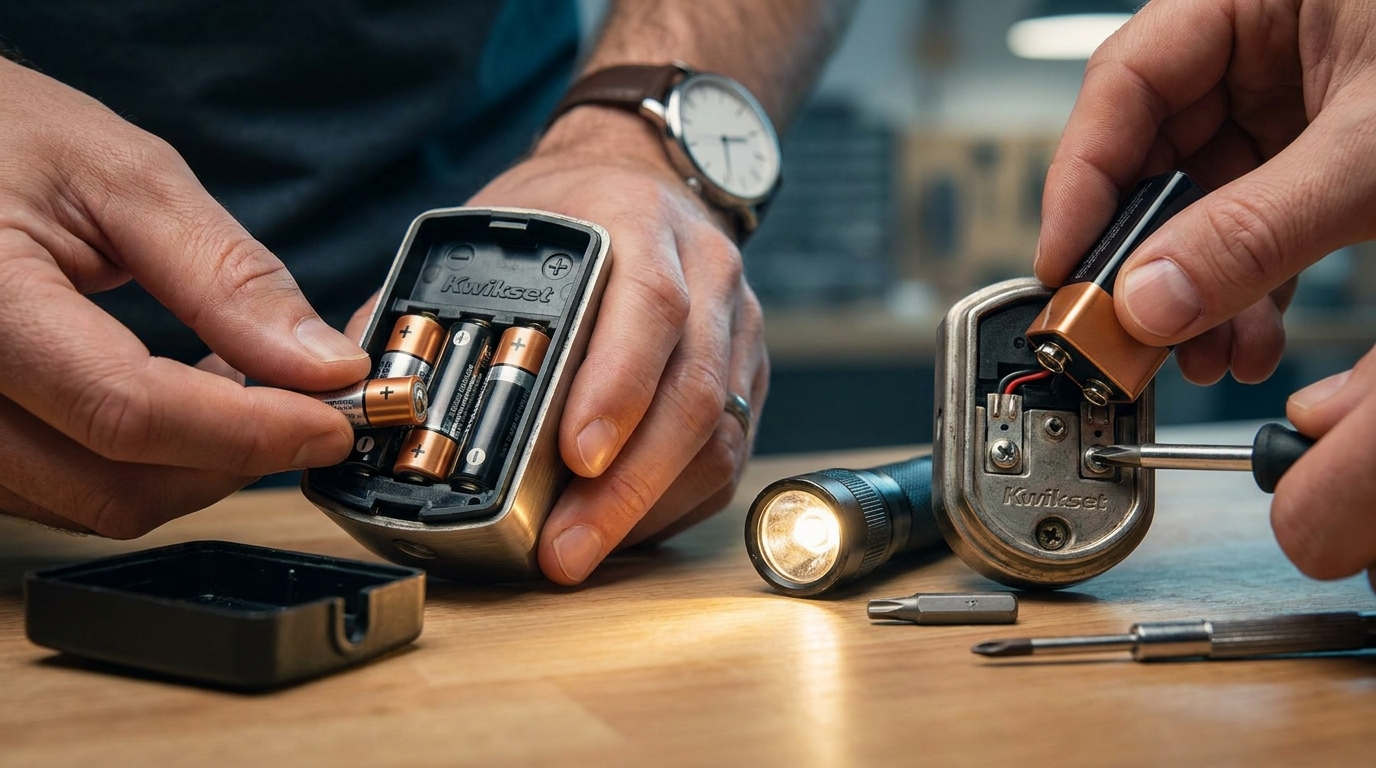
- 0:00–0:30 — Open the door and access the interior cover. Slide‑cover models (Kevo, Premis) slide up; screw‑cover models (888, Home Connect 620) require Phillips #1/star bit. (Cover types: Kwikset Support, 2026-04-29)
- 0:30–1:30 — Remove battery pack. For Home Connect 620, orient the label outward as you pull the pack. Replace with 4 fresh AA alkaline cells (match +/− and seating). (1–2 min swap: iFixit, 2026-04-29)
- 1:30–2:00 — Reinstall pack and reattach cover. Expect an audible beep and keypad light. (Power confirmation: YouTube, 2026-04-29)
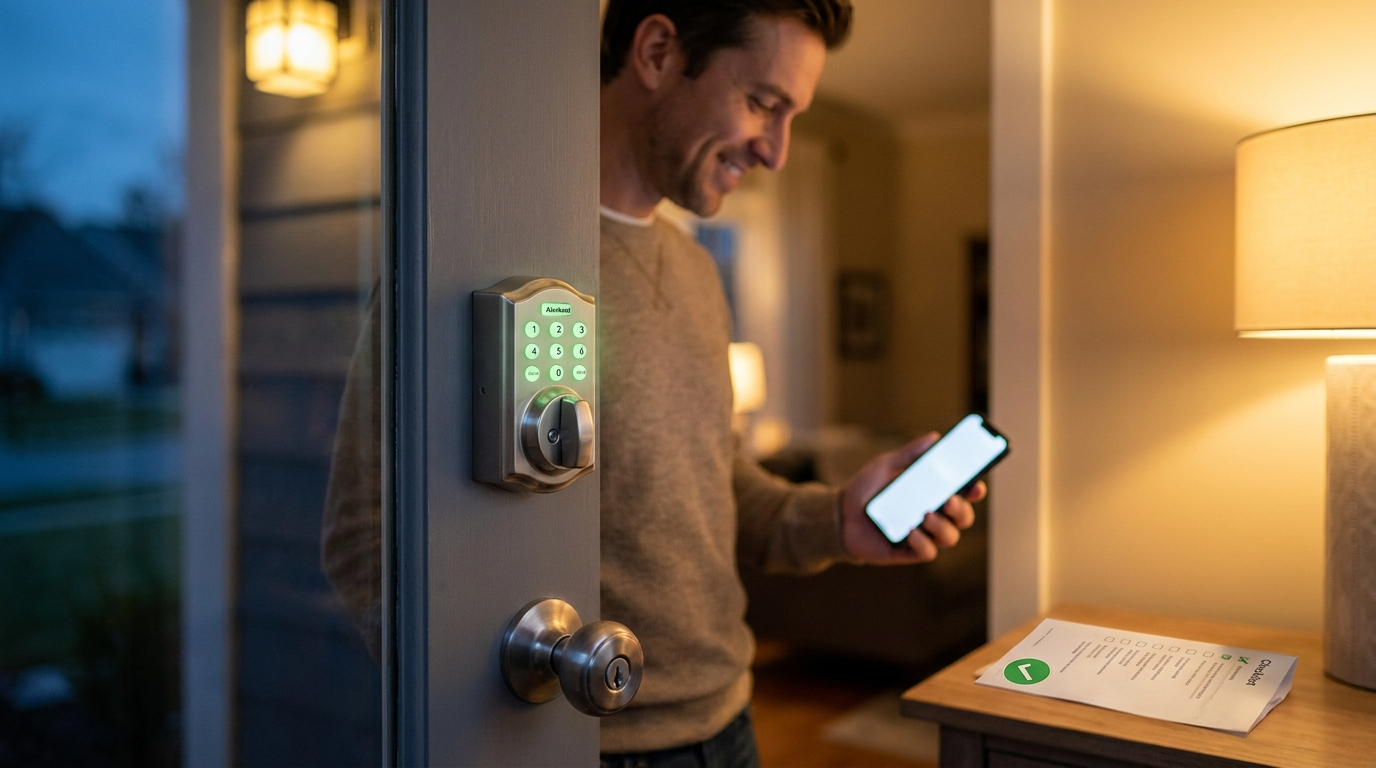
- 2:00–3:00 — Test a keypad code and the mechanical key locally. If you hear beeps and see green, proceed to app check.
Pitfall to avoid: Forcing slide covers or using the wrong driver will strip fasteners. Use the correct bit and firm downward pressure.
Re‑pair/connect app after a battery swap or router/phone swap — the 10‑minute script (no factory reset)
This script gets you app control back in most router/phone swap cases without factory resetting the lock.
- 3:00–4:00 — Local test: enter a keypad code and use the mechanical key. If local control works, the lock’s memory survived the swap.
- 4:00–5:00 — Open the app and attempt a lock/unlock. If it works, you’re done.
- 5:00–6:00 — If the app shows offline after a router/phone change: toggle your phone’s Wi‑Fi off/on, confirm the phone is on the correct SSID, then re‑open the app and re‑enter your router password if prompted. (Kwikset re‑pair guidance — Kwikset Support, 2026-04-29)
- 6:00–10:00 — If still offline: use the lock’s program button sequence to re‑add local codes (press program, enter user code, press lock) and then test app control again before considering a factory reset. (Program button re‑add: Kwikset Support, 2026-04-29)
Quick troubleshooting flowchart for phone/router swaps: toggle Wi‑Fi → confirm SSID/password → re‑login to app → test lock command → program button re‑pair → hub inclusion if Z‑Wave/Zigbee applies.
Hub note: If your lock uses Z‑Wave or Zigbee, open the hub app (SmartThings, Ring, etc.) and check device status. Follow the hub’s “include/exclude” flow only if re‑pairing fails. (No reliable data found on hub-specific steps; Research next: hub app inclusion docs per model.)
Pitfall to avoid: Do not factory‑reset on first failure — a factory reset erases stored user codes and pairings and often forces an installer call-back.
Fast fixes for the 7 most common beginner mistakes (and how to prevent them)
Short causes, checks, and direct fixes you can do in place.
- Wrong battery type (rechargeable/lithium): replace with 4 AA alkaline immediately. (Avoid rechargeables — YouTube, 2026-04-29)
- Wrong orientation: remove and reseat batteries matching +/−. Most models mark orientation in the pack or on the housing.
- Stripped screws: use proper Phillips #1 or star bit, seat driver fully, and turn slowly. If stripped, use a rubber strip for grip or a screw extractor.
- Dirty contacts: clean with a pencil eraser or isopropyl swab and reinsert batteries.
- Keypad dead after swap: hold a 9V to the terminals and enter your code while holding it (Kwikset documented 3‑beep entry). (Kwikset Support, 2026-04-29)
- Interrupted firmware activity (rare / No reliable data found): avoid swapping batteries during known firmware updates. Research next: check Kwikset model firmware update notes.
- Assuming app status means local function: always perform a physical lock/unlock test after changing batteries.
Pitfall to avoid: Plugging in wrong battery chemistry or using rechargeables — they may exhibit lower voltage under load and fail the motor start current.
Verify everything in 60 seconds: the post‑swap checklist to confirm full restoration
Run this quick pass/fail list immediately after the swap and re‑pair script.
- Mechanical key: insert and turn — Pass: smooth lock/unlock. Fail: stop and inspect cylinder.
- Keypad code entry: enter a user code — Pass: green light + beep and bolt cycles. Fail: try 9V trick and check orientation/contact.
- Inside thumbturn/manual: turn from inside — Pass: bolt moves freely. Fail: check alignment or screw tightness.
- App lock/unlock: send a command — Pass: instant response. Fail: re‑enter SSID/password and follow 3–10 min re‑pair steps above. (Kwikset re‑pair guidance — Kwikset Support, 2026-04-29)
- Hub status (if applicable): check inclusion state in hub app — Pass: shows online. Fail: attempt re‑include per hub docs. (No reliable data found for hub post-swap steps.)
- Auto‑lock/firmware: observe one auto‑lock cycle and note any error beeps. If unresponsive, document model and firmware and research next steps.
Document results (model, firmware if visible, battery type/date). This makes escalation to support or a locksmith faster if needed.
Emergency diagnostics and edge cases: isolate the cause and avoid getting locked out
One‑line diagnostic tests and immediate workarounds for common failure modes.
- Dead after fresh cells — Test orientation: remove and re‑seat (+/−). If still dead, use a 9V on terminals to power the lock temporarily. (9V emergency: Kwikset Support, 2026-04-29)
- Intermittent connectivity — Reboot phone Wi‑Fi, confirm SSID, test local keypad. If local works, it’s a cloud/hub issue, not a lock motor fault.
- Keypad unresponsive in cold — Cold can reduce battery output. Replace with fresh alkalines and warm batteries before swapping. (Cold drain: No reliable data found — Research next: lab cold-temperature discharge curves.)
- Cloud features lost (notifications/remote) — Test local lock/unlock; if local works, you’re not locked out — fix cloud or hub later.
Emergency workaround hierarchy: mechanical key → 9V temporary power → fresh 4×AA alkalines → temporary physical deadbolt/chain if you must secure the door while troubleshooting.
Model‑specific battery compartment quirks (Kevo, 888, Premis, Home Connect 620) — what differs and why it matters
Treat Kwikset models differently — doing the wrong cover removal damages parts. Below are exact notes per common models.
Kevo / Premis (slide cover)
- Slide cover up/out — no screwdriver. Battery pack pulls straight out. Check orientation marks on the pack.
- Tip: keep a small tray for batteries to avoid dropping them into the door gap.
Kwikset 888 / SmartCode / Home Connect 620 (screw cover)
- Use a Phillips #1 or small star bit; screws are shallow—apply steady downward pressure. (BrinksHome steps for 888 — BrinksHome, 2026-04-29)
- Home Connect 620: label usually faces out — follow iFixit orientation guidance when reinserting the pack. (iFixit Home Connect 620 guide — iFixit, 2026-04-29)
- 888: screws may hide under cosmetic caps; pry gently to expose screws. (888 how‑to — BrinksHome, 2026-04-29)
Pitfall to avoid: Treating every Kwikset the same — slide vs screw changes the toolset and forces different removal methods.
Hard numbers: supported batteries, voltages, expected life, cold‑weather notes, and cost estimates
Quick reference specs and reality checks.
- Supported power: 4 × AA alkaline (1.5V each, non‑rechargeable). Use a 9V alkaline for temporary power to the terminals. Kevo fob uses CR2025 (3V). (Kwikset spec summary — Kwikset Support, 2026-04-29)
- Expected life: commonly reported 6–12 months on SmartCode models under normal use; replace when responsiveness drops. (YouTube field reports — YouTube, 2026-04-29)
- Cold‑weather caveat: batteries deliver less current when cold — if you live in cold climates, test more frequently. (No reliable data found on exact cold‑weather cycles — Research next: manufacturer cold‑temp discharge curves.)
- Cost estimate: packs of 4 AA alkaline cost widely between $3–8 retail; branded smart‑home battery kits cost more. (No reliable data found on long‑term cost comparisons.)
Pitfall to avoid: Listing rechargeables or lithium as acceptable without explicit model confirmation — stick to alkaline unless a model doc says otherwise.
Printable 1‑page checklist (prerequisites, step‑by‑step, verification, emergency)
Copy this single‑column checklist to a note or print it. Use large font and tape it to the inside of a kitchen drawer.
PREREQS
- Mechanical key tested: ______ (PASS/FAIL)
- Model number: ______
- Tools: Phillips #1 / star bit (if needed)
- Power: 4× AA alkaline (fresh) + optional 9V alkaline
- App signed in + SSID/password known

0–3 MIN: BATTERY SWAP
0:00 – Open interior cover (slide or unscrew)
0:30 – Remove pack
1:00 – Insert 4×AA alkaline (correct orientation)
1:30 – Reattach cover — expect beep/light
2:00 – Test mechanical key + keypad

3–6 MIN: APP RECONNECT
3:00 – Open app, try lock/unlock
4:00 – If offline: toggle phone Wi‑Fi, confirm SSID & password, re‑login
6:00 – If still offline: press program button, enter user code, press lock — test again

6–10 MIN: FINAL VERIFICATION
- Mechanical key: PASS / FAIL
- Keypad: PASS / FAIL
- Manual thumbturn: PASS / FAIL
- App control: PASS / FAIL
- Hub status (if used): ______

EMERGENCY
- 9V trick: touch 9V to terminals below keypad; listen for 3 beeps; hold and enter code
- If screws stripped: use rubber grip or screw extractor
- If all fails: use mechanical key and call support/locksmith

ESCALATE IF:
- Mechanical key fails OR local lock motor won’t move after fresh batteries
- Re‑pair steps fail and hub inclusion cannot complete

INTERNAL RESOURCES:
- Smart lock troubleshooting: battery issues
- Kwikset pairing & reconnect guide
- Smart lock installation basics
- Smart lock maintenance: batteries & firmware
- Temporary 9V power trick for dead keypads
If this fails: escalate to Kwikset Support or your local locksmith. Keep the printed checklist, model, and photos ready for faster help.
FAQ
Can I use rechargeable AA batteries in my Kwikset smart lock?
No — use 4 AA alkaline (non‑rechargeable) because rechargeables and lithium can cause voltage or performance issues (have 4 fresh AA on hand). (YouTube, 2026-04-29)
What do I do if the keypad is dead after I put in fresh batteries?
Confirm correct orientation and clean contacts, then hold a 9V to the emergency terminals and enter your code while holding it to regain access. (Kwikset Support, 2026-04-29)
Will changing my router SSID or password force a factory reset of my Kwikset lock?
No; first try re‑entering the new Wi‑Fi details and re‑logging the phone/app — only factory reset if re‑pairing via the program button and hub inclusion fails. (Kwikset Support, 2026-04-29)
How long should I expect a Kwikset smart lock battery to last?
Typical reported life is about 6–12 months for many SmartCode models, but real life varies by usage and model. (YouTube, 2026-04-29)
What tools should I have before replacing the battery?
Four fresh AA alkalines, Phillips (#1) or star bit for screw models, your mechanical key, the lock’s app login, and an optional 9V for emergency power.
Conclusion
This checklist gets most homeowners from locked‑out panic to fully reconnected in under 10 minutes: confirm mechanical key access, have 4 AA alkaline cells plus a 9V on hand, follow the time‑boxed swap and re‑pair script, and run the 60‑second verification. Keep a printed copy of the checklist and the model number handy for support.
Need more troubleshooting? Read our Smart lock troubleshooting: battery issues and Kwikset pairing & reconnect guide, or review Smart lock installation basics to prevent future problems. If you found this useful, subscribe for short, practical checklists on smart home maintenance.