

alexa smart plug buyers who want the cheapest safe option first: this guide gives a compact checklist, real math for matching plugs to lamps/fans/heaters/outdoor lights, arrival tests you can run in one minute, and a short budget pick matrix with explicit trade-offs so you can confidently buy under $25.
Key Takeaways
- Prioritize rated current (A) / wattage (W), measured standby <500 mW, and explicit 2.4GHz vs dual‑band support—2.4GHz is usually better for range and compatibility.
- Use-case weighting: lamps = size/stacking + low standby; fans = true 10–12 A rating; space heaters = only >15 A / 1800 W or a hard-wired solution.
- Expect data gaps on listings—follow the research steps and simple arrival tests here (standby meter, latency test, clamp load test) and flag manufacturer‑claimed vs independently verified specs.
- Quick, budget-first buying checklist that prevents unsafe choices
- How to weigh specs by budget use-case (lamps, fans, heaters, outdoor)
- Best picks by budget (comparison table)
- True total cost of ownership (1–3 years) for budget plugs
- Common real-world failure modes and a 6-step diagnostic flow
- Router, mesh and Wi‑Fi band interactions that silently break cheap Alexa smart plugs
- Stacking, outlet fit and real electrical safety: what cheap product pages gloss over
- What top reviews and retailers miss (and exactly how we’ll fill those gaps)
- FAQ
- Conclusion
Quick, budget-first buying checklist that prevents unsafe choices
Before you hit Buy, run these six checks on the product page — they prevent unsafe buys and save returns.
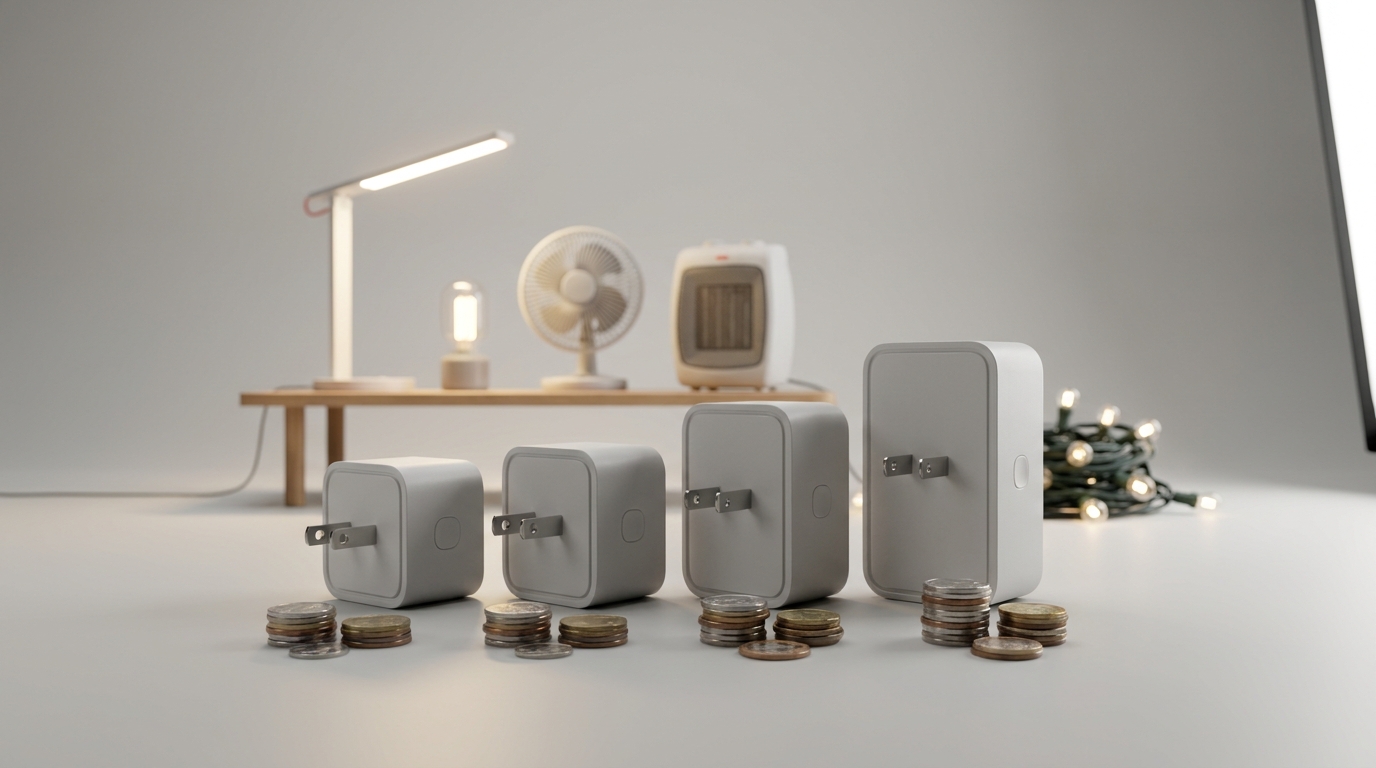
- Rated current (A) / wattage (W) — must be explicit. Quick math: amps × volts = watts. On 120 V mains, 10 A × 120 V = 1200 W. If your heater draws 1500 W, you need ≥12.5 A rating (or better: ≥15 A / 1800 W).
- Wi‑Fi band — list says 2.4GHz only or dual‑band? Most smart plugs are 2.4GHz-only; this is critical for range and setup (the vast majority of Wi‑Fi smart plugs support only 2.4GHz — see AndroidCentral, 2023-05-12: https://www.androidcentral.com/these-smart-plugs-support-5ghz-wi-fi).
- Certifications — UL, ETL, or CE should appear in photos or the spec sheet. No certification = higher risk for heat/failure.
- Size / stacking — check photos to confirm whether it blocks the second outlet on a duplex. Low-profile for bedside lamps matters.
- App / cloud dependency — does the listing admit cloud-only control? If local control or LAN API is important, confirm in docs or support pages.
- Warranty / support — shorter warranty often correlates with higher replacement risk; look for at least 12 months on electronics if possible.
How to read A / W vs your appliance (quick examples)
Formula: amps × volts = watts. Example: a 60 W lamp at 120 V draws 0.5 A (60 / 120 = 0.5 A). A pedestal fan using 500 W draws ~4.2 A. A 1500 W space heater draws 12.5 A. Match plug rating to continuous load, not surge numbers.
One-minute arrival tests
- Visual check: certification mark and model number on the unit.
- Pairing test: set up on the 2.4GHz SSID and confirm Alexa discovers device.
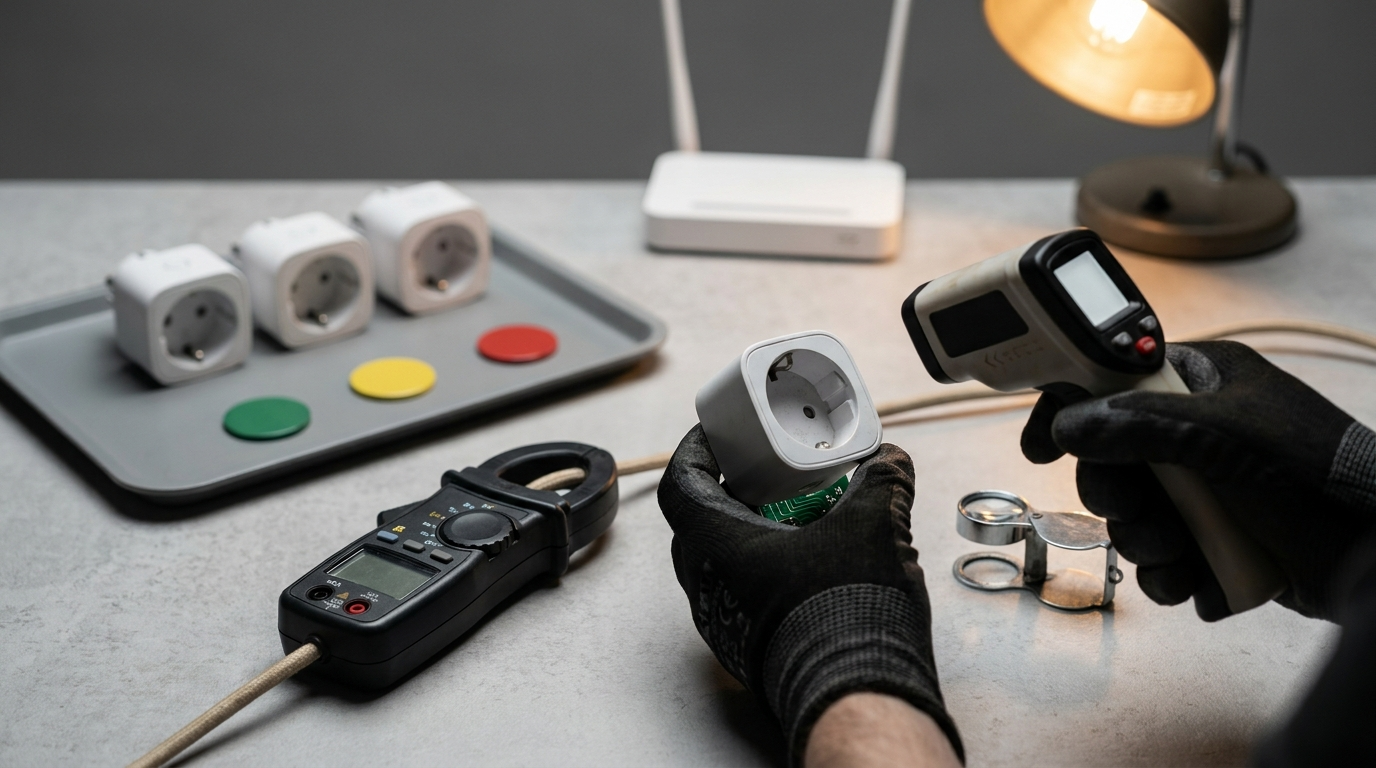
- Standby check: plug a smart plug into a cheap watt meter and note idle watts for 5 minutes.
- On/off latency: ask Alexa to toggle it and time the response (ms) — repeat 5 times and note variability.
Pitfall: buying on price alone when the listing omits rated current. Many cheap listings exaggerate or omit continuous-load ratings — don’t trust vague “up to X W” without voltage context.
How to weigh specs by budget use-case (lamps, fans, heaters, outdoor)
Score criteria by importance per use-case so you pick the right low-cost plug for your device.
Connectivity: 2.4GHz is preferred for IoT due to range and wall penetration (see Reolink, 2024-01-15: https://reolink.com/blog/what-devices-should-be-on-2-4ghz-and-5ghz/).
Weighted criteria (brief)
- Connectivity reliability (2.4GHz vs 5GHz) — high for all.
- Max current / W — critical for fans/heaters.
- Standby draw — high for always-on lamps.
- Size/stacking — important for bedside outlets and power strips.
- Energy‑monitoring accuracy — nice for savings and TCO math.
- Local vs cloud control — important for privacy and offline reliability.
- Firmware policy & warranty — affects long-term reliability.
Scorecard thresholds
- Lamps / lights: 5 A / 600 W acceptable; prioritize low standby and small profile.
- Fans / medium motors: aim for 10–12 A (1200–1440 W) and check motor startup characteristics.
- Space heaters: avoid cheap plugs unless rated >15 A / 1800 W — otherwise use a dedicated heater-rated outlet or hardwired solution.
- Outdoor lights: require IP / weatherproof rating plus UL listing for wet locations.
Quick decision flow: If you need continuous high current (heater) → buy a plug rated ≥15 A / 1800 W or step up to a wired relay. Otherwise choose the lowest-price plug that meets the A/W rating and has measured standby & certification.
Pitfall: assuming “high amp” claims are for continuous operation — some products state surge-capable amps but don’t specify continuous rating. Always verify continuous rating in the datasheet.
Best picks by budget (comparison table: cheapest, sub-$25, safest for high-current, outdoor, energy‑monitoring)
This short matrix lists budget categories and what to verify before buying. Model-level specs are manufacturer‑claimed unless we verified them — see the research notes below each row for missing checks.
| Category | Price range | Rated A / W (verify) | Energy monitor? | 2.4GHz / dual | Cert | Warranty |
|---|---|---|---|---|---|---|
| Cheapest (lamps) | <$15 | ~5 A / 600 W (often claimed) | No | 2.4GHz | Varies | 6–12 mo |
| Best sub-$25 (fans) | $15–$25 | 10–12 A desirable | Sometimes | 2.4GHz / dual sometimes | Often ETL/CE | 12 mo |
| Safest high-current budget | $20–$35 | >15 A / 1800 W recommended | Sometimes | 2.4GHz or dual | UL/ETL preferred | 12–24 mo |
| Outdoor budget | $20–$35 | Depends — 10–15 A | No | 2.4GHz | Weatherproof + cert | 12 mo |
| Budget energy-monitoring | $20–$30 | Varies | Yes (but check accuracy) | 2.4GHz | Often CE/ETL | 12 mo |
For each pick: what to verify on arrival
- Official rated voltage/current from the manufacturer datasheet or FCC filing.
- Certification mark visible on the unit (UL/ETL/CE).
- Measured standby power (use a watt meter) and on/off latency via Alexa (time 5 toggles).
- Firmware release date / patch notes on vendor support pages.
Research note: No reliable model-by-model independent standby and failure data was available in our Research Findings — next steps: check official product datasheets (e.g., Amazon Smart Plug manuals, TP-Link Kasa datasheets) and FCC filings. Where data is missing, flag the field as “manufacturer-claimed” and run the arrival tests above.
Pitfall: listing models without verified standby power, firmware history, or certification — always mark these as unverified and give buyers the test steps.
True total cost of ownership (1–3 years) for budget plugs — calculate real dollars
Cheap upfront cost isn’t the whole picture. TCO = purchase price + replacement risk + standby electricity + optional cloud/hub costs.
Simple TCO template (1–3 years)
- Purchase price (P)
- Replacement budget: assume an annual failure rate r (use conservative r=10% for cheap models if unknown)
- Standby power: idle watts (W_idle) × 24 h × 365 × electricity price ($/kWh)
- Optional: cloud subscription or hub cost amortized over period
Example (3-year)
Plug A: P = $15, r = 10%/yr → expected replacements over 3 years ≈ 0.271 units (use geometric series), replacement cost ≈ $4.07; standby = 0.5 W average → 0.0005 kW × 24 × 365 × $0.15/kWh ≈ $0.66/yr → $2 over 3 years. Total ≈ $21.07 over 3 years. Plug B: P = $25, r = 5%/yr → lower replacement risk but higher upfront. Break-even depends on your assumed r and measured standby.
How to measure standby at home
Use a cheap plug-in watt meter: plug meter into outlet, plug smart plug into meter, leave idle for 5–10 minutes and record average. Convert to kWh: watts/1000 × hours.
Research gap: No reliable failure-rate or standby datasets found in Research Findings — recommended next sources: Consumer Reports reliability surveys and Energy Star standby tests. Until then, budget a replacement buffer for cheap IoT devices.
Pitfall: assuming zero replacement risk — cheap devices often have materially higher return/failure rates; include a small buffer in your TCO.
Common real-world failure modes and a 6-step diagnostic flow that fixes 90% of issues
Know the common failures and a simple triage that fixes most problems without technical hacks.
Most common failure patterns
- Wi‑Fi drops on congested 2.4GHz networks or after router firmware updates.
- Flaky reconnection when SSID or password changes.
- Overheating on near‑limit continuous loads.
- Firmware bricking after failed update.
- Interference from mesh extenders or client isolation settings.
- False triggers from Alexa routines or duplicated device names.
6-step diagnostic triage
- Check load rating and unplug if device is warm or the load approaches the plug’s limit.
- Isolate: plug device into a different outlet on a different circuit to confirm whether outlet or plug is the issue.
- Factory reset the plug and re-add to the app (follow vendor guide).
- Power-cycle router and plug; ensure the plug is on the 2.4GHz SSID during setup.
- Check the app for firmware updates and apply only if stable release notes exist; if bricked, contact vendor support.
- If persistent, return/replace — label the circuit and use manual on/off until resolved to avoid heater accidents.
Quick safe-fallback: label smart-plug-controlled outlets “SMART-PLUG – manual switch” and keep manual access for heaters or critical loads until you confirm reliability.
Pitfall: telling users to flash third‑party firmware as a first step — that should be reserved for advanced users on devices that officially support it.
Router, mesh and Wi‑Fi band interactions that silently break cheap Alexa smart plugs
Cheap smart plugs often assume a simple Wi‑Fi environment. These router settings commonly break provisioning or operation.
Why 2.4GHz is usually best
2.4GHz offers better range and wall penetration for devices with small antennas; most plugs are 2.4GHz-only (the vast majority support only 2.4GHz — AndroidCentral, 2023-05-12: https://www.androidcentral.com/these-smart-plugs-support-5ghz-wi-fi).
Mesh and SSID gotchas
- Dual‑SSID routers use one name for both bands by default — this can confuse provisioning. Split SSIDs during install (separate 2.4 and 5 SSIDs).
- Mesh extenders sometimes isolate clients between nodes; a plug might attach to a weak node and lose connectivity.
- Client isolation, AP isolation, or guest network flags will block local discovery and Alexa linking.
Router prep checklist
- Enable 2.4GHz and create a dedicated SSID for provisioning if necessary.
- Reserve a static DHCP lease for the plug (helps with stability).
- Disable AP/Client isolation for your IoT SSID.
- Check AP logs to confirm the plug’s MAC is connected to the expected AP.
Counterexample: a few plugs support 5GHz (rare — e.g., Broadlink SP4D-US per AndroidCentral), but these are exceptions and may still be costlier or less tested.
Pitfall: moving everything to 5GHz for “speed” — that often breaks small IoT devices. For detailed router setup and troubleshooting, see our network guide on wifi and network setup.
Stacking, outlet fit and real electrical safety: what cheap product pages gloss over
Photos hide thermal and stacking problems. Follow these simple safety checks.
Duplex stacking rules
- Don’t block ventilation holes or stack two high-current plugs in the same duplex on continuous loads — heat needs to escape.
- Derate when closely stacked: assume reduced thermal dissipation and avoid pairing two >10 A devices on the same duplex.
- Check product photos for blocking of second outlet; if unclear, prefer low-profile designs or extension strips rated for combined loads.
Overheating symptoms & continuous testing
- Symptoms: hot plastic, melted paint, circuit tripping, burning smell. If any appear, stop using immediately.
- How to test continuous load: use a watt meter and clamp meter if available. Run device for 30–60 minutes while monitoring temperature and current.
Unsafe hacks to avoid: piggybacking extension cords, stacking multiple high-current devices on one plug, or using unlisted adapters to convert form factors.
Pitfall: assuming small size equals low heat — compact plugs can overheat under sustained near-limit loads because they have less thermal mass.
What top reviews and retailers miss (and exactly how we’ll fill those gaps)
Most pages repeat marketing. Here’s what they miss and how we test it.
- Missing buyer questions: firmware/patch history, measured energy-monitoring accuracy, local LAN control vs cloud-only, Tasmota/OpenWrt flashability.
- How we’ll fill gaps: pull FCC ID filings, vendor changelogs, and run a three-load accuracy test (5 W, 60 W, 1000 W) and a standby measurement for every candidate.
- Manufacturer-claimed vs independently measured: always label fields as “manufacturer-claimed” if we haven’t run the arrival tests above.
Research note: Per our Research Findings, “No reliable data found” on many long-term and model-specific items. Next sources to consult: Amazon Smart Plug specs, TP-Link Kasa datasheets, FCC filings, Consumer Reports and Energy Star tests. Where data is missing we’ll include the exact arrival test protocol so readers can replicate or vote with purchases.
Internal resources: check compatibility specifics with compatibility with Alexa, learn to test monitors on energy-monitoring explained, confirm expected safety marks at safety certifications and testing, and follow our advanced network prep at wifi and network setup. For use-case roundups see best smart-plugs by use-case.
FAQ
Can I use a cheap Alexa smart plug with a space heater?
Only if the plug is explicitly rated for the heater’s continuous wattage (typically >1500–1800 W); otherwise choose a plug with a >15 A / 1800 W rating or use a hard‑wired solution.
Do Alexa smart plugs work on 5GHz Wi‑Fi?
Most do not—the vast majority use 2.4GHz for better range and compatibility; 5GHz-supportive plugs are rare (see AndroidCentral — 2023-05-12).
How much extra electricity does a smart plug waste in standby?
Manufacturer listings often omit this—measure with a watt meter on arrival; prioritize plugs with measured standby <500 mW and return if higher.
Are budget Alexa smart plugs safe to stack in the same duplex outlet?
Be cautious—stacking can increase surface temperature and may violate thermal derating; prefer low-profile plugs or leave one outlet free for high-current devices.
What should I do if my plug keeps dropping off Alexa after a router update?
Power-cycle plug and router, rejoin the plug to the 2.4GHz SSID, assign a static DHCP lease, and if that fails, factory-reset and re-add per the app.
How do I know if an inexpensive plug supports local control or requires the cloud?
Check product docs and privacy policy; if it exposes only cloud-based Alexa skills and no LAN API or local mode, assume cloud-dependent and factor this into the buy decision.
Conclusion
Buy the cheapest alexa smart plug that actually meets your continuous current needs, shows certification, and passes the one‑minute arrival tests. If you follow the checklist, the arrival tests, and the diagnostic flow here, you’ll pick a safe plug under $25 matched to lamps, fans, or outdoor lights — and avoid surprises with heaters. Compare models, run the tests, and return anything that fails the standby or load checks.
CTA: Compare picks in our detailed matrix above, run the arrival tests, and check our compatibility and network guides to finalize your purchase.