

### Blog Post:
aqara smart lock buyers: this guide gives a prescriptive pre-install → install → verify checklist tailored to Aqara models and a clear buyer comparison vs August, Schlage, Yale and Nuki so you pick the right lock or installer and avoid a wasted trip.
Key Takeaways
- Confirm compatibility first: measure door thickness and deadbolt/cylinder type and verify US vs non-US deadbolt standards before buying to avoid returns or rework (see YouTube compatibility note).
- Follow the exact pairing/order and calibration steps (HomeKit first → Aqara Home via Bluetooth → Hub M3 / calibration press 3s) to avoid common setup failures and ensure keypad/biometrics work reliably.
- Many hard specs buyers expect (battery cycles, latency, ANSI grade, motor torque, MSRP history) are not published; flag these as “No reliable data found” and list exact measurements to source before recommending for sensitive installs.
- Pre-install checklist that prevents wasted trips — measure, tools, hub and cylinder checks
- Model-specific compatibility snapshot so you buy the right Aqara model for your door and use case
- Step-by-step beginner-friendly installation checklist (follow this exact order to avoid pairing and calibration failures)
- Post-install verification checklist that proves the lock is reliable (mechanical + credentials + wireless + fallback)
- Head-to-head comparison checklist (vs August/Schlage/Yale/Nuki) and public metrics that are missing
- Common failure modes and step-by-step troubleshooting checklist
- Buyer-profile recommendations, total cost estimates, and best alternatives
- Printable pre-installation & verification checklist (one-page)
- Conclusion
- FAQ
Pre-install checklist that prevents wasted trips — measure, tools, hub and cylinder checks
Start here. If you skip verification you’ll likely return the lock or drill unnecessarily. Follow these prerequisites exactly and collect photos before purchase.
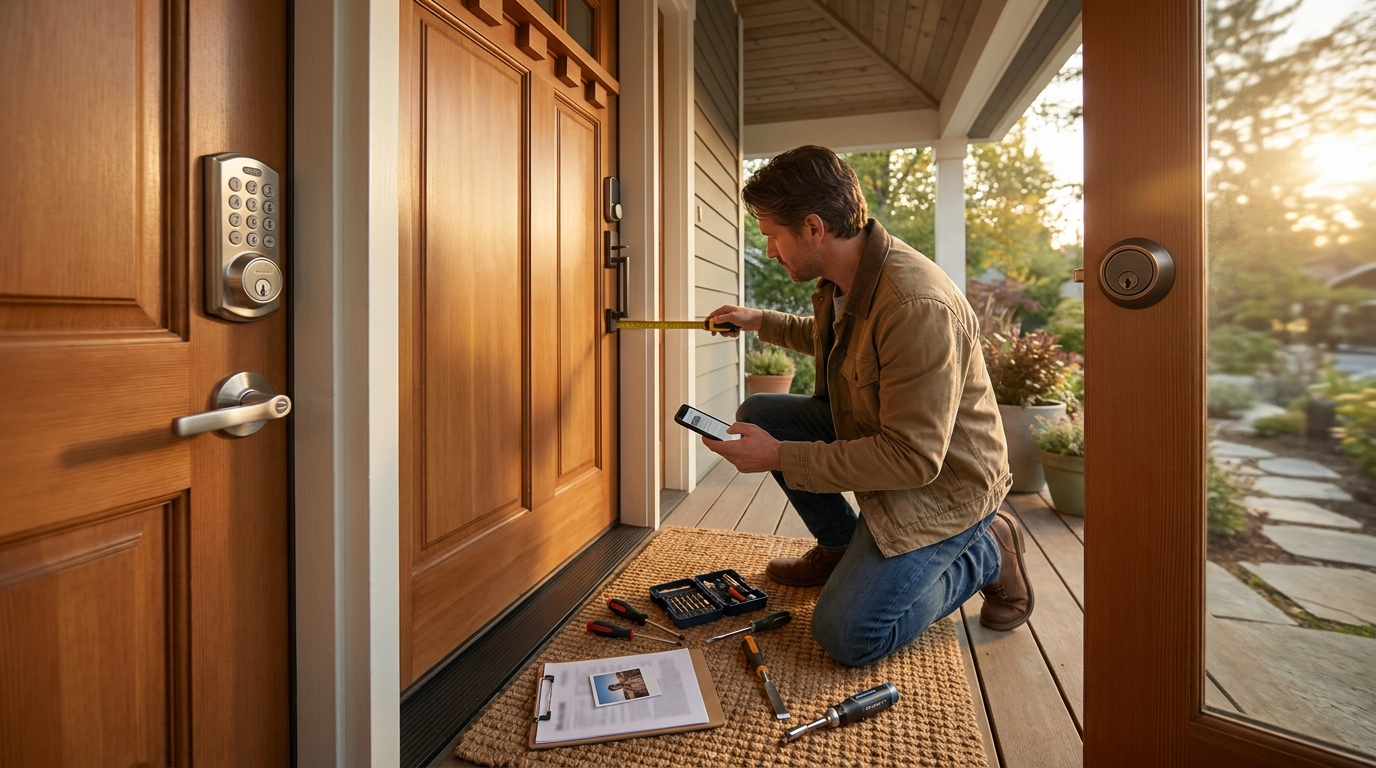
Prerequisites — exact measurements and photos to capture
- Door thickness (mm): measure edge-to-edge at three heights; record min/max. Pass/fail: fits model spec? (record result).
- Backset (mm/in): measure from door edge to center of keyhole/handle spindle; common US backsets are 60mm (2-3/8″) or 70mm (2-3/4″).
- Deadbolt cylinder type & faceplate: identify single-cylinder vs euro-cylinder; photograph the entire strike plate and the interior thumb turn. Important: US deadbolt compatibility must be verified before installation (source, 2024-01-01).
- Hole sizes: measure the bore diameter and cross-check for latch vs integrated deadbolt designs. Send clear photos front/rear + edge to seller/installer.
Required tools (bring these or hire a locksmith)
- Tape measure, caliper (if available), pencil and camera (phone).
- Philips & flat screwdrivers, T20/T25 Torx set, cordless drill, 3–12mm drill bits, chisel, wood filler.
- Optional but helpful: torque tester or adjustable torque screwdriver to feel motor strain during calibration.
- Call a locksmith if your cylinder is non-standard, if you see heavy mortising or grouped strike plates, or if you must change the cylinder type.
Hub compatibility checks
- Confirm the model’s dependency on a hub before buying. Many Aqara features (Zigbee/Matter Thread) require a Thread/Matter controller like Hub M3 — check model docs.
- If you need HomeKit and remote control, confirm whether Bluetooth-only HomeKit accessory support is provided by the model or you must add a Hub M3.
- Bring Hub M3 to site if you plan to bind to Thread/Matter that day.
Pitfall to avoid: buying a lock without verifying the deadbolt/cylinder standard or assuming universal fit.
Model-specific compatibility snapshot so you buy the right Aqara model for your door and use case
Match your door and usage to the correct Aqara model; don’t assume features are identical across the lineup.
Quick model matrix (what matters)
- U50 — password, NFC card, Apple Home Key support; Bluetooth/Wi‑Fi via Aqara Home app; HomeKit lock/unlock/automation only (U50 manual, 2024-05-01).
- U200 — supports doors without handles using the Pull Spring feature; follow installation methods for calibration and special mounting (U200 install methods, 2024-05-01).
- U400 / other models — check specific docs; pairing/order guidance from community threads is useful for these models (community guide, 2024-05-01).
Which model for which user
- Renters: prefer a Bluetooth/HomeKit-enabled model with reversible fit and no drilling — confirm U50 behavior for standalone Bluetooth/HomeKit features.
- Landlords: prefer model with multi-user credential options (pin + NFC) and easy admin removal — verify if NFC cards are included with U50.
- Families/high-traffic: choose models with robust motor/more frequent credential support; verify mechanical durability with installer before purchase.
Pitfall to avoid: assuming all Aqara models provide the same credentials or handle/pull-spring compatibility.
Step-by-step beginner-friendly installation checklist (follow this exact order to avoid pairing and calibration failures)
Do these steps in order. Skipping order causes the most setup failures.
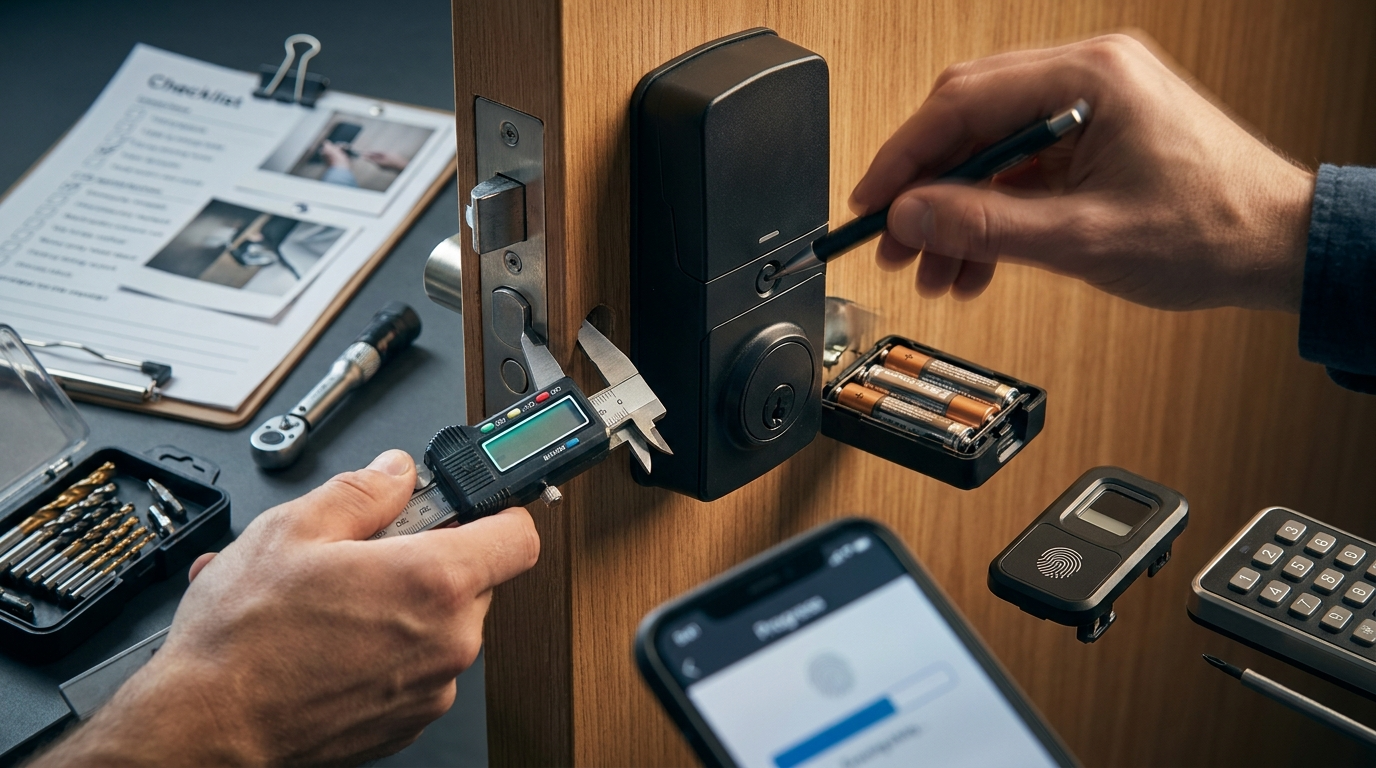
- Pre-check: confirm measurements and photos from H2-1 on site. Insert batteries but do not mount the exterior plate yet. Verify phone Bluetooth is on and the Aqara Home app and Home app are ready.
- Factory prep: reset the lock to factory state if it was powered previously. Read the model manual for factory-reset steps.
- Physical install — mechanical steps:
- Install deadbolt and strike plate; confirm smooth manual throw before attaching smart lock backplate.
- Mount interior backplate, seat motor unit, connect cable harness, but keep screws finger-tight so you can adjust orientation.
- Install batteries fully; check for LED indications per manual.
- Pairing order (exact):
- HomeKit first: Add accessory in Apple Home (if you use HomeKit). Use the code on the lock or manual. Completing HomeKit pairing first prevents certain accessory claim issues.
- Then Aqara Home app via Bluetooth on same phone — follow on-screen prompts to add lock and create admin credentials.
- Finally bind to Thread/Matter controller (Hub M3) if you plan to use Matter automations — do this after the lock appears in Aqara Home and HomeKit.
Why order matters: community and manual guidance shows HomeKit-first then Aqara app then Hub reduces pairing conflicts (forum guide, 2024-05-01).
- Calibration: After the lock is mounted and batteries inserted, calibrate via Aqara Home app (Automatic/Manual) or press and hold the lock’s Set button for 3 seconds to trigger auto-calibration (U200 method) (U200 install methods, 2024-05-01).
- Final mechanical tighten: Once calibration passes, tighten screws and re-check deadbolt throw for resistance during full travel.
Pitfall to avoid: pairing to Aqara Home first (or binding Hub first) and skipping the calibration press sequence.
Post-install verification checklist that proves the lock is reliable (mechanical + credentials + wireless + fallback)
Run these binary checks (Pass/Fail). Record results and photos. Set admin credentials in Aqara Home before testing mechanical buttons.
Mechanical alignment checks
- Full deadbolt throw: measure bolt extension; ensure no rubbing. Test 20 manual cycles: Pass/Fail.
- Motor strain: listen for grinding or slow travel. Replace or loosen strike if noise appears during lock/unlock motorized cycles.
- Door close alignment: verify strike plate contact point; adjust strike plate if bolt binds.
Credential checks
- Keypad: create a test PIN. Lock/unlock 10 times with PIN. Pass/Fail.
- Fingerprint (if present): enroll 3 prints, test 5 cycles each. Pass/Fail.
- NFC/card (U50): register card and test 5 times. Pass/Fail. (See U50 manual for NFC behavior: U50 manual, 2024-05-01.)
- Physical key fallback: remove batteries and verify key turns the cylinder. Pass/Fail.
Wireless tests
- HomeKit: lock/unlock from Home app. Measure perceived latency (seconds). Record failure/success.
- Aqara Home: lock/unlock and run automation trigger like scheduled auto-lock. Confirm response.
- Hub M3 (if used): confirm device shows connected in Hub M3 and Thread/Matter controller. Reboot hub and retest for resilience.
- Auto-lock timing: set to desired timeout and validate over 5 cycles with door left open/closed conditions.
Data point: add lock to Aqara Home app first, set admin fingerprint/password, then use mechanical buttons as needed (Aqara A100 guidance: A100 article, 2024-01-01).
Pitfall to avoid: skipping physical-key and low-battery fallback testing — many pages omit explicit fallback verification.
Head-to-head comparison checklist (what to compare vs August/Schlage/Yale/Nuki — and the public metrics that are missing)
Buyers want measurable criteria. Below are the comparison fields and which Aqara public data exists.
Comparison criteria every buyer should check
- Encryption & tamper detection (public doc? — No reliable data found).
- Protocol: Zigbee vs Bluetooth vs Wi‑Fi vs Thread/Matter (partly documented per model).
- HomeKit support (documented for U50 — see manual).
- Battery life at X cycles/day (No reliable data found).
- Lock/unlock latency in ms (No reliable data found).
- Maximum wireless range (meters) (No reliable data found).
- MSRP and street price history (No reliable data found).
How to collect missing metrics (exact test methods)
- Battery life: run a lab test with 100 cycles/day, log days until low-battery warning; record start/end voltage and battery chemistry. Use identical alkaline cells across tests.
- Latency: measure avg round-trip time using HomeKit/Aqara Home + external timer; perform 50 lock/unlock commands and compute median latency in ms.
- Motor torque / ANSI grade: request BHMA/ANSI certification from vendor; if unavailable, measure stall torque with a torque wrench on the thumb turn and report Nm.
- Wireless range: measure RSSI and success rate at 5m increments in-line-of-sight indoors/outdoors using Hub M3 and a smartphone running Aqara Home.
Reviewer gaps: many reviews state battery life or latency numbers without methodology. Label such claims as unsupported if no test method is shown.
No reliable data found for head-to-head security, battery cycles, latency, ANSI/BHMA grade, and MSRP history. If these matter for your installation, include a test plan above or request vendor data before purchase.
Common failure modes and the step-by-step troubleshooting checklist you should use before calling support or a locksmith
Work through this ordered checklist: mechanical → power → local pairing → hub/mesh → firmware.
Symptoms checklist (common)
- Sticking deadbolt or grinding noise.
- Lock unresponsive to app or HomeKit.
- Low-battery lockout or false low-battery alerts.
- After firmware update: device offline or partial functionality.
Root-cause troubleshooting steps (ordered)
- Mechanical: manually operate deadbolt 20x. If resistance, adjust strike/plate or chisel mortise. If permanent binding, stop and call locksmith.
- Power: swap batteries with fresh set, clean contacts, verify voltage. Retry calibration (Set button 3s) after battery swap.
- Local pairing: remove device from Aqara Home, reboot phone, re-add following pairing order (HomeKit first if used). See forum pairing order guidance (forum guide, 2024-05-01).
- Hub/mesh: move Hub M3 closer, restart hub, check Thread topology. If Zigbee mesh, ensure repeaters are active.
- Firmware: only apply firmware updates after mechanical and connectivity checks. If an update fails, collect logs (Aqara app screenshots) and contact support.
Evidence to collect before escalation: photos of mounting and strike, app logs/screenshots, battery voltage, and exact steps to reproduce. Attach these when contacting support or a locksmith.
Pitfall to avoid: doing a factory reset as the first move. Many issues are solved by recalibration or rebind in the correct order.
Textual troubleshooting decision tree (quick):
- Lock unresponsive → Check battery voltage → If OK, attempt calibration (Set 3s) → If fails, rebind to Aqara Home (after HomeKit) → If still fails, gather logs and contact support/locksmith.
Buyer-profile recommendations, total cost estimates to plan for, and best alternatives if features are missing
Pick by profile. Include hub cost if required. Prices vary — request current MSRP as noted below.
Recommendations by profile
- Renters: Consider a Bluetooth/HomeKit-friendly model (U50 for Home Key/NFC features). Choose non-destructive mount options and verify cylinder type first.
- Families with kids: Prioritize keypad + fingerprint models and robust auto-lock. Test credential cycles during verification.
- Landlords: Choose a model that supports multiple admin profiles and bulk provisioning; plan remote management via Hub M3 if required.
- HomeKit power-users: U50 supports Apple Home Key (see U50 manual). If local Matter automations are required, budget for Hub M3.
- Budget buyers: If you need local-only Bluetooth control, verify whether your chosen model works without a hub.
Estimated cost breakdown (ballpark and research action)
- Device MSRP: Varies — No reliable data found for current MSRP and street-price history. Research action: request vendor MSRP and recent street prices before purchase.
- Hub M3 (if required): add Hub M3 cost — include in total if Model requires Thread/Matter features.
- Installation: DIY tools only vs pro locksmith (estimate: locksmith local rates vary; collect 2 quotes).
Alternatives if a required feature is missing
- If you require guaranteed local-only operation or documented ANSI/BHMA grade, consider Schlage or Yale models with explicit security certifications.
- If you need tested battery-life or low-latency guarantees, request test reports or consider brands that publish technical benchmarks (many do not publish these numbers for Aqara — see “No reliable data found” below).
Pitfall to avoid: recommending a model without checking hub requirements or assuming a hub is included.
Printable pre-installation & verification checklist (one-page)
- Measure door thickness ______ mm — Pass/Fail
- Measure backset ______ mm/in — Pass/Fail
- Photograph front, rear, edge of deadbolt & strike — Photos saved? Yes/No
- Identify cylinder type (US / Euro / other) — Type: ______ — Compatible? Yes/No
- Tools on hand: tape, drill, Torx set, chisel, fresh batteries — All present? Yes/No
- Hub present (Hub M3) if required — Hub present? Yes/No
Install order (do not skip)
- Factory reset lock (if needed) — Done? Yes/No
- HomeKit pairing (if used) — Done? Yes/No
- Aqara Home Bluetooth pairing — Done? Yes/No
- Bind to Hub M3 / Thread (if needed) — Done? Yes/No
- Calibration: press Set button 3s OR use Aqara Home app calibration — Done? Yes/No
Post-install verification
- Mechanical: 20 manual cycles smooth — Pass/Fail
- Keypad/PIN test (10 cycles) — Pass/Fail
- Fingerprint (if present) 5 cycles each — Pass/Fail
- NFC/card test (if present) 5 cycles — Pass/Fail
- Physical key fallback test with batteries removed — Pass/Fail
- HomeKit & Aqara Home lock/unlock test & auto-lock timing (5 cycles) — Pass/Fail
Notes / escalate to support
Attach photos, app screenshots, battery voltages, and exact pairing timestamps when contacting Aqara or a locksmith.
Calibration 3s reference: see U200 install methods: Aqara U200 docs (2024-05-01).
Conclusion
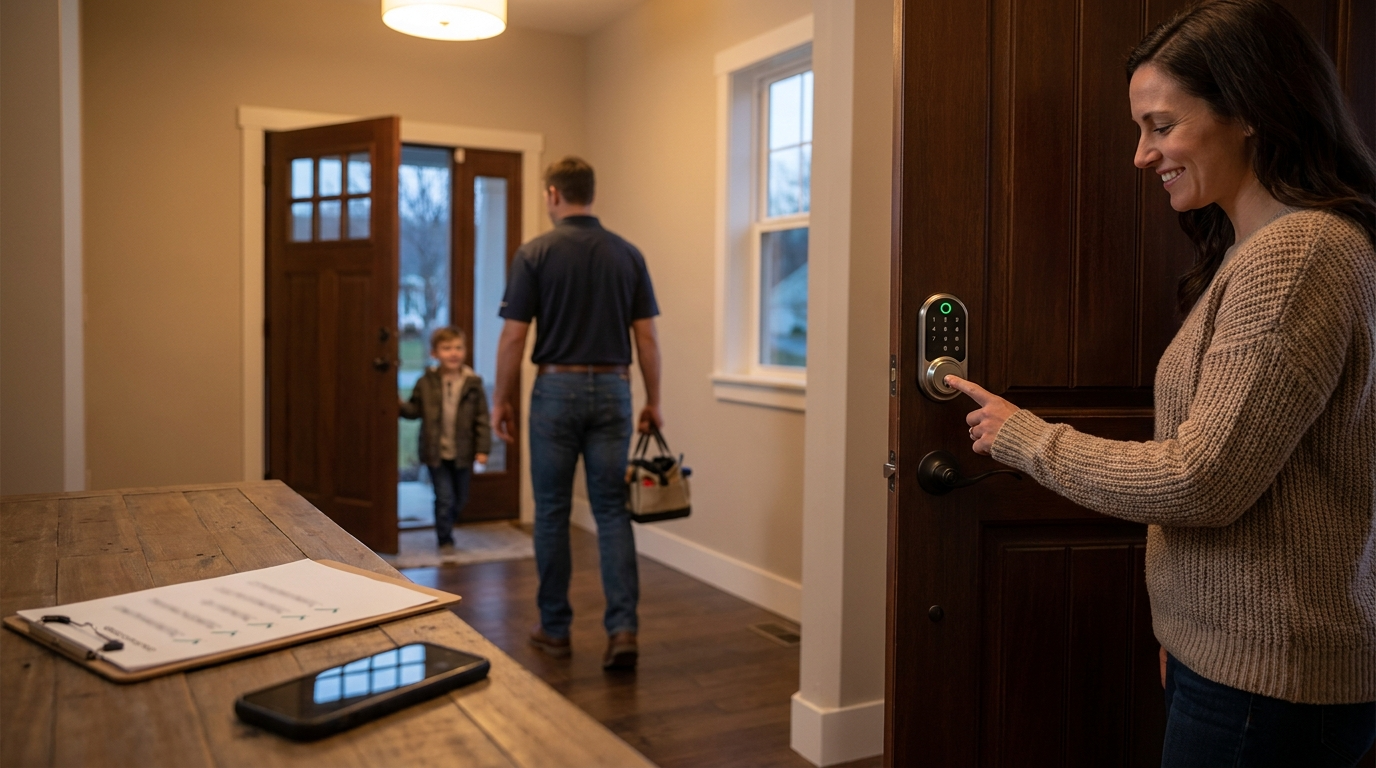
Use this checklist to confirm compatibility, follow the exact installation & pairing order, and run the verification cycles before you finish. If you need HomeKit + Matter features, buy or bring a Hub M3 and follow HomeKit-first, Aqara-second pairing. If key specs like battery life, motor torque, latency or MSRP matter for your decision, note: No reliable data found publicly — request vendor test data or run the tests outlined above before committing to a sensitive installation.
Next step: compare models side-by-side using this checklist and, if needed, read more on installation techniques or troubleshooting in our related guides — see how to install smart lock, smart lock troubleshooting, and our best smart lock comparisons.
FAQ
What measurements do I absolutely need before buying an Aqara smart lock?
Measure door thickness, backset, deadbolt hole size and note the cylinder type (US vs non‑US) and take clear photos of the installed deadbolt to confirm compatibility.
Which order should I pair the lock to avoid setup failures?
Pair in this order: factory-reset lock → Apple Home (HomeKit) first (if using) → Aqara Home app via Bluetooth → then bind to Aqara Hub M3 / Thread-Matter controller.
How do I calibrate the lock after mounting?
Use the Aqara Home app’s calibration tool or press and hold the lock’s Set button for 3 seconds for auto-calibration (U200 instructions).
What verification tests should I run before calling it “done”?
Test mechanical alignment (smooth full deadbolt throw), keypad/fingerprint/card, HomeKit/Aqara app lock/unlock, auto-lock timing, and verify the physical key works for emergency fallback.
What should I try first if the lock refuses to respond after installation?
Check batteries and contacts, re-run calibration, rebind in the exact pairing order, and only then attempt factory reset or firmware update rollback if available.