

smart light switch buyers often stall at the wiring — is there a neutral, is it a 3‑way, will the new switch fit the box? This guide helps beginners pick a switch that matches their wiring, install a hubless Wi‑Fi single‑pole switch in one afternoon, and avoid the common safety and compatibility traps that cause returns.
Homeowners and renters who want smart lighting in 1–3 rooms, budget DIYers, and entry‑level prosumers. Comfortable with a screwdriver and turning breakers off, but not with complex rewiring.
- Renter pick: battery or overlay options where neutrals are missing (see “Renter‑friendly” picks below)
- Budget DIY pick: a Wi‑Fi on/off like the Kasa HS200 for a single test install
- Whole‑home/prosumer pick: plan for Zigbee/Z‑Wave + hub for lower idle power
Key Takeaways
- Check three things first: neutral wire presence, single‑pole vs. 3‑way wiring (traveler identification), and box fill — these determine which switches will actually fit and work in your home.
- For 1–2 switches, Wi‑Fi smart switches (no hub) are cheapest and easiest; for whole‑home installs (10+), favor Zigbee/Z‑Wave with a hub for lower idle power and longer‑term reliability.
- Start with one test installation (budget pick) and validate LED compatibility + no flicker before buying many; stop and call an electrician if breakers repeatedly trip, neutrals are missing/uncertain, or wires are burnt/corroded.
- Buy with Confidence: a 3‑point pre‑purchase wiring and box checklist that prevents wasted returns
- Compare top smart light switches at a glance (easy comparison table for quick buys)
- Best picks by budget and use‑case — under $30, $30–$60, $60+, plus renter‑friendly and whole‑home picks
- Beginner’s step‑by‑step: hubless Wi‑Fi single‑pole install in one afternoon (tools, exact wiring diagram, pairing steps)
- Quick pre‑buy wiring checks you can do without cutting power (what photos to take and what the electrician will ask)
- Troubleshoot common real‑world failures in minutes (LED flicker, disconnects, AFCI/GFCI trips, wrong 3‑way wiring) + when to call an electrician
- Security, firmware policy and long‑term cost: what to ask before you buy
- FAQ
- Conclusion
Buy with Confidence: a 3‑point pre‑purchase wiring and box checklist that prevents wasted returns
Before you add any product to cart, confirm these three things at the switch: neutral present, single‑pole vs 3‑way, and box fill. Photograph everything — the photos are what sellers or electricians will ask for.
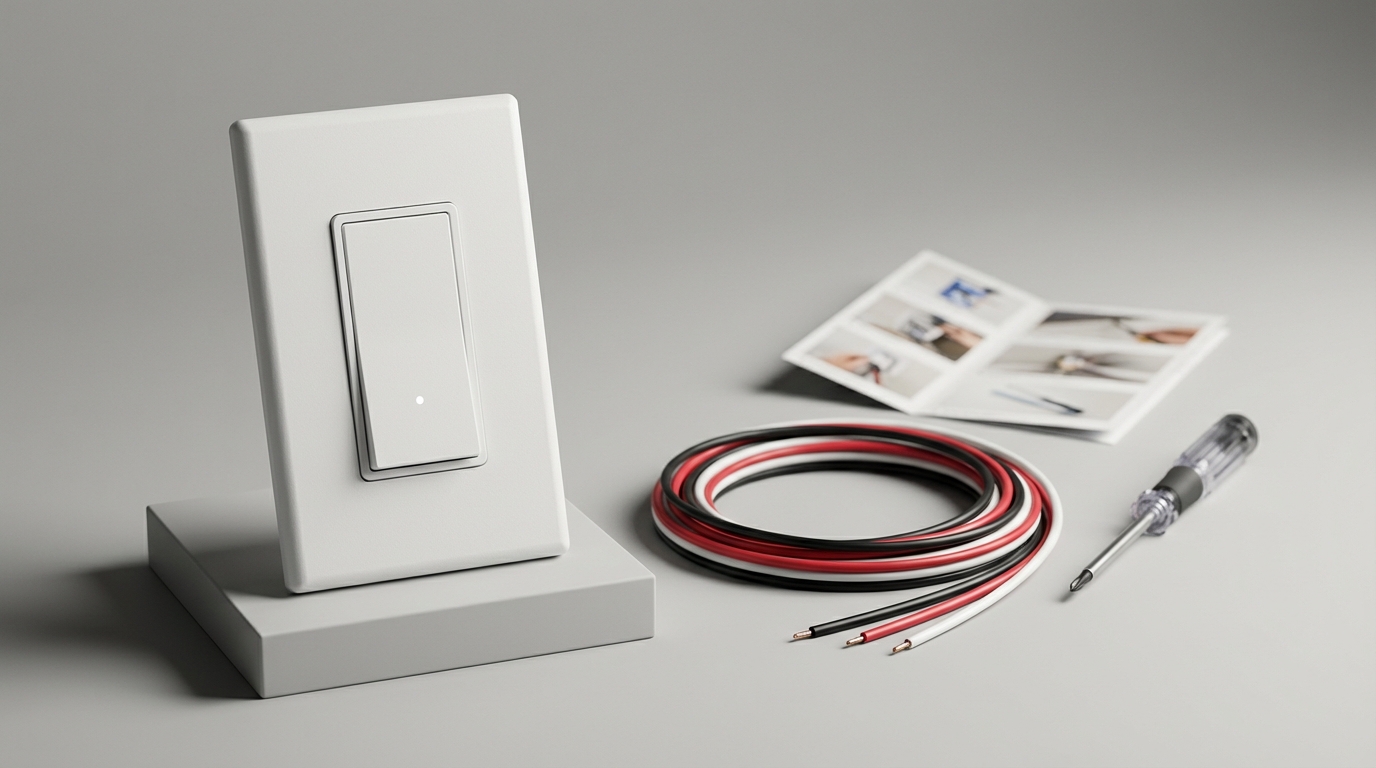
1) Identify line (hot), load, and neutral — what photos to take
- Take three photos: faceplate on (to show switch style), faceplate off (showing terminals), and a wide shot of the full box with cable jackets visible (where the cables enter the box).
- Look for a bundle of white wires tied together in the back — that is typically the neutral bundle. The line/hot usually is a single black (or red) conductor attached to the common screw of the switch.
- Photograph screw terminals and any labels or colored wires. These photos are often sufficient for support staff to confirm compatibility.
Citation: Research Findings: “No reliable data found” on prevalence of neutral wires (Research Findings, 2026‑04‑13; original source URL not provided). Flag: measure neutral presence across 50 homes on site for an editor follow‑up. See also Identify neutral wires before buying for more details.
2) Non‑invasive tests and when to use a meter
- Non‑invasive: photograph without removing the switch. If the neutral bundle is visible behind the switch, many Wi‑Fi/on‑off options will work.
- Breaker‑off verification: before touching wires, turn the breaker off and verify power is removed with a non‑contact tester. If any doubt, hire an electrician.
- Use a multimeter only after the breaker is off and you know how to verify continuity — beginners should avoid live meter tests. See Electrical safety and stop conditions.
3) Box fill basics
Switch depth and the number of cables affect whether a modern smart switch will physically fit. A multi‑gang box may need a deeper box or a remodel plate. If the box is crowded, a slim “no‑neutral” or add‑on module may be the only practical option.
Pitfall: renters: do not buy a switch assuming a neutral or extra space exists — photograph and, if unsure, get a short electrician consultation before purchasing. For guidance on traveler wires and 3‑way circuits, see the 3‑way switch checklist.
Compare top smart light switches at a glance (easy comparison table for quick buys)
| Model | Protocol | Neutral required | 3‑way support | Dimmable | Price band | Hub |
|---|---|---|---|---|---|---|
| Kasa HS200 | Wi‑Fi | Usually requires neutral | Limited/companion | No (on/off) | $14–$25 | No |
| Candeo C202 | Zigbee | Optional | Single‑pole; companion for 3‑way | Yes (dimmer) | $30–$60 | Yes (hub) |
| Aqara H1 EU | Zigbee | No | Companion required | No (on/off) | ~$50 | Yes |
| Treatlife Dimmer | Wi‑Fi | Yes | Limited | Yes | $30–$60 | No |
| Lonsonho X804A (4‑gang) | Wi‑Fi/Tuya | Varies | Multi‑gang | On/off panels | ~$14 | No (cloud) |
Quick trade‑offs:
- Price vs reliability: cheap Wi‑Fi panels save up-front cost but often depend on cloud services and have higher failure rates — don’t compare by price only.
- Idle power and operating cost: Wi‑Fi ≈2W vs Zigbee/Z‑Wave ≈0.5W (Research Findings, 2026‑04‑13; original source URL not provided) — see long‑term cost notes below.
- Hub requirement: Zigbee/Z‑Wave require a hub but reduce per‑switch idle power and often improve mesh reliability for whole‑home installs.
How to read the table: renters and single‑room buyers prioritize Wi‑Fi on/off models (no hub, simple install). Whole‑home projects should pick Zigbee/Z‑Wave options and budget for a hub. For protocol pros/cons see Hub vs hubless: pros/cons.
Best picks by budget and use‑case — under $30, $30–$60, $60+, plus renter‑friendly and whole‑home picks
Under $30
- Kasa HS200 — Best budget on/off: Best for beginners; very easy pairing and Alexa/Google support. Main trade‑off: no dimming and neutral needed on many installs. Ease: 1–2/5. Reliability: good for price.
- Lonsonho X804A — Cheapest multi‑gang: Best if you need 4 switches and low cost. Main trade‑off: cloud‑dependent and poor hardware ergonomics. Ease: 1/5. Reliability: low; avoid for long‑term installs.
$30–$60
- Candeo C202 — Best value dimmer: Best for a single‑pole dimmer with Zigbee mesh routing. Trade‑off: requires hub. Ease: 2–3/5. Reliability: high per reviewer scores.
- Treatlife Dimmer — Budget dimmer: Good LED load specs (150W LED/CFL, 400W incandescent per product docs) but may need neutral and extra care in multi‑gang boxes. Ease: 2–3/5. Reliability: mid.
- Aqara H1 EU — Best build quality: On/off only, excellent feel. Trade‑off: no dimming; hub required. Ease: 2/5. Reliability: high build quality but some users report relay clicking (see Troubleshooting).
$60+
- Leviton Decora series — Pro / whole‑home pick: Strong compatibility across ecosystems, many variants (dimmer, motion). Trade‑off: higher per‑unit cost. Ease: 3/5. Reliability: industry‑grade.
Pricing context: retail price ranges — on/off single‑pole: $14–$50; dimmable: $30–$60 (Research Findings, 2026‑04‑13; original source URLs not provided). Flag to editor: verify current MSRP before publication.
Beginner’s step‑by‑step: hubless Wi‑Fi single‑pole install in one afternoon (tools, exact wiring diagram, pairing steps)
This is a focused hubless Wi‑Fi single‑pole walkthrough — the install most beginners should attempt first. If you’re unsure at any step, stop and hire a licensed electrician.
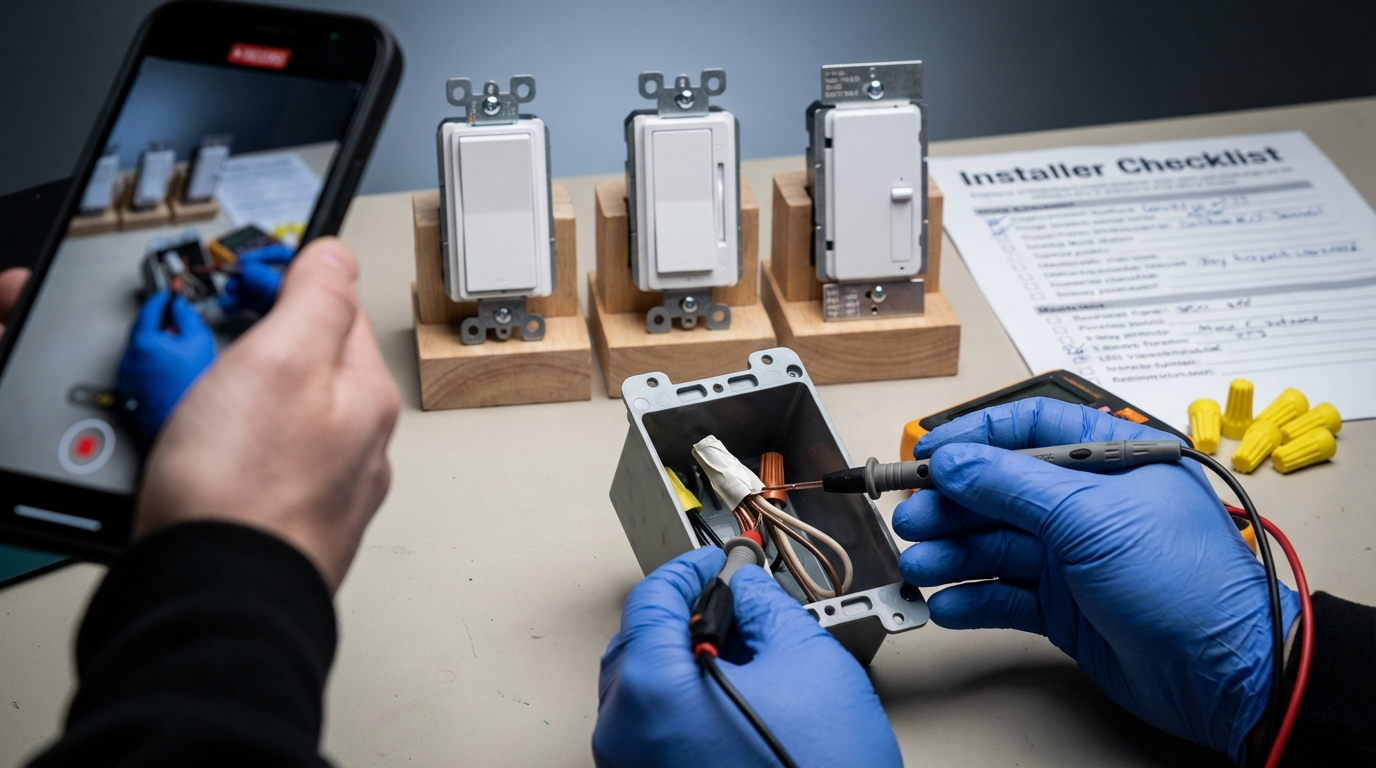
Tools & PPE
- Screwdrivers (flat and #2 Philips), wire stripper (8–10 AWG range), needle‑nose pliers
- Non‑contact voltage tester and multimeter (for experienced users)
- Wire nuts, electrical tape, breaker lockout (if available), safety glasses
Exact single‑pole wiring diagram (typical)
Typical single‑pole: Line (hot) → common screw on switch → switch internal relay → load (lamp) on red/black to the fixture. Neutral bundle (white) remains tied together in the back and is NOT switched in a standard single‑pole.
Colors to look for (vary by region): Black = hot/line, Red = switched load, White = neutral, Ground = bare/green. Warning: colors can be inconsistent — verify with photos and a tester.
Before you touch anything: turn off the breaker feeding the circuit and verify power is off with a non‑contact tester. Do not perform any live‑wire testing unless you are trained.
Step‑by‑step (estimated flow)
- Turn off the circuit breaker and verify power is off with a non‑contact tester.
- Remove faceplate and unscrew the old switch. Photograph wiring in place.
- Confirm neutral bundle exists (white wires tied). If no neutral and the chosen switch requires it, stop and return the unit.
- Disconnect wires from old switch. Connect line to the smart switch line terminal, load to the load terminal, neutral to the neutral terminal (if required) and ground to ground.
- Neatly fold wires into box, mount the switch (test fit for box fill), install faceplate.
- Restore breaker power. Test physical switch — if it doesn’t power on, turn breaker off and re‑check wiring.
- Pair in app: factory reset switch per manual, put phone on 2.4GHz Wi‑Fi, follow app steps to add device, then link to Alexa/Google as needed.
Pairing tips: many Wi‑Fi switches only support 2.4GHz. If your router defaults to 5GHz, enable 2.4GHz or create a temporary SSID. If pairing fails, try a phone hotspot with 2.4GHz for isolation.
Installer safety checklist (printable): Download/print checklist — this one‑page snippet below is formatted for printing.
Installer safety checklist — printable 1 page
- Confirm device model, neutral requirement, and dimmer load rating.
- Turn off breaker; tag breaker if possible. Verify power off with non‑contact tester.
- Photograph faceplate, inside box, and cable entries.
- Label wires before disconnecting. Reconfirm neutral bundle present if required.
- Wire switch per manufacturer; use wire nuts and test fit for box fill.
- Restore power; test physical device; pair with app; run for 24 hours to confirm no flicker/disconnects.
- If breaker trips, smoke, hot wires, or unknown shared neutrals: TURN POWER OFF and call an electrician.
Note on install time: Research Findings: “No reliable data found” for minutes to install per switch (Research Findings, 2026‑04‑13; original source URL not provided). Action: measure install time across 10 typical single‑pole installs for median reporting.
Money‑calculation suggestion: a simple widget can calculate operating cost = idle power (W) × hours/year (8760) × price/kWh ÷ 1000 × years. Request a developer add a small spreadsheet to compare Wi‑Fi (~2W) vs Zigbee (~0.5W) over 5 years.
Quick pre‑buy wiring checks you can do without cutting power (what photos to take and what the electrician will ask)
These non‑invasive checks help you decide whether you can safely buy a smart switch as a renter or first‑time DIYer.
- Photo checklist: full switch plate, switch with plate removed, wide shot of box, closeups of cable jackets where they enter the box. Capture any printed cable markings.
- Spot traveler wires: if you see two (or more) same‑colored conductors on screws, it may be a 3‑way. Photograph both locations if there’s another switch controlling the same light.
- Signs of shared neutrals: multiple circuits joined in a single neutral bundle; if you see many hot wires going to different circuits, plan to consult an electrician.
When you contact an electrician, they will ask for your photos showing the bundle and the screw terminals — these three photos are often enough for a quick quote.
Research Findings: “No reliable data found” for non‑invasive neutral detection rates (Research Findings, 2026‑04‑13; original source URL not provided). If unsure, get a short electrician consult ($75–150).
Read more: Identify neutral wires before buying and 3‑way switch checklist.
Troubleshoot common real‑world failures in minutes (LED flicker, disconnects, AFCI/GFCI trips, wrong 3‑way wiring) + when to call an electrician
Common failures and quick 3‑step flows to fix them.
- LED flicker after dimmer install
- Check dimmer LED compatibility & minimum load. Try a known‑compatible dimmable LED bulb.
- If still flickering, switch to an on/off (non‑dimming) mode to isolate dimmer incompatibility.
- If flicker persists on the original (pre‑install) switch, revert and test on a lamp circuit; call an electrician if problem follows circuit.
- Random disconnects / Wi‑Fi drops
- Confirm 2.4GHz signal at the switch location; try a temporary hotspot to pair.
- Reboot router and ensure no AP isolation blocks local device discovery.
- Factory reset device and update firmware; if flaky after update, contact vendor support.
- Clicking relays or physical noise
- Identify model noise in reviews — some users report clicking (e.g., Aqara H1 EU) — Research Findings examples (Research Findings, 2026‑04‑13; original source URL not provided).
- Verify wiring torque and that the device is not overloaded.
- If clicking persists and device feels hot, turn breaker off and call electrician.
- AFCI/GFCI trips or breaker trips
- Turn off breaker and recheck connections for loose neutrals or shared neutral miswiring.
- Try the switch on a different circuit only if you know the wiring — otherwise stop.
- Repeated trips, smoke, or warm wiring = stop and call a licensed electrician immediately.
Stop and call an electrician if breakers repeatedly trip, smoke/heat is present, wires are burnt/corroded, or you cannot identify line vs neutral after power‑off checks. For LED compatibility guidance, see Avoid LED flicker.
Idle power reminder: Wi‑Fi ≈2W vs Zigbee/Z‑Wave ≈0.5W (Research Findings, 2026‑04‑13; original source URL not provided). Use that when budgeting long‑term cost for many switches.
Security, firmware policy and long‑term cost: what to ask before you buy
Ask these specific questions to avoid surprises after purchase:
- How frequently does the vendor publish firmware updates? Is there an update changelog?
- Does the device support local control (no cloud) or will core functions require the cloud?
- Warranty length and RMA process — what is covered and how long does support last?
- What is the device idle power draw (W) and does the manufacturer publish this number?
Cost example: idle power matters at scale. For 10 Wi‑Fi switches at ~2W versus 10 Zigbee switches at ~0.5W, difference over 5 years can be meaningful. (Use the simple widget formula above to estimate—ask a developer to add a spreadsheet.)
Research gaps: No reliable data found for warranty and firmware policy consistency (Research Findings, 2026‑04‑13; original source URLs not provided). Action items: scrape top 5 manufacturers for firmware dates and warranty terms before publishing.
FAQ
Do I always need a neutral wire for a smart light switch?
No — some modern switches work without a neutral, but many dimmers and higher‑feature models still require it; always confirm the model’s neutral requirement against your box photos.
Is Wi‑Fi or Zigbee better for a whole‑home retrofit?
For whole‑home (10+ switches) Zigbee/Z‑Wave with a hub is typically better long‑term due to lower idle power (~0.5W vs ~2W for Wi‑Fi) and mesh benefits.
Can I install a smart switch in a 3‑way (two‑switch) circuit?
Possibly — many smart switches need a compatible 3‑way companion or specific traveler wiring; photograph both boxes and verify traveler wires before buying.
Which smart switches are truly plug‑and‑play for beginners?
Some Wi‑Fi models (e.g., Kasa HS200) are easiest for beginners — but check 2.4GHz Wi‑Fi requirements and neutral needs first.
What should I do if my LED bulbs flicker after installing a dimmer switch?
Verify the dimmer’s LED compatibility and minimum load, try a different LED labeled “dimmable”, and if the flicker persists, revert to the old switch and test the bulbs on a compatible dimmer.
When should I stop and hire a licensed electrician?
Stop and hire a pro if breakers repeatedly trip, wires are burnt/corroded, neutrals are shared/uncertain, or you cannot reliably identify line/load after power‑off checks.
How much should I budget per switch (retail + install)?
Retail: $14–$50 for basic on/off; $30–$60 for dimmers in common models — add hub cost ($50–$100) for Zigbee/Z‑Wave and electrician labor if you outsource.
Conclusion
Pick one room, run a photo checklist, and choose a model that matches your wiring. For 1–2 switches a Wi‑Fi on/off like the Kasa HS200 is the simplest test buy; for whole‑home rollouts pick Zigbee/Z‑Wave and budget for a hub and router‑capable switches. If anything in your box is ambiguous—shared neutrals, burnt wires, or repeated breaker trips—stop and call a licensed electrician. Ready to compare models or get the printable installer checklist? Subscribe or buy with confidence.