

enbrighten smart plug buyers: this budget-first guide gives the exact pre-purchase checks, the fastest 10–15 minute install flow, a printable one‑page checklist, hands‑on diagnostics, and the “what to measure next” items to avoid wasted purchases or returns.
Key Takeaways
- Verify three prerequisites before checkout: a working 2.4GHz SSID, Bluetooth on your phone for setup, and a plan to confirm the plug’s max load at the point of sale.
- Follow the budget-install checklist: place for good 2.4GHz reception, do a safe-load check, pair with the Enbrighten app, and run 3 verification tests (app, Alexa, 24‑hour soak).
- If things fail, run ordered fixes: RSSI/proximity test → router/SSID rules → factory reset + re‑pair → firmware attempt → escalate to warranty for repeated trips/overheating.
- Pre-purchase checklist that prevents the most common compatibility failures
- Step-by-step budget installation checklist (physical placement → safe load → pairing → Alexa/Google linking)
- Printable one-page quick checklist and verification tests
- Diagnose & fix the most common real-world failure modes
- Budget price benchmarks and what numbers are missing you must validate before buying
- Field tests every review should run
- Lowest-cost, reliable configuration that keeps Alexa working
- Conclusion
- FAQ
Pre-purchase checklist that prevents the most common compatibility failures
What to cover: exact prerequisites to confirm before you buy so you don’t return the plug for avoidable connectivity or safety issues.
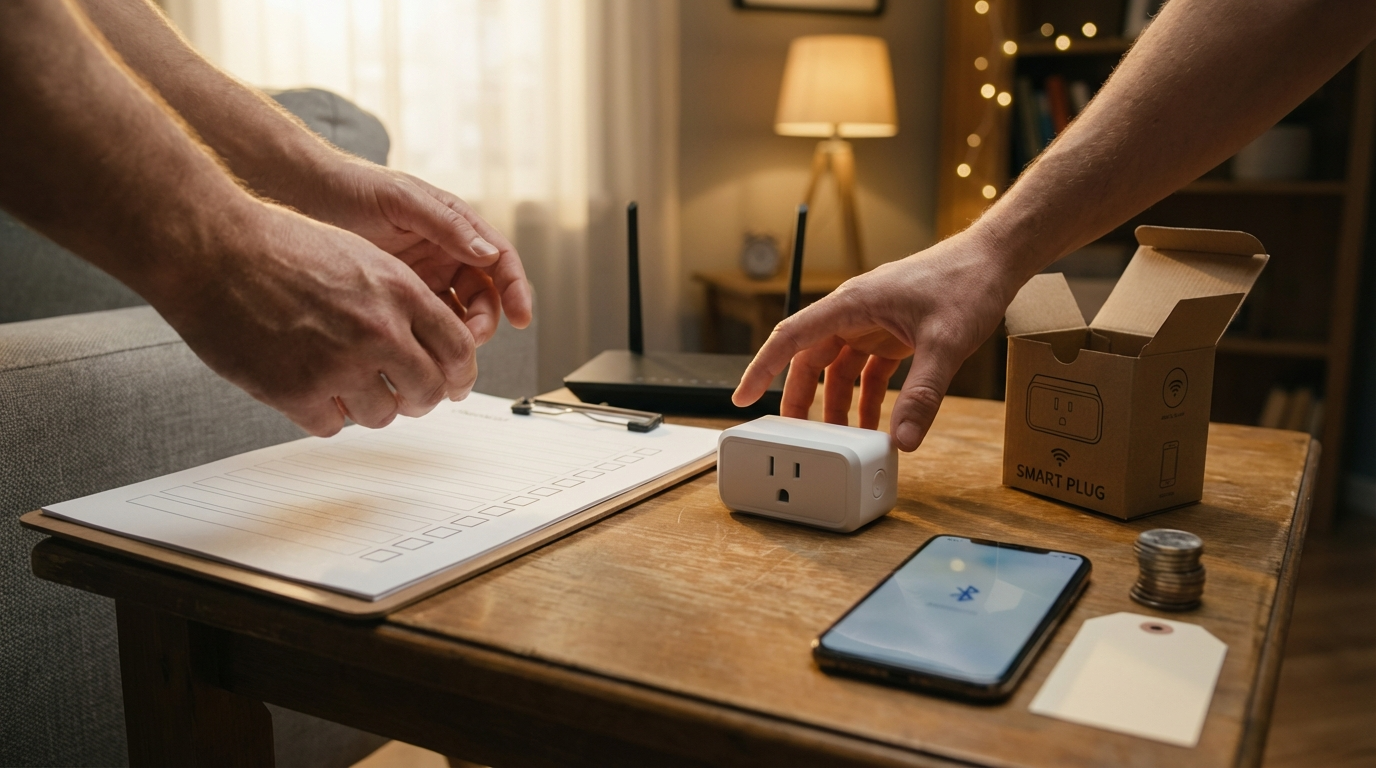
Must-confirm items at point of sale
- 2.4GHz Wi‑Fi: Confirm your router broadcasts a 2.4GHz SSID and you can connect devices to it. Enbrighten requires a 2.4GHz Wi‑Fi network (see official FAQ) — enbrightenme.com/pages/wifi-app-faq (2026-04-10).
- Band‑steering behavior: If your router uses band‑steering, verify you can temporarily select a 2.4GHz SSID or disable band‑steering during setup. Do not assume dual‑band routers will automatically work.
- Bluetooth availability: The Enbrighten app requires Bluetooth for setup—confirm your phone can enable Bluetooth and install the app.
- Packaging/spec sheet photo: photograph the label at checkout to capture max wattage/amps, surge or IP rating, and any warranty text. If those numbers aren’t on the label, request the spec sheet from the seller.
- Account/cloud requirements: Verify whether the app forces account creation and if cloud control is required for voice integration.
Quick cite: Enbrighten requires 2.4GHz Wi‑Fi and the app includes a setup flow that uses Bluetooth and Wi‑Fi transfer — enbrightenme.com/pages/wifi-app-faq (2026-04-10).
Step-by-step budget installation checklist (physical placement → safe load → pairing → Alexa/Google linking)
What to cover: a time-estimated, numbered sequence for unboxing, installing, and linking the plug to Alexa or Google with the fewest risks.
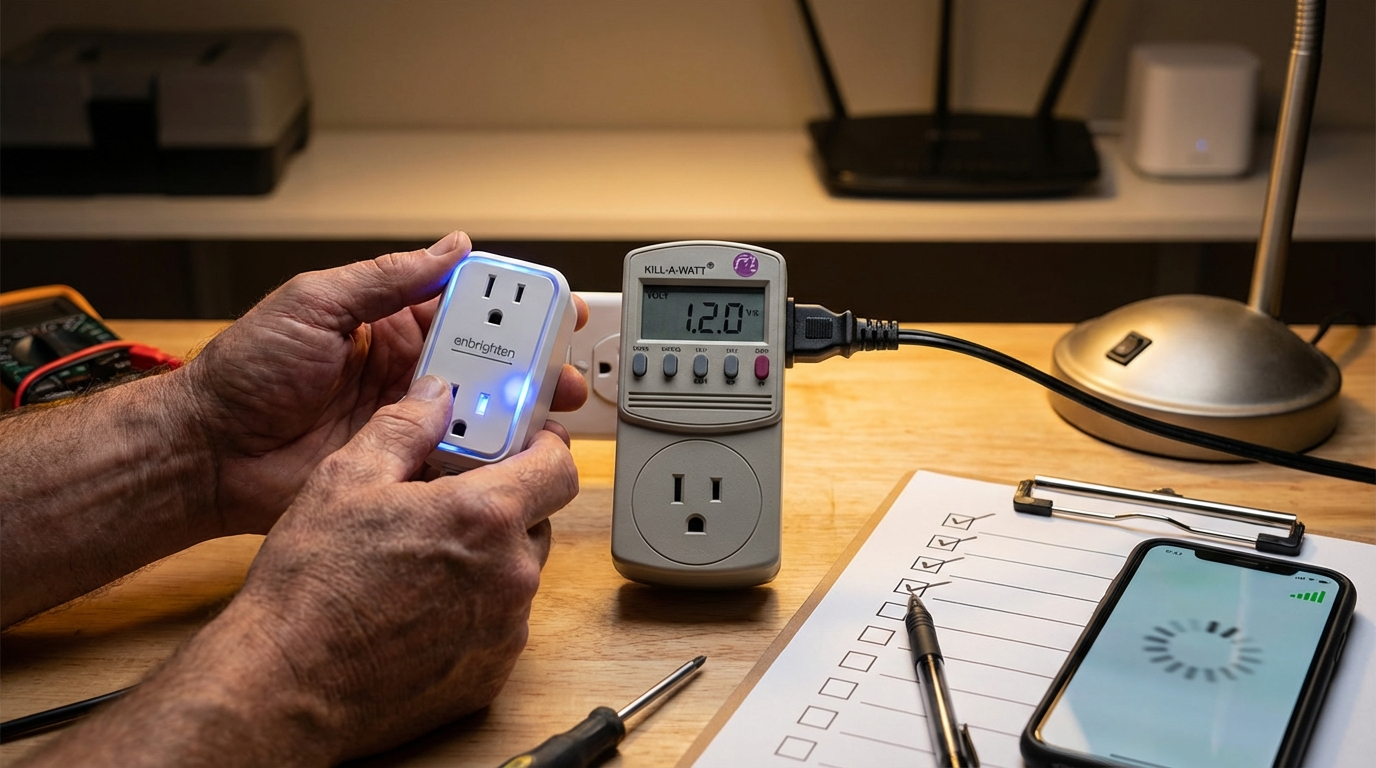
- Time: 2 minutes — Unbox & check label.
- Verify model name and photograph the label showing max load/wattage. If missing, do not connect high-draw devices.
- Time: 2 minutes — Pick placement for best 2.4GHz reception.
- Place the plug within line-of-sight to the router if possible or in a room with known-good 2.4GHz RSSI from a phone test. Avoid heavy microwave/stove or metal obstructions.
- Time: 1 minute — Safe-load pre-check.
- Confirm the connected lamp/fan/heater wattage. If the packaging lacks numbers, check the device label or use a Kill‑A‑Watt or similar meter later before connecting heavy loads.
- Tip: For lamps, incandescent bulbs list watts on the bulb; for fans or heaters check the appliance rating plate.
- Time: 5–7 minutes — Pair with the Enbrighten app.
- Enable Bluetooth on your phone.
- Plug the device into power; put the plug into pairing mode (LED flashing — see app). If LED doesn’t flash, power‑cycle power 3x or press reset per label.
- In the Enbrighten app, select “Add device,” follow Bluetooth discovery, choose your 2.4GHz SSID and enter password. Use the app’s Test Wi‑Fi connection button during setup to confirm reachability (Enbrighten FAQ notes this step) — enbrightenme.com/pages/wifi-app-faq (2026-04-10).
- Common error: phone is on 5GHz SSID or Bluetooth is off—switch to 2.4GHz and retry.
- Time: 2 minutes — Link to Alexa or Google Home.
- Enable the Enbrighten/Aeotec/brand skill in Alexa (or action in Google Home), sign in with the same Enbrighten account used in the app, then discover devices. No hub required (0 hubs) — community.home-assistant (2026-04-10).
- Test a simple voice toggle: “Alexa, turn on [device name].”
- Time: run 24 hours — Reliability soak test.
- Run a 24‑hour check (see verification tests below) before deploying on critical loads.
Quick cite: No hub is required—Enbrighten connects directly to your 2.4GHz Wi‑Fi (0 hubs) — community.home-assistant (2026-04-10).
Printable one-page quick checklist and verification tests (copyable for staging multiple plugs)
What to cover: a single-page checklist you can print or copy to your phone when staging multiple plugs, plus verification and logging steps for returns.
One-page checklist (copy/paste to print)
ENBRIGHTEN SMART PLUG - QUICK SETUP CHECKLIST
Pre-purchase:
- Confirm 2.4GHz SSID exists & you can connect a phone
- Confirm Bluetooth works on your phone
- Photo of packaging/specs: max watts/amps, surge rating, warranty text
- Note seller & date/time of purchase

Install:
- Plug location: within strong 2.4GHz area
- Physical clearance: avoid microwave/stove/metal enclosure
- Safe-load: lamp/fan wattage confirmed (< model rating)
- Put plug into pairing mode (LED flashing)
- Open Enbrighten app → Add device → choose 2.4GHz SSID → Test Wi-Fi connection

Alexa/Google:
- Login to same Enbrighten account in skill/action
- Discover devices in Alexa/Google
- Voice test: "Turn on [name]" & "Turn off [name]"

Verification tests:
- Immediate: App on/off (pass/fail) _______
- Immediate: Alexa voice toggle (pass/fail) _______
- Soak test: 24-hour uptime (record drops with timestamps)
- Energy check (Kill-A-Watt) for loads > 100W: Avg watts ________ latency avg _______

Return log (if failing):
- Timestamps of failures __________________
- Screenshots of app error / LED state ______
- Kill-A-Watt logs attached? Y / N
CSV log template (copy to a CSV file)
timestamp,device_name,event,app_state,alexa_state,rssi_w,notes
2026-04-10T14:05:00Z,LivingLamp,app_on,ON,ON,-65,initial pairing success
2026-04-10T16:12:32Z,LivingLamp,drop,OFF,OFF,-78,disconnect during microwave use
How to log failures for returns/warranty: capture timestamps, screenshots of app error screens, and Kill‑A‑Watt CSV exports if monitoring energy. If you need tips on measuring energy, see our guide How to measure energy usage.
Quick cite: The Enbrighten app includes a “test Wi‑Fi connection” button and setup requires enabling Bluetooth — enbrightenme.com/pages/wifi-app-faq (2026-04-10).
Diagnose & fix the most common real-world failure modes (pairing failure, intermittent dropouts, overloads, mesh interference, firmware issues)
What to cover: symptom → diagnosis → ordered fixes → when to escalate to warranty.
Common symptoms and ordered diagnostics
- Pairing failure (LED not flashing / app timeout)
- Check LED pattern; if static, power-cycle (unplug → wait 10s → plug) and attempt pairing again.
- Ensure phone Bluetooth is on and phone is temporarily connected to the 2.4GHz SSID.
- Remove any old device entries in the app before re‑adding.
- Intermittent dropouts
- Use another phone or laptop on the same 2.4GHz SSID near the plug to confirm Wi‑Fi reachability.
- Move plug closer to router and re-test. If stable, RSSI/placement is the cause.
- Check for microwave or cordless phone use during dropout windows—these commonly use 2.4GHz and cause interference.
- Overload trips / overheating
- Stop using the plug; check the connected device wattage vs the label. If the plug trips on loads below the labeled rating or becomes hot to the touch, collect evidence and escalate to warranty.
- Firmware or cloud errors during OTA
- Factory reset and re‑pair, then attempt firmware update with plug near router and phone on 2.4GHz. If update fails repeatedly, document firmware version and contact support.
Ordered fixes per symptom: proximity/RSSI test → factory reset + re‑pair → router SSID/guest isolation checks → reduce load → hard reset before firmware updates. Escalate when you have documented repeated trips, overheating, or inability to pair after full factory reset.
Evidence & escalation red flags: repeated overload trips while under labeled rating; plug surface becomes hot; failure to pair after factory reset and following ordered fixes; failed firmware updates after multiple attempts.
Citations: Intermittent dropouts often tie to weak 2.4GHz signal and local interference — see product listing and community reports — wwwl.kik.com/enbrighten-smart-plug-home-depot (2026-04-10) and pairing steps referenced in the Enbrighten FAQ — enbrightenme.com/pages/wifi-app-faq (2026-04-10).
If you need router guidance, see our troubleshooting hub and Alexa linking help: Alexa integration troubleshooting and Outdoor Smart Plug: safety checklist.
Budget price benchmarks and what numbers are missing you must validate before buying
What to cover: price checks, hard spec numbers to confirm, and the missing public data you must collect at purchase.
Street price benchmark
Example street price: Outdoor 2‑Outlet WiFi model listed at USD 27.99 (street price example) — community reports (2026-04-10) — community.home-assistant (2026-04-10).
Specs you must validate at point of sale
- Exact max amps/watts per model — photograph label. (No reliable data found in public sources.)
- Surge rating and UL/ETL listing details — request spec sheet if not printed. (No reliable data found.)
- Warranty length and return window — confirm printed warranty and keep receipt.
- Cloud dependency: confirm whether local control works without internet or whether cloud is required for voice features.
Missing public numbers (what to request / test)
No reliable public data found for latency, firmware dates, surge rating, and long‑term inductive-load performance. At point of sale, request a spec sheet and ask support for firmware revision. Log the answers and photograph the label.
If you want a quick price‑per‑feature comparison, see our budget plug roundup: Best Smart Home Devices: 7 Easy Guide and our Feit smart plug checklist for comparison methods.
Field tests every review should run (RSSI over distance, inductive-load cycling, energy accuracy and latency)
What to cover: exact test protocols to measure the missing data and flag failure thresholds.
Test protocols (run before a final purchase decision)
- RSSI mapping: walk an apartment/room with your phone and record RSSI at the plug location. Use the app’s test Wi‑Fi connection and note the RSSI values in dBm. (No public RSSI threshold found; collect your site data.)
- On/off latency: automate 30+ cycles of app toggle and record response time (ms). Flag if latency > 1–2s consistently.
- Inductive-load cycling: for fans/motors run 2‑week cycling (on 30s / off 30s) and log dropouts or overheating.
- Energy accuracy: compare plug on/off counts and watt readings vs a Kill‑A‑Watt on resistive and inductive loads; output CSV logs.
- 48–72 hour soak test: run continuous uptime test and log any disconnects with timestamps.
Expected thresholds to flag: repeated disconnects at medium RSSI; latency spikes above ~2s under normal load; inconsistent energy readings vs Kill‑A‑Watt.
Research gap: public sources list no reliable data on RSSI thresholds, latency, firmware dates, or inductive-load reliability — we recommend instrumented tests using the templates above and logging to CSV for every device (see CSV template earlier). Source: community testing threads indicate these gaps — community.home-assistant (2026-04-10).
Lowest-cost, reliable configuration that keeps Alexa working (router/SSID naming, skill linking, account tips)
What to cover: the minimal, low-cost setup that preserves reliability for voice control.
- Minimal reliable config: Separate 2.4GHz SSID (or temporarily disable band‑steering) during setup; single Enbrighten account; Bluetooth enabled for setup; link the Alexa skill to the same account. Enbrighten models require 2.4GHz and support Alexa/Google without a hub — enbrightenme.com/pages/wifi-app-faq (2026-04-10) and community.home-assistant (2026-04-10).
- Tradeoffs to accept: likely cloud dependency for some features, limited power ratings compared to higher-end models, 2.4GHz-only operation for many models.
- Alexa edge-case fixes: if the skill linking fails, confirm you used the same e‑mail for Enbrighten and Alexa; disable VPNs on the phone; sign out/in of the Alexa app and re-run discovery.
If you plan outdoor installs, read the outdoor checklist and safety steps in our outdoor smart plug guide: Outdoor Smart Plug: 7 Proven Guide.
Conclusion
Follow this budget-first checklist to confirm a working 2.4GHz SSID, enable Bluetooth on your phone, and verify wattage at point of sale before buying an enbrighten smart plug. Use the install steps, the printable checklist, and the ordered diagnostics to avoid returns and keep Alexa working. Ready to compare models or run the tests? Read more in our budget guides or buy confidently after the 24‑hour soak test.
FAQ
Do Enbrighten smart plugs work on a 5GHz Wi‑Fi network?
No — confirm your home provides a 2.4GHz SSID for setup and operation (Enbrighten requires 2.4GHz) — enbrightenme.com/pages/wifi-app-faq (2026-04-10).
Do I need a hub or bridge to use an Enbrighten smart plug?
No hub is required; Enbrighten plugs connect directly to your 2.4GHz Wi‑Fi via the Enbrighten app — community.home-assistant (2026-04-10).
What minimum Wi‑Fi signal or RSSI should I expect near the plug?
No reliable public RSSI threshold is published — run the app’s “test Wi‑Fi connection” and perform a short RSSI mapping test before committing to installation — enbrightenme.com/pages/wifi-app-faq (2026-04-10).
What quick tests prove the plug is working and Alexa‑ready?
Confirm app on/off control, Alexa voice toggle, and run a 24‑hour reliability soak test logging dropouts with timestamps and screenshots.
What should I do if the plug keeps dropping offline?
Diagnose in order: test Wi‑Fi with another device, move plug closer to router, check mesh handoffs or band‑steering, factory reset and re‑pair, then escalate if issues persist — wwwl.kik.com/enbrighten-smart-plug-home-depot (2026-04-10).
How do I know if I should return the plug or open a warranty claim?
Return/replace if it repeatedly overloads/trips while under the labeled rating, overheats, or won’t pair after factory reset and documented troubleshooting.
Are firmware updates and long‑term reliability documented?
No — public firmware release history and long‑term inductive-load reliability data are not reliably published, so log firmware version at install and run the recommended soak tests to judge stability — community.home-assistant (2026-04-10).