

kwikset smart lock manual — this guide gives a no-fluff, checklist-first install, pairing, troubleshooting, and buyer‑comparison resource so you can finish a Kwikset smart lock install in one session without locking yourself out.
This is written for homeowners, landlords, renters, and DIY installers (beginner→intermediate). Follow the ordered install checklist, run the verification tests, and use the buyer’s quick‑compare to pick a model that fits your budget and risk tolerance.
Key Takeaways
- Exact prep checklist prevents the three most common install failures: door handing errors, not removing batteries before rekeying (causes jams), and missing app/account setup (causes pairing failures).
- Follow the ordered pairing sequence (reset → reinsert battery while holding Program 30s → press Program within 5s) to avoid lost admin access; test keypad, app, mechanical key, and bolt movement before finishing.
- Use the buyer’s quick-compare (installation time, tools, battery-life targets, MSRP band) and the emergency recovery flowchart to pick a model that matches your budget and risk tolerance (renters vs. homeowners vs. landlords).
- Prepare so you never lock yourself out: downloadable prerequisites checklist for Kwikset smart lock manual
- Step‑by‑step installation checklist: from unpack to bolt test (do this in order)
- Exact keypad & code setup: secure codes, SmartKey rekeying, and the five code mistakes that cause lockouts
- Emergency recovery flow (symptom → root check → exact fix) for the top real‑world failures
- Buyer’s quick-compare: how Kwikset stacks vs Yale, Schlage, and August on the features that matter
- Quantified buyer’s checklist (what numbers to expect and what we still need to measure)
- Printable final checklist & verification tests (bolt motion, keypad, app, mechanical key, and sign‑off)
- Conclusion
- FAQ
Prepare so you never lock yourself out: downloadable prerequisites checklist for Kwikset smart lock manual
Before you touch the latch, verify tools, door fit, and account readiness so you do not create a lockout scenario.
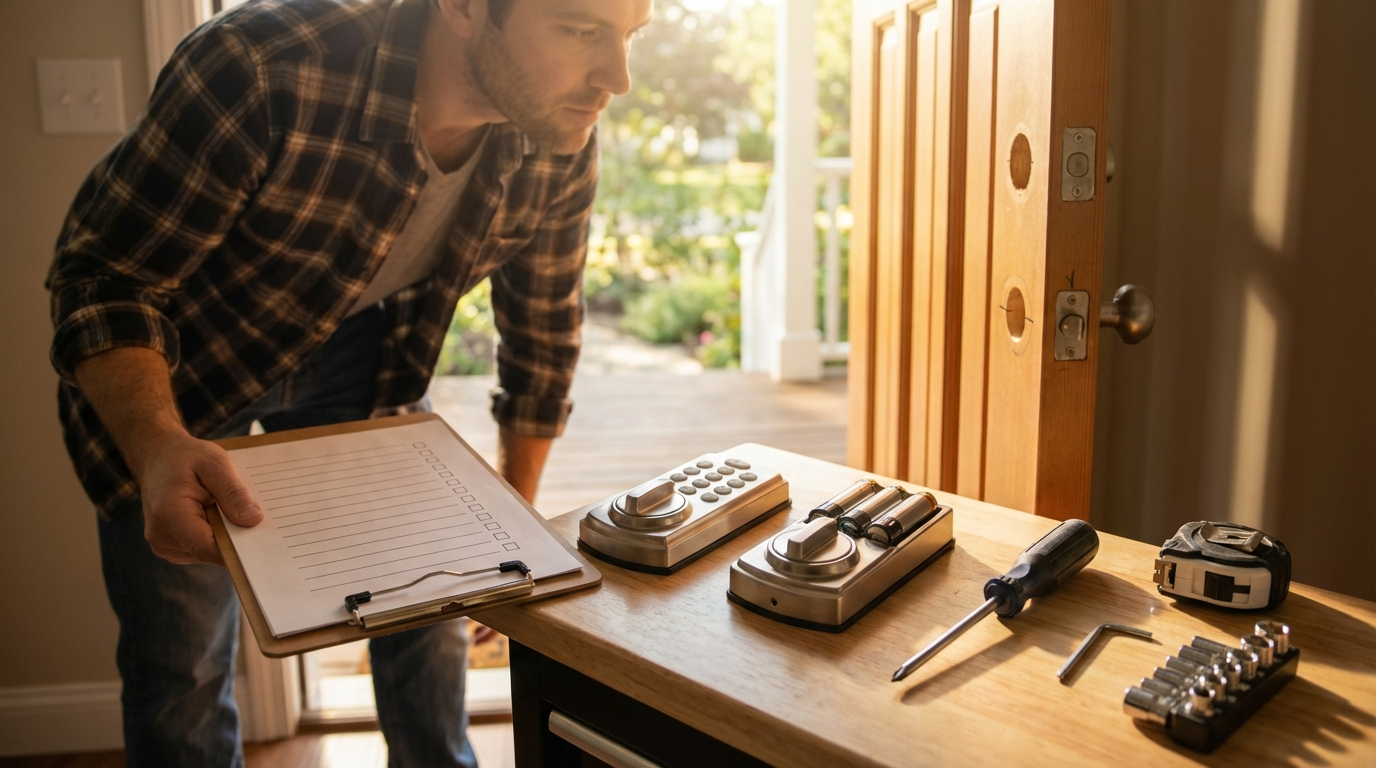
Exact tools
- Phillips screwdriver matching the included screws (use the same size as in the package) — keep a small socket set handy for longer screws or carriage bolts (video tool list).
- SmartKey tool (if your model supports SmartKey rekeying).
- Tape measure and pencil for door prep checks.
- Spare AA/4xAA alkaline batteries per model spec (check packaging).
Door prep you must confirm
Verify door thickness, bore and backset before starting. NOTE: No reliable data found for official Kwikset door‑prep dimensions in the Research Findings — you must confirm the model-specific bore/backset on the product spec sheet before buying. Always keep the door open and unlocked during reset/install to avoid lockout (Kwikset Support).
Account & app prep
- Download the Kwikset app and create an account before hardware pairing (Kwikset install guide).
- For Halo/Wi‑Fi models confirm your 2.4 GHz router is available and your phone is on the same network.
- If a pro installs, the homeowner should still create the account so admin access is set correctly.
Pitfall to avoid: Skipping app/account setup or closing the door during reset (common lockout). See support note: “Door must be open and unlocked during reset/install” (Kwikset Support).
Related reading: check installation best practices and troubleshooting clusters: installation-best-practices, smart-lock-troubleshooting, and buyer comparison primer at buyer-comparison-kwikset-vs-others.
Step‑by‑step installation checklist: from unpack to bolt test (do this in order)
Do these steps in the exact order. Timing cues and reset commands are critical — follow them precisely.
- Open package & confirm parts: Compare parts to the packing list. Lay out exterior, interior, latch, strike, screws, SmartKey tool, and battery pack.
- Door check: Keep the door open and unlocked. Confirm bore/backset match the lock (model spec required). Do not close the door while resetting (Kwikset Support).
- Remove existing deadbolt with matching screwdriver.
- Install latch & strike per template. Use the screws supplied; longer screws to the frame are recommended for security (specific screw lengths & torque: No reliable data found — see “What to research” below).
- Install exterior assembly and feed cable through bore. Install interior assembly loose — leave screws finger-tight until handing and tests complete.
- Battery insertion & Reset (critical):
- If the lock has batteries installed, remove the battery pack before rekeying or reset to prevent jams (Kwikset guide).
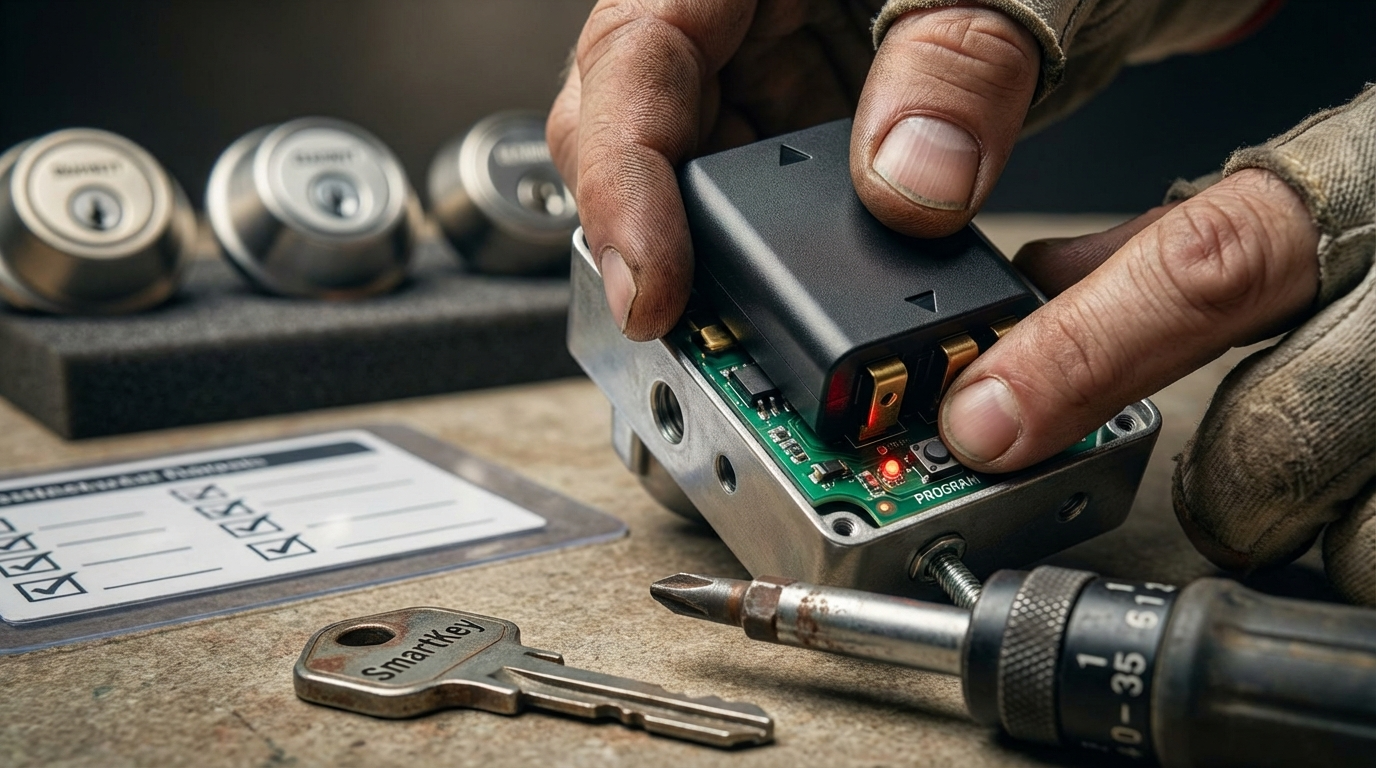
- To force a factory reset: press and hold the Program button on the interior while reinserting the battery pack; hold 30 seconds until you hear a beep and see the RED LED flash (reset flow).
- Within 5 seconds of the 30s step, press the Program button once — you should get GREEN LED/beeps confirming reset (Kwikset verify).
- Door handing: Allow the lock to detect right/left hand during installation or set per instructions — skip this and the bolt may bind (handing demo).
- Secure screws: Tighten interior screws evenly until the assembly is snug. Do not overtighten — torque specs are not published in Research Findings (No reliable data found for torque; research needed).
- Programming & app pairing (order matters):
- Change the default programming code immediately (see keypad section).
- Download/create Kwikset app account if not done already (app requirement).
- Pair via the app immediately after reset—delay increases risk of pairing failure. If a hub is used, follow hub inclusion steps per hub vendor (No reliable data found for hub models and Z‑Wave commands).
- Post‑install verification (must pass all):
- Mechanical key turns and removes smoothly.
- Keypad code unlocks (GREEN LED) and locks (Amber LED shows locked per the guide) (LED behavior).
- App lock/unlock works for Wi‑Fi models.
- Manual bolt travel test: bolt fully extends and retracts without binding; test with door closed and slightly open.
- Final torque & sign‑off: Tighten screws to seat the interior plate; change admin credentials; store SmartKey info in a safe place. (Torque numbers: No reliable data found — do not invent values.)
Exact keypad & code setup: secure codes, SmartKey rekeying, and the five code mistakes that cause lockouts
Set codes now. Do not finish the install until the programming code and at least one user code are tested.
Change default programming code
- Default programming code is 0-0-0-0 — change it immediately (programming demo).
- Programming vs user codes: programming code controls admin actions; user codes (4–10 digits) unlock only.
Add user code (4–10 digits)
- Enter programming code.
- Press 1 then Quick Set; enter your 4–10 digit user code; press Quick Set to save (code add steps).
SmartKey rekey steps
- Insert current key, rotate 90° clockwise.
- Insert SmartKey tool into the slot, press, and rotate 90° counterclockwise.
- Remove key and tool; test the new key.
Important: Remove battery pack before rekeying if Auto‑Lock is enabled to avoid jams (Kwikset rekey note).
The five code mistakes that cause lockouts
- Leaving default programming code (0-0-0-0).
- Creating user codes fewer than 4 digits.
- Not testing mechanical key after rekeying.
- Rekeying with battery installed while Auto‑Lock active.
- Failing to document admin account credentials (owner loses access if app account is under a different email).
Related quick reads: check the reset deep dive at Kwikset Smart Lock Reset and reset code primer at Kwikset Reset Code Guide.
Emergency recovery flow (symptom → root check → exact fix) for the top real‑world failures
This section is an accordion-style troubleshooting flow. Do checks in order and document changes; factory reset erases user codes.
Unresponsive after battery change
Check door open/unlocked. Fix: remove battery, press/hold Program while reinserting battery 30s until beep/RED LED, then press Program within 5s to confirm factory reset. Verify by testing that previous user codes no longer work (reset flow).
Router or phone swap broke connectivity
Check app Wi‑Fi status and router 2.4 GHz. Fix: remove and re-pair lock in the Kwikset app or re‑include through your hub. If repeated failures occur, run the factory reset and set up again (re-pair guidance).
Moved lock to a new door
Check door handing. Fix: rerun door handing and perform full bolt travel tests. If handing fails, perform reset then reprogram codes (handing demo).
Repeated pairing failures
Root checks: confirm app account, Wi‑Fi, and battery level. Fix: factory reset, then re-pair using the app; restore shared access by re-inviting users via the app. Mechanical key override remains available for immediate entry (mechanical key note).
Pitfall to avoid: Performing a factory reset without backing up who has access; test mechanical key before finishing installation (Kwikset Support).
If you need hands-on troubleshooting beyond this, consult the smart-lock-troubleshooting cluster at smart-lock-troubleshooting or firmware guidance at smart-lock-firmware-updates.
Buyer’s quick-compare: how Kwikset stacks vs Yale, Schlage, and August on the features that matter
This is a qualitative, transparent comparison. We flag missing data so you can research or benchmark before buying.
- Security model: cloud vs local — No reliable data found for Kwikset vs Yale/Schlage/August on encryption and cloud vs local control (Research Findings).
- Ease of installation: Kwikset models are generally DIY-friendly; exact installation minutes not published (No reliable data found).
- Battery replacement: nominally user-replaceable; quantified battery-life under 10/50/100 cycles/day is not available (No reliable data found).
- Keypad vs keyway usability: Kwikset supports keypad plus mechanical key; verify SmartKey for rekeying in your model.
- Hubs required: Halo offers Wi‑Fi (no hub); other models may require hubs — specific hub lists and Z‑Wave inclusion/exclusion commands are not published in Research Findings (No reliable data found).
What to research next (compact list): encryption protocols, measured battery life, MSRP by model/year, hub compatibility, Z‑Wave inclusion commands, and deadbolt throw length. For hubless migrations, search vendor hub docs and the Kwikset tech sheet.
Related internal reads for buying decisions: Best Smart Home Devices and the buyer comparison deep dive at buyer-comparison-kwikset-vs-others.
Quantified buyer’s checklist (what numbers to expect and what we still need to measure)
Below are the metrics you should expect a definitive manual to include and which ones we currently lack.
Suggested measurable metrics
- Installation time (minutes).
- Number of required tools.
- Battery life measured under 10/50/100 cycles/day (months).
- MSRP ranges by model & year.
- Keypad durability rating (actuations).
- Deadbolt throw length (inches/mm).
- Dimensions and door‑prep compatibilities (bore diameter, backset options, door thickness range).
- Supported wireless/encryption standards and required hub models (Z‑Wave commands).
What we have (from Research Findings)
- Reset timing: hold Program while reinserting battery for 30s, then press once within 5s — cited from DoorLocksDirect reset blog and Kwikset install guide.
- Default programming code is 0-0-0-0 and user codes are 4–10 digits — cited from programming demo.
No reliable data found (must measure/source)
- Installation time, screw lengths, torque values, battery life by cycles/day, MSRP bands, keypad durability, deadbolt throw, and hub/Z‑Wave command lists — research next steps: consult Kwikset tech sheets, run lab battery tests, and test Z‑Wave inclusion on hub hardware.
Printable decision matrix (copyable) — use this to collect numbers when you research specific models:
Model | Inst. min | Tools | Battery life @10/50/100 uses/day | MSRP | Hub req | Notes
----- | --------- | ----- | ---------------------------------- | ---- | ------- | -----
[Model] | No reliable data found | No reliable data found | No reliable data found | No reliable data found | No reliable data found | [research steps]
Printable final checklist & verification tests (bolt motion, keypad, app, mechanical key, and sign‑off)
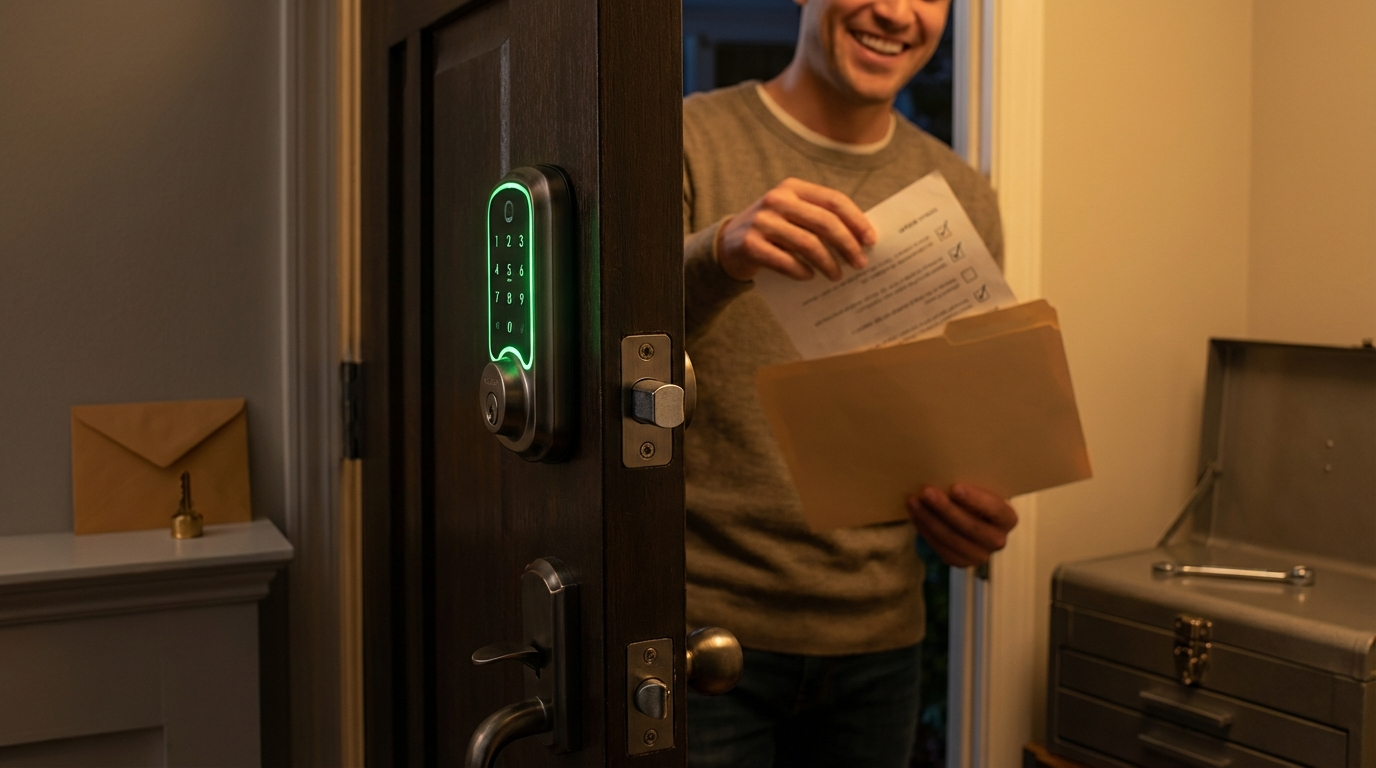
Single‑page checklist below. Print or paste into your mobile notes before starting.
KWIKSET SMART LOCK - ONE-PAGE FINAL CHECKLIST

PREP
- Door open & unlocked (DO NOT CLOSE DURING RESET) [required: https://www.kwikset.com/support]
- Kwikset app installed & account created [required]
- Tools at hand: Phillips, SmartKey tool, tape measure, spare batteries
- Note: No reliable data found for screw torque & door prep dimensions (research before buying)

INSTALL
1) Remove packaging, confirm parts
2) Remove old deadbolt, install latch & strike
3) Mount exterior & interior assemblies (finger-tight screws)
4) Remove battery pack before rekeying if needed [source: kw_ig_5053861_9800_eng.pdf]
5) Reset: Hold Program, reinsert battery, hold 30s until beep/RED LED [source: doorlocksdirect reset]
6) Press Program within 5s for GREEN LED confirm [source: kw_ig_5053861_9800_eng.pdf]
7) Tighten screws (do not over-torque; torque specs: No reliable data found)

PAIR & PROGRAM
- Change default programming code 0-0-0-0 immediately [source: video demo]
- Add at least one 4–10 digit user code [source: video demo]
- Pair with Kwikset app (Wi‑Fi/Halo models) immediately after reset

VERIFICATION (pass/fail)
- Mechanical key test: ____ PASS/FAIL
- Keypad code unlock (GREEN LED): ____ PASS/FAIL [source: kw_ig_5053861_9800_eng.pdf]
- App lock/unlock (Wi‑Fi models): ____ PASS/FAIL
- Bolt fully extends/retracts (closed door test): ____ PASS/FAIL
- Record admin account & SmartKey info in secure place

SIGN-OFF
- Remove default codes, store SmartKey data, invite shared users via app
- If landlord/renter: see landlord/renter mini-checklist below

LANDLORD / RENTER MINI-CHECKLIST
- Who holds master admin email: __________________
- Code transfer process: __________________
- Policy for mechanical key issuance: __________________
Also see the step-by-step reset guide and troubleshooting cluster: Kwikset Smart Lock Reset.
Conclusion
Use this checklist-first Kwikset smart lock manual to install, pair, and verify your lock without lockouts. Follow the reset timing exactly (hold Program while reinserting battery for 30s, press once within 5s) and run the verification tests before closing the job. For buying decisions, use the quantified checklist above and mark missing numbers for follow-up research.
If you’re ready to compare models or need deeper troubleshooting, read our buyer comparison and troubleshooting clusters to decide and buy with confidence.
FAQ
What tools and measurements should I have before starting a Kwikset smart lock install?
Have a Phillips screwdriver (matching included screws), SmartKey tool (if applicable), tape measure, and confirm door thickness/bore/backset—also keep the door open/unlocked while resetting (see prerequisites).
What is the exact reset sequence if the lock is unresponsive after a battery change?
Remove battery, reinsert while holding the Program button for 30 seconds until beep/RED LED, then press Program once within 5 seconds to confirm (factory reset) — this erases codes.
How many digits can user codes be, and when must I change the default code?
User codes must be 4–10 digits; change the default programming code (0-0-0-0) immediately after install.
What verification tests should I run before finishing the install?
Test mechanical bolt travel, keypad entry (Green LED on success), app lock/unlock (for Wi‑Fi models), and the mechanical key fallback.
Can I rekey the lock with Auto‑Lock enabled?
No — remove the battery pack before using SmartKey rekeying to avoid jams.
My router/phone swap broke the lock connection — what next?
Check app Wi‑Fi status, remove & re-pair the lock through the Kwikset app or hub, and if repeated failures occur, run the factory reset flow and reconfigure.
Where are the torque specs, battery-life months, and MSRP for each Kwikset model?
No reliable data found in top-ranking pages; the manual should list these once measured or sourced—research next steps are provided in the “Quantified buyer’s checklist” section.