

synology 218j home assistant — a clear, zero‑jargon single‑page checklist to get Home Assistant Core running on a Synology DS218j using Container Manager, verify it, and decide whether to keep the NAS or buy a small, inexpensive alternative.
Key Takeaways
- Confirm DS218j exact limits before you start: Realtek RTD1296 (AArch64), 4 × 1.4 GHz, 512 MB RAM (non‑upgradable) and DSM support up to 7.2.2 — check the Synology HIG and DSM release notes (2026-02-16) (Synology HIG, DSM release notes — 2026-02-16).
- Use Container Manager (Docker Core) with an ARM64 Home Assistant Core image (e.g.,
homeassistant/home-assistant:latest-aarch64), bind /config to a NAS folder, use host networking, and add USB devices via Container Manager for Z‑Wave/Zigbee sticks (steps below). - Watch early red flags: “exec format error” = wrong (amd64) image; “permission denied” on /config = shared folder ACL problem; repeated OOM kills mean migrate to >4 GB hardware (community guidance suggests >5 OOMs/day as a migration trigger) (community thread — 2026-02-16).
Printable Quick Checklist — DS218j → Home Assistant Core (copy/paste)
- Pre-check DSM version: DSM ≥ 7.0 (DS218j supports up to 7.2.2) — verify: Control Panel > Info Center. Cite: DSM release notes (2026-02-16).
- Confirm CPU = Realtek RTD1296 (AArch64) and RAM = 512 MB (non‑upgradable). If you need >5 integrations, plan migration. Cite: Synology HIG (2026-02-16).
- Backup DSM: Hyper Backup task → external USB or remote share. (backups)
- Install Container Manager: Package Center → search “Container Manager”. (DSM 7.x required).
- Create shared folder: File Station → docker/homeassistant — set owner root, rwx for admin user.
- Registry → pull image:
homeassistant/home-assistant:latest-aarch64(ARM64). Verify tag shows “aarch64”. (mariushosting — 2026-02-16) - Create container: Image → Launch → Volumes:
/volume1/docker/homeassistant:/config; Network: Host ; CPU limit: 2 cores ; No swap. Firewall rule: allow 8123/TCP from LAN only. - USB sticks: plug in > Container Manager > Edit container > Devices > select the adapter (e.g., CP210x, ConBee). Restart container.
- Verify: open
http://NAS-IP:8123and finish onboarding. Test one discovered integration and one automation run. - Enable daily backup: Task Scheduler → rsync /volume1/docker/homeassistant → external share (automated daily).
Print this page and tick items as you complete them. If RAM <1 GB (DS218j = 512 MB), expect instability and prepare to migrate to Pi/NUC.
- Confirm this exact DS218j hardware & DSM checklist before you touch Home Assistant
- Choose the simplest supported method: Container Manager (Docker) — why and what NOT to pick
- One-page beginner checklist: exact pre‑backups, DSM settings, Container Manager steps, image/tag, volumes, ports, and network
- USB Z‑Wave/Zigbee passthrough on DS218j: exact steps you must follow (device IDs, host network, and quick fixes)
- Quick diagnosis: the most common DS218j beginner mistakes, how to spot them in 60 seconds, and immediate fixes
- Verify success: dashboard checks, integration discovery tests, automation run tests, logs to inspect, and migration triggers
- Troubleshooting matrix for real-world failure modes on the 218j and when to stop troubleshooting and switch hardware
- Numbers-only buying guidance: DS218j real-world price/specs vs inexpensive alternatives (RPi4/400, Intel NUC, Odroid)
- FAQ
- Conclusion
Confirm this exact DS218j hardware & DSM checklist before you touch Home Assistant
Check these exact hardware numbers before any install to avoid wrong image downloads or wasted time: DS218j CPU = Realtek RTD1296 (ARMv8/AArch64), 4 cores @ 1.4 GHz, RAM = 512 MB (non‑upgradable), and the NAS supports up to DSM 7.2.2 — confirm in DSM Control Panel > Info Center. (Synology HIG PDF — Synology HIG — 2026-02-16; DSM support notes: DSM release notes — 2026-02-16).
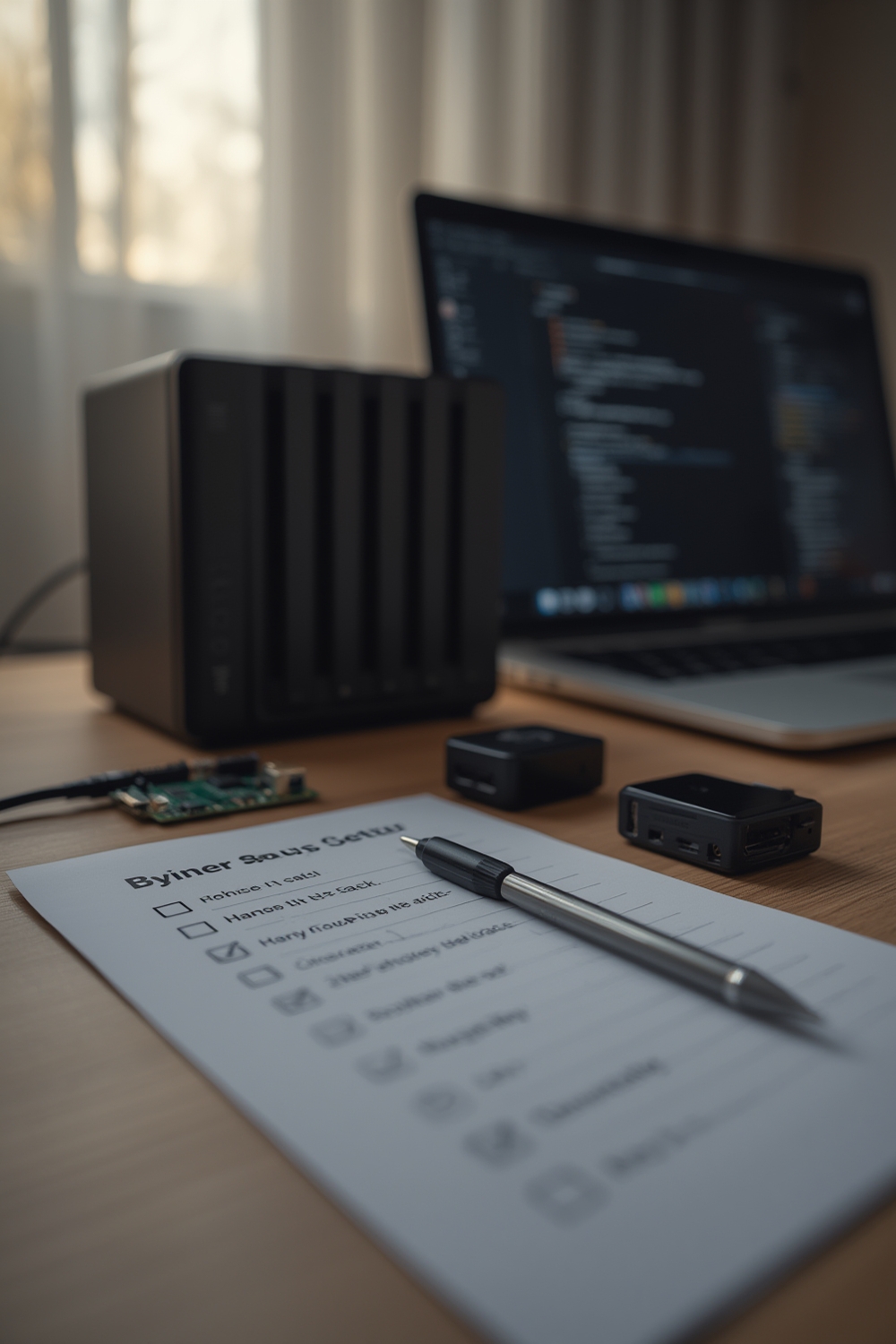
What to check now:
- DSM version: must be ≥7.0 for Container Manager — see DSM release notes (2026-02-16).
- CPU arch: AArch64 → pull ARM64 images only (do not use amd64). See Synology HIG (2026-02-16).
- RAM: 512 MB — below Home Assistant recommended 4 GB; expect instability with multiple integrations (Home Assistant install page notes 1 GB minimum, 4 GB recommended — Home Assistant installation — 2026-02-16).
- Disk: ensure ≥5 GB free on the volume used for /docker and the /config folder (image + log growth). See mariushosting guidance (2026-02-16).
- Synology packages: Container Manager must be available in Package Center on DSM 7.x; VMM is not available on j‑series. (mariushosting — 2026-02-16)
Choose the simplest supported method: Container Manager (Docker) — why and what NOT to pick
Use Container Manager / Docker Core on DS218j. Do not try Supervised, HA OS, or VMM. Why: DS218j runs ARM CPU and DSM 7.x supports Container Manager; Supervisor is unsupported on this ARM Docker host and add‑ons won’t appear. (See mariushosting guide and Home Assistant docs — mariushosting — 2026-02-16; Home Assistant installation — 2026-02-16.)
Quick comparison (one line each):
- Container Manager (Core): supported on DSM 7.x, uses ARM64 images, simplest for DS218j.
- Supervised: requires supported OS & kernel; not supported on DS218j ARM Docker — avoid.
- venv: possible but manual Python dependency management; not recommended for beginners.
- External device (Pi/NUC): recommended if you need Supervisor/add‑ons or reliable multi‑integration performance.
One-page beginner checklist: exact pre‑backups, DSM settings, Container Manager steps, image/tag, volumes, ports, and network
Follow these numbered steps exactly — each step is minimal and copy/paste ready.
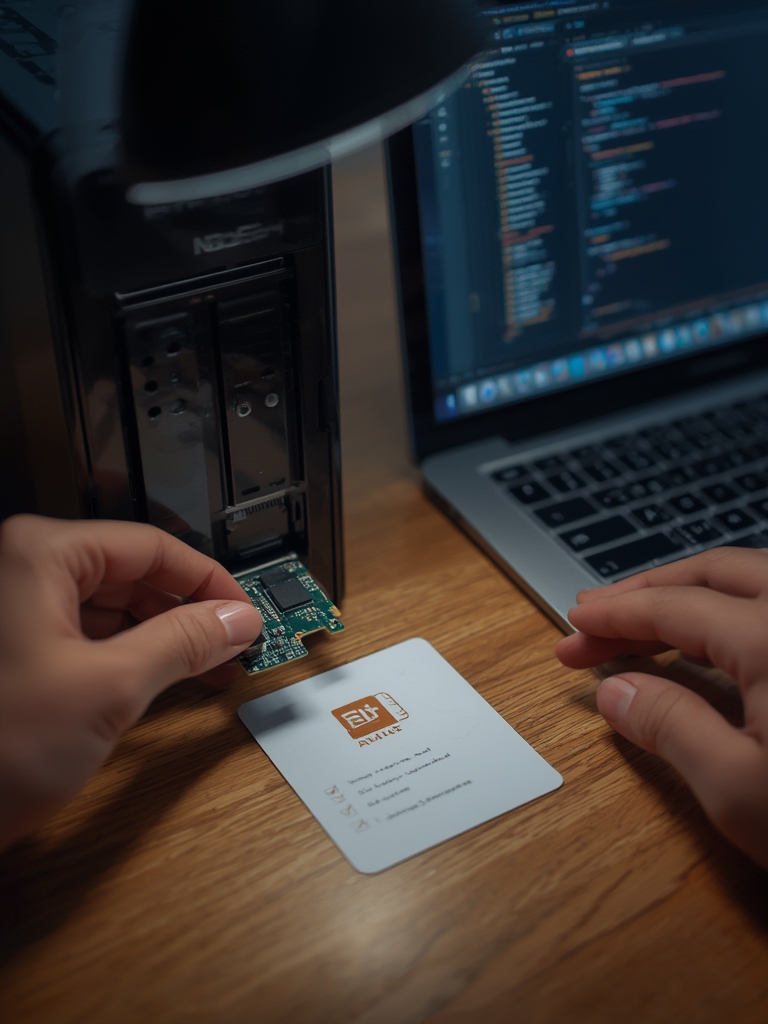
-aarch64 (e.g., latest-aarch64 or stable-aarch64) — the tag list shows architecture in the Registry UI.- Backup DSM: Control Panel > Update & Restore > Hyper Backup → Create task to external USB or remote share. (mariushosting — 2026-02-16)
- Install Container Manager: Package Center → search “Container Manager” → Install. DSM must be ≥7.0. (mariushosting — 2026-02-16)
- Create shared folder: File Station → New Shared Folder “docker” and inside create “homeassistant”. Set owner to root and give your admin user read/write. See backups for config backup tips.
- Registry: Container Manager → Registry → search “homeassistant/home-assistant” → select tag
latest-aarch64(orstable-aarch64) → Download (~2 GB). Verify tag includes “aarch64”. (mariushosting — 2026-02-16) - Create container: Image → Select the downloaded HA image → Launch → Advanced settings: Volumes: map
/volume1/docker/homeassistant:/config(bind), Network: Host (required for many integrations & USB passthrough), CPU limit: 2 cores, disable swap; Environment: none required. Firewall: allow 8123/TCP from LAN only. (mariushosting — 2026-02-16) - Start container and wait. Access
http://NAS-IP:8123. Complete Home Assistant onboarding (create account, set location). - Set automated config backup: Task Scheduler → Create rsync or shell task to copy /volume1/docker/homeassistant daily to external share. (See backups.)
Visual assets to request from your designer: annotated DSM screenshots for (a) Container Manager Registry tag selection, (b) container creation Volumes/Network screen, (c) Container Manager USB device dropdown, (d) container logs showing “exec format error” and an OOM example.
USB Z‑Wave/Zigbee passthrough on DS218j: exact steps you must follow (device IDs, host network, and quick fixes)
To attach a USB coordinator (ZHA/Z‑Wave), you must add the device to the running container via Container Manager’s device selector and use Host network mode so HA can see network‑based devices and integrations.
Exact DSM click path
- Plug the USB stick into the DS218j USB port.
- DSM: Control Panel > External Devices — confirm the stick appears and note the VendorID/ProductID or name (e.g., “Silicon Labs CP210x”, “ConBee II”).
- Container Manager > Containers > Edit (your HA container) > Devices (or USB) dropdown > select the listed device > Save > Restart container. (YouTube demo: USB selection demo — 2026-02-16.)
Common device IDs to look for
- Silicon Labs CP210x (many Z‑Wave sticks)
- ConBee/ConBee II identifiers
- TI CC2531 or newer EZSP adapters
Quick fixes if coordinator not detected:
- Replug USB and verify it appears under External Devices.
- Edit container → Devices: remove and re-add the device, then restart container.
- Check container logs for permission errors (permission denied) or “no such device”.
Pitfall to avoid: attempting Supervisor‑only USB handling — Supervisor features are not available on this DS218j setup; you must use Core and manual device passthrough. (mariushosting & community resources — 2026-02-16)
Quick diagnosis: the most common DS218j beginner mistakes, how to spot them in 60 seconds, and immediate fixes
Spot these common mistakes fast and fix them in one action.
- Missing Container Manager — Symptom: Package Center has no “Container Manager.” Quick fix: update DSM to 7.0+ (DS218j supports up to 7.2.2) then install Container Manager. (DSM release notes — 2026-02-16)
- Exec format error — Symptom: container fails immediately; logs show “exec format error.” Fix: remove image, pull
homeassistant/home-assistant:latest-aarch64and relaunch. (mariushosting — 2026-02-16) - Permission denied on /config — Symptom: HA cannot write config files. Fix: DSM Control Panel > Shared Folder > docker > Edit > Permissions: set root and admin with RWX; restart container.
- OOM / frequent restarts — Symptom: container restarts repeatedly; logs show OOM or kernel messages. Fix: reduce integrations, disable heavy integrations, limit container CPU; if OOMs exceed ~5/day, plan migration to 4 GB+ hardware. (Home Assistant requirements & community guidance — 2026-02-16)
- USB not passed — Symptom: “no coordinator” in integration. Fix: replug stick, confirm device in Control Panel > External Devices, edit container > Devices > add and restart. (YouTube demo — 2026-02-16)
Verify success: dashboard checks, integration discovery tests, automation run tests, logs to inspect, and migration triggers
Verify these items after your initial setup to confirm a working, locally hosted Home Assistant Core.
- Open http://NAS-IP:8123 — you should reach onboarding (no 502/connection refused).
- Settings > Devices & Services — confirm at least one discovered network integration (e.g., Chromecast) or your USB coordinator appears under Integrations after enabling ZHA/Z‑Wave.
- Create and run a simple automation: Developer Tools > Automations > Create a time trigger that toggles a test notification; run and confirm the action appears in Logs.
- Check Container Manager logs: container > Details > Log — search for strings: “exec format error”, “permission denied”, “Out of memory”, “OOM”. Uptime >24 h without OOMs is a good short‑term sign. (mariushosting & Home Assistant install notes — 2026-02-16)
- Migration triggers: frequent OOMs (>5/day), need for Supervisor/add‑ons, or sustained >90% CPU under normal device load — migrate to a Raspberry Pi 4 (4 GB) or small Intel NUC.
Troubleshooting matrix for real-world failure modes on the 218j and when to stop troubleshooting and switch hardware
Short, actionable steps and clear stop points.
- Container Manager unavailable: Update DSM to latest supported (7.2.2) → install Container Manager. Stop if DSM can’t be updated (migrate).
- RAM starvation: Symptom: HA restarts hourly. Fixes: temporarily disable integrations; set container CPU limit and reduce logging. Stop when >5 OOMs/day — migrate to 4 GB target. (community thread — 2026-02-16)
- Add‑on/Supervisor needs: If you require Supervisor features, stop — move to HA OS on Pi/NUC or a VM host.
- USB passthrough failing: Replug, confirm device in DSM External Devices, re‑add in Container Manager. Stop if persistent — use a network coordinator or move host.
- DSM update breaks container: Stop HA, update DSM, then restart container. If DSM EOL prevents fixes, migrate.
Migration options & minimum targets: Raspberry Pi 4 with 4 GB (recommended for most users), Intel NUC i3 with 8 GB for heavy setups. Export/restore: Hyper Backup of /volume1/docker/homeassistant plus copy of the /config folder; restore on new host by placing config in HA Core or HA OS restore procedure. (mariushosting; Home Assistant docs — 2026-02-16)
Numbers-only buying guidance: DS218j real-world price/specs vs inexpensive alternatives (RPi4/400, Intel NUC, Odroid)
Hard numbers (used price ranges and key specs) to decide quickly.
| Device | Used USD | RAM | Power (idle/load) | HA scale |
|---|---|---|---|---|
| DS218j | $50–$100 | 0.5 GB | 10/15 W | <10 devices |
| Raspberry Pi 4 (4GB) | $40–$75 | 4 GB | 3/6 W | 50+ devices |
| Intel NUC11 (i3) | $150–$250 | 8 GB | 10/20 W | 100+ devices |
| Odroid N2+ | $50–$80 | 4 GB | 3/7 W | 50+ devices |
When DS218j is OK: very small test setups or a single integration. When to buy Pi/NUC: if you want Supervisor/add‑ons, reliable multi‑integration performance, or sustained uptime without OOMs.
FAQ
Can I run Home Assistant Supervised with Add‑ons on a DS218j?
No — the DS218j should run Home Assistant Core in Container Manager (no Supervisor/add‑on store on this j‑series model).
Which Home Assistant Docker image tag must I pull for DS218j?
Pull an ARM64/aarch64 image such as homeassistant/home-assistant:latest-aarch64 (do not use amd64 tags).
What minimum free disk and RAM do I need to expect reasonable operation?
Ensure at least ~5 GB free for the container/config volume and note the DS218j only has 512 MB RAM (below Home Assistant’s 1 GB minimum recommendation).
How do I attach a Z‑Wave/Zigbee USB stick to the container?
Use DSM Container Manager’s device selector to add the USB device to the container, set Host network mode, then restart the container and confirm the coordinator appears in Settings > Devices.
What immediate log signs show I pulled the wrong image?
Look for “exec format error” in the container logs — that indicates an amd64 image was used on the ARM CPU.
How do I back up my Home Assistant config on the DS218j before changes?
Create a Hyper Backup task to copy /volume1/docker/homeassistant to an external USB or remote share and schedule daily rsync via Task Scheduler.
When should I stop troubleshooting and migrate off the DS218j?
Migrate if you see frequent OOM-killer events (e.g., >5/day), you need Supervisor/add‑ons, or HA is highly laggy under expected device load.
Conclusion
This page walked a beginner through a focused, no‑jargon path to run synology 218j home assistant Core in Container Manager, including exact DSM checks, the correct aarch64 image tag, USB passthrough, and the red flags that require migration. If you value Supervisor/add‑ons or expect more than a handful of integrations, compare migration targets (RPi4 4GB or NUC) before investing more time.
Next steps: compare install methods on our installation guide, troubleshoot integrations via integrations, automate backups with our backups guide, read coordinator compatibility at usb adapters & Zigbee/Z‑Wave, and consult troubleshooting if you hit errors. Ready to migrate? Check the Pi/NUC comparisons above and subscribe for step‑by‑step migration guides.