

Measure first is a search phrase people use when their smart deadbolt sometimes fails to fully throw the bolt or doesn’t register lock/unlock events. This guide turns that gamer phrasing into a practical buyer’s checklist: pre‑buy measurements, step‑by‑step mechanical install and calibration, repeatable verification tests, and buyer comparisons so you can choose and install a smart lock that stops the “lock and miss” symptom for good.
Key Takeaways
- Measure first: Verify door thickness (1‑3/8″–2″), backset (2‑3/8″ or 2‑3/4″) and 2‑1/8″ crossbore to avoid mechanical misfit that causes partial bolt throws (Home Depot — 2023-10-01).
- Calibrate and update: Test the mechanical throw manually, Update firmware and complete app keypad calibration before finishing the install to eliminate electronic misfires (Lockin — 2024-05-15).
- Verify with repeatable tests: Run mechanical + electronic tests (manual thumbturn, keypad, app, auto‑lock) and record failures; if any “miss” occurs, follow strike‑plate shim and bolt‑depth corrections before escalating.
- Confirm your door will fit the lock: exact pre-purchase measurements to stop fit-related misses
- Tools, parts and battery prep so you never get stuck mid‑install
- Step‑by‑step mechanical install & alignment checklist (do this before any app pairing)
- Pair, update firmware and calibrate the keypad the smart way (avoid firmware/soft failures)
- Translate ‘Cyberpunk 2077 smart weapons lock and miss’ into real failure modes
- Common beginner mistakes that create ‘lock and miss’ — how to check and exactly how to fix them
- Buyer comparison checklist & picks for each use-case — what to measure and what vendors don’t tell you
- Printable final verification checklist + fast escalation flow for persistent ‘lock and miss’
- Conclusion
- FAQ
Confirm your door will fit the lock: exact pre-purchase measurements to stop fit-related misses
Before you buy: verify door type, holes and strike plate so the deadbolt can complete its full travel. Skipping measurements is the top cause of partial bolt throws.
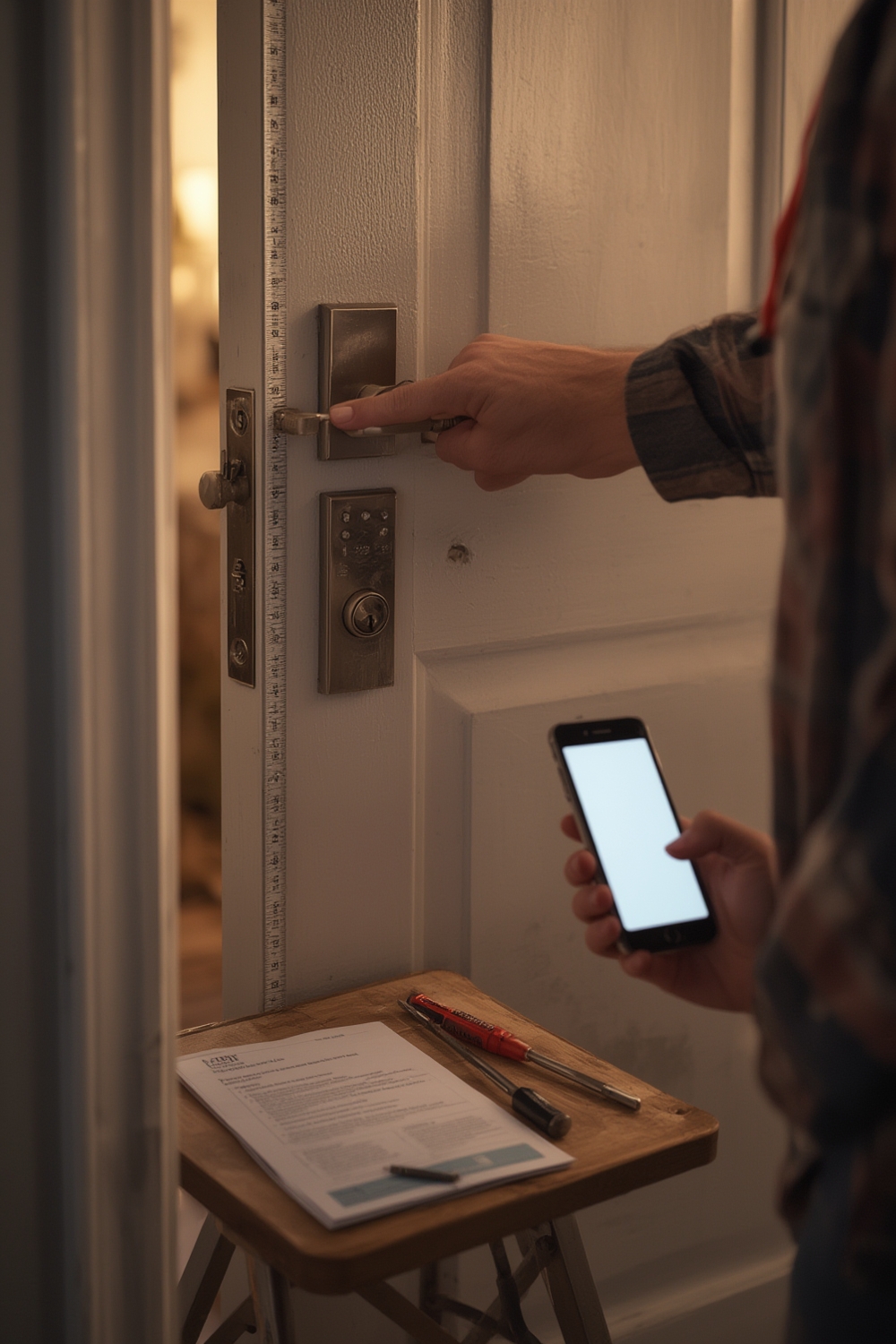
Prerequisites to verify (must-check list)
- Door thickness: 1‑3/8″ to 2″ — most smart locks support this range (Home Depot — 2023-10-01).
- Backset: 2‑3/8″ or 2‑3/4″ (edge to bore center). Confirm which your door uses before buying (Home Depot — 2023-10-01).
- Crossbore: 2‑1/8″ hole diameter and aligned latch bore; misaligned bores prevent full bolt travel (Home Depot — 2023-10-01).
- Door type: slab vs pre‑hung; single‑cylinder deadbolt vs mortise — many smart locks are for standard single‑cylinder deadbolts (Lockin — 2024-05-15).
- Strike plate style: round corner vs square corner; check your existing plate matches or plan to chisel a mortise.
- Smartphone OS & hub: confirm iOS/Android app compatibility and whether the model is Bluetooth/Wi‑Fi (no hub) or Z‑Wave (needs hub) — vendor docs vary; verify model-specific hub list (No reliable data found for a universal hub list).
Pitfall to avoid: Don’t assume “one size fits all.” Measure backset and crossbore before ordering.
Tools, parts and battery prep so you never get stuck mid‑install
Stage tools, spare parts and fresh batteries before removing the old lock. Running out of power or screws during install creates illusions of electronic failure.
Tools and staging checklist
- Essential tools: Phillips and flat screwdrivers, power drill + hole saw, tape measure, pencil, torpedo level, chisel, hammer (Home Depot — 2023-10-01).
- Battery prep: Most Wi‑Fi/Bluetooth locks use 4×AA or similar cells — stage fresh cells (alkaline) in labelled bag near the door and check polarity during insertion (A3 SmartHome example — 2023-08-10).
- Spare parts: extra strike plate screws, thin metal shims (0.2–1.0 mm increments), backup key, small zip ties for cable routing.
Pitfall to avoid: Don’t start with weak or incorrectly seated batteries — that can mask an electronic issue during calibration.
Need a full installation workflow? See our smart lock installation guide for detailed background and troubleshooting steps: smart lock installation guide.
Step‑by‑step mechanical install & alignment checklist (do this before any app pairing)
Follow these numbered mechanical steps exactly. Do manual throw tests at each major step — do not power on until the mechanical throw is confirmed.
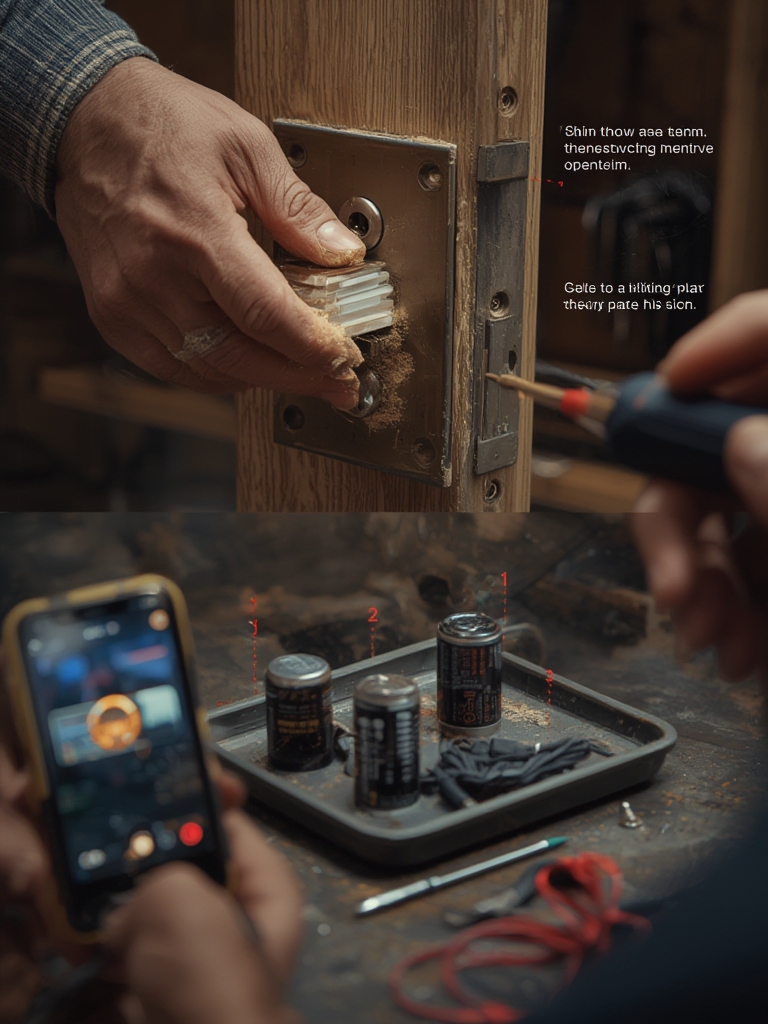
Mechanical install numbered steps
- Remove old deadbolt: Unscrew exterior and interior plates, pull assemblies and remove latch. Compare new latch dimensions — latch box depth should be ≥1″ (25.4 mm) (Lockin — 2024-05-15).
- Fit latch and tailpiece orientation: With the new deadbolt retracted (vertical), insert tailpiece. If the tailpiece is slotted or adjustable, set it to the manufacturer’s default length.
- Mount exterior assembly: Feed wires (if present), hold exterior plate flush and hand‑tighten screws only.
- Install interior mounting plate: Align mounting plate; tuck cables into the channel to avoid pinch. Fasten in the recommended torque sequence: start screws diagonally, then tighten in small increments to final snug (avoid overtightening which distorts mounting).
- Strike plate transfer mark: Close door and use crayon/chalk to mark where the bolt hits the strike. Open and chisel/file the mortise until the bolt fully seats without rubbing. If small horizontal offsets remain, use thin shims behind the strike plate (0.2–1.0 mm increments) and re‑test.
- manual thumbturn test: With batteries out, use the interior thumbturn to run 10 full lock/unlock cycles. The deadbolt must fully extend/retract every cycle — do not proceed to power if any partial throws occur.
Pitfall to avoid: Finalizing the interior assembly before verifying full manual bolt throw; always confirm mechanical reliability first (Home Depot — 2023-10-01).
Additional mechanical help and troubleshooting belong in our common failure modes hub: smart lock troubleshooting.
Pair, update firmware and calibrate the keypad the smart way (avoid firmware/soft failures)
After mechanical pass, power on and follow the app sequence. Bluetooth pairing and firmware updates often fix soft failures that look like hardware misses.
App pairing and calibration numbered steps
- Insert fresh batteries and confirm polarity.
- Download vendor app and create account (iOS/Android supported — Lockin — 2024-05-15).
- Pair via Bluetooth first (most apps require local pairing), confirm device model and serial in app.
- Update firmware before enabling remote access — the app will usually prompt. Record firmware version and date for support logs.
- Calibrate keypad/touch sensitivity following the app prompts — run at least 5 test codes to confirm no ghost presses.
- Confirm hub requirements: If your model is Z‑Wave, verify the vendor compatibility list before enabling hub features (No reliable data found for a universal Z‑Wave hub list — verify vendor docs).
- Factory reset only if pairing fails; keep vendor reset steps documented — many manuals list the button/sequence (BTElec guide — 2024-02-20).
Pitfall to avoid: Skipping the firmware update or keypad calibration and assuming defaults are optimal.
If you need app pairing tips or reset sequences for specific brands, check our buyer comparison and firmware pages: smart lock firmware and security.
Translate ‘Cyberpunk 2077 smart weapons lock and miss’ into real failure modes — map gamer phrasing to mechanical/electronic causes
“Lock and miss” is shorthand. Break it down to locate the root cause before calling support.
How to map the symptom
- Partial bolt throw on manual test = mechanical misalignment (strike plate or latch box depth).
- Full manual throw but misses on keypad/app = electronic/firmware or power issue (batteries, calibration, packet loss).
- Intermittent auto‑lock misses = timing/firmware bug, low battery, or comms latency.
Reproduce and record
- Run repeatable sequence and videotape with timestamps: 1) manual thumbturn, 2) keypad code, 3) app lock, 4) wait auto‑lock (if enabled).
- Collect evidence: firmware version, battery level, model, and exact steps that caused the miss.
Fallback: always verify manual key operation before enabling auto features. Documented evidence speeds vendor diagnosis.
See strike plate root‑cause methods here: Home Depot — 2023-10-01.
Common beginner mistakes that create ‘lock and miss’ — how to check and exactly how to fix them
Below are frequent mistakes, how to verify them, and exact fixes so you can re‑test confidently.
- Wrong deadbolt depth — Verify latch box depth ≥1″ (25.4mm). Fix: enlarge latch pocket or source a shallow latch or modify with a grinder (Lockin — 2024-05-15).
- Tailpiece misorientation — Verify tailpiece vertical with bolt retracted. Fix: remove and reinsert tailpiece with thumbturn vertical; retest.
- Skipped manual tests — Verification: perform 10 manual cycles before powering. Fix: correct mechanical fits before app steps.
- Cable pinch — Verification: inspect wiring while tightening interior screws. Fix: reroute and secure with small zip ties.
- Ignored keypad calibration — Verification: attempt multiple codes; check for ghost presses. Fix: re‑calibrate in app or factory reset if persistent.
- Forgot backup key test — Verification: after full install, test mechanical key 3 times. Fix: re‑install cylinder or request rekey if the key doesn’t fit.
- Skipped firmware pairing — Verification: app shows old firmware. Fix: update firmware before enabling automations.
For step‑by-step visuals of before/after alignment and shim placement, consult the smart lock installation guide: smart lock installation guide.
Buyer comparison checklist & picks for each use-case — what to measure and what vendors don’t tell you
Buying criteria should be objective. Here’s a quick rubric and “best‑pick buckets” so you can select by measured needs, not marketing.
10‑point scoring rubric (score 0–10 per item)
- Mechanical override presence (backup key) — required
- Supported backsets/crossbore compatibility
- Battery type & reported battery life (vendor claim)
- Firmware update frequency / changelog access
- Protocol support (Bluetooth / Wi‑Fi / Z‑Wave)
- Reported lock/unlock latency (request vendor logs)
- Warranty and replacement policy
- Independent test data available (failure rates / latency) — ask vendor
- Renters: reversible / no‑drill installation support
- Price and total cost (batteries, hub, subscription)
What to request from vendors: measured latency logs, firmware changelogs, and hub compatibility lists (Z‑Wave Alliance references). If they can’t provide latency or failure‑rate data, flag as “unknown.”
Best picks by budget/use‑case (how to choose)
- Renter: Choose reversible/no‑drill models, minimal door modification and clear removal instructions. Verify strike plate swap method in vendor docs. See renter options: smart lock renter options.
- Family home: Keypad + app with admin codes, good warranty and mechanical override.
- Smart‑home integrator: Models with Wi‑Fi + Z‑Wave support and documented latency/firmware logs.
- Minimal aesthetic: Low‑profile exterior escutcheon with verified compatibility for your backset and crossbore.
Data gaps: No reliable public benchmarks were found for encryption levels, median latency (ms), or independent failure‑rates — plan to request vendors’ measured latency and seek third‑party test results (Consumer Reports or independent labs) before final purchase.
For more on buyer tradeoffs and objective criteria, read our buyer comparison cluster: smart lock buyer comparison and our firmware/security page: smart lock firmware and security.
Printable final verification checklist + fast escalation flow for persistent ‘lock and miss’
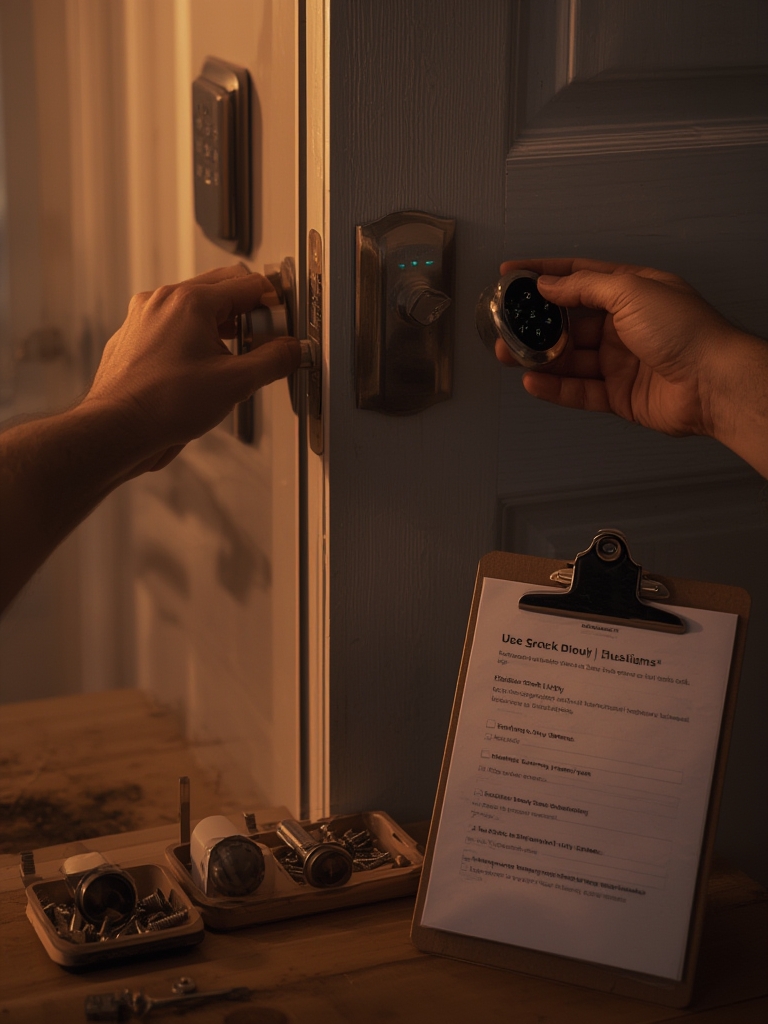
This 1‑page checklist is designed to be printed and checked during install and verification.
Printable 1‑page checklist (copy/print)
Escalation flow (fast)
- If any test fails: collect video, timestamps, firmware version and battery level.
- Contact vendor support with evidence and request measured latency logs / known issues.
- If vendor replacement required, request RMA with “tested replacement” clause; keep original for comparison.
- If unresolved after vendor replacement, schedule a pro locksmith (document time and costs) and escalate to consumer protection if a pattern of failure persists.
Template support message (copy/paste):
Model: ______
Serial: ______
Firmware: ______
Date/Time of failure: ______
Steps to reproduce: manual thumbturn → keypad → app → auto‑lock
Attached: video with timestamps, battery level screenshot
Request: replacement or firmware fix
Pitfall to avoid: Contacting support without recorded evidence or firmware/version details.
Conclusion
Turn the search for “cyberpunk 2077 smart weapons lock and miss” into action: measure your door, install and align mechanically, then pair, update and calibrate — following the printable checklist will eliminate most “lock and miss” failures. Ready to compare models and pick the best smart lock for your use case? Check our buyer comparison and installation clusters to decide, or subscribe for model test updates and detailed latency benchmarks.
FAQ
What exact door measurements do I need before buying a smart lock?
Measure door thickness (1‑3/8″–2″), backset (2‑3/8″ or 2‑3/4″) and confirm a 2‑1/8″ crossbore — these determine mechanical fit (Home Depot — 2023-10-01).
How do I test whether a “lock and miss” is mechanical or electronic?
Run a repeatable sequence: manual thumbturn, keypad code, app lock, and auto‑lock, recording whether the deadbolt physically completes its travel each time (Home Depot — 2023-10-01).
What are the most common install mistakes that cause incomplete bolt throws?
Wrong latch box depth/tailpiece orientation, misaligned strike plate (no mortise/shim), cable pinch and skipping manual throw tests (Lockin — 2024-05-15).
Should I update firmware immediately after installing?
Yes — pair, update firmware and complete keypad calibration before finalizing the install to eliminate software-related misses (Lockin — 2024-05-15).
How do I prepare evidence before contacting vendor support for a recurring miss?
Record video of the failure with timestamps, note firmware/app versions, serial number, and exact steps to reproduce — include manual tests and battery level.
Can I install a smart lock without a hub?
Many Bluetooth and Wi‑Fi models are hub‑free, but Z‑Wave locks require a compatible hub — check the vendor compatibility list (No reliable data found for a universal hub list; verify vendor docs).
What quick fallback should I use if the lock intermittently fails at night?
Keep the mechanical key accessible and perform a manual thumbturn test to secure the door while you collect logs and retry calibration.