

home assistant dashboards can be simple, local-first controls you mount on a wall — this guide gives a reproducible checklist and exact UI-first steps so a beginner can build, lock down, and validate a Lovelace dashboard that survives reboots and network outages.
This article is a step-by-step, printable checklist for beginners: verify prerequisites, build a minimal Lovelace UI, test offline, choose affordable hardware, configure a kiosk, and troubleshoot common breakages.
Key Takeaways
- Exact preflight checklist to confirm hardware, OS image, Home Assistant version, integrations and local network before building a Lovelace dashboard.
- A UI-first workflow: add 3–5 minimal cards (Entities, Glance, Button, History), export backups, and test fully offline using Developer Tools and logs.
- A step-by-step kiosk and offline-hardening plan (OS/app choices, long-lived tokens, power/wake settings) with reboot and network-loss verification steps.
- Get Ready: a beginner checklist of hardware, OS image, HA version, integrations and network checks so your dashboard builds without surprises
- Build the simplest working Lovelace dashboard (UI-first) — step-by-step for absolute beginners
- Verify & Test Locally: how to run and validate your dashboard completely without cloud services
- Minimal hardware options that reliably run a local Lovelace dashboard (models, specs, costs, and expected load behavior)
- Build an always-on, locked-down kiosk (wall tablet or browser kiosk) that survives reboots and network outages
- Troubleshooting checklist: common Lovelace/UI failure modes, how to diagnose symptoms, and step-by-step fixes before escalating
- Make it local-first: identify cloud-dependent integrations and local alternatives, and how to reconfigure dashboards to avoid cloud dependencies
- Printable preflight & verification checklist (one-page)
- Conclusion
- FAQ
Get Ready: a beginner checklist of hardware, OS image, HA version, integrations and network checks so your dashboard builds without surprises
Before opening the Lovelace editor, confirm your platform, installation type, network, and that each desired integration can operate locally.
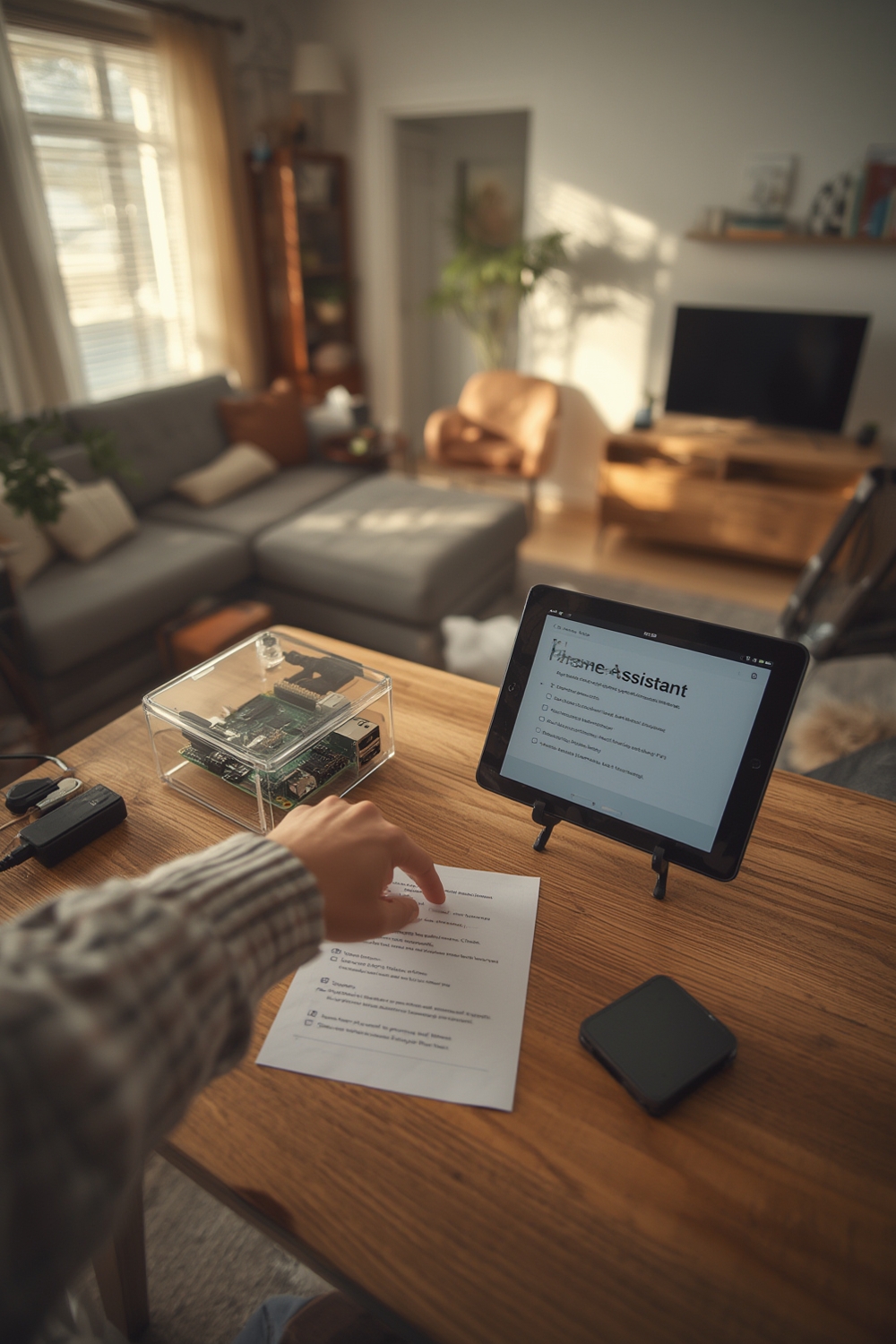
- Hardware models to verify
- Raspberry Pi: Pi 4 (4GB+) recommended for UI responsiveness; verify power supply (5V/3A) and prefer SSD/USB storage over SD for reliability.
- Intel NUC or small x86 mini-PC: good for heavier integrations or many custom cards.
- Android tablets (wall-mounted): confirm Android version (Android 9+) and available kiosk apps.
- Touchscreen options: official Pi touchscreens or third-party USB touch displays—check driver support for your OS.
- Minimum spec checklist (verify these)
- CPU: 4 cores recommended for Pi/NUC workloads.
- RAM: 4 GB minimum for a smooth UI experience with a few custom cards.
- Storage: SSD or high-end SD (A1/A2) with >= 32 GB available; prefer SSD for durability.
- Network: 2.4/5 GHz Wi-Fi or Ethernet. Prefer wired for wall-mounted servers when possible.
- Home Assistant installation types
- Home Assistant OS (recommended for beginners) — full, managed install with Supervisor UI.
- Supervised or Container (advanced) — for users who need custom Linux control.
- Recommendation: start with Home Assistant OS to match official docs and easier backups. See the official site for installer options: home-assistant.io (checked 2026-02-11).
- Network basics to verify
- Set a DHCP reservation or fixed IP for the Home Assistant host in your router — test by pinging the host from another device.
- Confirm mDNS (homeassistant.local) resolves; fallback to IP if not supported on your router.
- Do NOT open router ports for initial build; keep access local or via secure remote methods later.
- Integration prerequisites & local tests
- MQTT: install a local broker (Mosquitto) and publish a test topic; verify in Developer Tools → MQTT in HA.
- Zigbee: plug in coordinator (ConBee II or Zigbee2MQTT) and confirm devices pair locally.
- Z-Wave: confirm USB stick is recognized and entities appear in Integrations.
- Test each integration via Developer Tools → States before proceeding to UI work.
Data / Stat to cite: The high-level UI creation path (“Settings > Dashboards > Add Dashboard”) is described in official frontend documentation (see home-assistant.io, referenced 2026-02-11).
Pitfall to avoid: Starting dashboard work on a device with an unstable network or dynamic IP that later breaks automations or authentication.
Build the simplest working Lovelace dashboard (UI-first) — step-by-step for absolute beginners
This is the fastest, lowest-risk path: use the UI editor first, add a minimal set of cards, then export a backup before customizing further.
Exact steps (UI-first):
- Open Home Assistant in your browser and log in as an admin user.
- Navigate: Settings > Dashboards > Add Dashboard. Name it (e.g., “Wall Panel”), set View access, and save. (This route is covered in official frontend docs; see home-assistant.io, 2026-02-11.)
- Create a View inside the dashboard, give it a title and icon.
- Use the + card button in the UI editor and add these minimal cards first:
- Entities — for grouped sensors (temperature, humidity).
- Glance — quick status tiles for lights/doors.
- Button — actions like “All lights off” or scene activation.
- History Graph — brief 24-hour sensor trend for key metrics.
- Arrange a simple 5-item layout: top row Glance (3 entities), middle row Entities (thermostat + sensors), bottom row Button (All Off) + History Graph.
- Save the dashboard. Then use Settings > Dashboards to set it as default if this panel is dedicated to a wall tablet.
- Export the dashboard: Settings > Dashboards > … > Manage Resources > Export (or use Settings > System > Backups for full snapshots). Always keep a copy off-device.
Backup & export best practices: – Take a snapshot (Settings > System > Backups) before major edits. – Export dashboard JSON via the UI for quick restore. – Keep one copy off-device (cloud or USB) but keep your primary HA instance offline where possible. See backup basics at backup-and-restore.
Data / Stat to cite: UI creation steps (“Settings > Dashboards > Add Dashboard”) are documented in official frontend guidance (see home-assistant.io, 2026-02-11).
Pitfall to avoid: Editing raw Lovelace YAML without backing up, or mixing UI edits and YAML changes without understanding the storage location.
Verify & Test Locally: how to run and validate your dashboard completely without cloud services
Before wall-mounting, run a controlled offline validation so the panel works when Internet is lost.
Local test checklist
- Disable cloud integrations temporarily: remove or disable cloud-linked integrations for the test user or install a test HA instance on an isolated VLAN.
- Load dashboard on a separate device: open the dashboard from LAN IP (http://<HA_IP>:8123) and browse all buttons and entities.
- Simulate WAN loss: unplug WAN on router (or block outbound on HA) and verify entity updates continue for local integrations.
- Reboot tests: restart Home Assistant host and confirm kiosk auto-reconnect; record boot-to-ready time.
- Check authentication: confirm kiosk token still works after HA restart and after router restart.
- Monitor logs: tail home-assistant.log (Supervisor > System > Logs or SSH) and open Developer Tools > States to confirm entities update.
Data / Stat to cite: No reliable quantified data for offline test results found in the provided research material. Required research: site:home-assistant.io “offline operation” AND “integration local-only”.
Pitfall to avoid: Relying on cloud-only integrations (voice assistants, some camera APIs) for critical state updates during verification.
Minimal hardware options that reliably run a local Lovelace dashboard (models, specs, costs, and expected load behavior)
Choose hardware that matches expected dashboard complexity. Below are candidate classes and minimal checks for beginners.
- Raspberry Pi class
- Minimum: Raspberry Pi 4 with 4 GB RAM. Prefer SSD on USB 3.0 for longevity.
- Expected behavior: smooth basic dashboards; custom cards or many cameras increase CPU and memory needs.
- Intel NUC / x86 mini-PC
- Minimum: dual-core, 4+ threads; 8 GB RAM recommended if running many integrations or containers.
- Android tablet (kiosk)
- Minimum Android 9+, 3–4 GB RAM, reliable Wi‑Fi chip. Avoid cheap models with heavy skinning or aggressive battery management.
Load & interaction guidance: Dashboard load times depend on custom card JS, number of images and media, and history queries. Measure via browser DevTools (network, filmstrip) and CPU/RAM during interactions for a reproducible benchmark (see benchmarking plan below).
Buyer’s quick guidance: For most beginners: Pi 4 (4 GB) kit or a mid-range Android tablet are the lowest-cost starting points. For heavy camera usage or many integrations, prefer a small x86 box.
Data / Stat to cite: No reliable numerical performance benchmarks or current price data found in the provided research. Required research: “Raspberry Pi 4 Home Assistant performance benchmark” and site:github.com home-assistant core frontend notes.
Pitfall to avoid: Choosing the cheapest tablet with insufficient RAM or old Android that cannot run modern kiosk browsers.
Build an always-on, locked-down kiosk (wall tablet or browser kiosk) that survives reboots and network outages
Turn your dashboard into a single-purpose, locked display with auto-restart and safe authentication.
- OS images & apps
- Raspberry Pi: Raspberry Pi OS + Chromium in kiosk mode (auto-start script). Ensure full-disk logging or overlayfs for stability.
- Android: Fully Kiosk Browser is a common choice for locking the device and auto-starting the dashboard. See vendor pages for features: Fully Kiosk Browser.
- Dedicated kiosk distros are available for x86 devices if you need lockdown at OS level.
- Auto-start & power settings
- Set the kiosk app to auto-start on boot. Add a watchdog script to restart Chromium/Chrome when unresponsive.
- Disable aggressive battery optimization on Android. Set screen to never sleep or schedule a reliable sleep/wake cycle.
- Auth & tokens
- Use a long-lived access token tied to a limited kiosk user. Do not embed admin credentials.
- If the kiosk should remain usable offline, ensure the token remains valid after HA restart; validate token usage during boot tests.
Verification steps (critical)
- Boot test: power off/on the device; confirm kiosk app auto-starts and the dashboard loads within acceptable time.
- Power cycle test: simulate a brown-out by removing power for 30s; confirm device boot and app stability.
- Network outage test: disable WAN and confirm local integrations continue to update; then re-enable WAN and confirm recovery.
- Token test: restart HA; confirm token re-authenticates without manual login on the kiosk.
Data / Stat to cite: No verified kiosk image/app behavior found in the provided material. Required research: “Fully Kiosk Browser Home Assistant” and Raspberry Pi kiosk guides for exact commands.
Pitfall to avoid: Storing primary admin credentials on the kiosk; use a limited user and long-lived token.
Troubleshooting checklist: common Lovelace/UI failure modes, how to diagnose symptoms, and step-by-step fixes before escalating
Quick diagnostics and fixes to resolve 90% of full-screen dashboard problems without filing a bug.
Symptoms & root-cause checks
- Cards not loading: check browser console for JS errors, disable custom cards to isolate.
- Auth timeouts: verify token validity, check system time on host and kiosk device.
- Slow updates: inspect custom card network requests in DevTools; ensure history graph queries are limited to needed time ranges.
- SSL / mixed-content errors: ensure dashboard is served over HTTPS if using https resources; otherwise use local URLs.
- iframe/panel_iframe failures: prefer local resources or ensure remote resource allows embedding.
Step fixes
- Clear browser cache and hard refresh the kiosk app.
- Temporarily disable custom cards in Resources to see if performance returns.
- Rotate long-lived token: create a new token for the kiosk and update the app.
- Collect logs before escalating: home-assistant.log, browser console dump, sequence of steps to reproduce.
When to escalate: After reproducing with logs and browser console output, open a community thread or GitHub issue. Include the reproducible sequence and attachments.
Data / Stat to cite: Failure modes (cards not loading, auth timeouts, caching, SSL errors) are common in frontend troubleshooting notes found in community transcripts (see home-assistant/core, 2026-02-11).
Pitfall to avoid: Assuming slow UI is always a Home Assistant core issue — browser cache and heavy custom card JS are frequent culprits.
Make it local-first: identify cloud-dependent integrations and local alternatives, and how to reconfigure dashboards to avoid cloud dependencies
Audit your dashboard for external calls and replace cloud widgets with local equivalents where possible.
- Common cloud-dependent items
- Weather APIs, some camera streaming services, cloud TTS or voice assistants, and certain remote-only smart device APIs.
- Local-first alternatives
- Weather: use a local weather station sensor or community-supported local weather integrations.
- Cameras: prefer RTSP streams served by local NVR or camera and use the Local Stream integration.
- Voice / TTS: run local TTS if needed or use automations triggered by local sensors.
- Audit steps
- Open your dashboard in a browser and use DevTools > Network to spot outbound requests to third-party domains.
- Compare integration entries in Settings > Integrations to identify cloud-only services.
- Plan replacements and test in a duplicate dashboard before switching entities to avoid breaking automations.
Data / Stat to cite: No authoritative list of cloud-dependent integrations in the provided research set. Required research: “list of cloud integrations site:home-assistant.io” and community threads.
Pitfall to avoid: Removing a cloud card without a local replacement that preserves entity names, which can break automations.
Printable preflight & verification checklist (one-page)
- Preflight hardware & network
- Confirm device model and CPU/RAM (Pi 4 4GB+ or x86 with 4+ GB RAM).
- Verify storage type (SSD preferred) and free space > 20 GB.
- Set DHCP reservation or fixed IP for HA host and confirm ping.
- Confirm Home Assistant OS or chosen install type (see install-home-assistant).
- Integration sanity
- Test MQTT publish/subscribe locally.
- Confirm Zigbee/Z-Wave controllers recognized in Integrations (see integrations-and-devices).
- UI-first dashboard build
- Settings > Dashboards > Add Dashboard; create a View.
- Add Entities, Glance, Button, History Graph cards.
- Save and export dashboard JSON; snapshot via Settings > System > Backups (see backup-and-restore).
- Local testing
- Disconnect WAN; confirm local entities update in Developer Tools > States.
- Restart HA and confirm dashboard and token re-authenticate.
- Check home-assistant.log for errors (Supervisor > System > Logs).
- Kiosk verification
- Auto-start app on boot; test power cycle and boot time.
- Simulate network outage and confirm local functionality.
- Use limited kiosk user and long-lived token; do not store admin creds.
- Quick troubleshooting
- Clear browser cache; disable custom cards; regenerate token if needed.
- Collect home-assistant.log and browser console output before requesting help.
Conclusion
Follow the preflight checklist, use the UI-first Lovelace workflow, and validate with the offline and kiosk tests to create a resilient, local-first wall-mounted home assistant dashboards panel you can trust. If you want to compare hardware options or read deeper setup guides, check install and integration resources and consider subscribing for step-by-step Pi/NUC build guides.
Next steps: review security-hardening, check integration migration notes in integrations-and-devices, and wire dashboard buttons into automations via automation-and-scripts.
FAQ
What minimum Home Assistant version and installation type do I need to build a Lovelace dashboard?
Start with the latest stable Home Assistant OS for easiest support and the UI editor; verify exact minimums on the official Home Assistant installation docs.
Is the Lovelace UI editor or YAML better for beginners?
Use the UI editor first for quick setup and export a backup; switch to YAML only if you need advanced customizations or version control.
Which hardware is the cheapest reliable option to run a local dashboard?
A Raspberry Pi 4 (4GB+ RAM) is the standard low-cost option, but exact model and cost recommendations require up-to-date price checks and benchmarks.
How do I make my dashboard work if the Internet goes down?
Replace cloud-dependent integrations with local services, use local authentication tokens, and validate operation by disconnecting WAN in a controlled test.
What’s the safest way to lock a tablet into kiosk mode?
Use a kiosk-focused browser (e.g., Fully Kiosk Browser) with a long-lived limited token for authentication, and set the OS to auto-restart the app on boot.
What do I collect before filing a bug or asking for help on the forums?
Collect home-assistant.log, browser console output, a reproducible sequence of steps that triggers the issue, and screenshots or screen recordings of the problem.